


 NuGet
NuGet
HTML templates and mail merge
Build reusable HTML email and document templates inside your Avalonia application. Insert fields such as customer names or reference numbers from your own commands, then merge your application values and export the completed HTML.
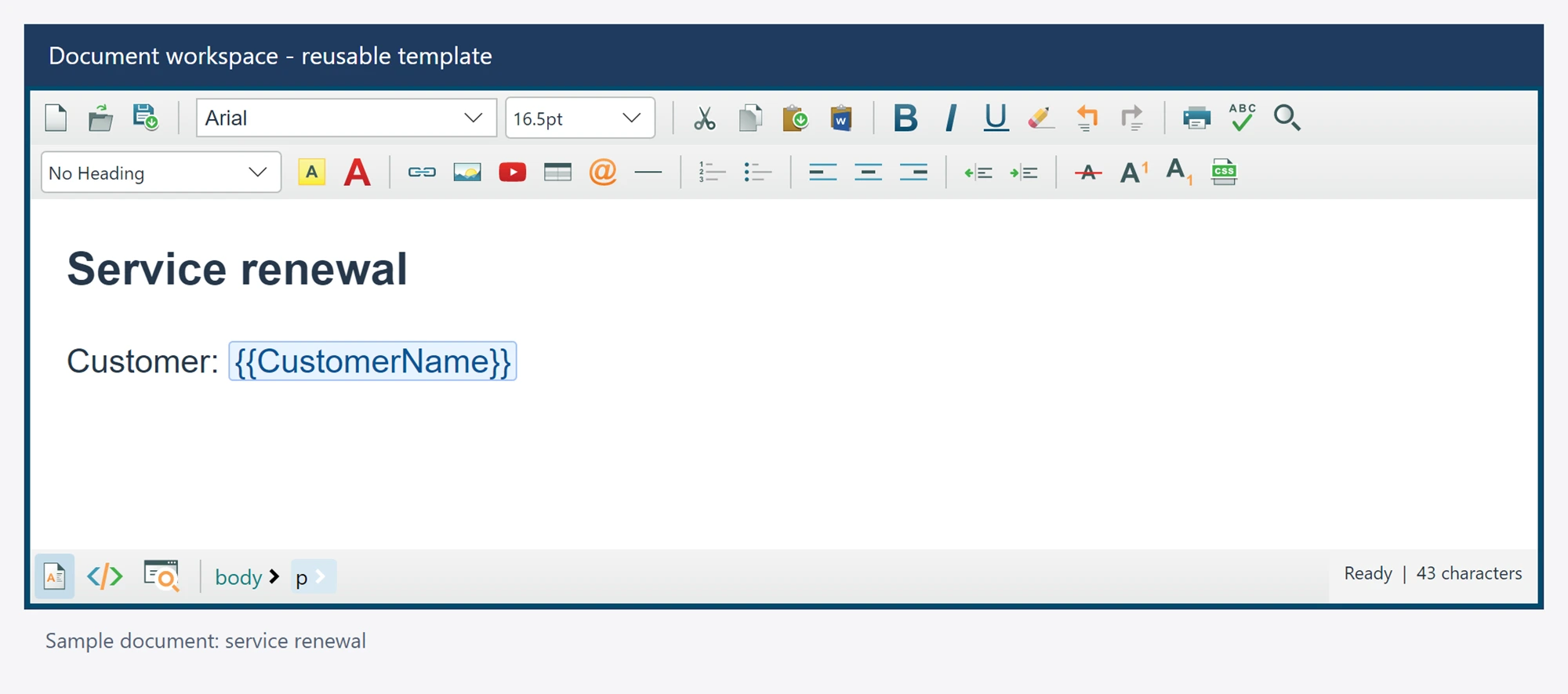
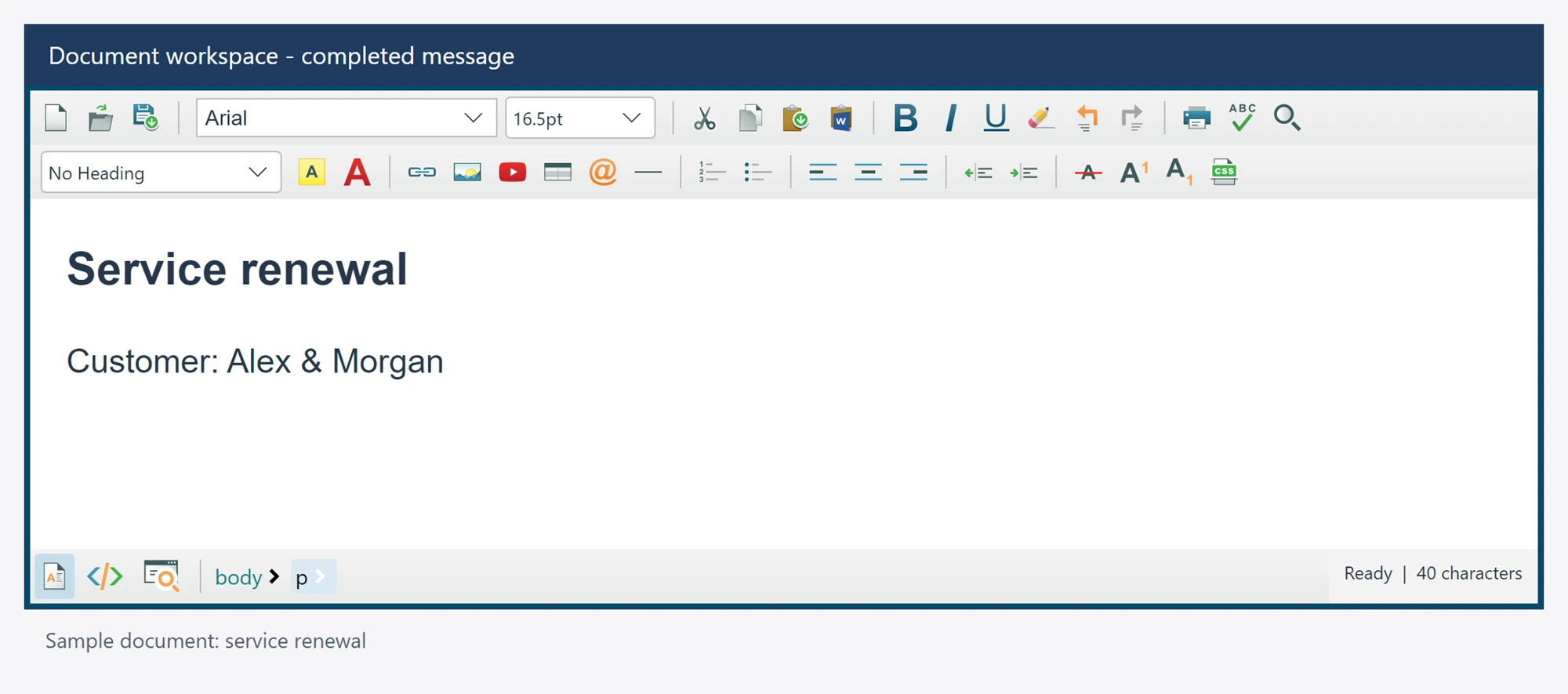
using SpiceLogic.HtmlEditor.Abstractions.Entities.MailMerge;

var name = new PlaceholderField("Customer name", "{{CustomerName}}");
editor.MailMerge.PlaceholderFields.Add(name);
await editor.MailMerge.InsertPlaceholderAsync(name);
await editor.MailMerge.MergeAsync(new Dictionary<string, string?>
{
    ["Customer name"] = "Alex & Morgan"
});
string html = await editor.GetBodyHtmlAsync();
Merge keys are exact display names stored in the field's data-sl-field attribute. Values become literal text, including markup characters. Unsupplied fields remain in the template. Use GetFieldsAsync to discover the fields in accepted content.
Use a template in your application
- Create the formatted template and insert the fields your application provides.
- Save the unmerged template so it can be reused for another message or document.
- Load a copy, merge values using exact field display names, then export the finished HTML.
The insertion token and field display name are separate values. Merge values are literal text, including Unicode and markup characters. When preparing an email with images, use the email export workflow before handing the message to your delivery service.