NuGet
NuGet
High-DPI scaling: px and pt
Display scaling can make HTML text sized in CSS pixels appear different from text sized in points. This guide explains that difference and how the embedded document mode affects it. Configure BrowserEmulationMode before creating the editor, then verify your document at the target display scale.
Why px and pt behave differently
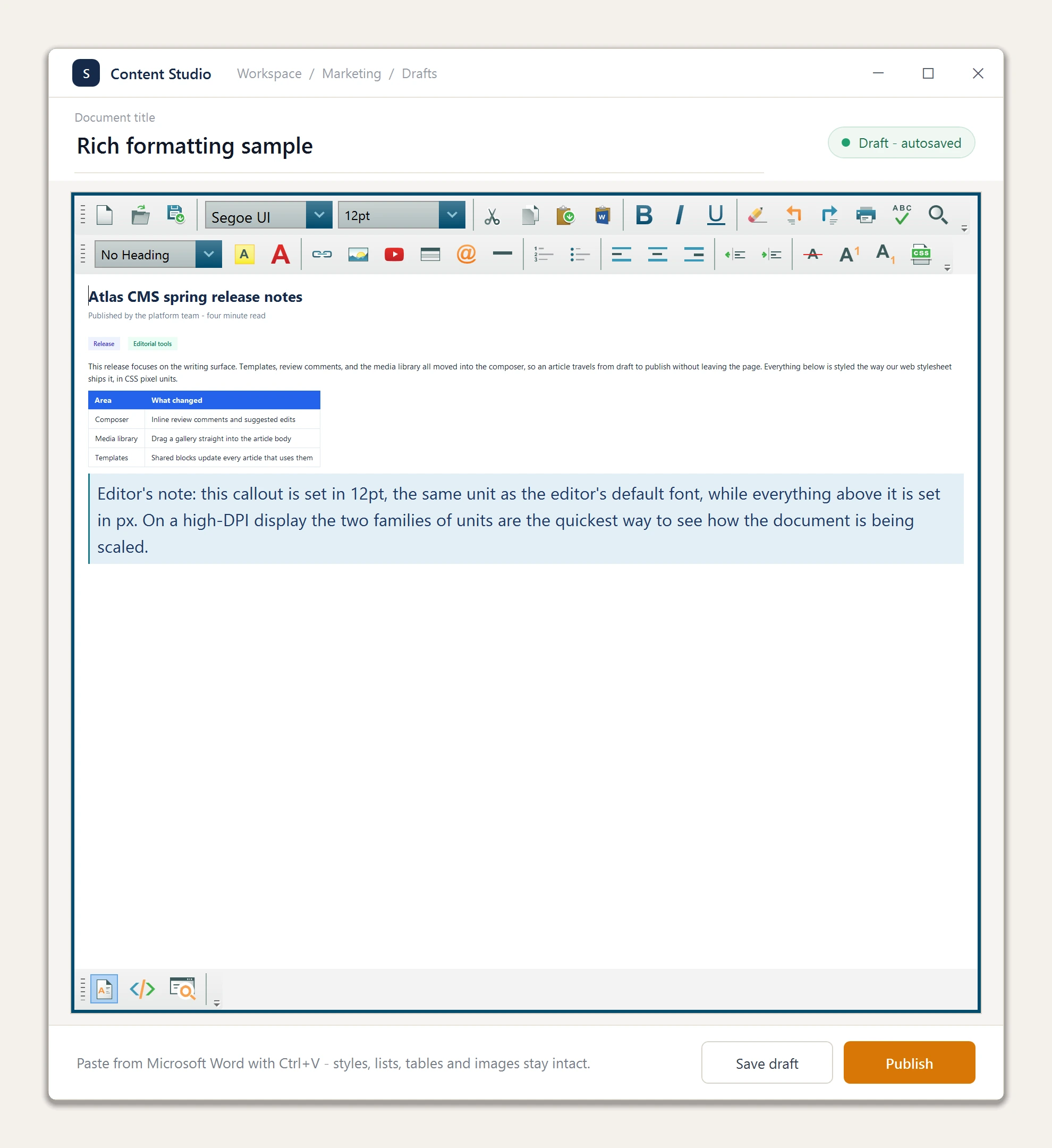
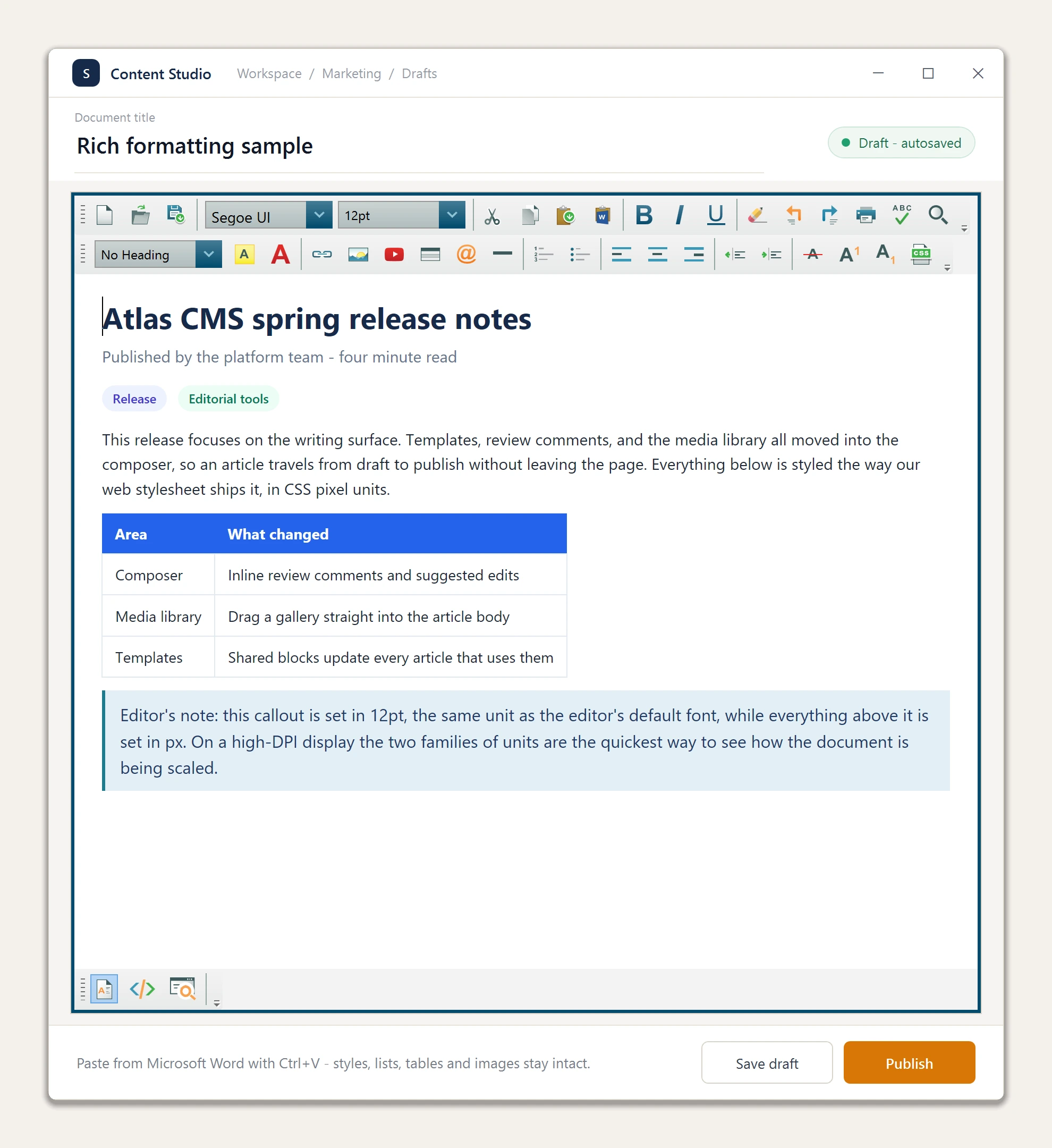
The editor hosts the Windows MSHTML engine. In its default document mode that engine maps one CSS px straight onto one hardware pixel, while physical units (pt, in, cm) map through the monitor's DPI. At 200 percent scale that renders 12pt text at exactly the right size and a font-size: 28px heading at half the size a browser gives it. Nothing is misconfigured in your application; this is how the legacy engine renders.
The toolbar's font controls work in points and content pasted from Microsoft Word is point-based too, so applications that type, format, and paste from Word look right out of the box. The half-size effect appears when content arrives with px styling: web pages pasted into the editor, hand-authored HTML and CSS, or px-sized tables and images.
The fix: opt into Internet Explorer 11 mode
From version 3.7.2, the Internet Explorer 11 opt-in also enables high-DPI document scaling. The editor writes the two per-user registry values MSHTML needs (FEATURE_BROWSER_EMULATION and FEATURE_96DPI_PIXEL, keyed to your executable) and drives the document zoom to match the monitor the editor sits on, per monitor, including mixed-DPI setups. px and pt content then both render at the size a browser gives them. The two screenshots below show the same document before and after the opt-in.
protected override void OnStartup(StartupEventArgs e)
{
    WpfHtmlEditor.LicenseKey = "your-license-key";

    // Must run at application startup, before the first window is created.
    WpfHtmlEditor.BrowserEmulation = BrowserEmulationMode.InternetExplorer11;

    base.OnStartup(e);
}
Protected Overrides Sub OnStartup(e As StartupEventArgs)
WpfHtmlEditor.LicenseKey = "your-license-key"
' Must run at application startup, before the first window is created.
WpfHtmlEditor.BrowserEmulation = BrowserEmulationMode.InternetExplorer11
MyBase.OnStartup(e)
End SubSet BrowserEmulation in your Application.OnStartup override (or at the top of a custom Main), before any window exists: MSHTML reads those registry values earlier than a window constructor can run, so an assignment made there renders correctly from the very first launch. Assigned later, the document mode still applies but the first run keeps the old scale until the next launch.
Two things to know before opting in. Internet Explorer 11 mode changes how documents render and how some editing commands behave; it is the same switch that unlocks modern CSS support, described in Modern CSS is not rendering, so retest your documents after switching. And when a Japanese keyboard layout is installed, BrowserEmulationMode.InternetExplorer11 declines to apply so IME text entry keeps working; use BrowserEmulationMode.InternetExplorer11Forced when that trade-off is yours to make. BrowserEmulationMode.Legacy removes the registry values again.
If you stay in the default mode
Prefer points for font sizes in documents you generate or template yourself; pt, in, and cm render at true physical size in every mode. The editor's own defaults already work this way, so nothing changes for applications that never load px-styled content. Earlier 3.7.x versions accept the opt-in but ship without the high-DPI pairing, so update to 3.7.2 or later before relying on it on scaled displays.