


 NuGet
NuGet
Insert and edit tables
Tables arrange HTML content into rows and columns for layouts such as invoices, reports and comparison grids. Users can insert and edit them through the table toolbar, including merging cells and formatting borders. For changes made from application code, see the Table Authoring Service reference.
1. Inserting a table
Place the caret where the table should appear and click the Table button on the toolbar (the icon shows a small grid). It opens the Table Properties dialog, ready to insert a new table:
- Rows and Columns - the initial size, 3 by 3 by default. You can add or remove rows and columns later from the right-click menu.
- Width and Height - the overall table size, in pixels or as a percentage. Percentage is the right choice for tables that go into emails or responsive pages.
- Border Width, Border Style and Border Collapse - the visible grid; tick Apply border to cells to draw it around every cell. Set the width to
0for a layout-only table (see section 6). - Cellpadding and Cellspacing - the space inside each cell and between cells.
- Caption, Summary Description, ID, Class Name and CSS - optional attributes for accessibility and styling.
Click OK to insert. The table appears at the caret position and the caret moves into the first cell so you can start typing immediately. Click the same Table button while the caret is inside a table to change that table's properties.
2. Resizing rows and columns
Two ways:
- Drag a border. Hover over the line between two columns (or two rows). The cursor changes to a double-headed resize arrow. Click and drag to move the boundary. The neighbouring column / row absorbs the difference.
- Edit Cell Properties. Right-click inside a cell and choose Cell Properties. The dialog lets you set
WidthandHeightexplicitly in pixels or percentage - use this when you need a precise size rather than an eyeballed drag.
3. Adding and removing rows and columns
Right-click inside the cell next to which you want the change, and open the Table submenu:
- Insert Row Before / Insert Row After
- Insert Column Before / Insert Column After
- Delete Row / Delete Column
- Merge Cells and Table Properties (sections 4 and 7)
If you delete the last row, the entire table is removed. Same with the last column. This is intentional - an empty table with no rows would be invisible and impossible to interact with.
4. Merging cells
To merge cells:
- Press the mouse button in the first cell and drag across the rectangle of cells you want to merge. The selection is highlighted with a light overlay colour.
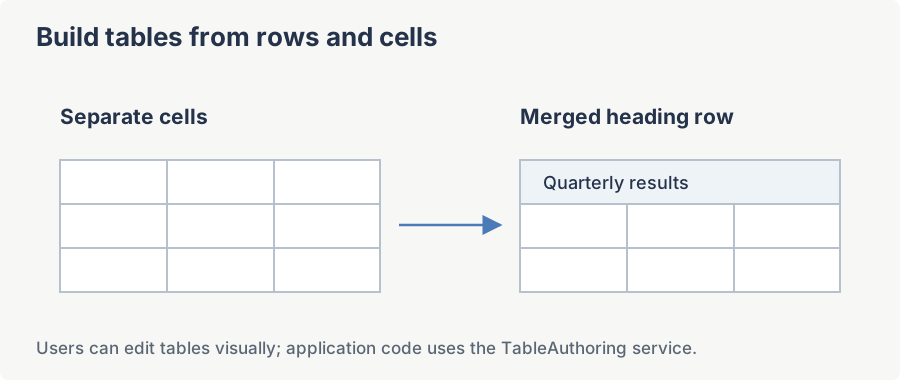
- Right-click and choose Table > Merge Cells. The selected cells collapse into one. The content of the top-left cell is preserved; the content of the other cells is concatenated into it.
Rules of thumb.
- The selection must be a rectangle. You cannot merge an L-shape or a diagonal set of cells.
- The cells must be adjacent. Two cells in opposite corners of a table cannot be merged together.
- If Merge Cells is greyed out, your application developer has turned cell merging off (the
EnableTableCellMergeoption, which is on by default).
5. Cell background, alignment and size
Right-click inside a cell and choose Cell Properties. One dialog sets:
- Width and Height - in pixels or as a percentage.
- Horizontal Align and Vertical Align - vertical alignment is what most authors miss.
- No Wrap - keeps the cell text on one line.
- Background Color - written as an inline
background-colorstyle on the<td>element. - Class Name and CSS - your own styles, for example a top border on a totals row.
Tick Override settings to all cells to apply the same settings to every cell in the table.
6. Zero-border (layout-only) tables
Tables are still the most reliable way to lay out HTML email and printable invoices. For these you want the cell grid as a structural skeleton but you do not want the border lines to show in the final output. Two ways to get there:
- At creation time: in the Table Properties dialog, set Border Width to
0. - On an existing table: right-click inside any cell, choose Table > Table Properties, and set Border Width to
0.
While you author, cells with a zero border would otherwise be invisible. The editor solves this by drawing dashed grey design-time guidelines on top of zero-border tables. The guidelines never appear in the saved HTML - they exist only on the editing surface. For the technical details and how a developer can customise the guideline style, see Guidelines in Design Time for Zero Border Table.
7. Table settings and cell settings
Two dialogs, two scopes:
- Table Properties (right-click > Table > Table Properties, or the toolbar Table button with the caret in a table) changes the whole table: size, borders, padding, spacing and caption.
- Cell Properties (right-click > Cell Properties) changes the cell under the caret, or every cell when Override settings to all cells is ticked.
If a change does not appear where you expected, check which of the two dialogs you used.
8. Selection highlight colour
When you drag across multiple cells (section 4), the editor draws a translucent overlay so you can see what is in your selection. The default is a light blue. If the colour clashes with your document background, ask your developer to change TableAuthoringService.SelectedCellBackgroundColor - it is a one-line setting in code. This colour never appears in the saved HTML; it is only on the editing surface.
For developers
Every action on this page can also be driven from C# / VB.NET code. The corresponding service is MyEditor.Content.TableAuthoringService. See Table Authoring Service for the full API reference with worked examples for InsertColumn, InsertRow, DeleteColumn, DeleteRow, MergeSelectedCells, CanMergeCells, and the zero-border guideline overlay methods.
Ask your AI to do this
Connect the SpiceLogic MCP server, then give your coding assistant this prompt.
I use the SpiceLogic WPF HTML Editor. Help me insert a table and use the supported row, column and cell operations. Confirm the exact API names, types and defaults with the SpiceLogic MCP documentation, then show the changes for my project.