


 NuGet
NuGet
Read-only and preview modes
The editor offers three ways to work with a document: visual editing, HTML source editing and read-only preview. EditorMode selects the view. Set IsEnabled to false to disable interaction without changing views.
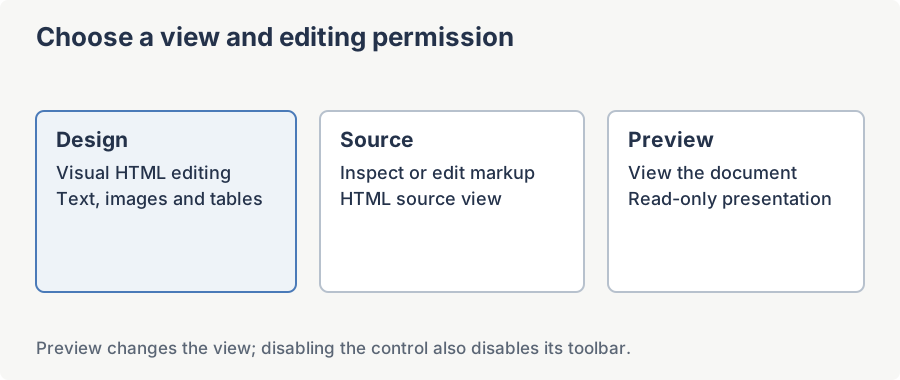
The three editor modes
The mode is held in the EditorMode dependency property of type SpiceLogic.HtmlEditor.Abstractions.EditorModes. The enum has three values:
| Value | What the user sees | Editing |
|---|---|---|
WysiwygDesign | Rendered HTML with the caret and spell-check underline. | Full WYSIWYG editing. |
HtmlEdit | The raw HTML source in a monospace text area. | The user edits markup directly. Formatting commands targeted at a rendered DOM are no-ops here. |
ReadOnlyPreview | Rendered HTML exactly as a browser shows it, with no caret or selection chrome. | None. Keystrokes are ignored. Anchors become live (see below). |
Note on the enum name. The third value is ReadOnlyPreview. Older third-party copy sometimes refers to it as HtmlPreview; that name was never on the public enum. Use ReadOnlyPreview in code and bindings.
Switching mode from C# and XAML
From C#, set the property directly. From XAML, bind it or set the literal enum value. The control raises the EditorModeChanged routed event after the swap, so the same handler covers code-driven changes and user clicks on the built-in Source / Preview toolbar buttons.
<wpfHtmlEditor:WpfHtmlEditor

    x:Name="MyEditor"

    EditorMode="ReadOnlyPreview"

    EditorModeChanged="MyEditor_EditorModeChanged" />
Read-only without leaving Design view
If you want the editing surface to stay rendered exactly as it is - for example after Save - but to stop accepting input, do not switch modes. Set MyEditor.IsEnabled = false. That disables the surface, the toolbar and the keyboard together; setting IsEnabled back to true re-enables interaction.
MyEditor.IsEnabled = false; // lock
MyEditor.IsEnabled = true; // unlock
MyEditor.IsEnabled = False ' lock
MyEditor.IsEnabled = True ' unlockAllowing link clicks in Preview
WPF preview uses the native WPF WebBrowser navigation behavior. To route a clicked link through your application, subscribe to HtmlElementClicked and set EventData.returnValue to false before handling the URL:
using SpiceLogic.HtmlEditor.Abstractions;
using SpiceLogic.HtmlEditor.WPF.EditorEventArgs;

MyEditor.HtmlElementClicked += (s, e) =>
{
    if (MyEditor.EditorMode != EditorModes.ReadOnlyPreview)
        return;
    if (e.ElementType != HtmlElementTypes.Hyperlink)
        return;
    string href = e.ClickedElement.getAttribute("href") as string;
    if (string.IsNullOrWhiteSpace(href)) return;
    e.EventData.returnValue = false;
    MyAppRouter.Navigate(href); // your own handler
};
Imports SpiceLogic.HtmlEditor.Abstractions
Imports SpiceLogic.HtmlEditor.WPF.EditorEventArgs
AddHandler MyEditor.HtmlElementClicked, Sub(s, e)
If MyEditor.EditorMode <> EditorModes.ReadOnlyPreview Then Return
If e.ElementType <> HtmlElementTypes.Hyperlink Then Return
Dim href As String = TryCast(e.ClickedElement.getAttribute("href"), String)
If String.IsNullOrWhiteSpace(href) Then Return
e.EventData.returnValue = False
MyAppRouter.Navigate(href) ' your own handler
End SubHandling the event alone does not cancel navigation; the returnValue assignment does that. The editor attaches this event on the next selection change while a subscriber is present, so a handler added immediately after construction may miss the first click. For top-level browser navigation, you can instead handle GetThePreviewWebBrowser().Navigating and set Cancel to true.
Hiding the toolbar in read-only mode
The two factory toolbars are exposed as Toolbar1 and Toolbar2. Toggle their Visibility from EditorModeChanged so the chrome follows the mode:
MyEditor.EditorModeChanged += (s, e) =>
{
    var v = MyEditor.EditorMode == EditorModes.WysiwygDesign ? Visibility.Visible : Visibility.Collapsed;
    MyEditor.Toolbar1.Visibility = v;
    MyEditor.Toolbar2.Visibility = v;
    MyEditor.ToolbarFooter.Visibility = v;
};
AddHandler MyEditor.EditorModeChanged, Sub(s, e)
Dim v = If(MyEditor.EditorMode = EditorModes.WysiwygDesign, Visibility.Visible, Visibility.Collapsed)
MyEditor.Toolbar1.Visibility = v
MyEditor.Toolbar2.Visibility = v
MyEditor.ToolbarFooter.Visibility = v
End SubRemembering the user's last mode across sessions
Persist the enum value as its name (a string), not its integer - the int values are an implementation detail and could shift if new modes are ever added. Restore the saved value on startup:
// On window closing:
Properties.Settings.Default.LastEditorMode = MyEditor.EditorMode.ToString();
Properties.Settings.Default.Save();
// On window Loaded:
if (Enum.TryParse<EditorModes>(Properties.Settings.Default.LastEditorMode, out var saved))
    MyEditor.EditorMode = saved;
' On window closing:
Properties.Settings.[Default].LastEditorMode = MyEditor.EditorMode.ToString()
Properties.Settings.[Default].Save()
' On window Loaded:
Dim saved = Nothing
If [Enum].TryParse(Of EditorModes)(Properties.Settings.[Default].LastEditorMode, saved) Then MyEditor.EditorMode = savedFull example - preview-with-link-handling and Escape to go back
<DockPanel>

    <TextBlock x:Name="statusText" DockPanel.Dock="Bottom" Margin="6" />

    <Button DockPanel.Dock="Top" Content="Preview" Click="OnPreviewClick" />

    <wpfHtmlEditor:WpfHtmlEditor

        x:Name="MyEditor"

        EditorModeChanged="OnEditorModeChanged"

        HtmlElementClicked="OnHtmlElementClicked"

        KeyDown="OnEditorKeyDown" />

</DockPanel>using System.Windows;
using System.Windows.Input;
using SpiceLogic.HtmlEditor.Abstractions;
using SpiceLogic.HtmlEditor.WPF;
using SpiceLogic.HtmlEditor.WPF.EditorEventArgs;
public partial class MainWindow : Window
{
public MainWindow()
{
InitializeComponent();
}
private void OnPreviewClick(object sender, RoutedEventArgs e)
{
MyEditor.EditorMode = EditorModes.ReadOnlyPreview;
}
private void OnEditorModeChanged(object sender, RoutedEventArgs e)
{
var v = MyEditor.EditorMode == EditorModes.WysiwygDesign ? Visibility.Visible : Visibility.Collapsed;
MyEditor.Toolbar1.Visibility = v;
MyEditor.Toolbar2.Visibility = v;
statusText.Text = $"Mode: {MyEditor.EditorMode}";
}
private void OnHtmlElementClicked(object sender, HtmlElementClickedEventArgs e)
{
if (MyEditor.EditorMode != EditorModes.ReadOnlyPreview)
return;
if (e.ElementType != HtmlElementTypes.Hyperlink)
return;
string href = e.ClickedElement.getAttribute("href") as string;
if (string.IsNullOrWhiteSpace(href)) return;
e.EventData.returnValue = false;
MyAppRouter.Navigate(href);
}
private void OnEditorKeyDown(object sender, KeyEventArgs e)
{
if (e.Key == Key.Escape && MyEditor.EditorMode == EditorModes.ReadOnlyPreview)
{
MyEditor.EditorMode = EditorModes.WysiwygDesign;
e.Handled = true;
}
}
}Imports System.Windows
Imports System.Windows.Input
Imports SpiceLogic.HtmlEditor.Abstractions
Imports SpiceLogic.HtmlEditor.WPF
Imports SpiceLogic.HtmlEditor.WPF.EditorEventArgs
Partial Public Class MainWindow
Inherits Window
Public Sub New()
InitializeComponent()
End Sub
Private Sub OnPreviewClick(sender As Object, e As RoutedEventArgs)
MyEditor.EditorMode = EditorModes.ReadOnlyPreview
End Sub
Private Sub OnEditorModeChanged(sender As Object, e As RoutedEventArgs)
Dim v = If(MyEditor.EditorMode = EditorModes.WysiwygDesign, Visibility.Visible, Visibility.Collapsed)
MyEditor.Toolbar1.Visibility = v
MyEditor.Toolbar2.Visibility = v
statusText.Text = $"Mode: {MyEditor.EditorMode}"
End Sub
Private Sub OnHtmlElementClicked(sender As Object, e As HtmlElementClickedEventArgs)
If MyEditor.EditorMode <> EditorModes.ReadOnlyPreview Then Return
If e.ElementType <> HtmlElementTypes.Hyperlink Then Return
Dim href As String = TryCast(e.ClickedElement.getAttribute("href"), String)
If String.IsNullOrWhiteSpace(href) Then Return
e.EventData.returnValue = False
MyAppRouter.Navigate(href)
End Sub
Private Sub OnEditorKeyDown(sender As Object, e As KeyEventArgs)
If e.Key = Key.Escape AndAlso MyEditor.EditorMode = EditorModes.ReadOnlyPreview Then
MyEditor.EditorMode = EditorModes.WysiwygDesign
e.Handled = True
End If
End Sub
End ClassThis example combines a preview button, toolbar visibility and a mode status label. The link handler cancels the clicked element's default navigation before calling your application router; the Escape handler switches back to Design.
Ask your AI to do this
Connect the SpiceLogic MCP server, then give your coding assistant this prompt.
I use the SpiceLogic WPF HTML Editor. Help me switch between design and read-only preview while preserving the document. Confirm the exact API names, types and defaults with the SpiceLogic MCP documentation, then show the changes for my project.