


 NuGet
NuGet
Build a custom toolbar
A custom toolbar lets you choose which editing commands users see and arrange them to match your application. Hide the built-in toolbar rows, then connect your controls through ToolbarItemOverrider to use the editor's existing commands and dialogs.
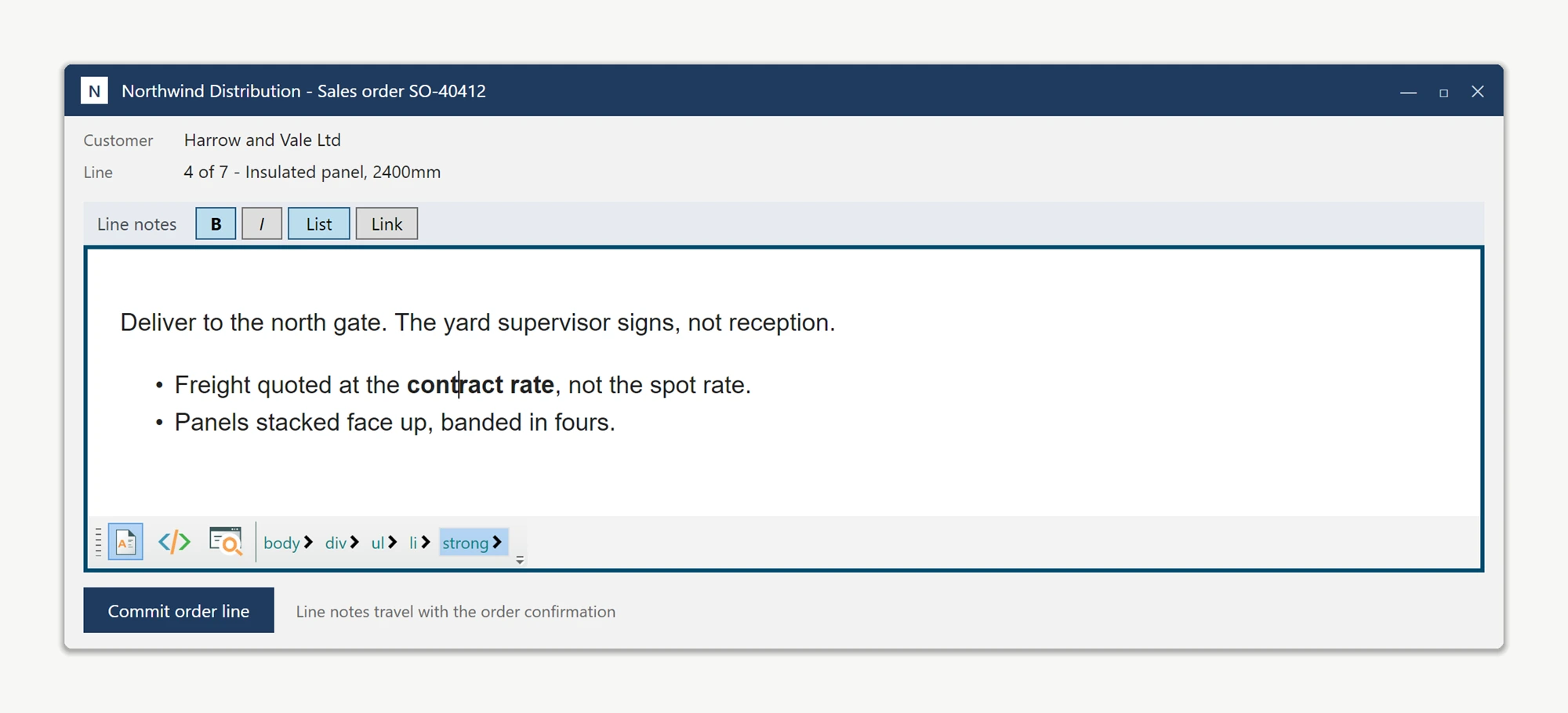
WpfHtmlEditor exposes its built-in toolbars through the public Toolbar1 and Toolbar2 properties, so you can collapse them, and every editor command through editor.ToolbarItemOverrider, so your own buttons can invoke exactly the commands you want.
Put your own toolbar directly above the editing surface, sized and styled to your own design. These are ordinary WPF controls, so they inherit your application's look without any theming work on our side:
<Grid>
    <Grid.RowDefinitions>
        <RowDefinition Height="Auto" />
        <RowDefinition Height="*" />
    </Grid.RowDefinitions>

    <StackPanel x:Name="CompactToolbar" Grid.Row="0" Orientation="Horizontal"
                Height="28" Background="{StaticResource Form.Accent}">
        <Button x:Name="BtnBold"    Content="B"    Width="30" />
        <Button x:Name="BtnItalic"  Content="I"    Width="30" />
        <Button x:Name="BtnBullets" Content="List" Width="44" />
        <Button x:Name="BtnLink"    Content="Link" Width="44" />
    </StackPanel>

    <wpfHtmlEditor:WpfHtmlEditor x:Name="NotesEditor" Grid.Row="1"
                                 Loaded="NotesEditor_OnLoaded" />
</Grid>
In the Loaded handler, collapse both built-in toolbars and point each of your buttons at the editor's matching command handler:
private void NotesEditor_OnLoaded(object sender, RoutedEventArgs e)
{
    NotesEditor.Toolbar1.Visibility = Visibility.Collapsed;
    NotesEditor.Toolbar2.Visibility = Visibility.Collapsed;

    var commands = NotesEditor.ToolbarItemOverrider;

    BtnBold.Click    += (s, args) => commands.OnBoldButtonClicked(NotesEditor, new RoutedEventArgs());
    BtnItalic.Click  += (s, args) => commands.OnItalicButtonClicked(NotesEditor, new RoutedEventArgs());
    BtnBullets.Click += (s, args) => commands.OnUnOrderedListButtonClicked(NotesEditor, new RoutedEventArgs());
    BtnLink.Click    += (s, args) => commands.OnHyperLinkButtonClicked(NotesEditor, new RoutedEventArgs());
}
Private Sub NotesEditor_OnLoaded(sender As Object, e As RoutedEventArgs)
NotesEditor.Toolbar1.Visibility = Visibility.Collapsed
NotesEditor.Toolbar2.Visibility = Visibility.Collapsed
Dim commands = NotesEditor.ToolbarItemOverrider
AddHandler BtnBold.Click, Sub(s, args) commands.OnBoldButtonClicked(NotesEditor, New RoutedEventArgs())
AddHandler BtnItalic.Click, Sub(s, args) commands.OnItalicButtonClicked(NotesEditor, New RoutedEventArgs())
AddHandler BtnBullets.Click, Sub(s, args) commands.OnUnOrderedListButtonClicked(NotesEditor, New RoutedEventArgs())
AddHandler BtnLink.Click, Sub(s, args) commands.OnHyperLinkButtonClicked(NotesEditor, New RoutedEventArgs())
End SubEach On…ButtonClicked method runs the exact code the corresponding factory button runs, so everything that hangs off it keeps working: the hyperlink command still opens the editor's hyperlink dialog, the table command still opens Table Properties, and every command still applies to the current selection. There is one handler per command - OnBoldButtonClicked, OnUnOrderedListButtonClicked, OnImageButtonClicked, OnTableInsertButtonClicked, OnCheckSpellingButtonClicked and the rest - so a toolbar of four buttons and a toolbar of forty are the same amount of work per button.
Drive the factory commands through these handlers rather than moving the factory controls themselves into your layout. The controls are built for the editor's own toolbar and are not laid out correctly outside it.
Keeping your buttons context-aware
Because the buttons are yours, their lit and unlit state is yours to drive. Subscribe to SelectionChanged and read the editor's own StateQuery whenever the caret moves:
NotesEditor.SelectionChanged += (s, args) =>
{
    BtnBold.Tag   = NotesEditor.StateQuery.IsBold();     // bind or restyle from this
    BtnItalic.Tag = NotesEditor.StateQuery.IsItalic();
};
See Making Your Own Buttons Context-Aware via SelectionChanged and StateQuery for the full MVVM version of this, and Driving the WPF HTML Editor from Your Own UI Controls for the same technique opening the editor's built-in dialogs.
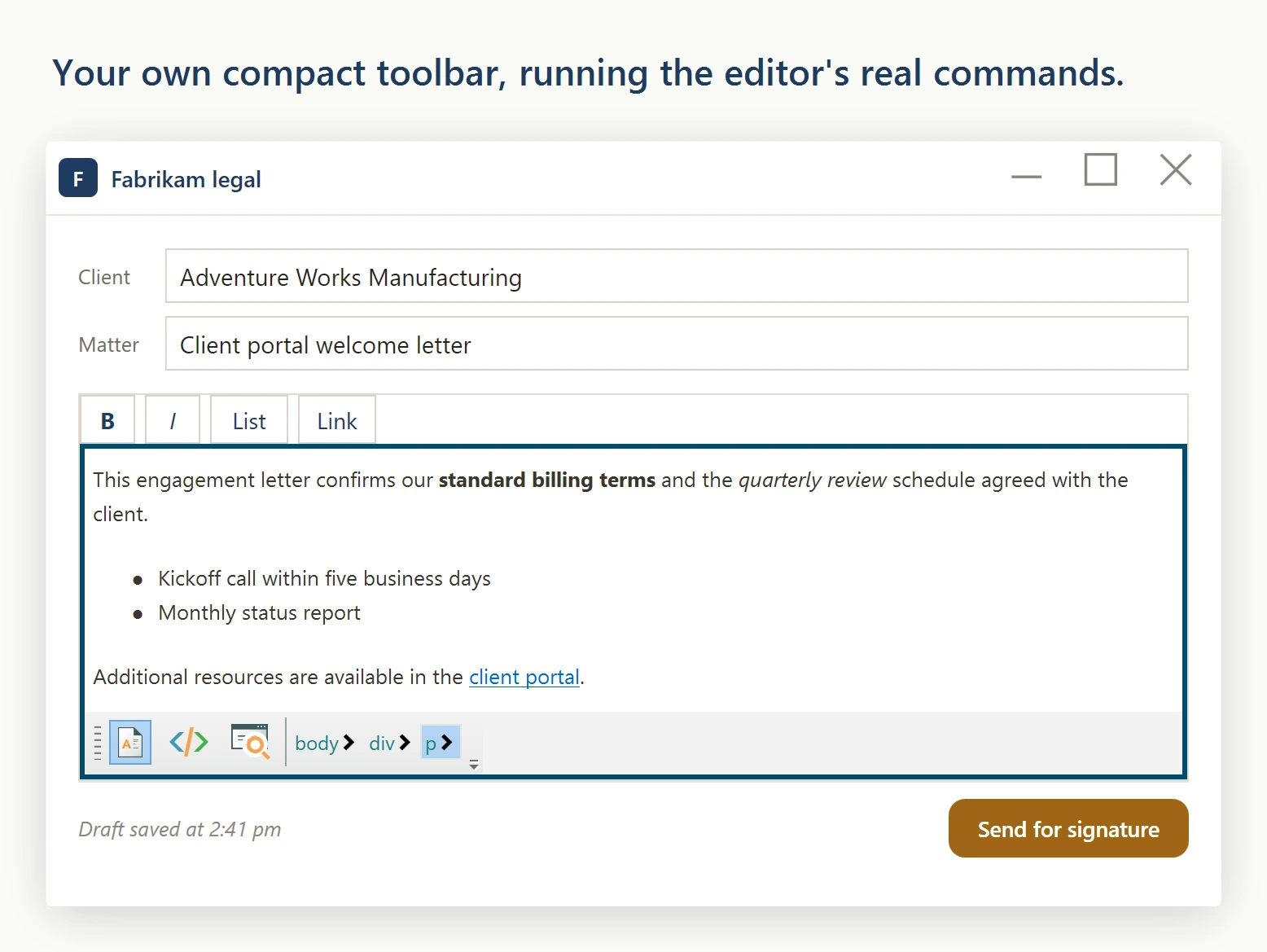
This pattern works for any embedded-toolbar scenario, no matter how many commands you keep. Summary:
editor.Toolbar1.Visibilityandeditor.Toolbar2.Visibilityhide the built-in toolbar strips.editor.ToolbarItemOverriderexposes every editor command as anOn…ButtonClickedhandler your own controls can call.- Those handlers run exactly what the factory buttons run, dialogs and selection handling included.
SelectionChangedplusStateQuerykeep your own buttons context-aware.
Ask your AI to do this
Connect the SpiceLogic MCP server, then give your coding assistant this prompt.
I use the SpiceLogic WPF HTML Editor. Help me replace the built-in toolbar with a compact toolbar that uses the editor commands. Confirm the exact API names, types and defaults with the SpiceLogic MCP documentation, then show the changes for my project.