


 NuGet
License activation
Activate the WPF HTML Editor Control with the license key we email you after purchase. The evaluation and licensed control use the same NuGet package. Assign WpfHtmlEditor.LicenseKey at application startup, before creating an editor.
1. Find the key in your purchase email
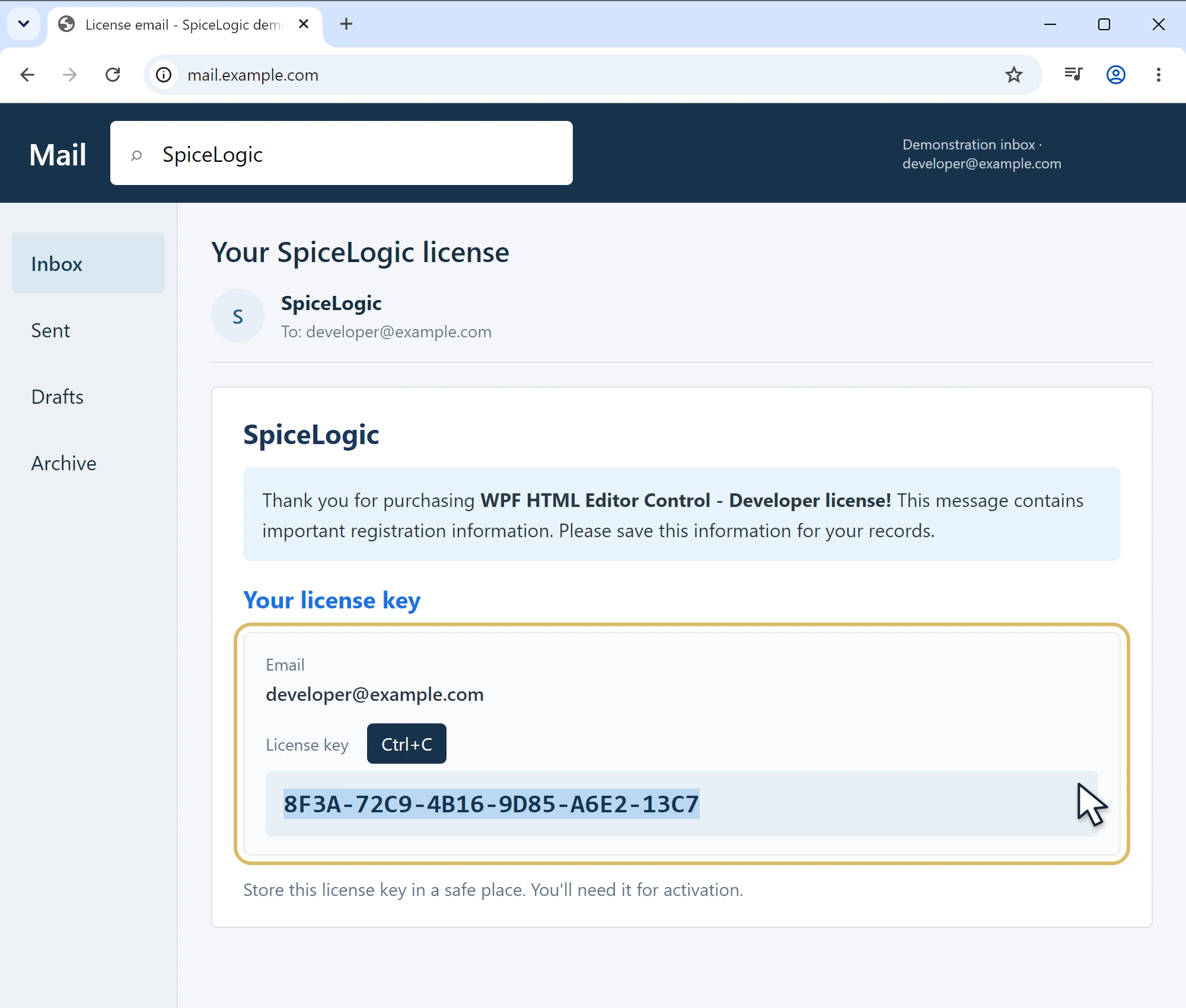
- Open the inbox for the email address used for your purchase and search for SpiceLogic.
- Open the license-delivery email and find the license key. If you cannot find the message, check your junk or spam folder.
- Select the entire key and copy it with Ctrl+C (or your email app's Copy command). Keep the key unchanged, with no added spaces or line breaks.
You do not need to sign in to our website to use the emailed key. Apply it in code using the example below.
The screenshots use an illustrative account and a nonfunctional sample key. Use the key issued for your purchase; your email app may look different.
2. Use My Account if needed
If you cannot find the purchase email, retrieve the key from your account:
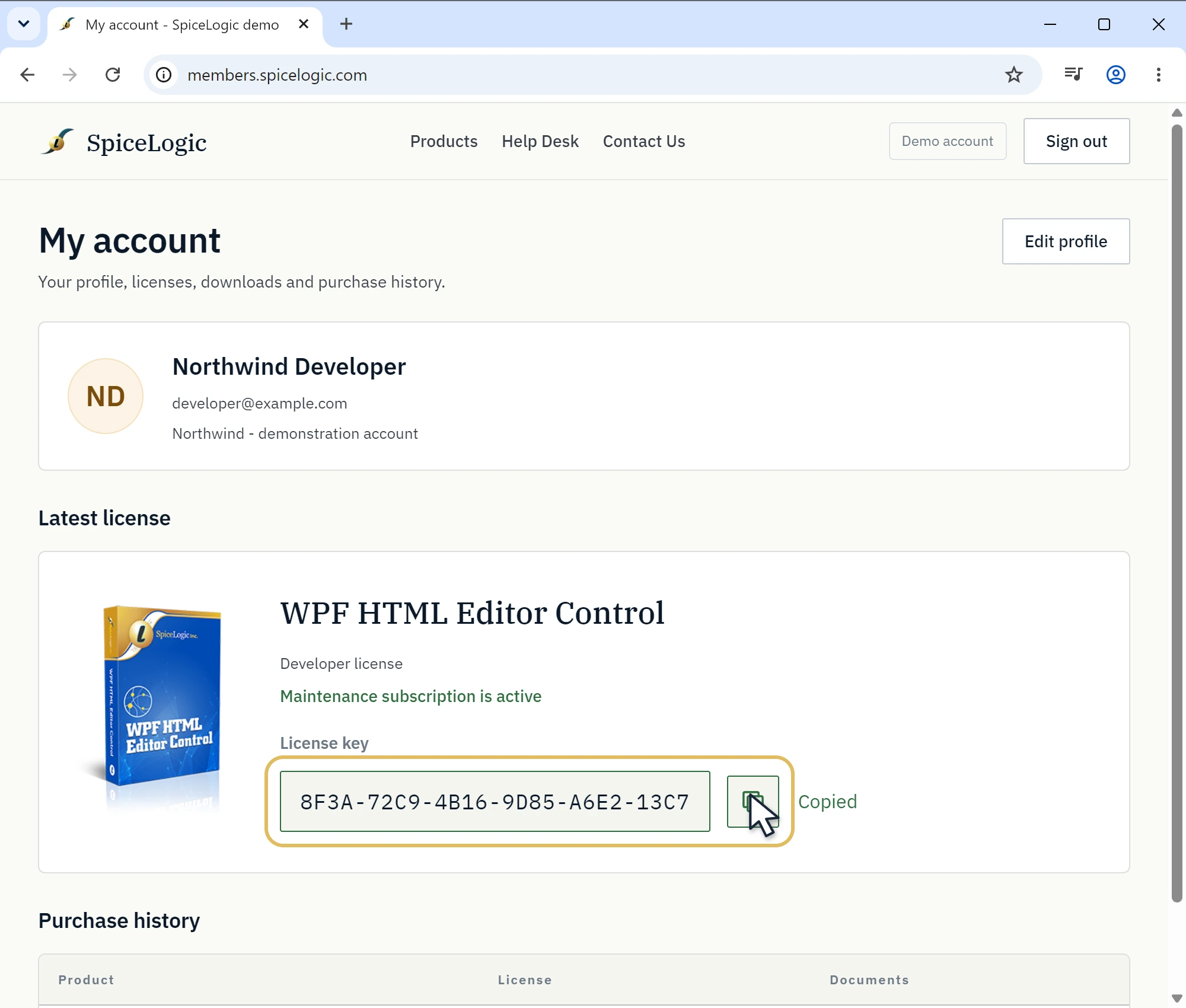
- Open My Account on the SpiceLogic website and sign in.
- Find the WPF HTML Editor Control under Latest license, or locate the matching purchase in Purchase history.
- Find the license key and click its Copy button. Use the key for this product; a key for another editor edition will not activate it.
- Paste your key into your application's protected configuration, then assign the startup property shown below. Keep real keys out of public repositories.
If neither route works, contact our support team using the email address associated with your purchase.
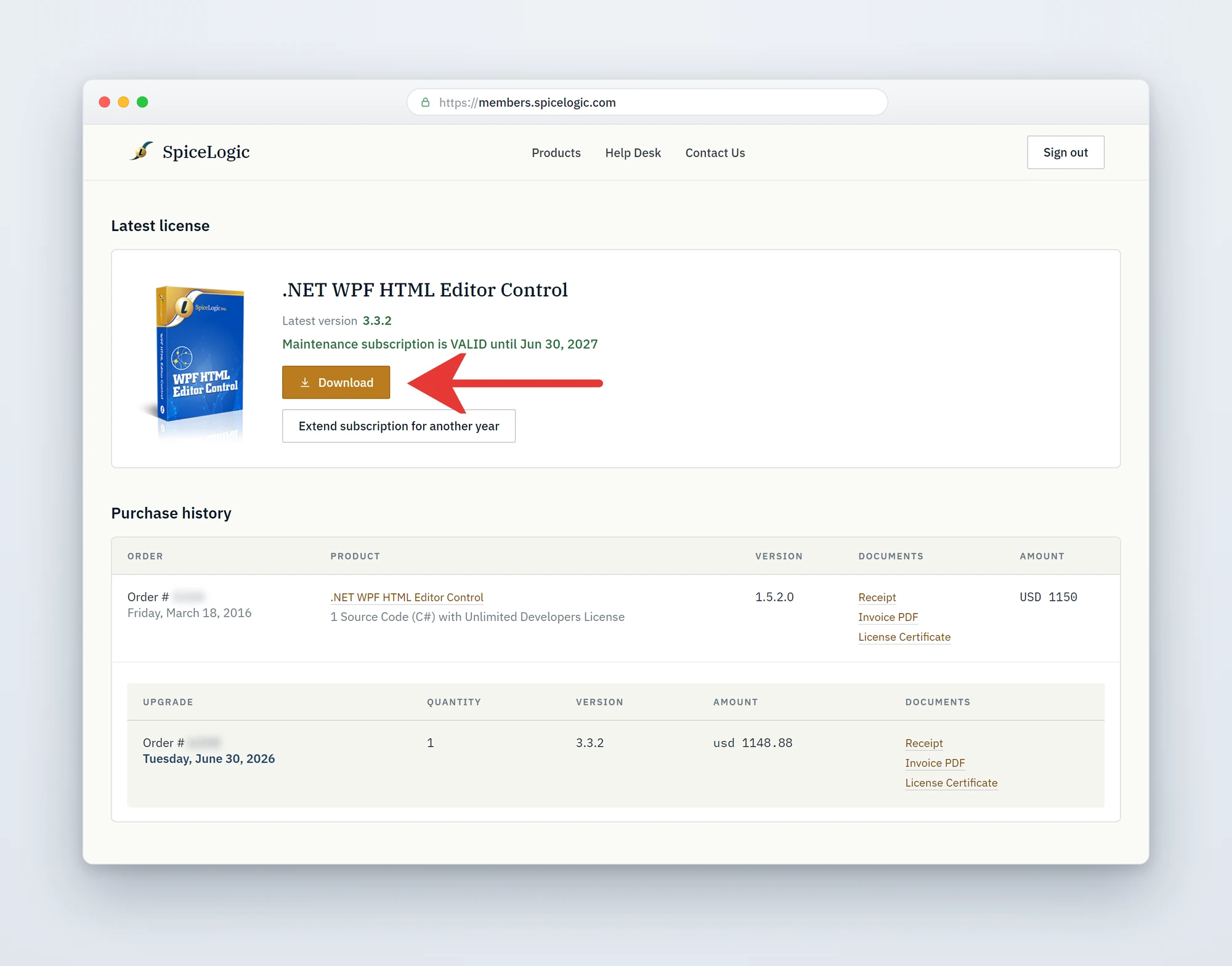
If you purchased a Source Code license, you may see a Download button instead. That downloads the source-code package; it is not the license-key Copy button. See the Source Code license instructions below.
Apply your license key in code
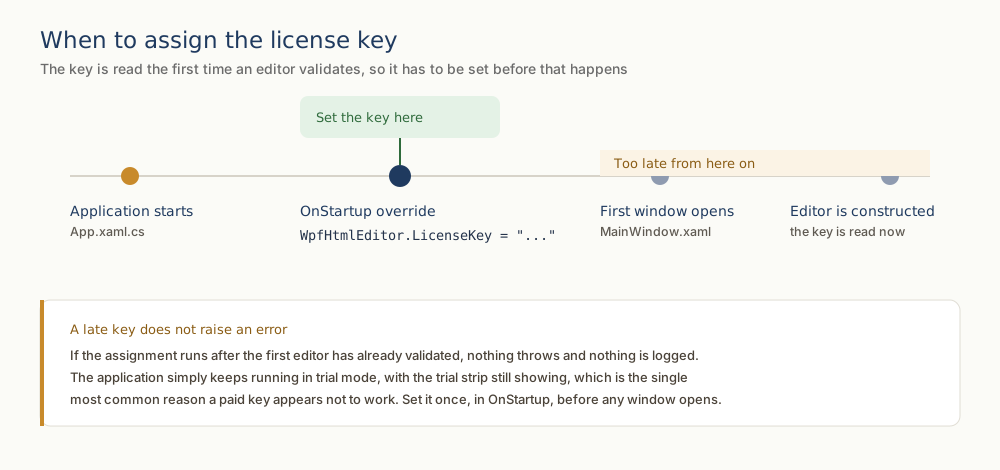
Set the license key once, as early as possible in the application lifetime, before any window that hosts the editor is constructed. The WpfHtmlEditor.LicenseKey property is static, so a single assignment activates every editor instance in the process. The most reliable place is the OnStartup override of your App class in App.xaml.cs (or Application.xaml.vb for VB.NET):
using System.Windows;
using SpiceLogic.HtmlEditor.WPF;

namespace MyWpfApplication
{
    public partial class App : Application
    {
        protected override void OnStartup(StartupEventArgs e)
        {
            WpfHtmlEditor.LicenseKey = "YOUR-LICENSE-KEY-HERE";
            base.OnStartup(e);
        }
    }
}
Imports System.Windows
Imports SpiceLogic.HtmlEditor.WPF
Namespace MyWpfApplication
Partial Public Class App
Inherits Application
Protected Overrides Sub OnStartup(e As StartupEventArgs)
WpfHtmlEditor.LicenseKey = "YOUR-LICENSE-KEY-HERE"
MyBase.OnStartup(e)
End Sub
End Class
End Namespace
XAML usage note
The editor itself is declared in XAML the usual way. The license key is not a XAML-settable property; it is a static .NET property and must be assigned from code-behind (typically App.xaml.cs / Application.xaml.vb as shown above). Reference the WPF namespace in your XAML and drop the control into any window or user control:
<Window x:Class="MyWpfApplication.MainWindow"
        xmlns="http://schemas.microsoft.com/winfx/2006/xaml/presentation"
        xmlns:x="http://schemas.microsoft.com/winfx/2006/xaml"
        xmlns:wpfEditor="clr-namespace:SpiceLogic.HtmlEditor.WPF;assembly=SpiceLogic.HtmlEditor.WPF"
        Title="My Editor Window" Height="600" Width="900">
    <Grid>
        <wpfEditor:WpfHtmlEditor x:Name="MyEditor" />
    </Grid>
</Window>
Trial mode vs licensed mode
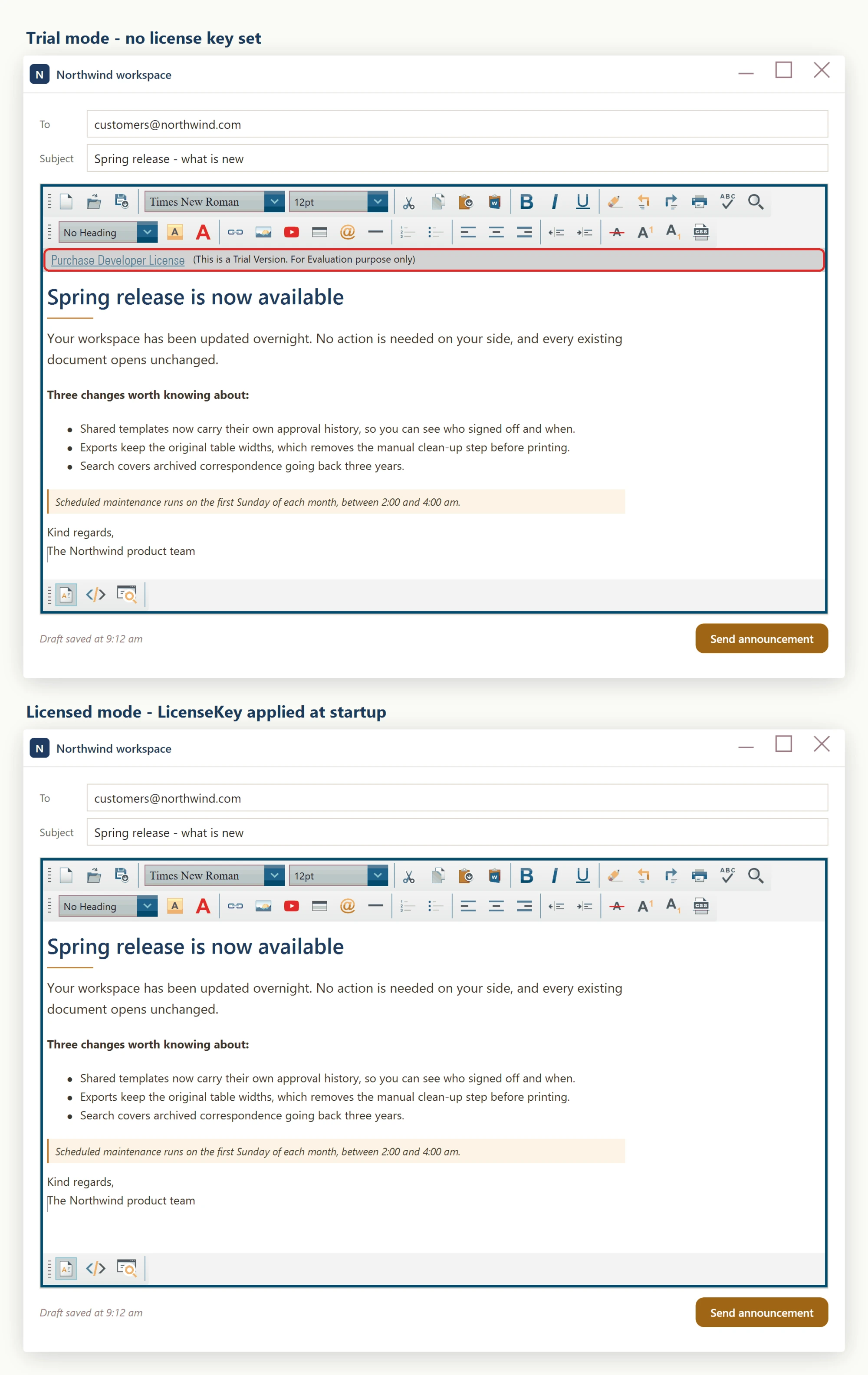
If WpfHtmlEditor.LicenseKey is left unset, or is set to an invalid string, the control runs in trial mode. Trial mode is fully functional for evaluation, but it shows a trial strip directly beneath the toolbar, carrying a purchase link. Once a valid key is assigned at startup, every editor instance in your process runs in licensed mode and that strip is gone.
Verifying activation
Run your application after wiring up WpfHtmlEditor.LicenseKey. If the key is accepted, the trial nag indicators disappear from every editor instance in the running process. If they are still visible, double-check that:
- The key string was copied exactly from your purchase email or My Account, with no leading or trailing whitespace and no line breaks pasted in.
- The assignment runs before the first window that hosts a WpfHtmlEditor is constructed. If you set it from a window constructor or a click handler, earlier-instantiated editors will not pick it up.
- You are running the current NuGet package (SpiceLogic.HtmlEditor.WPF) and not an older custom-built DLL from a previous major version.
Source Code license customers
If you purchased the Source Code license, your source code is delivered as a download from your account - the same place, and the same kind of Download button, that used to deliver the unlocked DLLs in older versions. To get it:
- Sign in to your My Account page.
- Find the WPF HTML Editor Control in your Latest license card (or the matching row in Purchase history).
- Click the Download button. The source-code download screenshot below points to this button. Your browser downloads a ZIP,
HtmlEditor-WPF-SourceCode.zip, containing the complete C# source of the editor.
The downloaded source has the license-key logic stripped out. If you reference those projects directly from your own solution and build the editor from your copy of the source, it runs in licensed mode automatically - no WpfHtmlEditor.LicenseKey assignment is needed.
You are not required to build from source. You can keep using the SpiceLogic.HtmlEditor.WPF NuGet package and set WpfHtmlEditor.LicenseKey at startup, exactly like a Developer License customer would. The Source Code license simply gives you the option to switch from the NuGet package to the included source when you need to customize the editor's internals, debug into the source, or satisfy a procurement requirement that every third-party component ships with source.
Upgrading from earlier versions
Earlier (pre-3.x) versions of the WPF HTML Editor shipped two separate NuGet packages or DLLs: a freely downloadable trial assembly and a separate "unlocked" assembly that customers had to download from My Account after purchase. That dual-package workflow is no longer used. To upgrade:
- Remove any reference to the old unlocked DLL from your project.
- Install (or update to) the current SpiceLogic.HtmlEditor.WPF NuGet package - this single package now covers both trial and licensed modes.
- Add the WpfHtmlEditor.LicenseKey assignment shown above in your App.xaml.cs startup code.
No XAML changes are required - existing <wpfEditor:WpfHtmlEditor /> declarations continue to work unmodified.
Upgrading to a newer version
Update the SpiceLogic.HtmlEditor.WPF NuGet package and keep the same WpfHtmlEditor.LicenseKey line; nothing else changes. Your key covers every version released while your updates and support plan is active. If a version released after your plan ended starts with the message "This license key is valid for an older version but not for the latest. Continuing as trial.", renew your updates and support plan, or keep the package at the last version released during your plan.
Ask your AI to do this
Connect the SpiceLogic MCP server, then give your coding assistant this prompt.
I use the SpiceLogic WPF HTML Editor. Help me activate the editor using the supported license property. Use a placeholder for my license key. Confirm the exact API names, types and defaults with the SpiceLogic MCP documentation, then show the changes for my project.