


 NuGet
NuGet
Inline and dialog spell checking
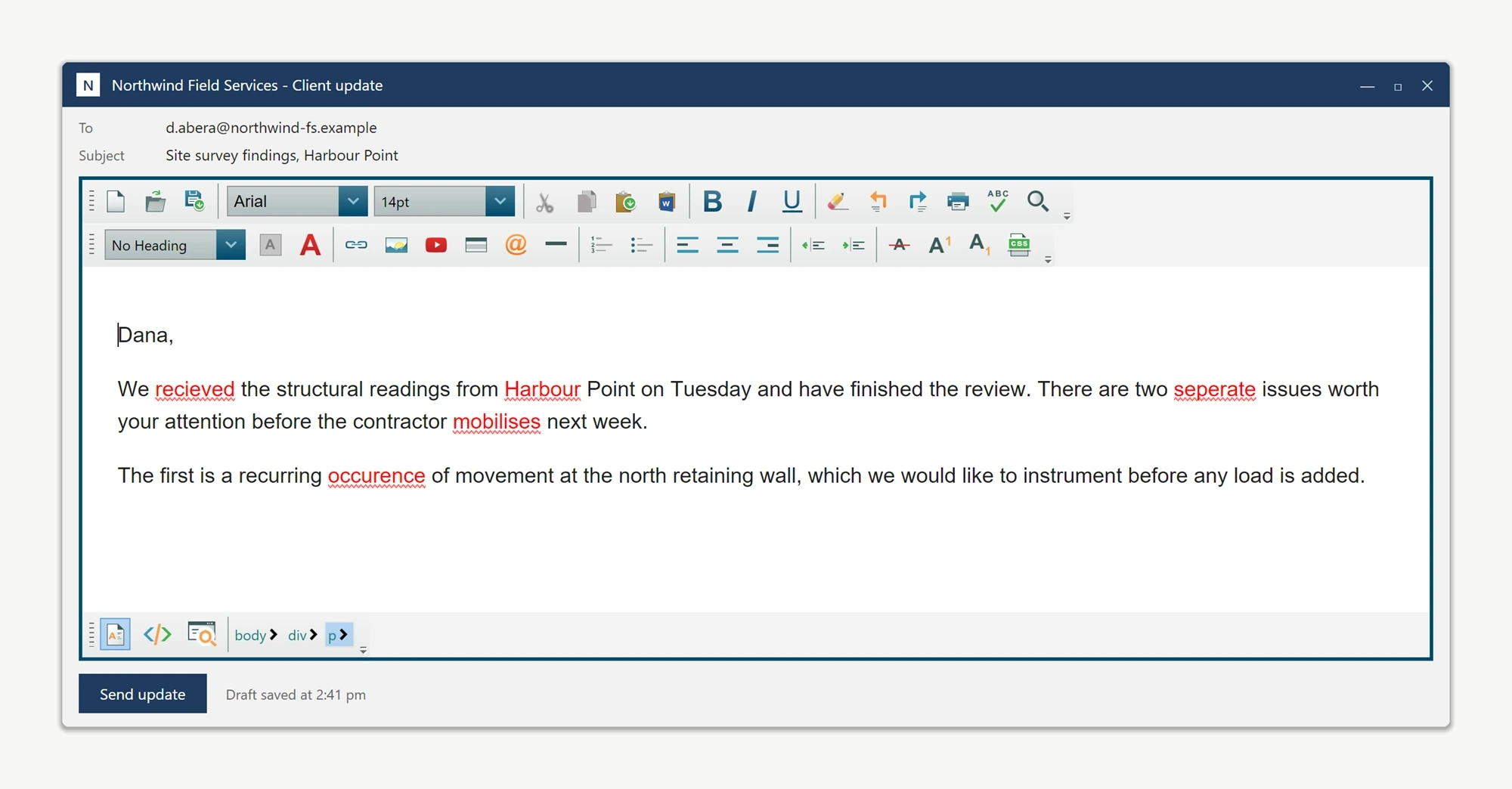
Inline spell checking marks possible errors as users type; dialog checking lets them review words one at a time. Choose the workflow that fits your application. Both use SpellCheckOptions and the configured dictionary or custom engine.
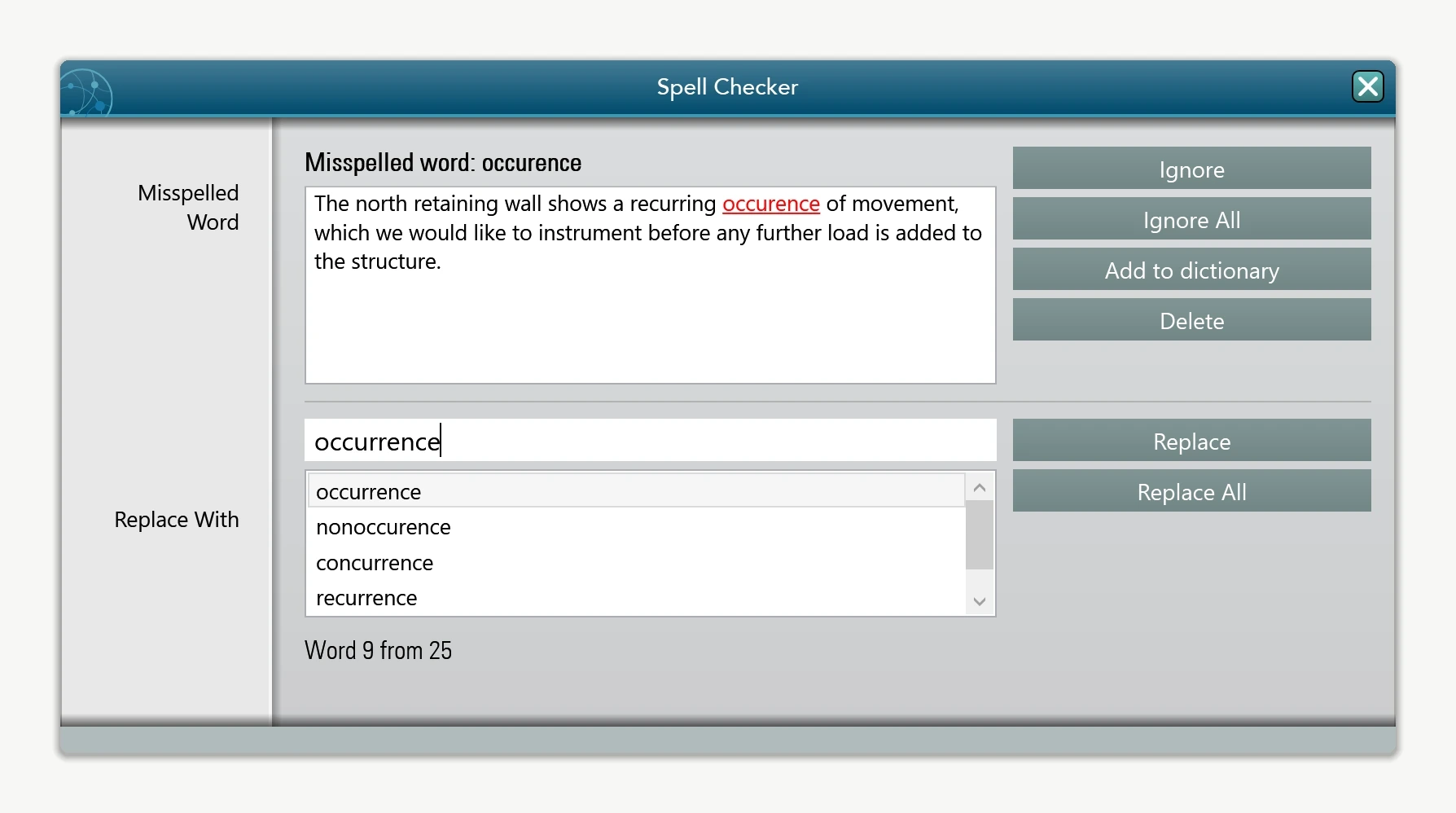
The dialog checks one word at a time and offers suggestions and replacement commands.
Choosing inline vs dialog
Inline mode is what most modern editors do. The user keeps typing, misspellings appear with a red wavy underline (controlled by SpellCheckOptions.InlineSpellCheckMisspelledWordCss), and right-clicking a flagged word shows suggestions in the context menu. It is the lowest-friction option for prose-heavy content, emails, notes, comment boxes, where the user expects feedback as they type. The trade-off is that the editor walks the document continuously while typing, which costs CPU on long documents.
Dialog mode is invoked explicitly, from the built-in toolbar's spell-check button, or from your own command, and shows a modal that visits each misspelling in turn with suggestions, Ignore, and Add to Dictionary. Choose dialog mode for legal, academic, or formal-document workflows where the user wants a single dedicated pass at the end, and where flagging misspellings mid-composition would be distracting.
The two modes are not mutually exclusive. You can leave inline checking on for live feedback and still expose the dialog for a thorough review pass.
Enabling inline spell checking
Inline checking is opt-in. Set the flag at startup and the editor wires the keystroke hooks for you:
// Turn on the live underline pass.
NoteEditor.SpellCheckOptions.FireInlineSpellCheckingOnKeyStroke = true;

// (Optional) only run the pass after the user types one of these
// trigger characters. Default fires on most printable keys; narrow
// to space/period/comma to reduce work on long documents.
NoteEditor.SpellCheckOptions.InlineSpellCheckerFiringKeyCodes = "32,46,44";

// Pick the dictionary up front. SameAsEditorLanguage means "follow
// the editor's Language dependency property".
NoteEditor.SpellCheckOptions.SpellCheckLanguage = SpellCheckLanguage.EnglishUs;
' Turn on the live underline pass.
NoteEditor.SpellCheckOptions.FireInlineSpellCheckingOnKeyStroke = True
' (Optional) only run the pass after the user types one of these
' trigger characters. Default fires on most printable keys; narrow
' to space/period/comma to reduce work on long documents.
NoteEditor.SpellCheckOptions.InlineSpellCheckerFiringKeyCodes = "32,46,44"
' Pick the dictionary up front. SameAsEditorLanguage means "follow
' the editor's Language dependency property".
NoteEditor.SpellCheckOptions.SpellCheckLanguage = SpellCheckLanguage.EnglishUsTriggering the dialog from your own command
The built-in toolbar's spell-check button calls ToolbarItemOverrider.OnCheckSpellingButtonClicked internally, and that method is public, so your own menu item, ribbon button, or keyboard shortcut can call the identical code path instead of the toolbar. Unlike some of the editor's other services, there is no separate parameterless SpellCheck() method on WpfHtmlEditor itself; the toolbar-click handler is the supported entry point for launching the dialog pass programmatically:
// Wire your own "Check spelling" menu item to the exact same code
// path the built-in toolbar button uses.
NoteEditor.ToolbarItemOverrider.OnCheckSpellingButtonClicked(this, new RoutedEventArgs());
' Wire your own "Check spelling" menu item to the exact same code
' path the built-in toolbar button uses.
NoteEditor.ToolbarItemOverrider.OnCheckSpellingButtonClicked(Me, New RoutedEventArgs())Performance for large documents
The two performance levers to know are InlineSpellCheckDebounceMilliseconds and the manual ForceInlineSpellCheck / CleanUpInlineSpellCheckMarkers pair, both directly on WpfHtmlEditor.
int InlineSpellCheckDebounceMilliseconds coalesces a burst of keystrokes into one spell-check pass. The default of 300 ms is right for most editors; raise to 500-800 ms for documents larger than a few thousand words, or drop to 0 to revert to firing on every keystroke:
// Long documents: wait until the user has paused typing for 600 ms
// before scanning. Use 0 to disable debounce (every keystroke pays).
NoteEditor.SpellCheckOptions.InlineSpellCheckDebounceMilliseconds = 600;
For programmatic control, the editor itself exposes two methods:
public void ForceInlineSpellCheck() runs a synchronous inline pass right now. Useful after a programmatic Content.SetBodyHtml call so imported text gets flagged before the user types anything.
CleanUpInlineSpellCheckMarkers() removes visible spelling markers from the live document. Normal BodyHtml and DocumentHtml output already filters editor spelling markers. Use explicit cleanup when your workflow needs the live surface cleared, rather than requiring it for every save.
// Load HTML and flag it once, immediately.
NoteEditor.Content.SetBodyHtml(importedHtml);
NoteEditor.ForceInlineSpellCheck();

// Save a clean copy.
NoteEditor.CleanUpInlineSpellCheckMarkers();
string clean = NoteEditor.Content.GetBodyHtml(getInXhtml: false);
File.WriteAllText(path, clean);
Note the WPF-specific member names: there is no parameterless LoadBodyHtml or GetBodyHtml() on this control. Loading and reading body HTML go through Content.SetBodyHtml(string) and Content.GetBodyHtml(bool getInXhtml); the WinForms edition names some of these members differently.
Multi-language workflows
The spell checker can switch dictionaries at runtime; you do not need to reload the editor when the user changes language. Two members to know:
editor.Language, a WPF dependency property, sets the UI language for menus, tooltips, and dialogs, and it is bindable directly in XAML.
editor.SpellCheckOptions.SpellCheckLanguage sets the dictionary used by both inline and dialog modes. By default it is SameAsEditorLanguage, meaning it follows Language; set it to a concrete language to decouple the two (a German UI checking English content, for example).
// User picks a language from a host combo box. Persist it however
// you want; here we switch immediately and clear any markers left
// over from the previous dictionary.
private void OnLanguagePicked(SpellCheckLanguage picked)
{
    NoteEditor.CleanUpInlineSpellCheckMarkers();
    NoteEditor.SpellCheckOptions.SpellCheckLanguage = picked;
    NoteEditor.ForceInlineSpellCheck();
}
' User picks a language from a host combo box. Persist it however
' you want; here we switch immediately and clear any markers left
' over from the previous dictionary.
Private Sub OnLanguagePicked(picked As SpellCheckLanguage)
NoteEditor.CleanUpInlineSpellCheckMarkers()
NoteEditor.SpellCheckOptions.SpellCheckLanguage = picked
NoteEditor.ForceInlineSpellCheck()
End SubFor applications where each document carries its own language, store the picked SpellCheckLanguage alongside the document and restore it after Content.SetBodyHtml. Mixed-language paragraphs are not supported, the engine is a single dictionary at a time, so pick the dominant language of the document and accept that minority-language words will need to be added to the user dictionary.
False positives from HTML entities and markup
The inline pass walks text nodes only and skips elements whose tag is non-textual, so most markup never reaches the dictionary. A few pitfalls do show up in practice:
HTML entities. A document with —, , or numeric entities shows the resolved characters in the text, not the entity name, so "mdash" should never get flagged. If you are seeing the literal entity name flagged, the document is malformed (the entity was not escaped with &) and the fix is to clean the source HTML, not to suppress the checker.
Inline-style tokens. CSS class names, IDs, and inline-style values are not visited because they live on attributes, not in text nodes. If a class name is flagged, check whether it was accidentally typed as content rather than into the actual attribute.
URLs and emails. Toggle SpellCheckOptions.IgnoreUrls and IgnoreEmails on (they default to true) so contact details inside paragraphs do not get flagged.
All-caps and number-bearing words. IgnoreAllCapsWords and IgnoreWordsWithNumbers suppress acronyms (NASA) and codes (RFC5322) so the user is not asked to ignore them one by one.
If a domain-specific word survives all of these filters, for example a product name, teach the user to use the Add to Dictionary entry on the context menu. See User Dictionary for the full walkthrough.
Ask your AI to do this
Connect the SpiceLogic MCP server, then give your coding assistant this prompt.
I use the SpiceLogic WPF HTML Editor. Help me configure inline and dialog spell checking, including language and debounce settings. Explain how normal HTML getters filter spell-check markers. Confirm the exact API names, types and defaults with the SpiceLogic MCP documentation, then show the changes for my project.