


 NuGet
NuGet
Replace the context menu
The context menu is the set of commands users see when they right-click inside the editor. You can replace it with a menu that fits your application while keeping the editor commands you need. Assign your own ContextMenu to EditorContextMenuStrip (in XAML or code), and it replaces the built-in menu; set it back to null to restore the built-in one. Use ContextMenuShowing to adjust items just before the menu opens.
If you only need to hide, disable, rename or reorder existing commands without rebuilding their handlers, see Customize the built-in context menu.
Start from the factory-menu sample on GitHub
You do not need to recreate the factory menu from scratch. Our C# sample and VB.NET sample include a complete, editable factory-style context menu: its layout, icons, command handlers and selection-state checks. Copy the sample into your application, change the commands or appearance, then assign the resulting menu to EditorContextMenuStrip. The sample shows the wiring to the editor's own editing, formatting, table and dialog services.
Assign your replacement menu
Assign your own System.Windows.Controls.ContextMenu to EditorContextMenuStrip. This replaces the entire built-in menu. Your menu supplies its own items and command handlers. Assign null (Nothing in VB.NET) to restore the built-in menu.
The property keeps the "Strip" suffix from the WinForms editor so the property name matches on both platforms. The WPF type is the regular System.Windows.Controls.ContextMenu, not the WinForms ContextMenuStrip.
Define the menu in XAML:
<Window xmlns:editor="clr-namespace:SpiceLogic.HtmlEditor.WPF;
                     assembly=SpiceLogic.HtmlEditor.WPF">
    <Window.Resources>
        <ContextMenu x:Key="AccountantMenu">
            <MenuItem Header="Insert Invoice Reference" Click="OnInsertInvoiceRef" />
            <MenuItem Header="Insert Customer Number"   Click="OnInsertCustomerId" />
            <MenuItem Header="Mark as Confidential"      Click="OnMarkConfidential" />
            <Separator />
            <MenuItem Header="Cut"   Command="ApplicationCommands.Cut"   />
            <MenuItem Header="Copy"  Command="ApplicationCommands.Copy"  />
            <MenuItem Header="Paste" Command="ApplicationCommands.Paste" />
        </ContextMenu>
    </Window.Resources>

    <editor:WpfHtmlEditor x:Name="editor"
        EditorContextMenuStrip="{StaticResource AccountantMenu}" />
</Window>
Menu items that use the standard WPF commands ApplicationCommands.Cut, Copy, Paste, SelectAll, Undo and Redo act on the editor and are enabled from its current selection, with no CommandBinding of your own (version 4.2.6 and later).
Or assign it in code-behind:
var menu = new ContextMenu();
menu.Items.Add(new MenuItem { Header = "Insert Invoice Reference" });
menu.Items.Add(new MenuItem { Header = "Mark as Confidential" });
editor.EditorContextMenuStrip = menu;
Dim menu = New ContextMenu()
menu.Items.Add(New MenuItem With {
.Header = "Insert Invoice Reference"
})
menu.Items.Add(New MenuItem With {
.Header = "Mark as Confidential"
})
editor.EditorContextMenuStrip = menu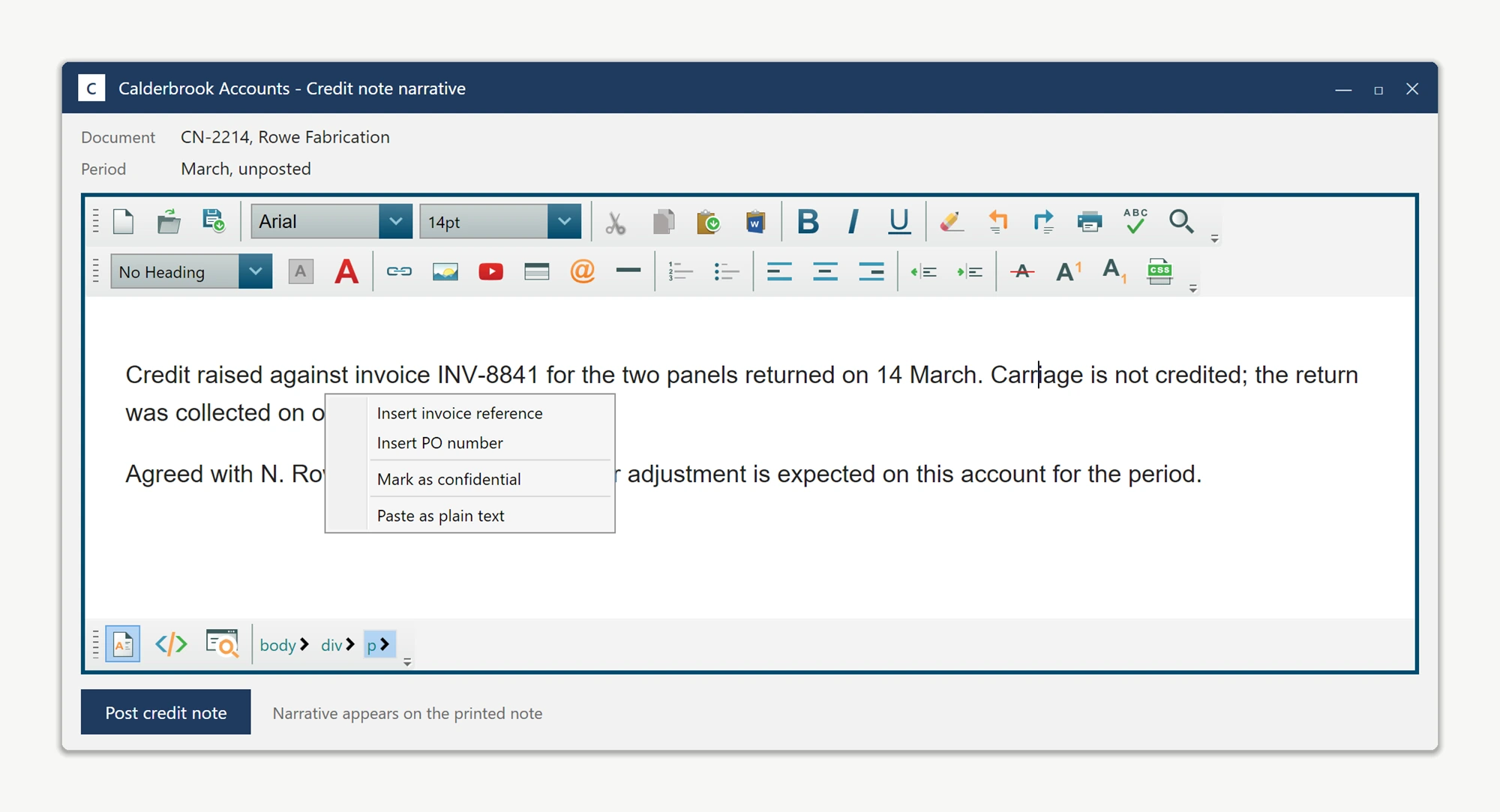
To show or hide a custom menu item conditionally, for example only when the user has an active text selection, subscribe to the ContextMenuShowing event and toggle the item's visibility right before the menu appears:
editor.ContextMenuShowing += (sender, e) =>
{
    // e.OffsetMousePosition gives the mouse position relative to the editor.
    bool hasSelection = !string.IsNullOrEmpty(editor.Selection.GetSelectedHtml());
    confidentialItem.Visibility = hasSelection ? Visibility.Visible : Visibility.Collapsed;
};
AddHandler editor.ContextMenuShowing,
Sub(sender, e)
' e.OffsetMousePosition gives the mouse position relative to the editor.
Dim hasSelection As Boolean = Not String.IsNullOrEmpty(editor.Selection.GetSelectedHtml())
confidentialItem.Visibility = If(hasSelection, Visibility.Visible, Visibility.Collapsed)
End Sub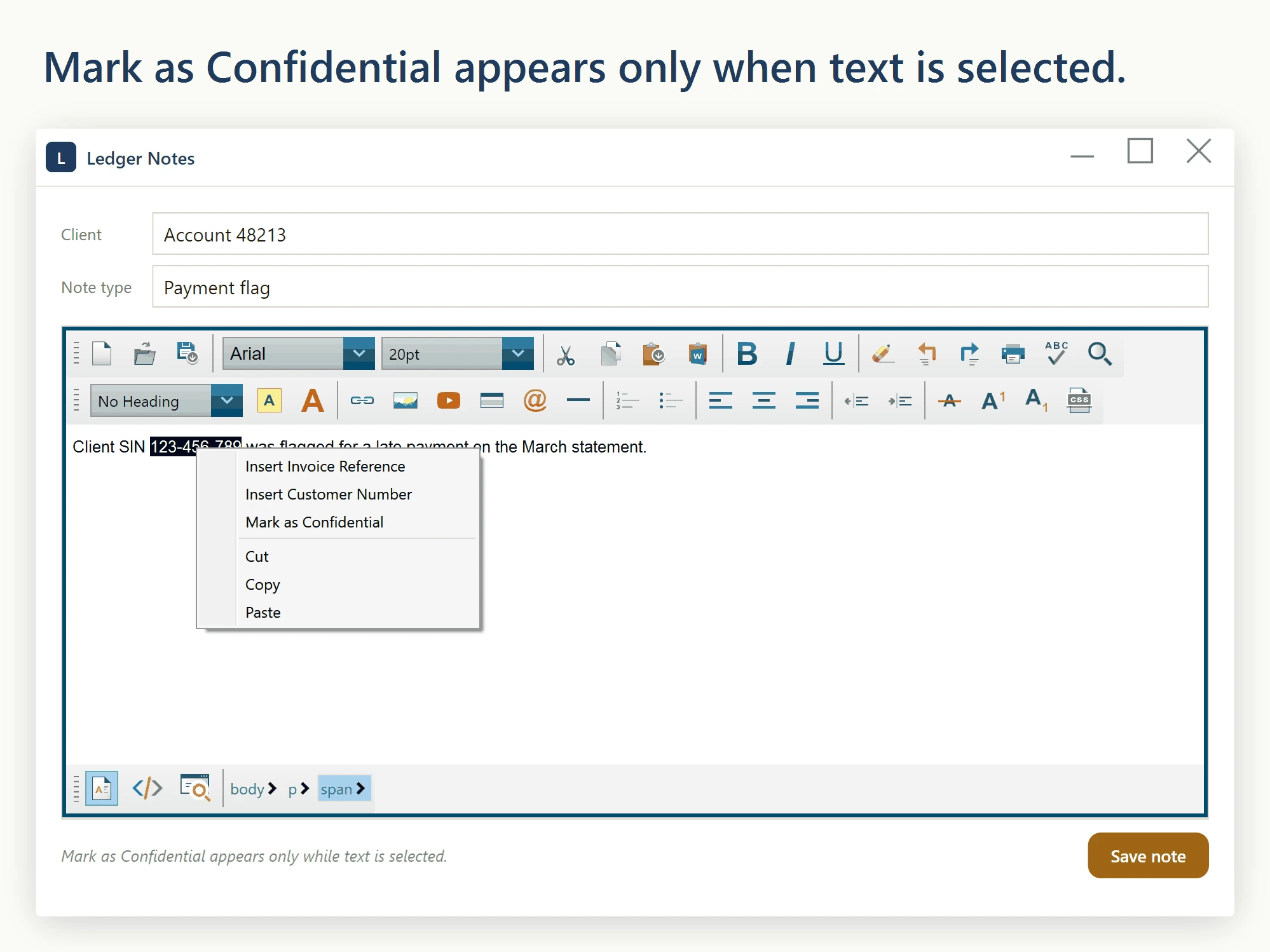
EditorContextMenuStrip supplies the complete replacement menu. Use ContextMenuShowing to adjust your custom items immediately before display, based on the current selection or cursor position. If you prefer to keep the editor's menu and change only individual commands, see Customize the built-in context menu.
Ask your AI to do this
With the SpiceLogic MCP server connected, ask your assistant:
Using the SpiceLogic WPF HTML Editor already referenced in my project, replace the entire right-click menu through EditorContextMenuStrip. Start from the linked C# or VB.NET factory-menu sample, adapt its layout and commands, and retain the sample handlers and state checks for each editor command we keep. Wire handlers for our new commands. Look up the real API before writing code.