


 NuGet
NuGet
Mail-merge placeholders
Mail merge lets you personalize one HTML template for many recipients. A placeholder such as {{FirstName}} marks where a value belongs. The editor inserts the field into your HTML; your application replaces its token with the actual data when generating the final email or document.
The mail-merge entry point is the IMailMergeService exposed on the editor's content surface as editor.Content.MailMerge. It exposes the field list, an InsertPlaceholder method, and a PlaceholderInserted event for analytics or sidebar tracking.
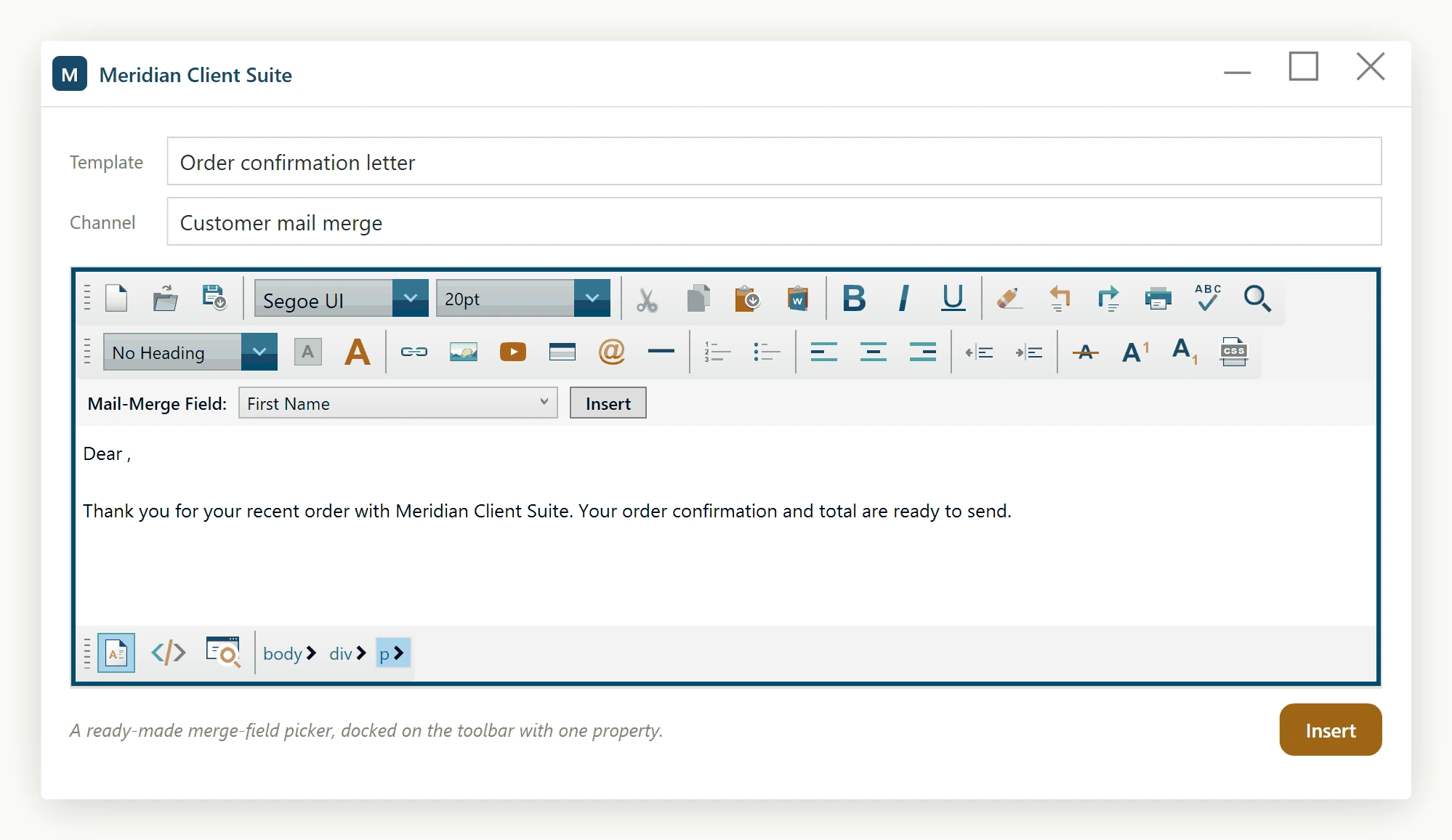
Configuring the placeholder fields
Each placeholder is a PlaceholderField with two values: a DisplayName shown in the picker UI and a Token string that gets emitted into the document. Set or mutate the PlaceholderFields list before the user opens any picker; the list is safe to mutate at runtime and the built-in toolbar picks up changes on the next rebuild.
using System.Collections.Generic;
using SpiceLogic.HtmlEditor.Abstractions.Entities.MailMerge;
using SpiceLogic.HtmlEditor.WPF;
private void Window_Loaded(object sender, RoutedEventArgs e)
{
    Editor.Content.MailMerge.PlaceholderFields = new List<PlaceholderField>
    {
        new PlaceholderField("First Name", "{{FirstName}}"),
        new PlaceholderField("Last Name",  "{{LastName}}"),
        new PlaceholderField("Order Total", "{{OrderTotal}}")
    };
}
Imports System.Collections.Generic
Imports SpiceLogic.HtmlEditor.Abstractions.Entities.MailMerge
Imports SpiceLogic.HtmlEditor.WPF
Private Sub Window_Loaded(sender As Object, e As RoutedEventArgs)
Editor.Content.MailMerge.PlaceholderFields = New List(Of PlaceholderField) From {
New PlaceholderField("First Name", "{{FirstName}}"),
New PlaceholderField("Last Name", "{{LastName}}"),
New PlaceholderField("Order Total", "{{OrderTotal}}")
}
End Sub
Inserting at the caret
Call InsertPlaceholder with the chosen field. The editor must be in WysiwygDesign mode for the call to take effect - calls made while the editor is in HTML-source mode are silently ignored, since there is no live caret to insert at.
using SpiceLogic.HtmlEditor.Abstractions.Entities.MailMerge;
private void InsertFirstNameButton_Click(object sender, RoutedEventArgs e)
{
    PlaceholderField firstName =
        Editor.Content.MailMerge.PlaceholderFields[0];
    Editor.Content.MailMerge.InsertPlaceholder(firstName);
}
Imports SpiceLogic.HtmlEditor.Abstractions.Entities.MailMerge
Private Sub InsertFirstNameButton_Click(sender As Object, e As RoutedEventArgs)
Dim firstName As PlaceholderField = Editor.Content.MailMerge.PlaceholderFields(0)
Editor.Content.MailMerge.InsertPlaceholder(firstName)
End SubIf you want a built-in field picker instead of building your own, set Editor.ShowPlaceholderToolbar = true. That reveals a small toolbar row above the editor body with a dropdown bound to the configured fields and an Insert button that calls InsertPlaceholder internally. The opt-in toolbar is hidden by default. After mutating the field list at runtime, call Editor.PlaceholderToolbar.RebindFields() so the dropdown reflects the new entries.
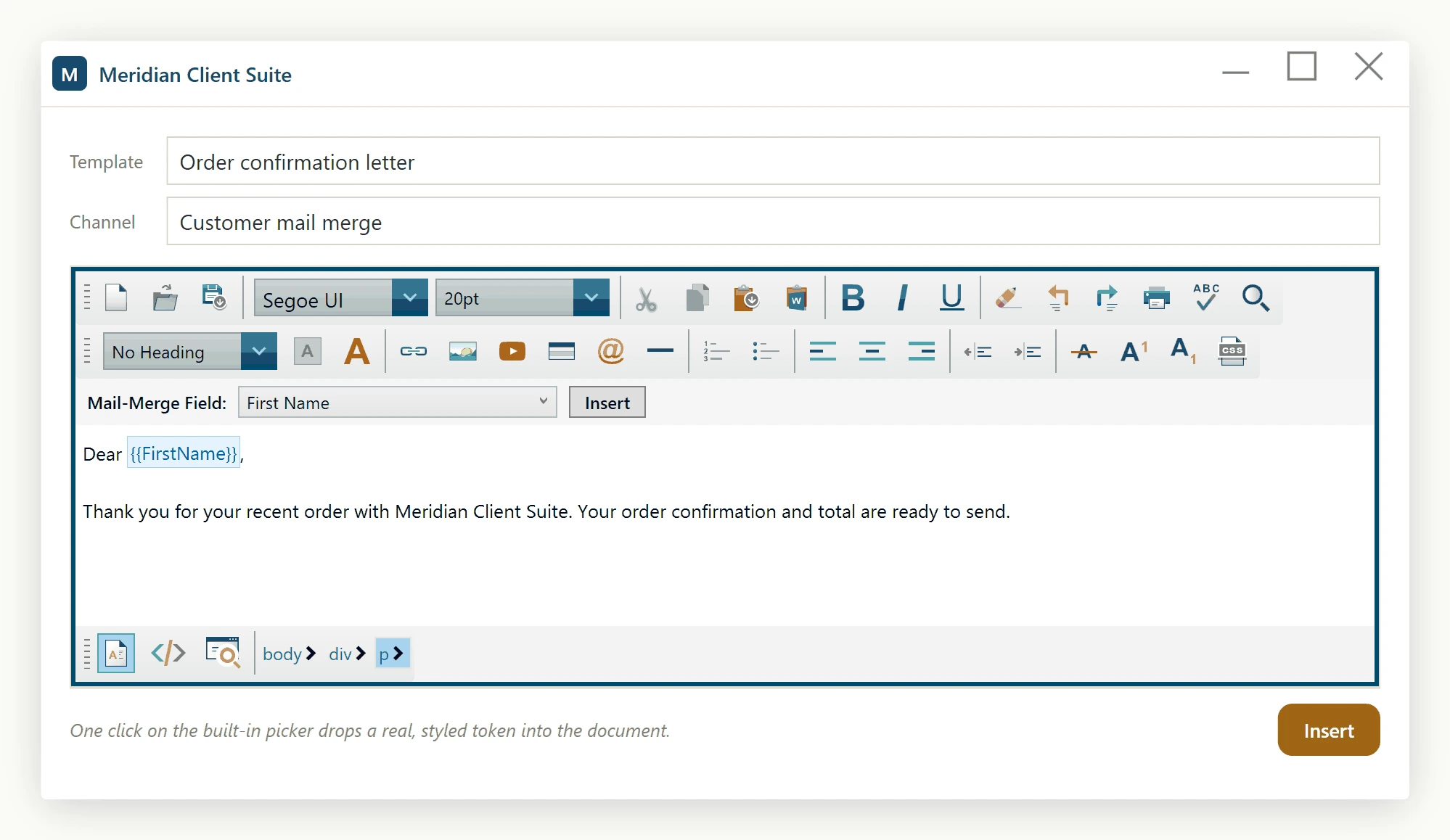
Reacting to insertion
The PlaceholderInserted event fires after a placeholder span has been added to the document. The PlaceholderInsertedEventArgs instance carries the Field that was inserted plus the exact InsertedHtml markup. Use this hook to log merge-field usage, drive analytics, or update a sidebar that lists which fields the user has already placed in the current draft.
Editor.Content.MailMerge.PlaceholderInserted += (s, e) =>
{
    System.Diagnostics.Debug.WriteLine($"Inserted {e.Field.DisplayName} => {e.Field.Token}");
    System.Diagnostics.Debug.WriteLine($"Markup: {e.InsertedHtml}");
};
AddHandler Editor.Content.MailMerge.PlaceholderInserted, Sub(s, e)
System.Diagnostics.Debug.WriteLine($"Inserted {e.Field.DisplayName} => {e.Field.Token}")
System.Diagnostics.Debug.WriteLine($"Markup: {e.InsertedHtml}")
End Sub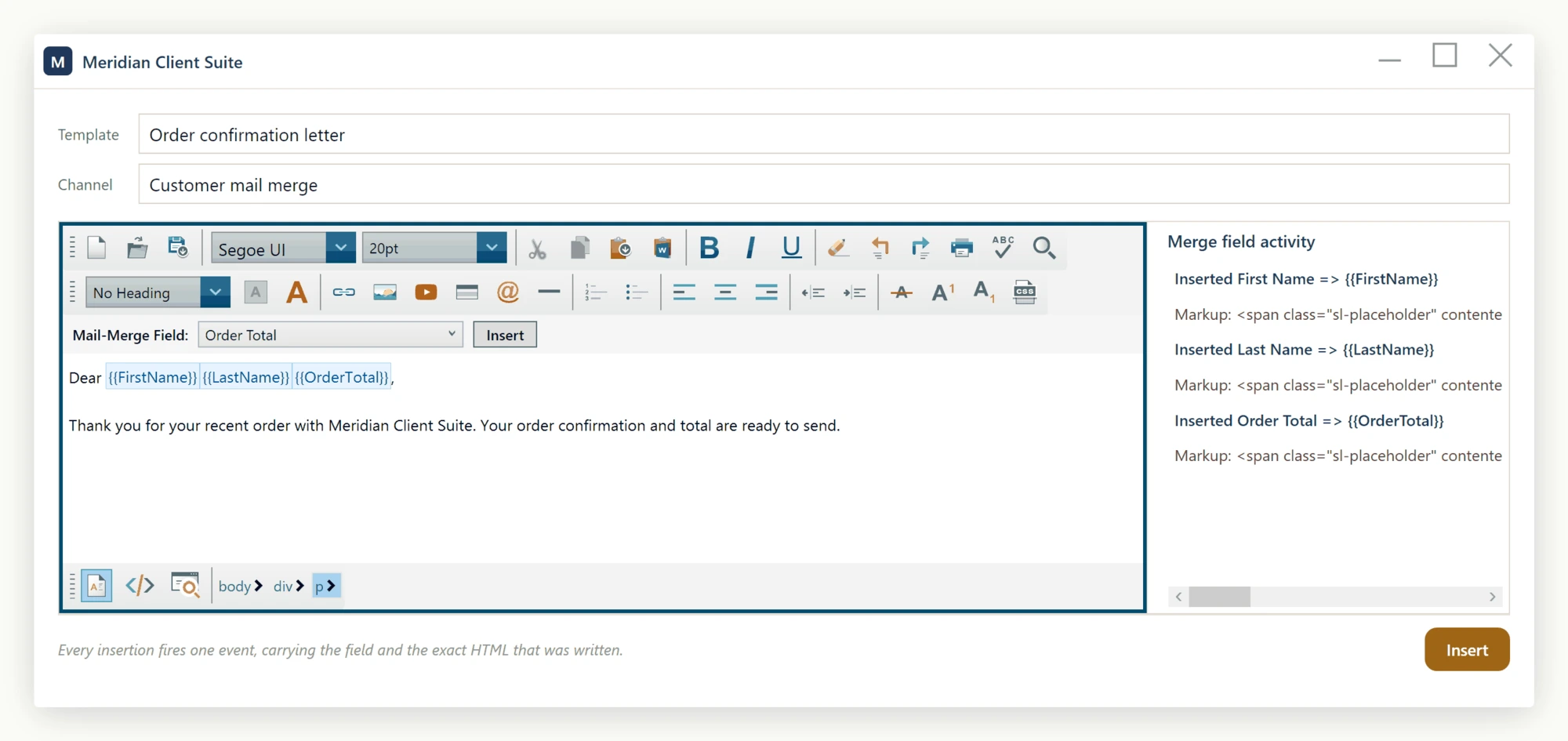
Caveats
Mail-merge insertion is a WYSIWYG-design-only operation. The editor uses the live caret in design mode to compute the insertion point; in source mode there is no caret in the rendered DOM, so InsertPlaceholder returns without doing anything. If you build a custom toolbar, disable your insert affordance whenever the editor is not in design mode so users get clear visual feedback rather than an apparently silent click.
Both DisplayName and Token are required: the PlaceholderField constructor throws ArgumentException if either is null, empty, or whitespace. The token string is treated as opaque by the editor - choose any delimiter convention that makes round-tripping unambiguous on your server (the most common are {{Name}} or [%Name%]).
Full example
Putting it all together, here is a minimal WPF window that registers three fields, opts into the built-in toolbar, and logs each insertion:
using System;
using System.Collections.Generic;
using System.Windows;
using SpiceLogic.HtmlEditor.Abstractions.Entities.MailMerge;
namespace WpfMailMergeDemo;
public partial class MainWindow : Window
{
    public MainWindow()
    {
        InitializeComponent();
        Loaded += OnLoaded;
    }
    private void OnLoaded(object sender, RoutedEventArgs e)
    {
        IList<PlaceholderField> fields = new List<PlaceholderField>
        {
            new PlaceholderField("First Name", "{{FirstName}}"),
            new PlaceholderField("Last Name",  "{{LastName}}"),
            new PlaceholderField("Order Total", "{{OrderTotal}}")
        };
        Editor.Content.MailMerge.PlaceholderFields = fields;
        Editor.ShowPlaceholderToolbar = true;
        Editor.PlaceholderToolbar?.RebindFields();
        Editor.Content.MailMerge.PlaceholderInserted += (s, args) =>
            System.Diagnostics.Debug.WriteLine($"Inserted: {args.Field}");
    }
}
Imports System
Imports System.Collections.Generic
Imports System.Windows
Imports SpiceLogic.HtmlEditor.Abstractions.Entities.MailMerge
Namespace WpfMailMergeDemo
Partial Public Class MainWindow
Inherits Window
Public Sub New()
InitializeComponent()
AddHandler Loaded, AddressOf OnLoaded
End Sub
Private Sub OnLoaded(sender As Object, e As RoutedEventArgs)
Dim fields As IList(Of PlaceholderField) = New List(Of PlaceholderField) From {
New PlaceholderField("First Name", "{{FirstName}}"),
New PlaceholderField("Last Name", "{{LastName}}"),
New PlaceholderField("Order Total", "{{OrderTotal}}")
}
Editor.Content.MailMerge.PlaceholderFields = fields
Editor.ShowPlaceholderToolbar = True
Editor.PlaceholderToolbar?.RebindFields()
AddHandler Editor.Content.MailMerge.PlaceholderInserted, Sub(s, args) System.Diagnostics.Debug.WriteLine($"Inserted: {args.Field}")
End Sub
End Class
End Namespace
The companion XAML is the same minimal hosting markup you would use for any WpfHtmlEditor instance - declare the namespace prefix and drop the control into a layout container with x:Name="Editor".
Ask your AI to do this
Connect the SpiceLogic MCP server, then give your coding assistant this prompt.
I use the SpiceLogic WPF HTML Editor. Help me configure mail-merge fields and insert a selected placeholder at the caret. Confirm the exact API names, types and defaults with the SpiceLogic MCP documentation, then show the changes for my project.