


 NuGet
NuGet
Selection service
The selection service works with the text or elements currently highlighted in the editor. Use it to select a range, find and select text, read the selected content or clear the selection. Access these operations through the editor control's Selection property.
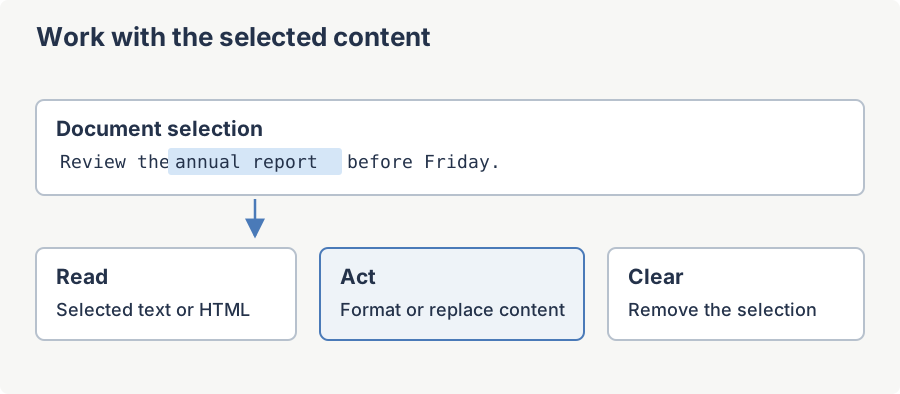
Indexes are zero-based and measure characters in the rendered text stream, not bytes in the HTML source. The companion SelectionInfo object returned by GetSelectionInfo() bundles the start index, length, plain text and HTML of the current selection in a single object, which is the recommended way to snapshot selection state.
Calling a selection method does not change formatting - combine these methods with the Formatting Service when you want to make a structural change and apply formatting to a precise range in a single operation.
Namespace: SpiceLogic.HtmlEditor.Abstractions.Services
Assembly: SpiceLogic.HtmlEditor.Abstractions
Inheritance: ISelectionService : IDisposable
SelectText(Int32, Int32) Method
Selects a contiguous range of characters starting at startIndex and spanning length characters.
Syntax
void SelectText(int startIndex, int length);Parameters
| Name | Type | Description |
|---|---|---|
| startIndex | Int32 | Zero-based character index where the selection begins. |
| length | Int32 | Number of characters to select. |
Returns
None.
Remarks
Indexes count characters in the rendered text stream, not the raw HTML source. In HtmlEdit mode both indexes instead address the raw HTML markup text in the underlying textbox, not the rendered plain text, since the offsets are applied directly to the raw-HTML editor there.
Example
// Select the first 12 characters of the document.

MyEditor.Focus();

MyEditor.Selection.SelectText(0, 12);
SelectText(Int32) Method
Selects from the given start index to the end of the document body.
Syntax
void SelectText(int startIndex);Parameters
| Name | Type | Description |
|---|---|---|
| startIndex | Int32 | Zero-based character index where the selection begins. |
Returns
None.
Remarks
In HtmlEdit mode this only positions the caret at startIndex in the raw-HTML textbox; it does not select through to the end of the text there the way it does in WysiwygDesign mode.
Example
// Select from character 50 to the very end of the body.

MyEditor.Selection.SelectText(50);

Debug.WriteLine($"Tail length: {MyEditor.Selection.GetSelectionLength()}");
SelectText(String, Boolean, Boolean, Boolean) Method
Searches the document for the specified text and, if found, selects the first match in the given direction. This is the same primitive the built-in Find dialog is built on.
Syntax
bool SelectText(string text, bool forward, bool matchWholeWord, bool matchCase);Parameters
| Name | Type | Description |
|---|---|---|
| text | String | The search term. |
| forward | Boolean | true to search from the caret toward the end of the document; false to search backward. |
| matchWholeWord | Boolean | true to require word-boundary matches. |
| matchCase | Boolean | true for case-sensitive matching. |
Returns
true if a match was found and selected; false otherwise.
Remarks
Always returns false in HtmlEdit mode, without searching.
Example
if (!MyEditor.Selection.SelectText("TODO", forward: true, matchWholeWord: true, matchCase: false))
{
    MessageBox.Show("No more TODO markers.");
}
If Not MyEditor.Selection.SelectText("TODO", forward:=True, matchWholeWord:=True, matchCase:=False) Then
MessageBox.Show("No more TODO markers.")
End IfSelectHtmlElement(IHTMLElement) Method
Selects the specified MSHTML element, expanding the selection to cover the entire element. Useful in conjunction with MyEditor.StateQuery.GetActiveHtmlElement() or GetElementFromPoint() to highlight an element identified by some other route (for example a hover or right-click).
Syntax
void SelectHtmlElement(IHTMLElement element);Parameters
| Name | Type | Description |
|---|---|---|
| element | mshtml.IHTMLElement | The HTML element to select. |
Returns
None.
Remarks
A no-op in HtmlEdit mode.
Example
IHTMLElement active = MyEditor.StateQuery.GetActiveHtmlElement();
if (active != null)
{
    MyEditor.Selection.SelectHtmlElement(active);
}
Dim active As IHTMLElement = MyEditor.StateQuery.GetActiveHtmlElement()
If active IsNot Nothing Then
MyEditor.Selection.SelectHtmlElement(active)
End IfGetSelectionInfo Method
Returns a snapshot of the current selection. SelectionInfo bundles the start index, length, plain text and HTML in one allocation, which is cheaper than calling the individual getters when you need more than one value.
Syntax
SelectionInfo GetSelectionInfo();Returns
A populated SelectionInfo with StartIndex, Length, Text, and Html. For an empty selection, Length is 0 and the text and html fields are empty strings.
Remarks
In HtmlEdit mode this always returns a SelectionInfo with its fields at default (empty strings, zero); it does not read the raw-HTML textbox's own selection.
Example
var info = MyEditor.Selection.GetSelectionInfo();
Debug.WriteLine($"Selected {info.Length} chars: {info.Text}");
Debug.WriteLine($"HTML: {info.Html}");
Dim info = MyEditor.Selection.GetSelectionInfo()
Debug.WriteLine($"Selected {info.Length} chars: {info.Text}")
Debug.WriteLine($"HTML: {info.Html}")DeselectAll Method
Clears any active selection without altering the caret position. Equivalent in spirit to TextBox.DeselectAll in classic WinForms / WPF text controls.
Syntax
void DeselectAll();Returns
None.
Example
// Drop the highlight after a programmatic update.

MyEditor.Selection.SelectAll();

MyEditor.Formatting.ChangeFontSize("12px");

MyEditor.Selection.DeselectAll();
Unselect Method
Clears any active selection. Synonym for DeselectAll, retained for backward compatibility with earlier editor versions.
Syntax
void Unselect();Returns
None.
Example
// Same effect as DeselectAll; provided for source compatibility.

MyEditor.Selection.Unselect();
SelectAll Method
Selects the entire document body. Equivalent to the user pressing Ctrl+A inside the editor.
Syntax
void SelectAll();Returns
None.
Example
MyEditor.Selection.SelectAll();
string body = MyEditor.Selection.GetSelectedText();
Debug.WriteLine($"Body text length: {body.Length}");
MyEditor.Selection.SelectAll()
Dim body As String = MyEditor.Selection.GetSelectedText()
Debug.WriteLine($"Body text length: {body.Length}")GetSelectedHtml Method
Returns the HTML markup that backs the current selection. Markup is returned as the editor sees it, including inline styles and any wrapping elements (<span>, <b>, etc.).
Syntax
string GetSelectedHtml();Returns
The selected HTML fragment, or String.Empty when there is no active selection.
Example
string html = MyEditor.Selection.GetSelectedHtml();
if (!string.IsNullOrEmpty(html))
{
    Clipboard.SetText(html);
}
Dim html As String = MyEditor.Selection.GetSelectedHtml()
If Not String.IsNullOrEmpty(html) Then
Clipboard.SetText(html)
End IfGetSelectedText Method
Returns the plain-text content of the current selection with HTML tags stripped.
Syntax
string GetSelectedText();Returns
The selected text, or String.Empty when there is no active selection.
Example
string text = MyEditor.Selection.GetSelectedText();
StatusText.Text = $"Selected: {text}";
Dim text As String = MyEditor.Selection.GetSelectedText()
StatusText.Text = $"Selected: {text}"TrimSelection(TrimDirections) Method
Shrinks the active selection by removing leading and / or trailing whitespace characters. Returns the trimmed text. Particularly useful after SelectText(string, ...) matches that pulled in surrounding spaces, or after the user double-clicks to select a word and the platform extended the selection a character too far.
Syntax
string TrimSelection(TrimDirections trimDirection = TrimDirections.Both);Parameters
| Name | Type | Description |
|---|---|---|
| trimDirection | TrimDirections | One of Start, End, or Both (default). |
Returns
The trimmed selection text.
Remarks
Always returns an empty string in HtmlEdit mode - it operates on the live MSHTML selection and does not affect the raw-HTML textbox.
Example
MyEditor.Selection.SelectText("  hello world  ", true, false, true);
string clean = MyEditor.Selection.TrimSelection(); // -> "hello world"
Debug.WriteLine(clean);MyEditor.Selection.SelectText(" hello world ", True, False, True)
Dim clean As String = MyEditor.Selection.TrimSelection() ' -> "hello world"
Debug.WriteLine(clean)GetSelectionLength Method
Returns the length, in characters, of the current selection.
Syntax
int GetSelectionLength();Returns
The selection's character length, or -1 when there is no text-range selection to measure - in HtmlEdit mode, or when the current selection is not a text range (for example, an image or table selected as a whole).
Example
if (MyEditor.Selection.GetSelectionLength() == 0)
{
    MessageBox.Show("Please select some text first.");
    return;
}
If MyEditor.Selection.GetSelectionLength() = 0 Then
MessageBox.Show("Please select some text first.")
Return
End IfDispose Method
Inherited from IDisposable. Called by the editor control during teardown - host applications normally do not invoke this directly.
Syntax
void Dispose();Returns
None.
Example
// Disposing the editor disposes its services automatically.

MyEditor.Dispose();

// Explicit form is rarely needed:

// MyEditor.Selection.Dispose();
Ask your AI to do this
Connect the SpiceLogic MCP server, then give your coding assistant this prompt.
I use the SpiceLogic WPF HTML Editor. Help me read and modify the selected HTML or text through the Selection service. Confirm the exact API names, types and defaults with the SpiceLogic MCP documentation, then show the changes for my project.