


 NuGet
NuGet
Design-time configuration
Design-time configuration lets you set up the editor in Visual Studio before running your application. Configure WpfHtmlEditor through XAML or the Properties window. The Quick Setup panel requires a supported .NET Framework host.
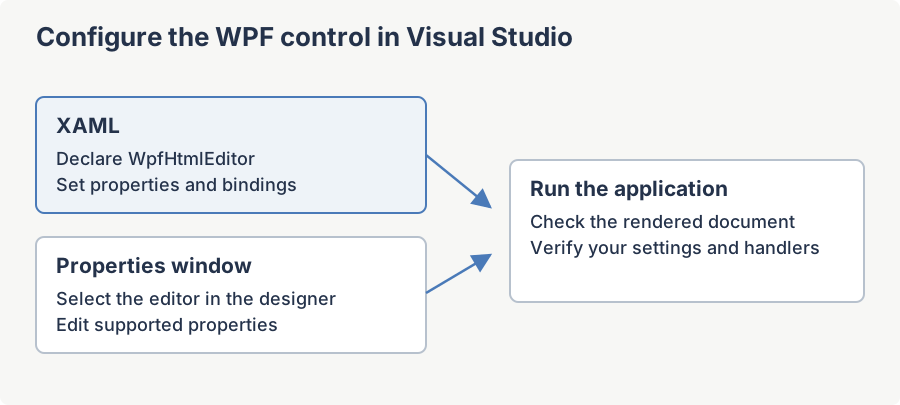
The design-time experience in one minute (WPF)
Adding toolbar items is a separate, code/XAML/binding task (the toolbars are factory-built); see Adding New Items to the WPF Editor Toolbar in the Toolbar Customization section.
There is no Smart Tag on WPF -- use the Properties window and XAML
The Smart Tag is a WinForms designer concept. On WPF you set the same kinds of settings either in the Properties window or straight in XAML. The commonly-configured properties are:
| Property | Purpose |
|---|---|
Language | UI language of the editor. |
EditorMode | Start-up editor mode. |
Options.DefaultHtmlType | Default HTML type. |
Options.EnterKeyResponse | Paragraph vs line break on Enter. |
SpellCheckOptions.FireInlineSpellCheckingOnKeyStroke | Inline spell-check on keystroke. |
Options.ShowZeroBorderGuideline | Zero-border table guideline. |
Options.EnableTableCellMerge | Table cell merge feature. |
BodyStyle / BaseUrl / Charset | Document body style, base URL, charset. |
The WPF design-time assembly is .NET Framework only -- behavior on modern .NET
Design-time support for the WPF control (its separate design-time assembly) is built for .NET Framework (net45 / net472 / net48) only, so the richest design-time tooling appears when your host targets .NET Framework. On modern .NET (.NET 5, 6, 7, 8, 9, 10) you still set every property at design time through the Properties window and XAML IntelliSense, and at runtime in code. Because the Quick Setup panel's design-time assembly targets .NET Framework only, that panel does not appear on modern .NET -- but every property is still set through the Properties window and XAML IntelliSense there, so nothing functional is missing on modern .NET, only a design-time convenience.
Configuring the control at design time
Set properties as XAML attributes (with IntelliSense) or in the Properties window; the same things are settable in code:
<wpfeditor:WpfHtmlEditor x:Name="Editor"
                         Language="German"
                         EditorMode="WysiwygDesign" />
Adding toolbar items is a code/XAML/binding task -- see Adding New Items to the WPF Editor Toolbar in the Toolbar Customization section.
Quick answers
| Question | Answer |
|---|---|
| Is there a Smart Tag on the WPF editor? | Not a WinForms-style Smart Tag, but a Quick Setup panel appears next to the selected control on the WPF design surface (.NET Framework hosts only), giving one-click access to the same commonly-configured properties. |
| How do I configure the control at design time? | The Properties window and XAML attributes (with IntelliSense). |
| Anything different on modern .NET vs .NET Framework? | Only design-time tooling richness. Properties stay fully editable; runtime is identical. |
| How do I add toolbar items? | In code, XAML, or via data binding. See the Toolbar Customization section. |
Ask your AI to do this
Connect the SpiceLogic MCP server, then give your coding assistant this prompt.
I use the SpiceLogic WPF HTML Editor. Help me configure the editor in the platform designer using its supported properties. Confirm the exact API names, types and defaults with the SpiceLogic MCP documentation, then show the changes for my project.