


 NuGet
NuGet
Guidelines for zero-border tables
A borderless table can organize a document without showing a grid in the final output, but its cells are harder to locate while editing. Zero-border guidelines make those cell boundaries visible in the editor. Options.ShowZeroBorderGuideline enables them, and Options.ZeroBorderTableGuidelineCss controls their appearance.
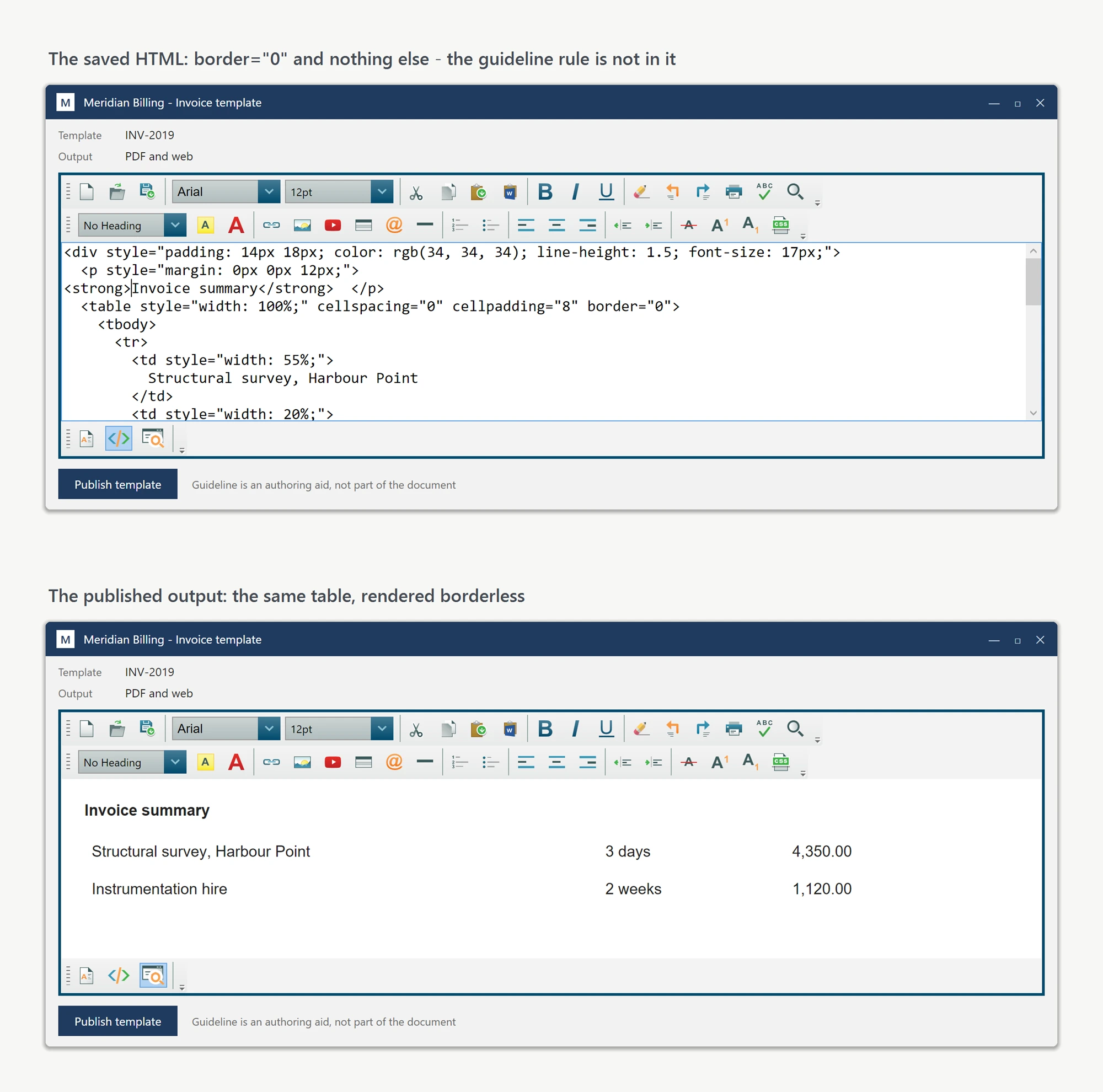
The WpfHtmlEditor handles this case. It injects a small CSS rule into the editing surface that paints a faint guideline around every cell of a zero-border table while the user is editing. The rule is scoped to the design surface; it never leaks into the saved HTML. Set it via Options.ZeroBorderTableGuidelineCss.
The default value is a thin dashed black outline (border: 1px dashed #000000). Override it for better visibility against a specific background, for example a blue dotted outline with a faint background tint:
editor.Options.ZeroBorderTableGuidelineCss =
    "border: 1px dotted #0078d4; background: #f3f9ff;";
editor.Options.ZeroBorderTableGuidelineCss = "border: 1px dotted #0078d4; background: #f3f9ff;"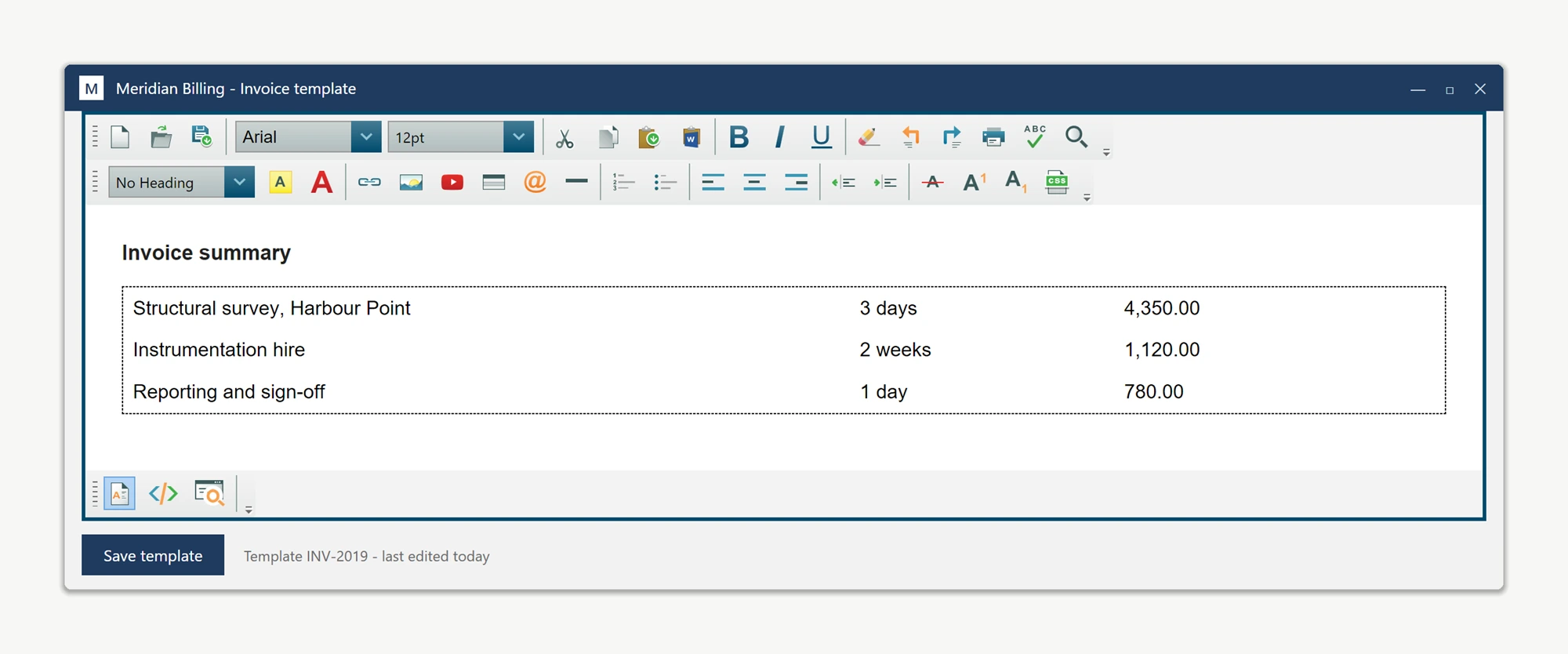
The guideline rule is stripped from the saved HTML: it never appears in the output returned through BodyHtml or DocumentHtml, so PDF and published Web output both render the clean, borderless layout as intended.
Set Options.ShowZeroBorderGuideline to false to disable the guideline. Keep the CSS setting for the next time guidelines are enabled:
editor.Options.ShowZeroBorderGuideline = false;editor.Options.ShowZeroBorderGuideline = FalseThe same option lives on the WinForms control through the shared IEditorOptions interface, so the same configuration code works on both editors. The guideline is purely a design-time aid, not a substitute for a real border: for a table that should have a visible border in the output, set border="1" on the table itself. The guideline rule only applies when the border is zero.
Ask your AI to do this
Connect the SpiceLogic MCP server, then give your coding assistant this prompt.
I use the SpiceLogic WPF HTML Editor. Help me enable ShowZeroBorderGuideline and customize the editing outline for borderless tables. Confirm that saved HTML contains the original table styles. Confirm the exact API names, types and defaults with the SpiceLogic MCP documentation, then show the changes for my project.