


Categorical criterion
What is a categorical criterion?
Sometimes the thing you care about is not a number you can measure. It is a choice from a list. You simply like some options more than others. Think about shopping for a car. You might love the idea of a truck, feel okay about an SUV, and not really want a sedan at all. None of that is a price or a fuel number. It is just how much you like each type.
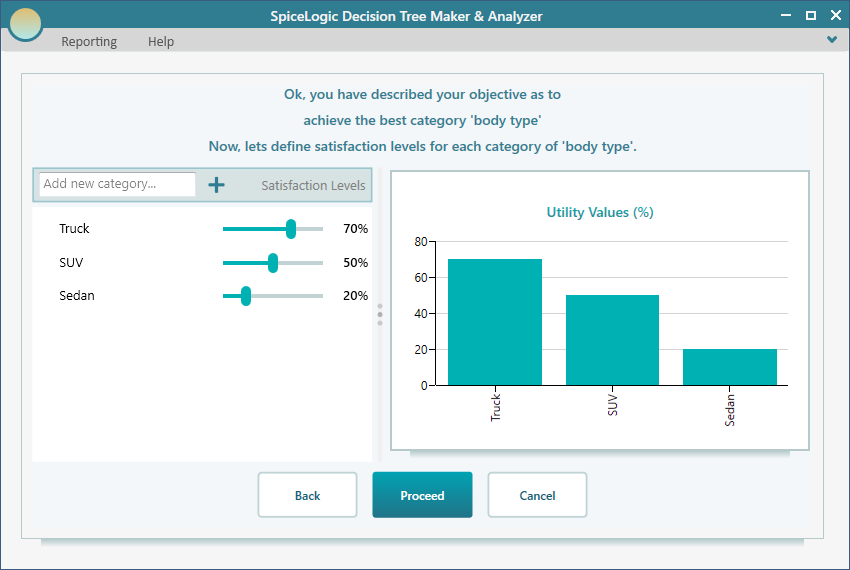
You can still put numbers on that feeling so the software can compare it against everything else. We call these numbers utility values. The higher the number, the more you like that option. For the car example, you might say:
- Body type: Truck gives 70 utils
- Body type: SUV gives 50 utils
- Body type: Sedan gives 20 utils
So your goal here is simple. You want the best category for 'Body Type'. The best category is the one with the highest utility value, because that is the one you like most. In Decision Tree Analyzer, a goal like this is called a categorical criterion. Use it any time the payoff is a pick from a set of named choices instead of a measured amount. For instance, you could also use it for a job offer where the office location matters: "Downtown" might be worth 80 utils, "Suburb" 40, and "Remote town" 10. Same idea, different list.
How a categorical criterion looks while you work
Once you have created a categorical objective, you set its payoff right on each node of your tree. Instead of typing a number, you pick a value from a drop-down list. That list holds every group you defined for the criterion. For the car body type example, where the objective is best category 'Body Type', the payoff for a node looks like the view below.
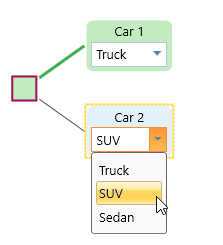
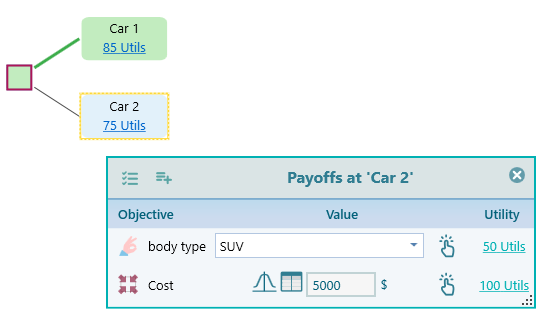
There is one small detail worth knowing. If your model has only this one objective, and it is a categorical type, the drop-down shows up right on the node. So you can pick the category without opening anything extra. But once you have more than one objective, the drop-down moves into the payoff window instead. That way every objective has room to be set in one place. For example, say you add a second objective, "Minimize Cost". Now you have two payoffs to set per node, a body type and a cost, so they live together in the payoff window. The view below shows how that looks.
Setting up a categorical criterion
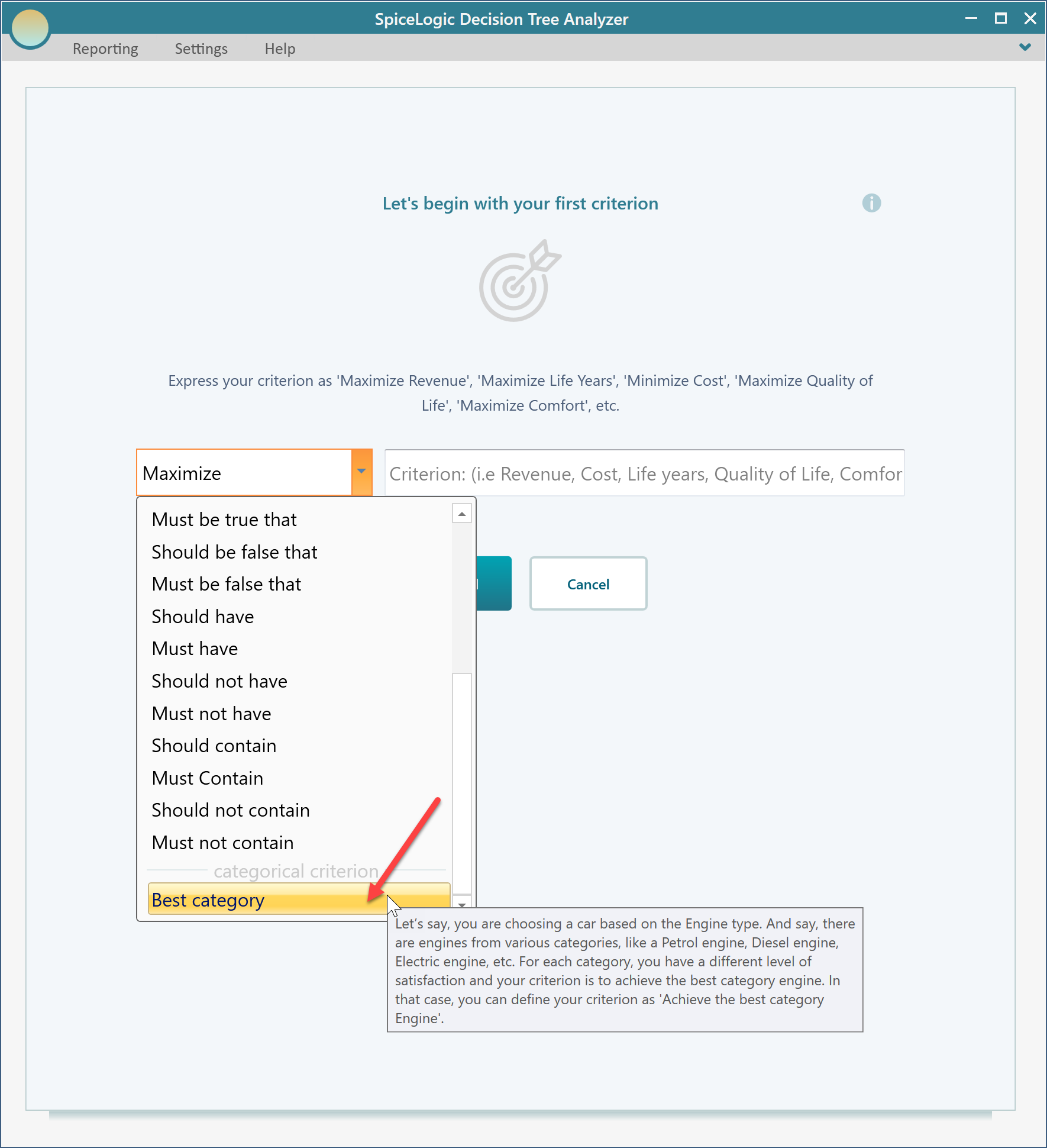
To create one, open the objective creation wizard. You will see the screen below. The objective type is chosen from a drop-down box. Scroll that list all the way to the bottom and you will find "best category". Select it.
After you choose "best category", give the criterion a name so you know what it stands for later. For our example, type "body type", as shown below. A clear name helps when your tree grows and you have several objectives side by side.
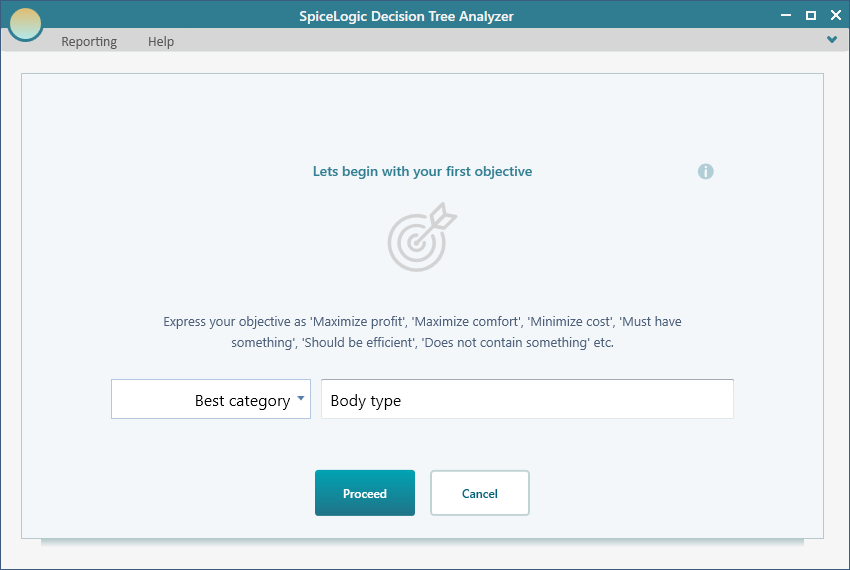
Now click the "Proceed" button. The next screen appears, ready for you to list your categories.
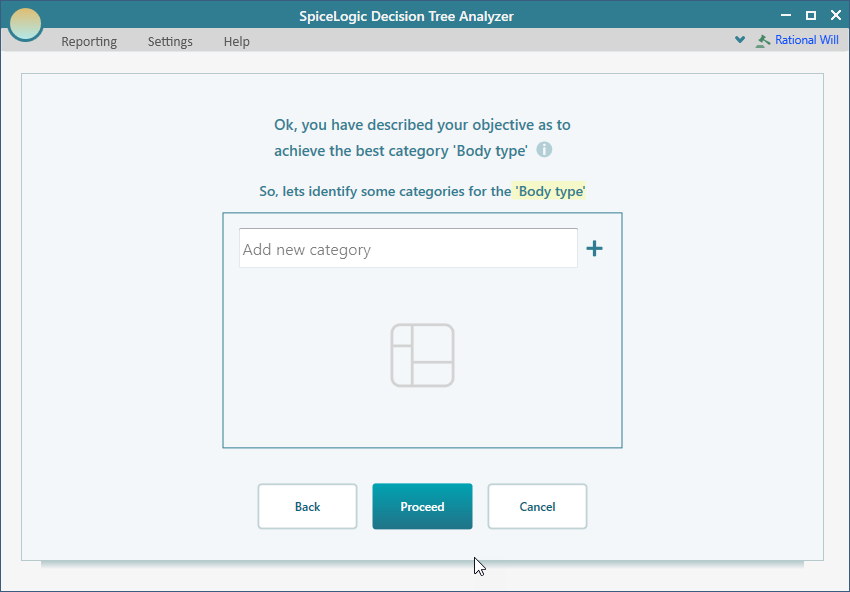
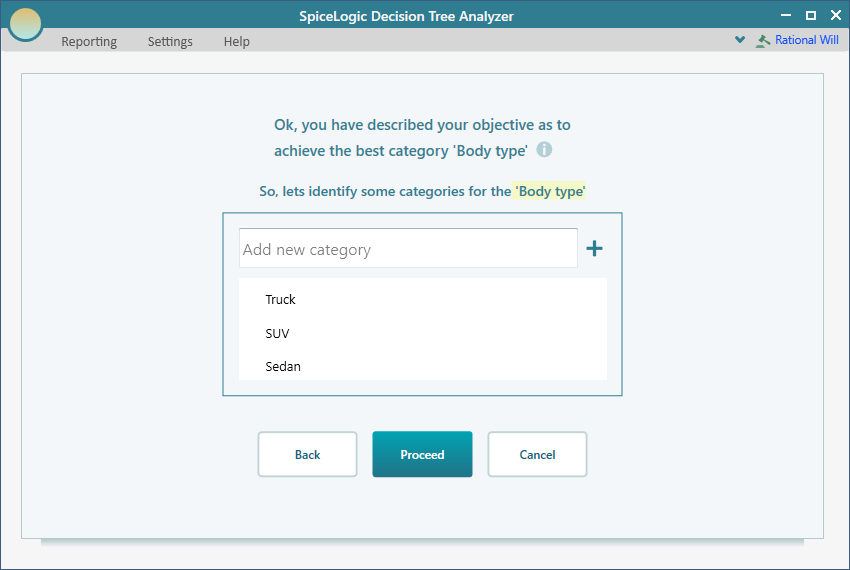
Type in your three body types, one at a time: "Truck", "SUV", and "Sedan". These are the choices that will show up in the drop-down later. When you have added all three, click the "Proceed" button.
After you click "Proceed", you land on a screen where you set the utility value for each category. This is where you tell the software how much you like each one. You can also add a new category, edit an existing one, or delete one right here if you change your mind. For our example, set Truck to 70, SUV to 50, and Sedan to 20. Those numbers say a truck is your top pick, an SUV sits in the middle, and a sedan is your least favorite. The exact numbers are up to you. What matters is the gap between them, since that gap is how strongly you prefer one body type over another.
Editing the criterion later
Your preferences can change, and so can your model. Maybe you drove an SUV for a week and liked it more than you thought. We have already covered how to open the objective editor. When you open it for a categorical objective, you see the view below, with all your categories and their utility values laid out for you to adjust.
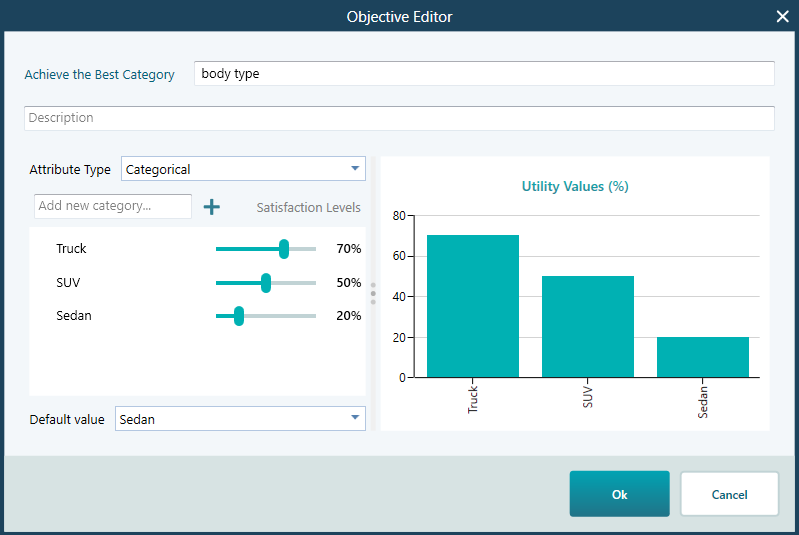
The editor is easy to use. To change a category, select it and double-click to edit its name or value. So if you want to bump the SUV from 50 to 65, you double-click that value and type the new number. To remove a category, select it and press the Delete key. You can also do both of these from the right-click context menu. That is all there is to keeping your categorical criterion up to date.