Eliciting Utility Function by Game Play
In the chapter "Modeling Utility Function", we talked about what a utility function is and why it matters. The catch is that most people don't know their own utility function off the top of their head. That's fine. The software can work it out for you by playing a short game. It shows you a few simple bets and asks one easy question about each one. From your answers, it builds your utility function for you.
Here is why this helps. Say you built a decision model with a Decision Tree, and one of your objectives is "Maximize Profit", set up as a Number. You are looking at an investment where you could lose $10,000 or gain $50,000. Money like that does not feel the same to everyone. Losing $10,000 may hurt you far more than gaining $10,000 would please you. So plain expected profit is not the whole story. A good utility function captures how you personally feel about those gains and losses. That is exactly what we want to define here.
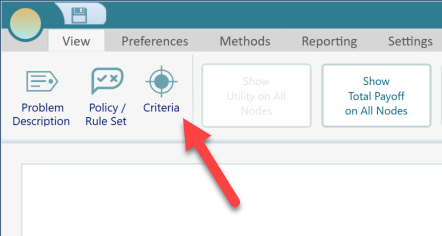
To get started, open the Objectives Manager. You can open it from the Ribbon, as shown below.
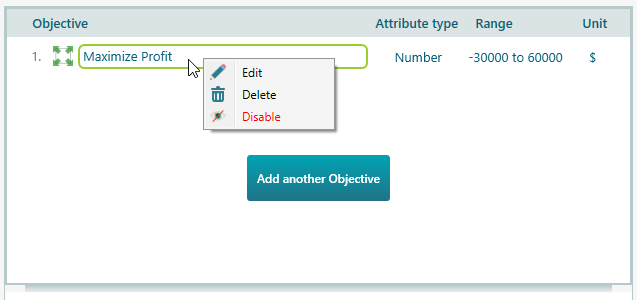
Once the Objectives Manager is open, find the objective you want to work on. Right-click its name to bring up the menu, then choose "Edit". If you prefer, just double-click the objective name instead. Either way opens the objective editor.
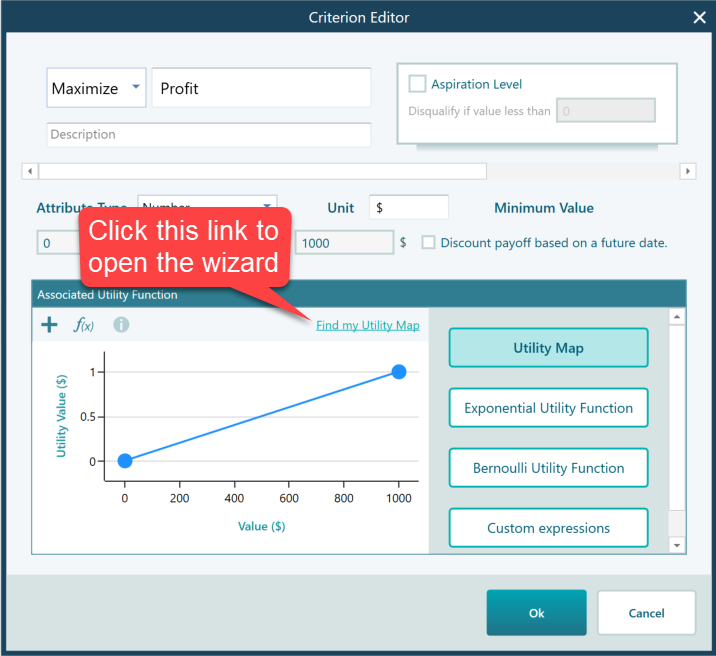
When the objective editor opens, click the "Find my Utility Map" link. This is what starts the game that builds your utility function.
The wizard opens, and you will see the screen below. There is nothing to memorize. It shows you a lottery, which is just a bet with two possible outcomes, and asks you one question about it.
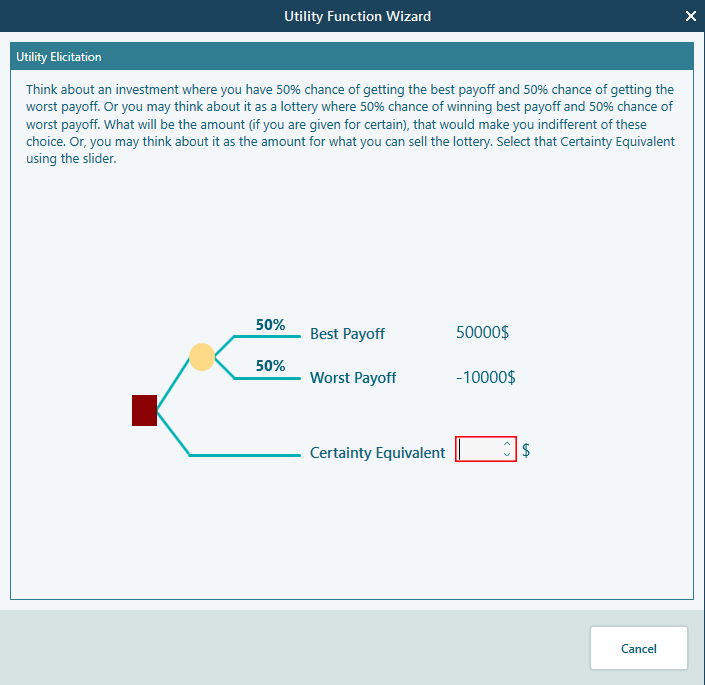
The wizard shows you a lottery. Your job is to name a sure amount you would happily take instead of playing it. In other words, what flat payment would make you walk away from the gamble? That number is called the Certainty Equivalent. Type it into the box here. For example, if you would sell this lottery for $5,000, enter 5,000. After you enter it, you will see the screen below.
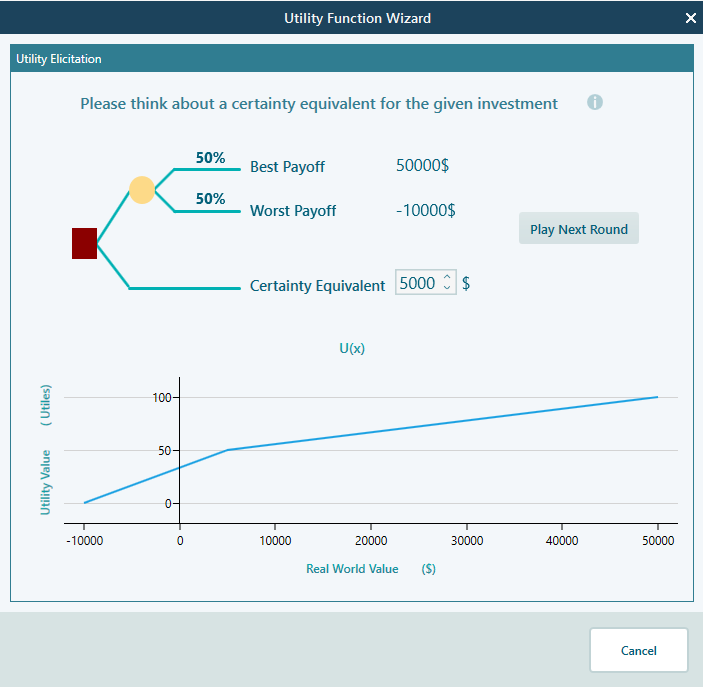
Click the "Play Next Round" button. The wizard then shows you a different lottery and asks for its Certainty Equivalent too, as shown below. Each round is just another version of the same simple question, so it goes quickly.
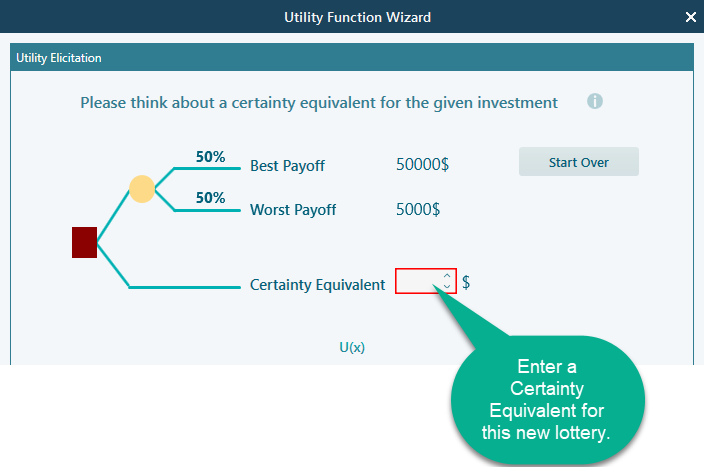
Answer this one the same way. For example, if you would sell this lottery for $15,000, enter 15,000 here. Keep playing a few more rounds, and give your honest sure amount each time. After enough answers, the software has what it needs and generates a utility value for you, as shown below.
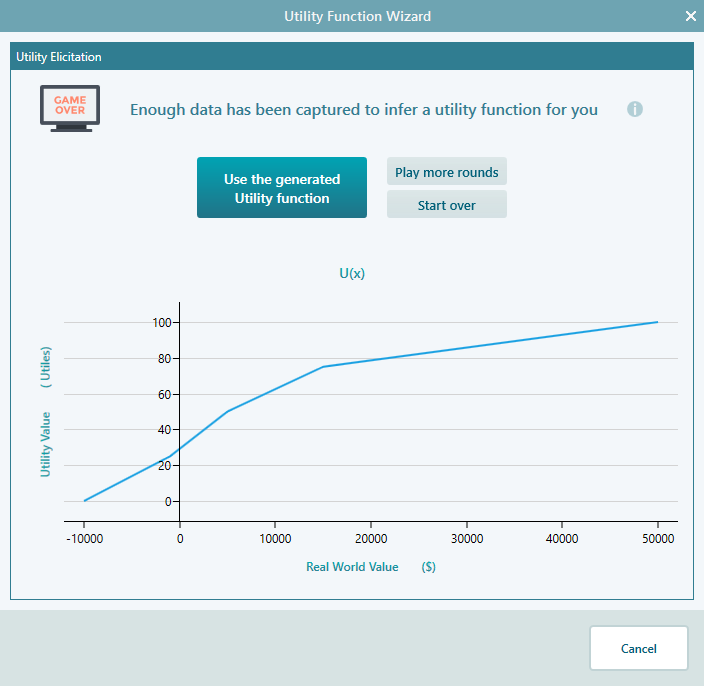
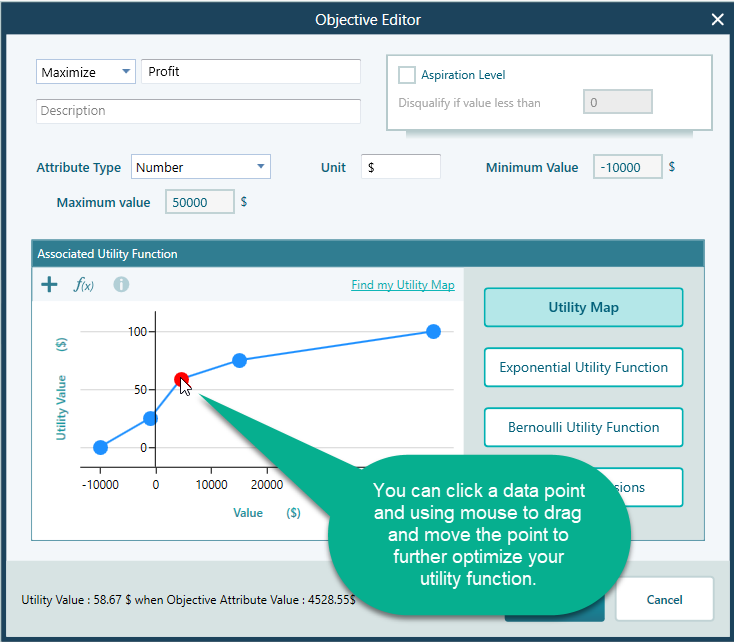
To keep the result, click the "Use the Generated Utility Function" button. You can play more rounds first to fine-tune it, but the function it has at this point is usually good enough to use. As soon as you click the button, the generated utility function is copied straight into the Utility function editor, as shown below. From here it is part of your model, ready to use in your analysis.