Manipulate the Tree Elements

Think about MS Word software or any document editor software that allows you to type but not modify, delete, edit... etc. How would that be? Useless, right? The same is true for decision tree software. You need to edit a tree in any way you want. You want to cut/copy/paste between nodes, copy a subtree and replace a node with that copied tree, insert decision/chance nodes between 2 connected nodes, etc. Yes, everything is possible with this Decision Tree Software and Analyzer software.


The Decision Tree Software software supports the following manipulations on the decision tree.

  1. Vertical Position arrangement.
  2. Convert to Decision Node or Chance Node.
  3. Cut, Copy and Paste a Node.
  4. Replace a node with the copied node/subtree.
  5. Delete a node or children.
  6. Insert a node.

Vertical position arrangement

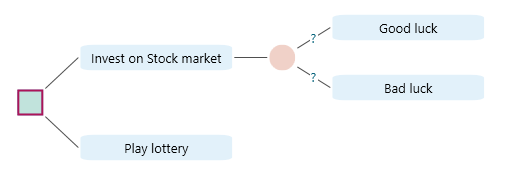
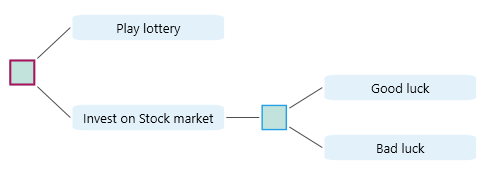
Say, you have created a tree like this.

Sample investment decision tree (Invest on Stock market versus Play lottery with Good luck and Bad luck events) used as the starting point for rearrangement examples.

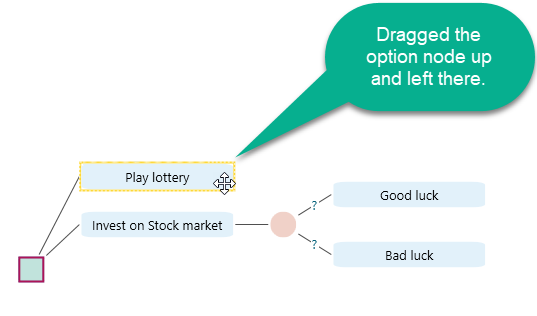
Now, you want to rearrange the vertical position of the options. Simply drag a node and move up or down.

Action node being dragged upward to rearrange its vertical position among sibling options on the canvas.

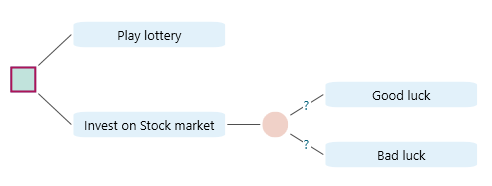
Once you leave the mouse, you will see the tree is rearranged.

Tree after releasing the dragged node, showing the sibling options in their new vertical order.

Convert to Decision Node or Chance Node

Select a Chance node, and right-click to open the context menu. You will notice the option "Convert to Decision Node".
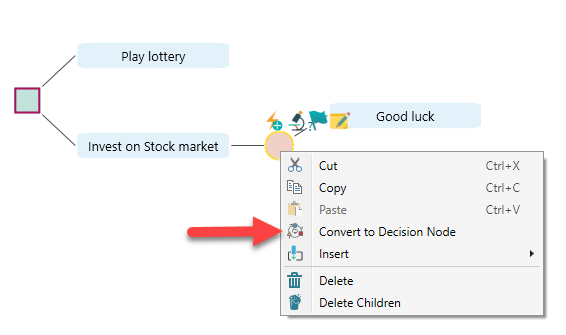
Right-click context menu on a Chance node with the Convert to Decision Node option visible.

If you select that menu, you will see the chance node is converted to a decision node.
Same node after conversion: the Chance node is now drawn as a Decision node (square) with its children preserved.

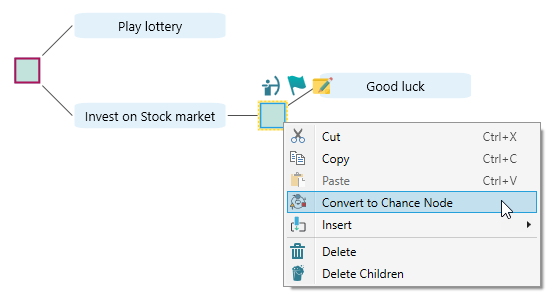
If you selected a decision node, then you could see the option "Convert to Chance Node". For example, select that converted Decision Node and right-click to open the context menu, you will see the option "Convert to Chance Node".

Right-click context menu on a Decision node showing the reverse Convert to Chance Node option.

Cut, Copy and Paste Node

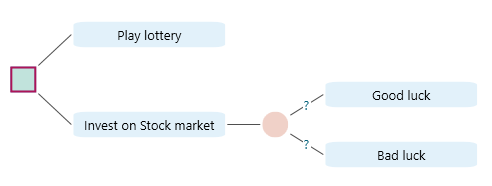
You can select a node and from the context menu (or using keyboard CTRL+C) you can Copy a node. For example, notice the following tree.

Investment decision tree used as the starting example for cut, copy, and paste node operations.

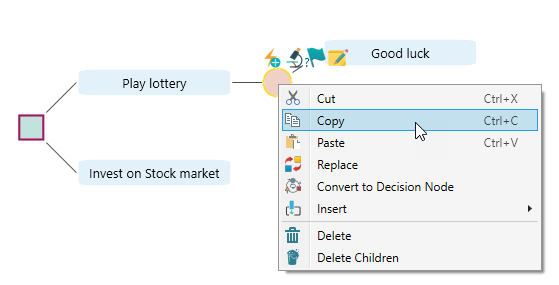
We will select the Chance node and Copy it from the context menu.

Selecting a Chance node and choosing Copy from its right-click context menu, equivalent to Ctrl plus C.

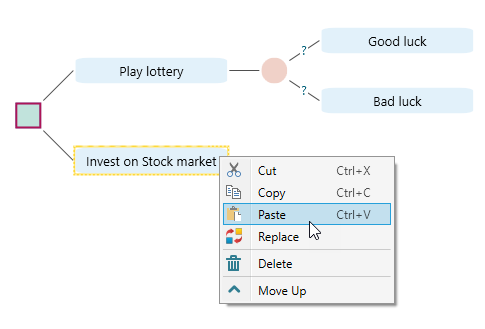
Now, select the option node "Invest in the stock market" and paste.

Right-click context menu on the Invest on Stock market action node with the Paste option highlighted.

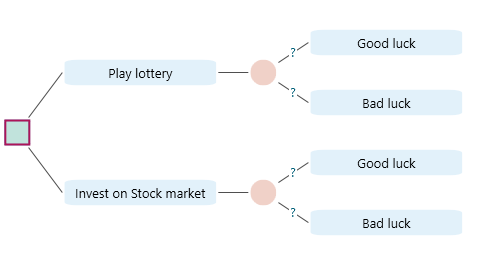
Once pasted, the tree looks like this.

Tree after pasting the copied Chance subtree onto the Invest on Stock market action node.

Same like, Copy and Paste, you can cut a node or subtree and paste over another node.

Replace a Node with copied node or subtree.

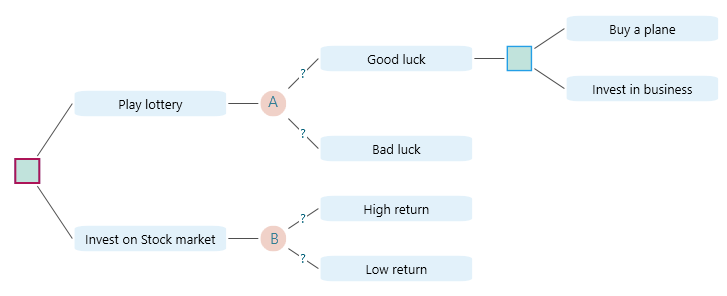
You can copy a node and replace a node with the copied node (along with its subtree). Consider the following tree.

Sample tree with nodes A and B used to demonstrate the Replace operation that swaps a node with a copied subtree.

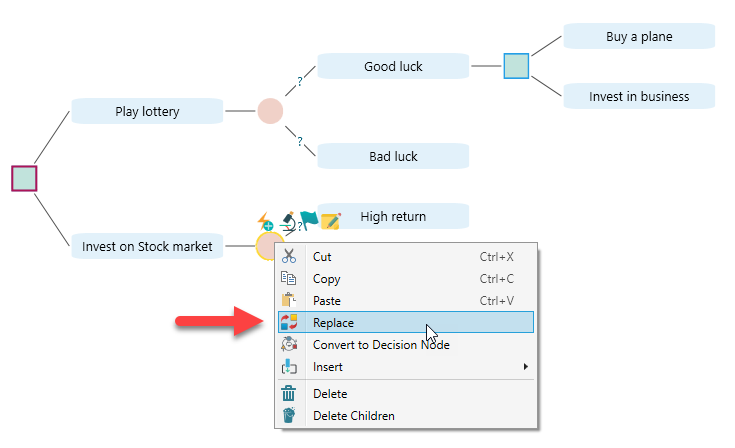
Say, you want to replace node B with node A. Simply copy node A and select node B, then from the context menu, choose 'Replace'.

Right-click context menu on node B with the Replace option chosen to swap it with the previously copied node A.

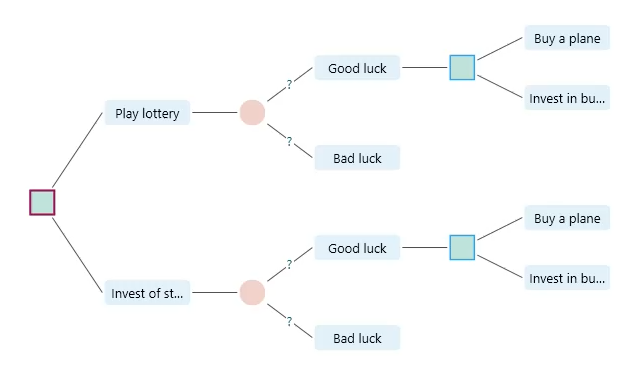
Once replaced, the tree will look like this:

Tree after Replace: node B and its subtree have been overwritten by node A and its subtree.

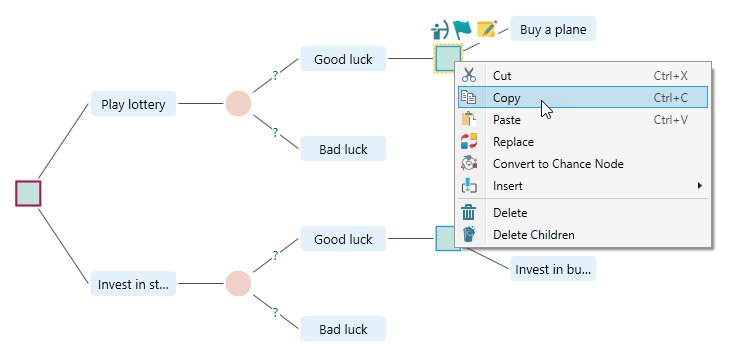
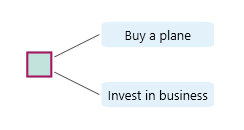
You can even replace the root node using a copied node. For example, say you copied one of the decision nodes that have children "Buy a plane" and "Invest in business". Now select the root node and replace it.

Copying a decision node whose children are Buy a plane and Invest in business, in preparation for replacing the root.

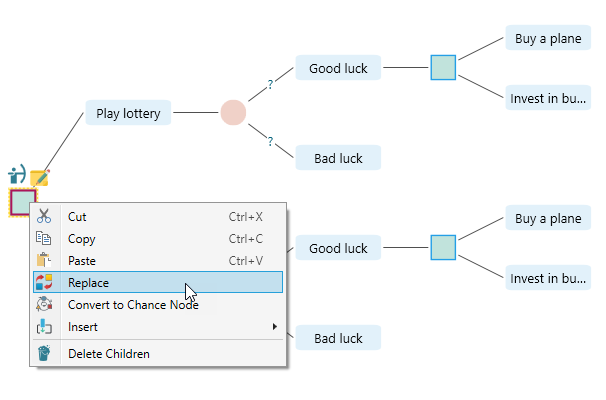
Now, select the root node and open the context menu by right mouse click. Select "Replace".

Right-click context menu on the root node with Replace chosen, used to swap the root with the previously copied subtree.

Once the "Replace" menu is clicked, the tree becomes like this:

Tree after the root node has been replaced by the copied Buy a plane versus Invest in business subtree.

Delete a node or Delete Children

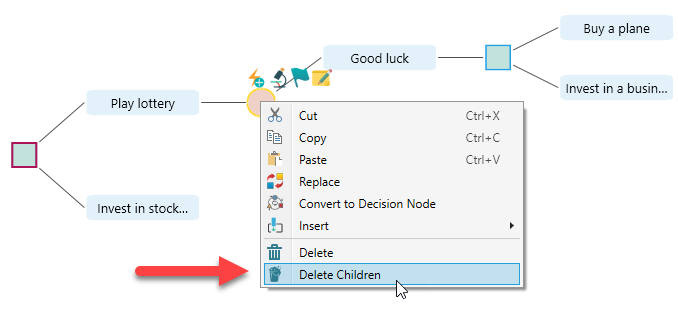
From the context menu of any node, you can find the delete option. You can use the Delete Key of your keyboard to delete a selected node too. When you select a node and if that node has children, you can simply delete its children from a context menu option "Delete Children".

Right-click context menu on a node with the Delete Children option highlighted to remove all descendants while keeping the node itself.

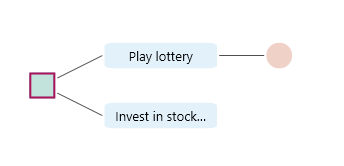
Once this option is chosen, the tree becomes:

Tree after Delete Children: the selected node remains while all its descendant nodes have been removed.

Insert a node

It won't be fun if you could not insert a node between 2 nodes. Once you formed a decision tree and realized that, there was another decision that needed to be taken before some action, or you just realized a new uncertainty between 2 sequential decisions, you need to insert a new decision node, or a chance node, or a simultaneous node. Right? You can use the Insert feature from the context menu to solve this problem.

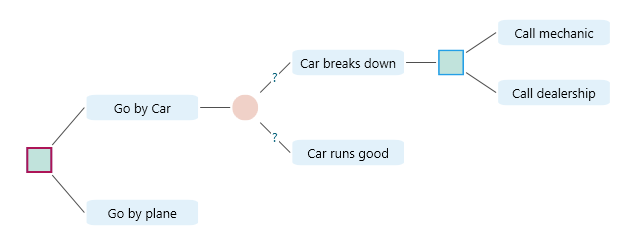
Say, you have a tree like this.

Sample journey planning decision tree (car versus plane with a Car breaks down event) used to demonstrate inserting nodes between existing ones.

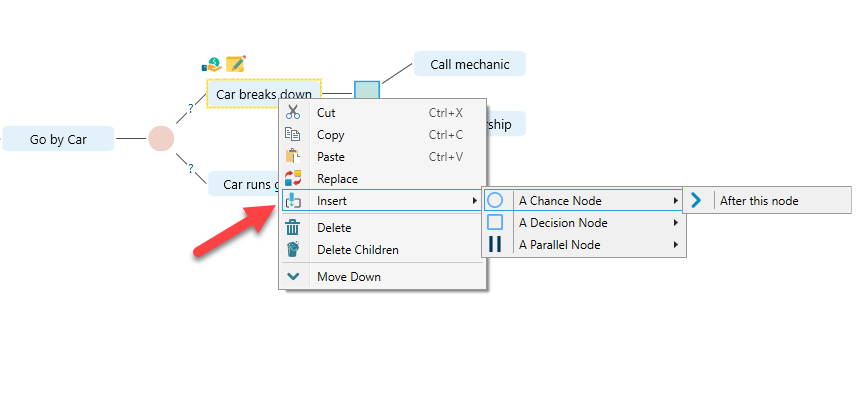
Now, you realized that, when the car breaks down, there can be 2 uncertain scenarios, "Cell phone has network" and "No cell phone network". You can call a mechanic or dealership, only if your cell phone has the network signal, right? So, in order to insert a chance node after "Car breaks down", select the "Car breaks down" node and open the context menu by mouse right click.

Right-click context menu on the Car breaks down event with Insert, A Chance Node, After this node sub-menu open to add a chance between this node and its child.

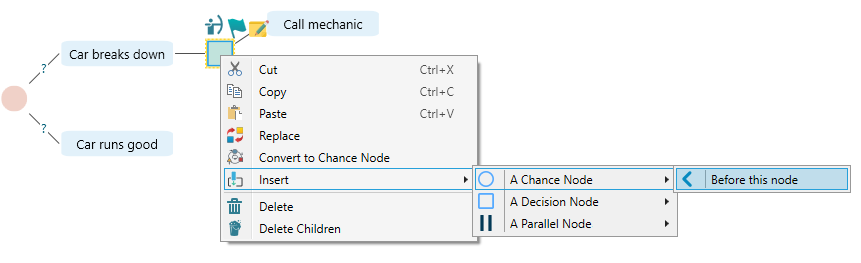
You can insert a node by selecting the decision node too, as shown below:

Inserting a Chance node from the context menu of a Decision node so the new chance sits above the selected node in the tree.
Last updated on Jan 7, 2026