Diagram view manipulation

Once you create a decision tree diagram, you may feel the need to increase the height or width between nodes. Also, you may want to increase the node width so that most part of a long node text can be shown. You may want to zoom in or zoom out, pan and zoom etc. Yes, you can do all these things from the Diagram Overview panel.

Pan and Zoom
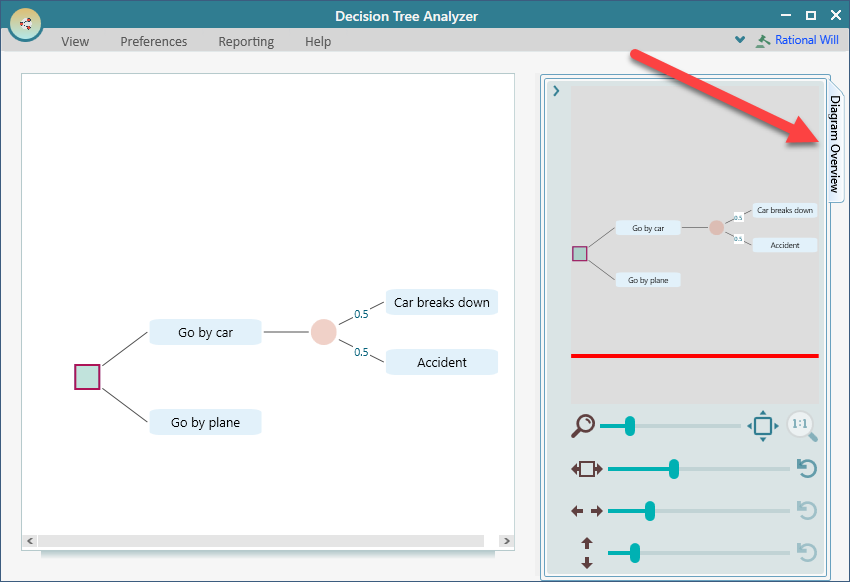
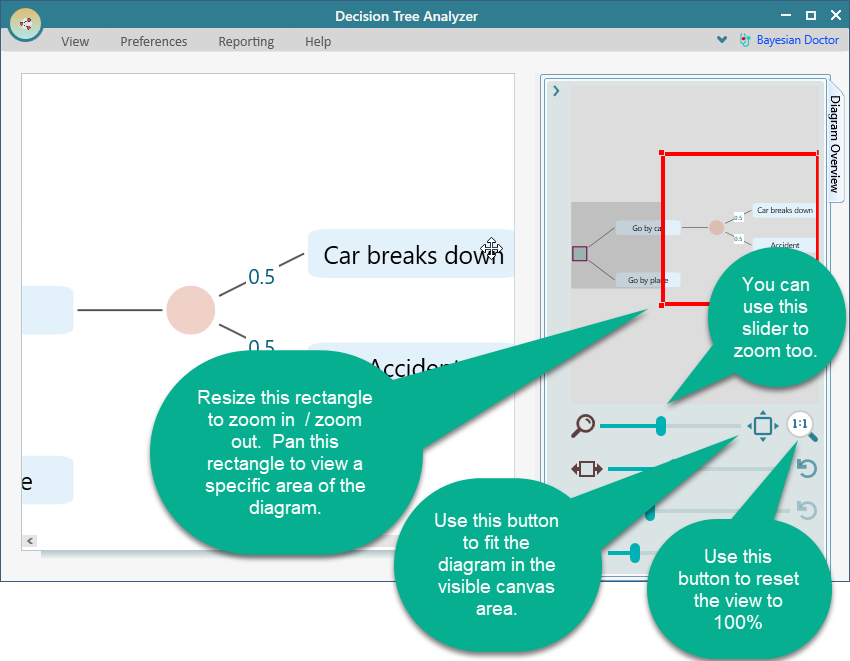
Diagram Overview panel showing a thumbnail of the whole tree with a draggable rectangle for pan-and-zoom navigation.

You can pan and zoom a big diagram using this rectangle. In the Diagram overview panel, you will find a slider to zoom in and zoom out too. Also, there are 2 buttons to fit the diagram in the visible canvas area. Another button is to reset the diagram to 100% zoom level.

Zoom slider plus Fit-to-canvas and Reset-to-100-percent buttons in the Diagram Overview panel for scaling the tree view.

Increase/Decrease the Node Width

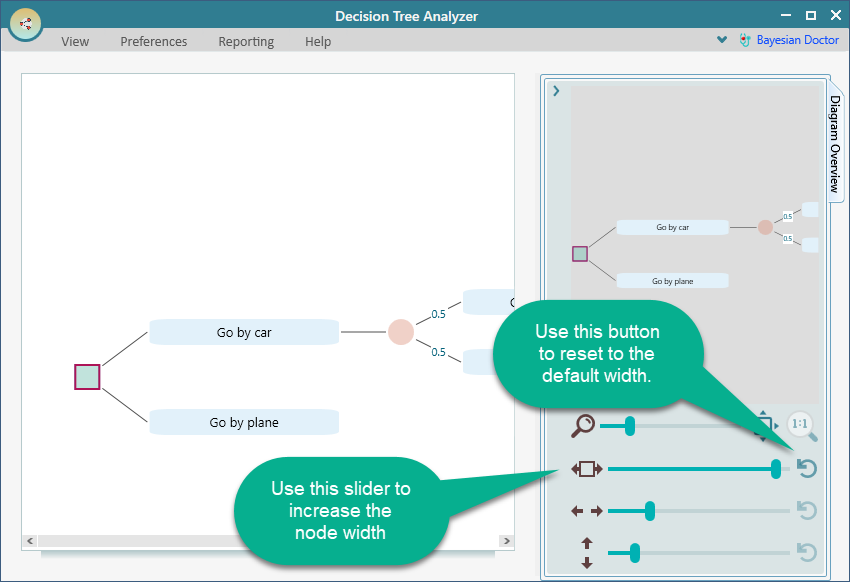
If the node width is not wide enough, a long text in the node will be cut off and a part of the text will be displayed with an ellipsis. Even though you will be able to see the full node text from its tooltip, you may like to see a longer part of the node text in the diagram. In that case, use the following slider to increase or decrease the node width.

Node Width slider used to widen nodes so longer labels are visible instead of being truncated with an ellipsis.

Increase / Decrease Horizontal Node distance

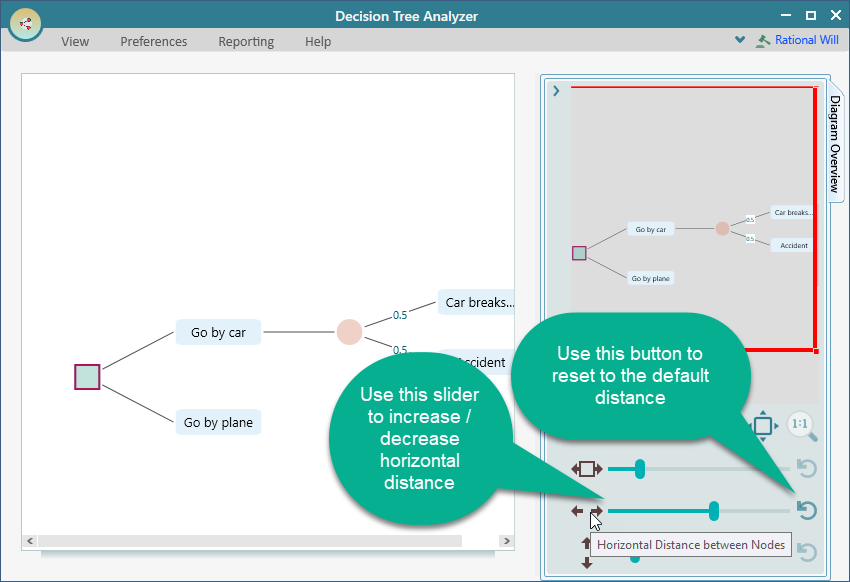
The horizontal gap between the nodes can be controlled using the following slider.

Horizontal node-gap slider that controls the spacing between parent and child nodes on the canvas.

Increase / Decrease Vertical Node distance

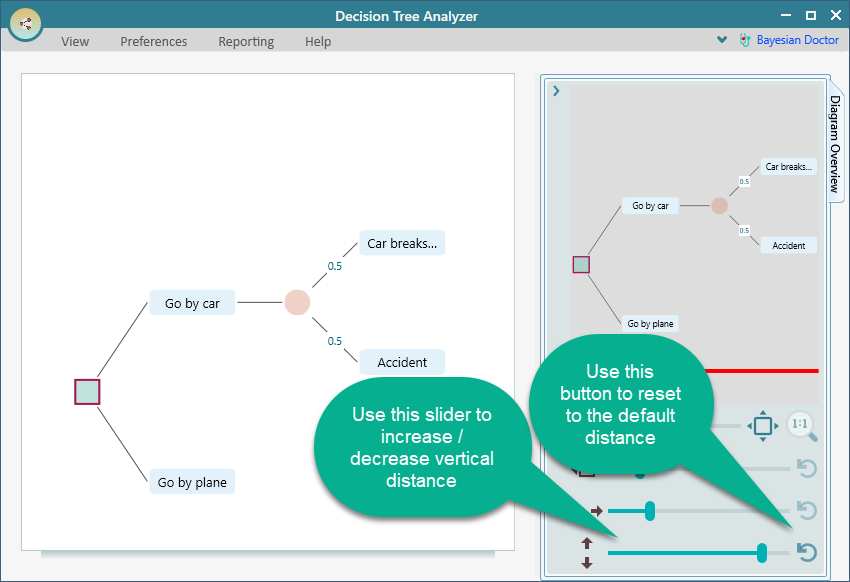
The vertical distance between the nodes can be controlled using the following slider.

Vertical node-distance slider that controls the spacing between sibling nodes stacked above and below each other.
Last updated on Jan 7, 2026