


 NuGet
NuGet
Guidelines in Design Time for Zero Border Table
Tables with border="0" are a common layout trick in documents built with the WPF HTML Editor - a label beside a status icon, an amount beside a line total on an invoice, a value paired with a small icon in a dashboard summary. Zero-border tables (border="0") are commonly used to align content without visible grid lines, for example a one-row, two-column table pairing a sub-heading with a small icon or a metric value beside it. Because such a table has no visible border, it can be hard to tell where one cell ends and the next begins while editing: clicks or cell merges can land in the wrong cell. This page shows how to turn on a design-time-only guideline that outlines every cell so authors can see the table structure while editing, without changing the saved HTML.
The WpfHtmlEditor handles this case. It injects a small CSS rule into the editing surface that paints a faint guideline around every cell of a zero-border table while the user is editing. The rule is scoped to the design surface; it never leaks into the saved HTML. Set it via Options.ZeroBorderTableGuidelineCss.
The default value is a thin dashed black outline (border: 1px dashed #000000). Override it for better visibility against a specific background, for example a blue dotted outline with a faint background tint:
editor.Options.ZeroBorderTableGuidelineCss =
    "border: 1px dotted #0078d4; background: #f3f9ff;";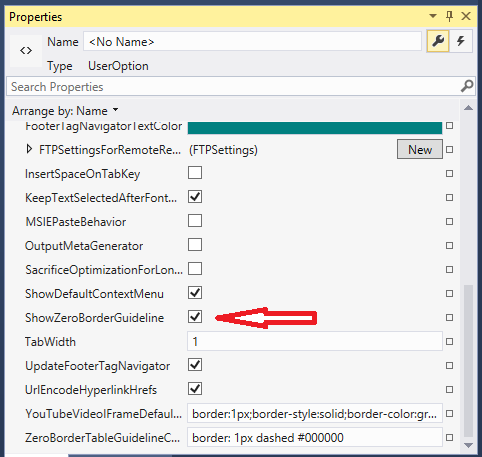
The guideline rule is stripped from the saved HTML: it never appears in the output returned through BodyHtml or DocumentHtml, so PDF and published Web output both render the clean, borderless layout as intended.

To disable the guideline entirely, for example for a template that must look identical in the editor and in the published output (a WYSIWYG preview), set the option to an empty string:
editor.Options.ZeroBorderTableGuidelineCss = string.Empty;editor.Options.ZeroBorderTableGuidelineCss = String.EmptyThe same option lives on the WinForms control through the shared IEditorOptions interface, so the same configuration code works on both editors. The guideline is purely a design-time aid, not a substitute for a real border: for a table that should have a visible border in the output, set border="1" on the table itself. The guideline rule only applies when the border is zero.
Ask your AI to do this
Let your assistant do this for you. With the SpiceLogic MCP server connected, paste this into Claude Code, Cursor, or VS Code Copilot in agent mode.
Using the SpiceLogic WPF HTML Editor in my project, turn on a design-time-only outline around every cell of my zero-border layout tables (border=0) so authors editing a template named InvoiceLineItems can see the cell boundaries while they work. Set Options.ZeroBorderTableGuidelineCss on my WpfHtmlEditor instance to a blue dotted outline with a light background tint, and confirm the rule never appears in the HTML the editor returns through BodyHtml or DocumentHtml. Verify the exact option name and its default value with the SpiceLogic MCP tools before writing any code.