


 NuGet
NuGet
Using your own Context Menu
The WPF HTML Editor ships with a built-in cut/copy/paste context menu, but many apps need something narrower or more specific to their domain - a menu that offers only Insert Invoice Reference and Mark as Confidential for an accounting tool, say, or one trimmed down to just Paste for a locked-down kiosk view. To replace the editor's built-in cut/copy/paste context menu with your own, set EditorContextMenuStrip on the WpfHtmlEditor. It takes a standard WPF ContextMenu and uses it in place of the built-in one. This page shows how to define that menu in XAML or in code-behind and wire it up so your own actions appear on right-click.
The property keeps the "Strip" suffix from the WinForms editor so source code that targets both platforms compiles unchanged. The WPF type is the regular System.Windows.Controls.ContextMenu, not the WinForms ContextMenuStrip.
Define the menu in XAML:
<Window xmlns:editor="clr-namespace:SpiceLogic.HtmlEditor.WPF;
                     assembly=SpiceLogic.HtmlEditor.WPF">
    <Window.Resources>
        <ContextMenu x:Key="AccountantMenu">
            <MenuItem Header="Insert Invoice Reference" Click="OnInsertInvoiceRef" />
            <MenuItem Header="Insert Customer Number"   Click="OnInsertCustomerId" />
            <MenuItem Header="Mark as Confidential"      Click="OnMarkConfidential" />
            <Separator />
            <MenuItem Header="Cut"   Command="ApplicationCommands.Cut"   />
            <MenuItem Header="Copy"  Command="ApplicationCommands.Copy"  />
            <MenuItem Header="Paste" Command="ApplicationCommands.Paste" />
        </ContextMenu>
    </Window.Resources>

    <editor:WpfHtmlEditor x:Name="editor"
        EditorContextMenuStrip="{StaticResource AccountantMenu}" />
</Window>
Or assign it in code-behind:
var menu = new ContextMenu();
menu.Items.Add(new MenuItem { Header = "Insert Invoice Reference" });
menu.Items.Add(new MenuItem { Header = "Mark as Confidential" });
editor.EditorContextMenuStrip = menu;
Dim menu = New ContextMenu()
menu.Items.Add(New MenuItem With {
.Header = "Insert Invoice Reference"
})
menu.Items.Add(New MenuItem With {
.Header = "Mark as Confidential"
})
editor.EditorContextMenuStrip = menu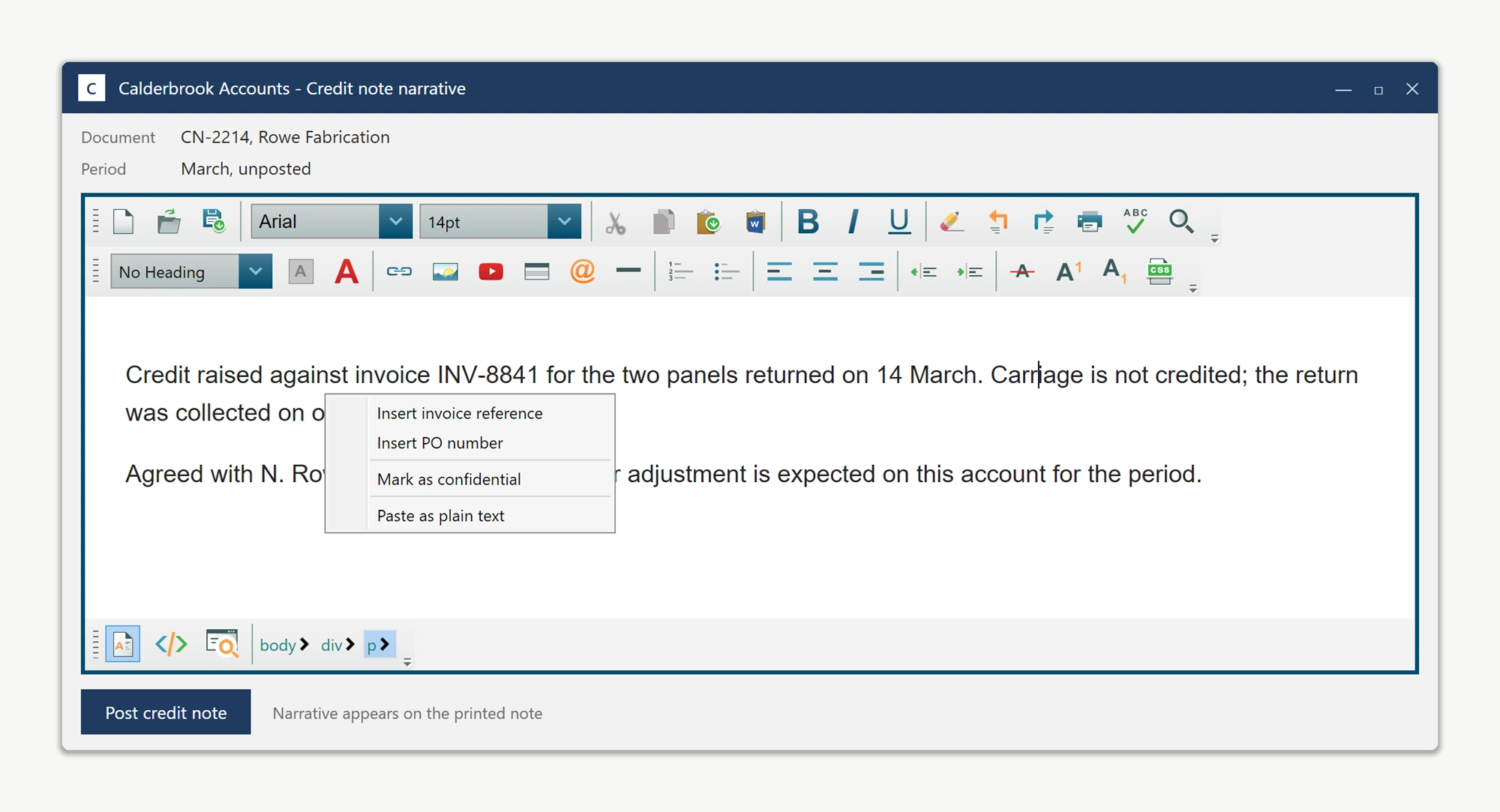
To show or hide a custom menu item conditionally, for example only when the user has an active text selection, subscribe to the ContextMenuShowing event and toggle the item's visibility right before the menu appears:
editor.ContextMenuShowing += (sender, e) =>
{
    // e.OffsetMousePosition gives the mouse position relative to the editor.
    bool hasSelection = !string.IsNullOrEmpty(editor.Selection.GetSelectedHtml());
    confidentialItem.Visibility = hasSelection ? Visibility.Visible : Visibility.Collapsed;
};
AddHandler editor.ContextMenuShowing,
Sub(sender, e)
' e.OffsetMousePosition gives the mouse position relative to the editor.
Dim hasSelection As Boolean = Not String.IsNullOrEmpty(editor.Selection.GetSelectedHtml())
confidentialItem.Visibility = If(hasSelection, Visibility.Visible, Visibility.Collapsed)
End Sub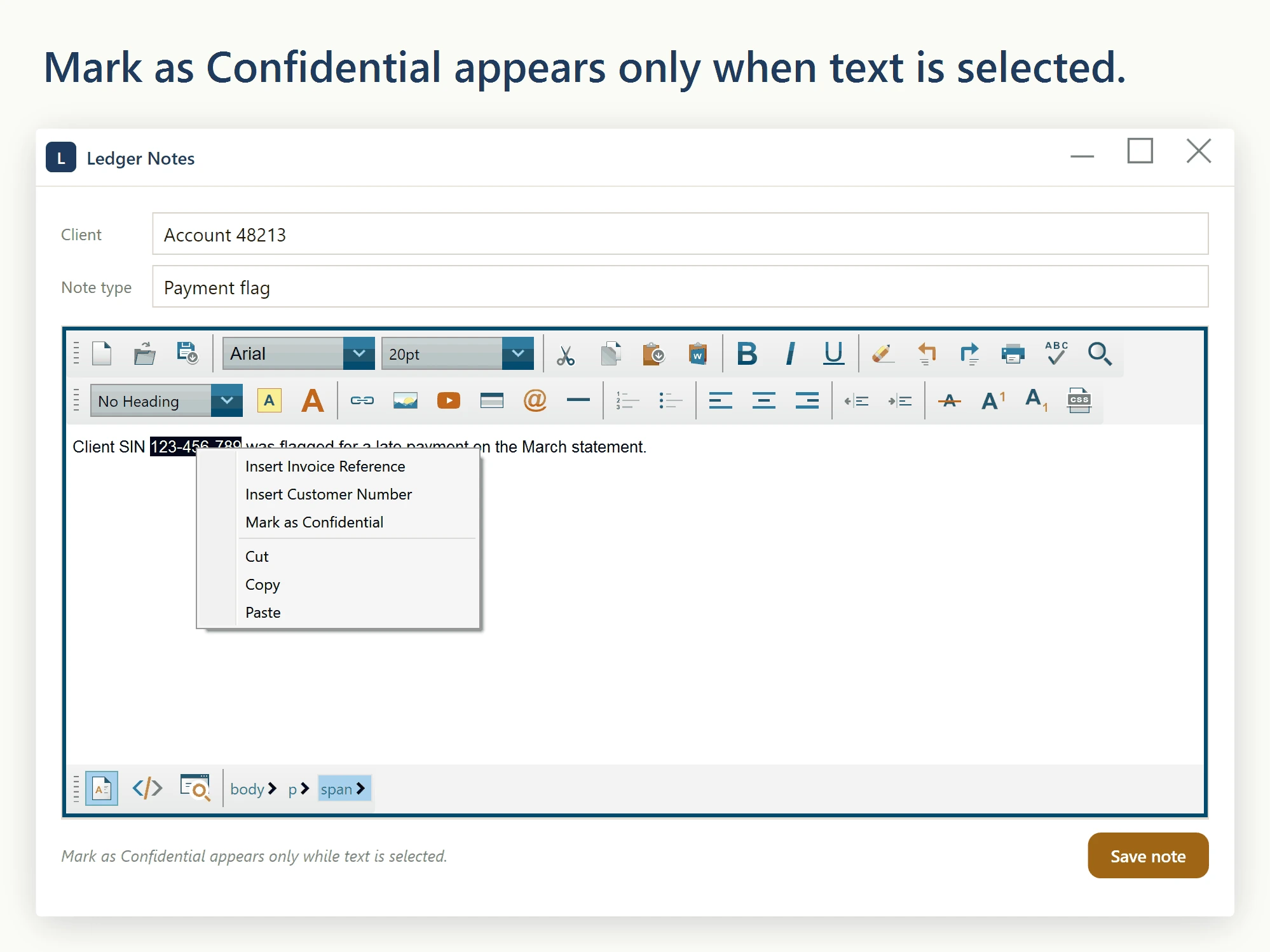
Replace the whole menu through EditorContextMenuStrip when your domain commands are different enough that the editor's defaults would confuse users. Keep the default (or your custom) menu and subscribe to ContextMenuShowing when you need contextual tweaks based on the current selection or cursor position. The two approaches combine: use the assignment to set the baseline menu, and the event to adjust it at show time.
Ask your AI to do this
Let your assistant do this for you. With the SpiceLogic MCP server connected, paste this into Claude Code, Cursor, or VS Code Copilot in agent mode.
Using the SpiceLogic WPF HTML Editor referenced in my project, replace the built-in right-click menu on my WpfHtmlEditor instance with a custom XAML ContextMenu assigned to the EditorContextMenuStrip property, containing just two items named Insert invoice reference and Mark as confidential. Subscribe to the ContextMenuShowing event so the Mark as confidential item is only visible when editor.SelectedHtml has an active selection, toggling its Visibility there. Look up the real EditorContextMenuStrip and ContextMenuShowing members with the SpiceLogic MCP tools before writing any code.