


 NuGet
NuGet
Setting editor border
The WPF HTML Editor draws a plain default border around its editing surface, but your application may need that border to say more: a red outline when a field fails validation, a highlighted border while the control has focus, or just a color and thickness that matches the rest of your form instead of the editor's stock look. The WpfHtmlEditor exposes two properties, plain CLR properties rather than dependency properties, that control the border drawn around the editing surface:
EditorBorderColor- typeSystem.Windows.Media.Color. The color of the border around the editing surface.EditorBorderWidth- typeSystem.Windows.Thickness. The per-side width of the border, exactly like a WPFMargin.
A common use is to change the color and width conditionally, for example to make an entry stand out visually when it is flagged as critical.
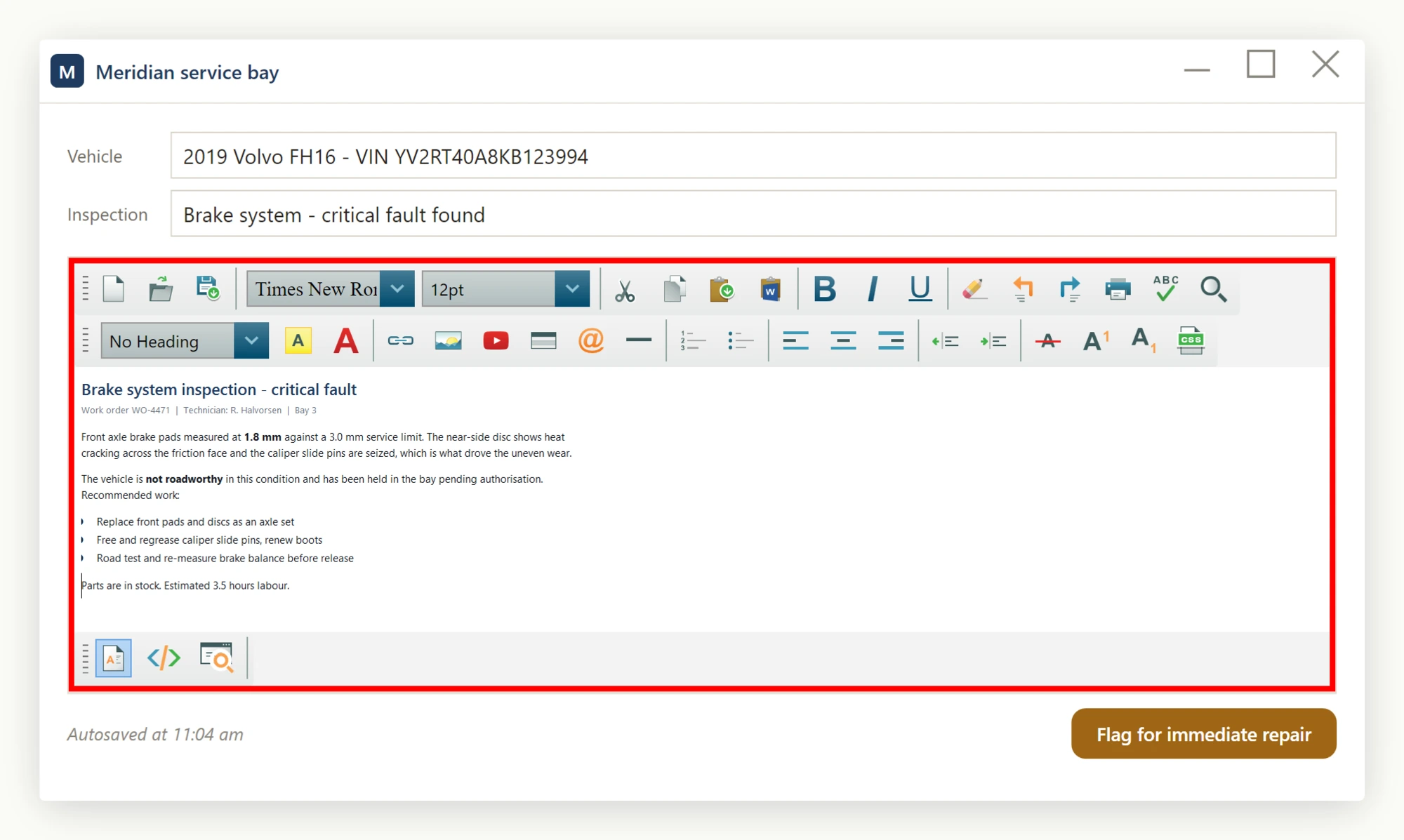
Set EditorBorderColor="Red" and EditorBorderWidth="4" as XAML literals for a fixed border. Both are plain CLR properties, not dependency properties, so a XAML {Binding} markup extension cannot target them directly - WPF requires a dependency property for that, and setting one to {Binding ...} throws a runtime error ("A 'Binding' cannot be set on the ... property ... A 'Binding' can only be set on a DependencyProperty of a DependencyObject"). To react to view-model state instead, subscribe to the view model's PropertyChanged event and set both properties from code-behind:
public MainWindow()
{
    InitializeComponent();
    _viewModel.PropertyChanged += ViewModel_PropertyChanged;
}

private void ViewModel_PropertyChanged(object sender, PropertyChangedEventArgs e)
{
    if (e.PropertyName != nameof(_viewModel.IsCriticalFault))
        return;

    editor.EditorBorderColor = _viewModel.IsCriticalFault
        ? Color.FromRgb(0xCC, 0x00, 0x00) // bay-warning red
        : Color.FromRgb(0xCC, 0xCC, 0xCC); // neutral grey

    editor.EditorBorderWidth = _viewModel.IsCriticalFault
        ? new Thickness(4) // shout
        : new Thickness(1); // quiet
}
Public Sub New()
InitializeComponent()
AddHandler _viewModel.PropertyChanged, AddressOf ViewModel_PropertyChanged
End Sub
Private Sub ViewModel_PropertyChanged(sender As Object, e As PropertyChangedEventArgs)
If e.PropertyName <> NameOf(_viewModel.IsCriticalFault) Then Return
If _viewModel.IsCriticalFault Then
editor.EditorBorderColor = Color.FromRgb(&HCC, &H00, &H00) ' bay-warning red
editor.EditorBorderWidth = New Thickness(4) ' shout
Else
editor.EditorBorderColor = Color.FromRgb(&HCC, &HCC, &HCC) ' neutral grey
editor.EditorBorderWidth = New Thickness(1) ' quiet
End If
End SubBecause these are plain properties rather than dependency properties, the editor updates only when you set EditorBorderColor/EditorBorderWidth explicitly - there is no dependency-property change notification to drive a live two-way XAML binding.
To hide the border, for example inside an already-bordered container, set the width to a zero Thickness:
<wpf:WpfHtmlEditor x:Name="summaryEditor" EditorBorderWidth="0" />From code-behind that's:
summaryEditor.EditorBorderWidth = new Thickness(0);summaryEditor.EditorBorderWidth = New Thickness(0)Both properties can also be set directly from code-behind, for example to highlight an editor after a diagnostic check fails:
using System.Windows;
using System.Windows.Media;

private void OnDiagnosticFailed()
{
    editor.EditorBorderColor = Color.FromRgb(0xCC, 0x00, 0x00);
    editor.EditorBorderWidth = new Thickness(4);
}
Imports System.Windows
Imports System.Windows.Media
Private Sub OnDiagnosticFailed()
editor.EditorBorderColor = Color.FromRgb(&HCC, &H00, &H00)
editor.EditorBorderWidth = New Thickness(4)
End Sub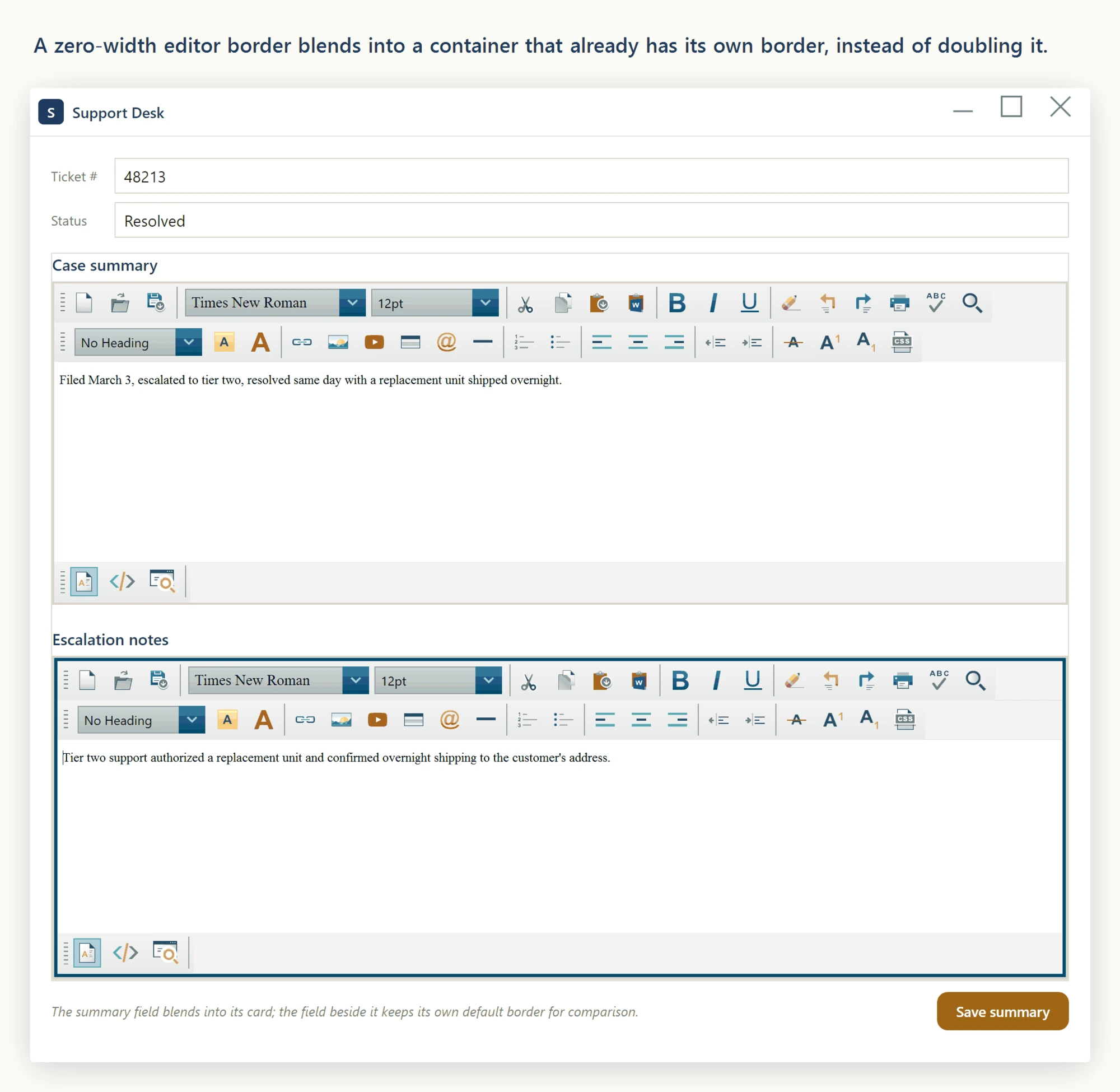
Ask your AI to do this
Let your assistant do this for you. With the SpiceLogic MCP server connected, paste this into Claude Code, Cursor, or VS Code Copilot in agent mode.
Using the SpiceLogic WPF HTML Editor already referenced in my project, bind the editor's EditorBorderColor and EditorBorderWidth dependency properties to view-model state so an editor named IncidentDescriptionEditor shows a red, 4-pixel border whenever the field fails validation and reverts to the default border otherwise. Wire the binding through XAML with view-model properties driven by a boolean validation flag, not a fixed literal. Check the real EditorBorderColor and EditorBorderWidth types with the SpiceLogic MCP tools before writing the binding.