


 NuGet
NuGet
Working with Relative Urls
Any document you build in the WPF HTML Editor is likely to live alongside its own images - handbook screenshots, product diagrams, a company logo - referenced by relative path so the pair travels together and keeps working after you publish it somewhere else. Documents can reference images with relative URLs, such as images/leave-policy.png, so the HTML stays portable and still resolves after publishing to a different host (for example, an internal SharePoint page). While authoring, those images exist as files on disk next to the document, and the editor needs to be told where to find them. This page shows how to set that folder so relative URLs resolve correctly, both in the editor and in the built-in image picker.
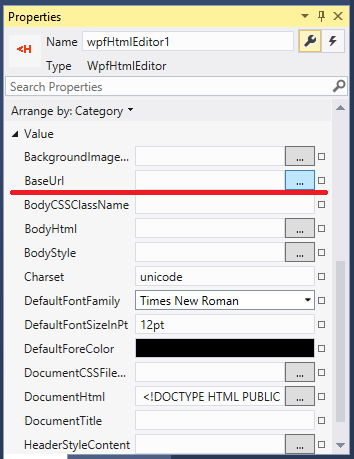
Set BaseUrl on the WpfHtmlEditor to the folder that holds those images, so relative URLs resolve correctly while editing:
private void OnLoaded(object sender, RoutedEventArgs e)
{
    editor.BaseUrl = Path.Combine(AppContext.BaseDirectory, "handbook-content");
}
Private Sub OnLoaded(sender As Object, e As RoutedEventArgs)
editor.BaseUrl = Path.Combine(AppContext.BaseDirectory, "handbook-content")
End SubWith BaseUrl set, relative URLs in the document resolve against that folder. An <img src="leave-policy.png" /> tag renders correctly in the editor, and the built-in image picker dialog opens on the same folder by default, so authors do not have to navigate the file system every time they insert a screenshot.
Two options handle the save-time URL rewrite. ConvertFileUrlsToLocalPaths turns file:///D:/handbook/content/images/x.png into D:\handbook\content\images\x.png. ConvertAbsoluteUrlsToRelativeUrls then trims away the part that matches BaseUrl, leaving the relative remainder your target host expects.
editor.Options.ConvertFileUrlsToLocalPaths = true;
editor.Options.ConvertAbsoluteUrlsToRelativeUrls = true;
editor.Options.ConvertFileUrlsToLocalPaths = True
editor.Options.ConvertAbsoluteUrlsToRelativeUrls = TrueA hyperlink containing a space in its URL can break a published page. Set UrlEncodeHyperlinkHRefs to percent-encode the href attribute on save, so href="Q1 Reports/index.html" becomes href="Q1%20Reports/index.html". The visible link text stays exactly as typed; only the URL is encoded.
editor.Options.UrlEncodeHyperlinkHRefs = true;editor.Options.UrlEncodeHyperlinkHRefs = True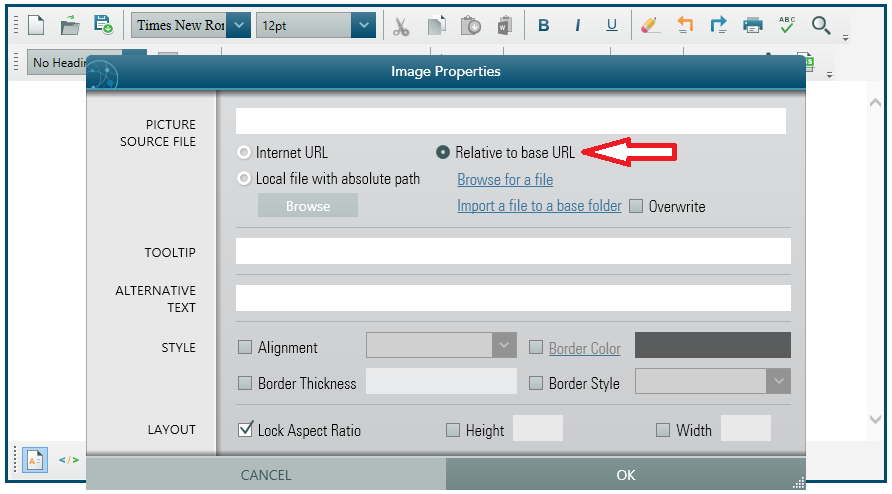
ConvertFileUrlsToLocalPaths, ConvertAbsoluteUrlsToRelativeUrls, and UrlEncodeHyperlinkHRefs all live on the shared SpiceLogic.HtmlEditor.Abstractions.IEditorOptions contract, reachable through each editor's Options property, so the same configuration code works against both the WPF and WinForms editors. BaseUrl is declared directly on each editor control instead (WpfHtmlEditor.BaseUrl and WinFormHtmlEditor.BaseUrl), not on IEditorOptions, so it needs to be set on the editor instance itself. If your application uses both (for example, WPF for authoring and WinForms for a PDF generator on a build server), write one helper that takes IEditorOptions plus the base URL as separate parameters and reuse it from both.
Troubleshooting: images or CSS not showing when you open an HTML file
Opening an existing HTML file (through the toolbar's open command, Content.OpenFile, or Content.LoadDocumentHtmlFromFile) loads the file's markup only - the editor does not record which folder the file came from. Every image referenced by a relative path shows as a broken or blank placeholder, and a stylesheet referenced by a relative <link> tag is not applied, so the document renders unstyled. Nothing is wrong with the file; the editor simply has no base location to resolve relative paths against.
Set BaseUrl to the folder that contains the opened file, and the images and CSS display:
editor.BaseUrl = @"C:\Newsletters\Spring\";   // the folder that contains index.html
editor.Content.OpenFile(@"C:\Newsletters\Spring\index.html");
editor.BaseUrl = "C:\Newsletters\Spring\" ' the folder that contains index.html
editor.Content.OpenFile("C:\Newsletters\Spring\index.html")Set BaseUrl when you initialize the editor (for example in the window's Loaded event); setting it after a document is already loaded updates the live document too. The same fix applies when the HTML arrives as a string through BodyHtml rather than from a file and references images relative to a folder on disk.
Ask your AI to do this
Let your assistant do this for you. With the SpiceLogic MCP server connected, paste this into Claude Code, Cursor, or VS Code Copilot in agent mode.
Using the SpiceLogic WPF HTML Editor already referenced in my project, set up the editor so images referenced by relative paths like images/leave-policy.png keep resolving correctly while authoring and after I save the document: set BaseUrl on the editor to the folder holding the images, for example D:\handbook\content, and enable Options.ConvertFileUrlsToLocalPaths together with Options.ConvertAbsoluteUrlsToRelativeUrls so a file:/// path picked from the image dialog gets rewritten back to a relative path on save. Also turn on UrlEncodeHyperlinkHRefs in case the folder name contains spaces. Confirm the exact IEditorOptions member names with the SpiceLogic MCP tools before writing any code.