


 NuGet
NuGet
Spell Checker
Any application where end users type free-form prose - CRM notes, support tickets, help-desk replies, CMS articles - eventually ships a typo nobody caught before it went out the door. Catching that in your own editor usually means sourcing a dictionary, tokenizing text, and building the squiggly-underline and suggestion-menu UI yourself, on top of whatever else your app already does. The WinForms HTML Editor solves this by shipping spell checking as a built-in feature of the control. This page shows what you get out of the box and what it costs you in dependencies to turn it on.
The WinFormHtmlEditor control includes a built-in spell checker for US English. Misspelled words are underlined with a red squiggle as you type; right-click a flagged word to see suggested corrections and choose one to replace it.
The dictionary is embedded in the control, so there is nothing to install, no native DLLs to ship, and no dictionary files to bundle with your application.
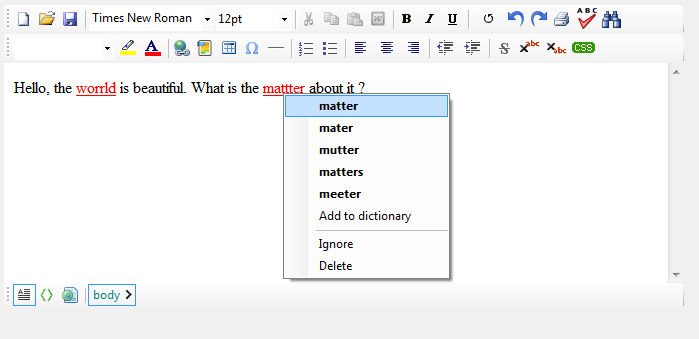
Two ways to check, and you choose per workflow
Choose between live, as-you-type spell checking and an on-demand modal dialog using a single property:
// Live, as-you-type squiggles for the agents editor.SpellCheckOptions.FireInlineSpellCheckingOnKeyStroke = true;' Live, as-you-type squiggles for the agents editor.SpellCheckOptions.FireInlineSpellCheckingOnKeyStroke = TrueThe dialog mode is always available regardless of that setting - open it via the toolbar's Spell Check button or your own menu command. It steps through each mistake with Change, Change All, Ignore, Ignore All, and Add buttons.
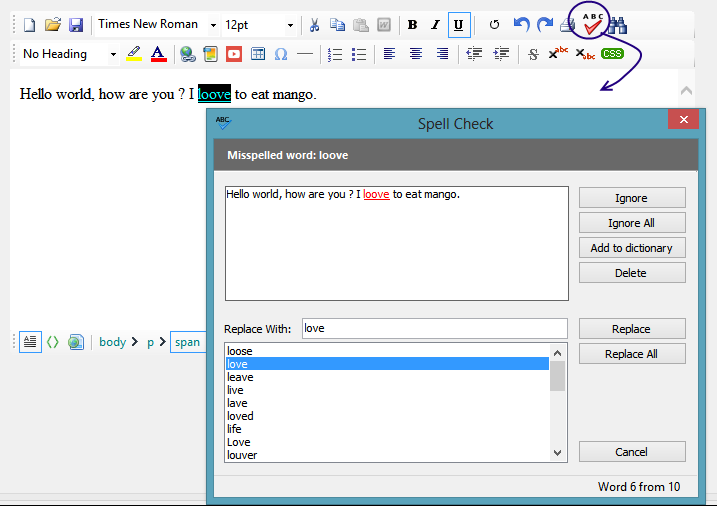
Switching the Spell-Check Language
Set the SpellCheckLanguage enum on SpellCheckOptions to switch dictionaries, for example by user locale:
using SpiceLogic.HtmlEditor.Abstractions.Entities.SpellCheck; private void ApplyAgentLanguage(string agentLocale) { editor.SpellCheckOptions.SpellCheckLanguage = agentLocale switch { "de-DE" => SpellCheckLanguage.German, "fr-FR" => SpellCheckLanguage.French, "es-ES" => SpellCheckLanguage.Spanish, "pt-BR" => SpellCheckLanguage.PortugueseBr, _ => SpellCheckLanguage.EnglishUs, }; }Embedded languages: English (US and GB), German, French, Spanish, Italian, Dutch, Danish, Polish, Norwegian, Czech, Swedish, and both Portuguese variants. The default, SameAsEditorLanguage, follows the editor's UI language.
Using a Custom Dictionary File
For terminology outside the embedded set, point the editor at any OpenOffice-format dictionary pair (.dic / .aff):
editor.SpellCheckOptions.DictionaryFile.DictionaryFilePath = @"C:\Dictionaries\vet_pl.dic"; editor.SpellCheckOptions.DictionaryFile.AffixFilePath = @"C:\Dictionaries\vet_pl.aff";An on-disk dictionary path always overrides the embedded SpellCheckLanguage value. Clear both paths to revert to the enum-selected language.
Detecting Spell-Check Completion
Handle the SpellCheckCompleted event to react when a pass finishes, for example to block save until the document is clean:
editor.SpellCheckCompleted += (sender, args) => { saveButton.Enabled = args.MisspelledWordCount == 0; statusLabel.Text = args.MisspelledWordCount == 0 ? "Ready to save." : $"{args.MisspelledWordCount} word(s) need attention."; };Fires at the end of every dialog pass; use it for statistics, progress UI, or workflow gates.
Controlling Inline Spell-Check Timing
Inline checking runs as the user types, debounced at 300 ms by default so keystroke bursts do not lag even on large documents. Two methods give explicit control:
editor.ForceInlineSpellCheck()- run the inline pass on demand, e.g. after loading content programmatically.editor.CleanUpInlineSpellCheckMarkers()- clear every inline squiggle marker, e.g. before a PDF export or print preview.
Related Topics
No extra installer steps, native runtime, or dictionary bundles are required. See User Dictionary and Using a Custom Spell-Check Engine.
Ask your AI to do this
Let your assistant do this for you. With the SpiceLogic MCP server connected, paste this into Claude Code, Cursor, or VS Code Copilot in agent mode.
Using the SpiceLogic WinForms HTML Editor already referenced in my project, turn on live spell checking on my WinFormHtmlEditor control by setting SpellCheckOptions.FireInlineSpellCheckingOnKeyStroke to true for as-you-type red squiggles, and add a language picker that sets SpellCheckOptions.SpellCheckLanguage to German, French, Spanish, or English (US) based on the signed-in user's locale, defaulting to French for an fr-CA locale. Use the SpiceLogic MCP tools to confirm the real property and enum names before coding.