


 NuGet
NuGet
Adding Custom Fonts to the WPF HTML Editor Font Dropdown
The WPF HTML Editor's WpfHtmlEditor populates its font dropdown with every TrueType font installed on the local PC, which is fine until your app ships with a corporate brand font, a licensed webfont, or another custom typeface baked into your installer rather than the Windows font list. Custom or branded fonts that ship with your application as .otf files referenced through CSS web-font URLs are not installed on the machine, so they won't appear in that list automatically, and users are left applying whatever generic font happens to be installed. This page shows how to replace or extend the font dropdown with your own font names and make the editor actually render them.
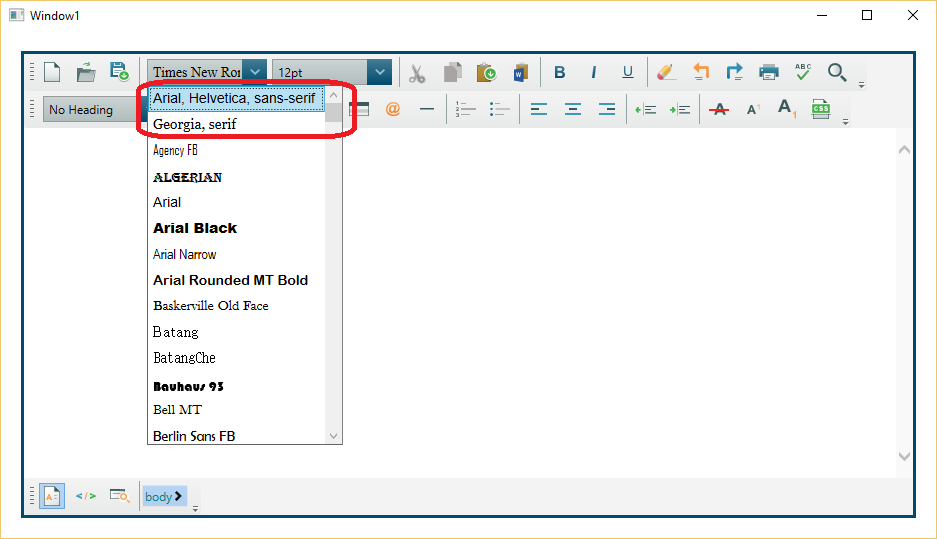
The font combo is populated from System.Drawing.FontFamily.Families and reachable via editor.ToolbarItemOverrider.ToolbarItems.FontName - a plain WPF ComboBox with no dedicated "AddFont" API. Clear it and add your own font names on the Loaded event, after the combo has been populated, to replace the system list.
Selecting an added font calls FormattingService.ChangeFontName("Larken"), writing font-family: Larken into the document's inline style. That only controls selection; add a matching @font-face rule to the document header too, or the WYSIWYG surface falls back to a substitute font.
private void ArticleEditor_OnLoaded(object sender, RoutedEventArgs e)
{
    ComboBox fontCombo = ArticleEditor.ToolbarItemOverrider.ToolbarItems.FontName;
    fontCombo.Items.Clear();
    fontCombo.Items.Add("Larken");
    fontCombo.Items.Add("Larken Display");
    fontCombo.Items.Add("Cardinal Fruit");
}
Private Sub ArticleEditor_OnLoaded(sender As Object, e As RoutedEventArgs)
Dim fontCombo As ComboBox = ArticleEditor.ToolbarItemOverrider.ToolbarItems.FontName
fontCombo.Items.Clear()
fontCombo.Items.Add("Larken")
fontCombo.Items.Add("Larken Display")
fontCombo.Items.Add("Cardinal Fruit")
End SubArticleEditor.HeaderStyleContent = ""
+ "@font-face { font-family: 'Larken'; "
+ "src: url('https://cdn.publisher.example/fonts/Larken.otf'); }"
+ "@font-face { font-family: 'Larken Display'; "
+ "src: url('https://cdn.publisher.example/fonts/LarkenDisplay.otf'); }"
+ "@font-face { font-family: 'Cardinal Fruit'; "
+ "src: url('https://cdn.publisher.example/fonts/CardinalFruit.otf'); }";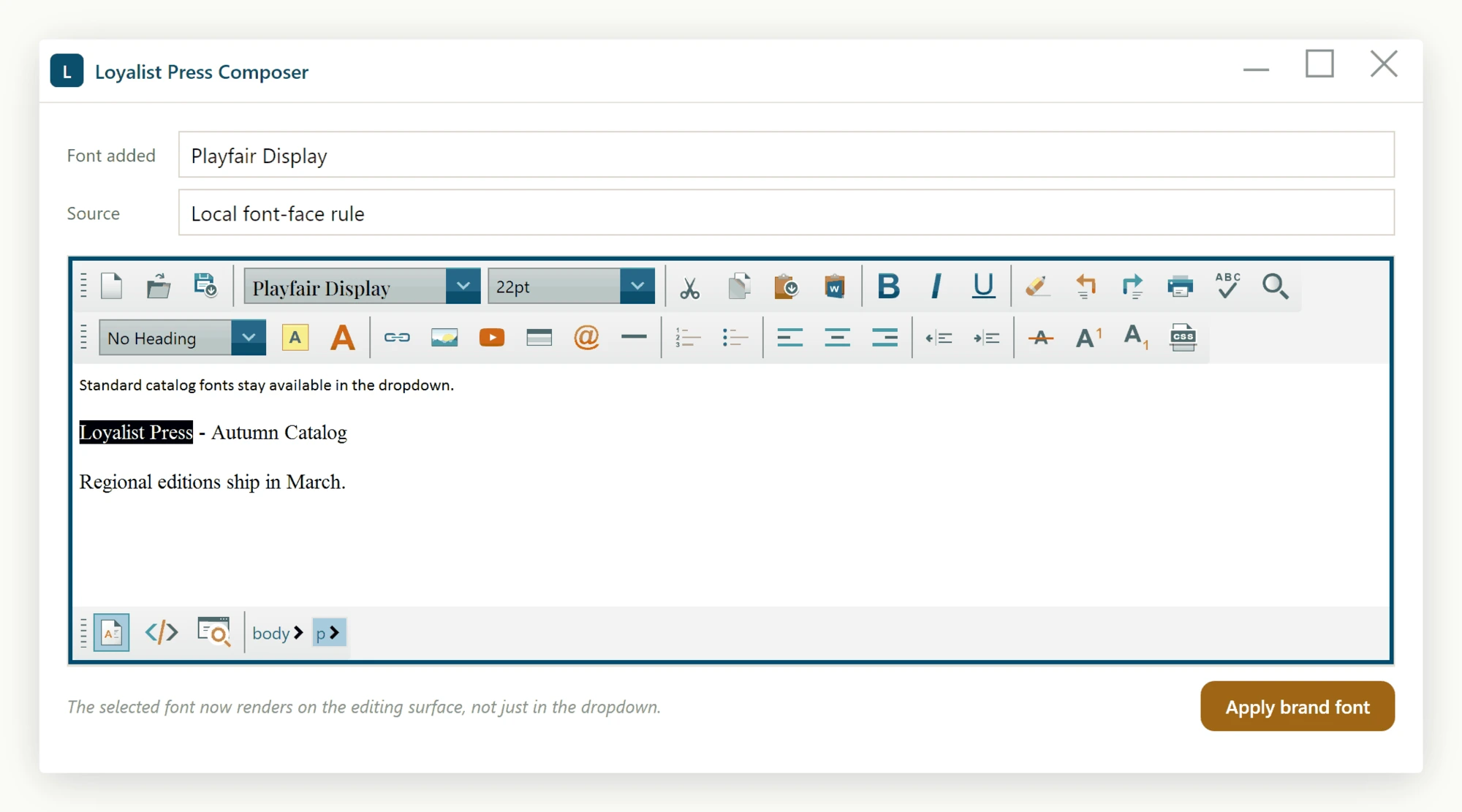
To add fonts on top of the system list instead of replacing it, skip Items.Clear() and append the names - both approaches work. To add another font later, add one line to the ArticleEditor_OnLoaded handler and one @font-face entry; it appears in the dropdown on the next launch.
- The font combo is the standard WPF
ComboBoxreachable viaToolbarItemOverrider.ToolbarItems.FontName. - Add strings to
fontCombo.Items(orClear()first to replace the list entirely). - Pair non-system fonts with an
@font-facerule pushed througheditor.HeaderStyleContentso the editor renders them.
Ask your AI to do this
Let your assistant do this for you. With the SpiceLogic MCP server connected, paste this into Claude Code, Cursor, or VS Code Copilot in agent mode.
Using the SpiceLogic WPF HTML Editor already referenced in my project, add my company's licensed webfont, "Larken", to the font dropdown: on the editor's Loaded event, reach the combo through ToolbarItemOverrider.ToolbarItems.FontName, add "Larken" to its Items, and push a matching @font-face rule into editor.HeaderStyleContent so the WYSIWYG surface actually renders it instead of falling back to a substitute font. Confirm that selecting the font in the dropdown ends up calling FormattingService.ChangeFontName so the inline font-family style gets written correctly. Look up the real ToolbarItemOverrider and HeaderStyleContent members with the SpiceLogic MCP tools before writing any code.