


 NuGet
NuGet
Drive the editor from your own UI (menus, ribbons, buttons)
The WinForms HTML Editor's built-in toolbars work well when your app is a Windows Forms shell with room for a ToolStrip, but not every host looks like that. A ribbon-based document app, a WPF shell hosting the control, or a custom command bar may need every editor command - bold, insert image, insert table, find and replace - triggered from buttons that are not ToolStrips at all. Reimplementing dialogs like Insert Image or Find & Replace from scratch would mean duplicating logic the editor already has, fully localized and wired in. This page shows how to hide the factory toolbars and route your own UI's clicks into the editor's existing commands, dialogs included.
Hiding the toolbars and driving your own controls
Some applications have no ToolStrips at all - every command lives in a ribbon, a menu, or another custom control, and the built-in toolbars cannot be shipped as-is. Hide the editor's two factory toolbars the same way as for any custom toolbar. The remaining question is the other direction: how do your own buttons run the editor's commands, especially the ones that pop dialogs - Insert Image, Insert Hyperlink, Insert Table, Find & Replace? Reimplementing those dialogs is unnecessary; they are already localized and wired into the editor's services.
WinFormHtmlEditor.ToolbarItemOverrider exposes one OnXxxButtonClicked(object sender, EventArgs e) method per built-in command. Calling one runs the exact same code path the matching factory button runs, dialog included. The signature is the standard .NET event-handler signature, so any control event that matches it - Button.Click, ToolStripMenuItem.Click, a third-party ribbon control's Click event - can be attached directly.
Wiring the ribbon
private void ContractEditorForm_Load(object sender, EventArgs e) {
    htmlEditor1.Toolbar1.Visible = false;
    htmlEditor1.Toolbar2.Visible = false;
    var ov = htmlEditor1.ToolbarItemOverrider;
    // Home tab.
    ribbonBoldButton.Click += ov.OnBoldButtonClicked;
    ribbonItalicButton.Click += ov.OnItalicButtonClicked;
    ribbonUnderlineButton.Click += ov.OnUnderlineButtonClicked;
    // Insert tab - these pop the editor's dialogs.
    ribbonImageButton.Click += ov.OnImageButtonClicked; // Image dialog
    ribbonHyperlinkButton.Click += ov.OnHyperLinkButtonClicked; // Hyperlink dialog
    ribbonTableButton.Click += ov.OnTableInsertButtonClicked; // Table dialog
    // Review tab.
    ribbonFindButton.Click += ov.OnSearchButtonClicked; // Find/Replace dialog
    ribbonSpellCheckButton.Click += ov.OnCheckSpellingButtonClicked;
}
Private Sub ContractEditorForm_Load(sender As Object, e As EventArgs)
htmlEditor1.Toolbar1.Visible = False
htmlEditor1.Toolbar2.Visible = False
Dim ov = htmlEditor1.ToolbarItemOverrider
' Home tab.
AddHandler ribbonBoldButton.Click, AddressOf ov.OnBoldButtonClicked
AddHandler ribbonItalicButton.Click, AddressOf ov.OnItalicButtonClicked
AddHandler ribbonUnderlineButton.Click, AddressOf ov.OnUnderlineButtonClicked
' Insert tab - these pop the editor's dialogs.
AddHandler ribbonImageButton.Click, AddressOf ov.OnImageButtonClicked ' Image dialog
AddHandler ribbonHyperlinkButton.Click, AddressOf ov.OnHyperLinkButtonClicked ' Hyperlink dialog
AddHandler ribbonTableButton.Click, AddressOf ov.OnTableInsertButtonClicked ' Table dialog
' Review tab.
AddHandler ribbonFindButton.Click, AddressOf ov.OnSearchButtonClicked ' Find/Replace dialog
AddHandler ribbonSpellCheckButton.Click, AddressOf ov.OnCheckSpellingButtonClicked
End Sub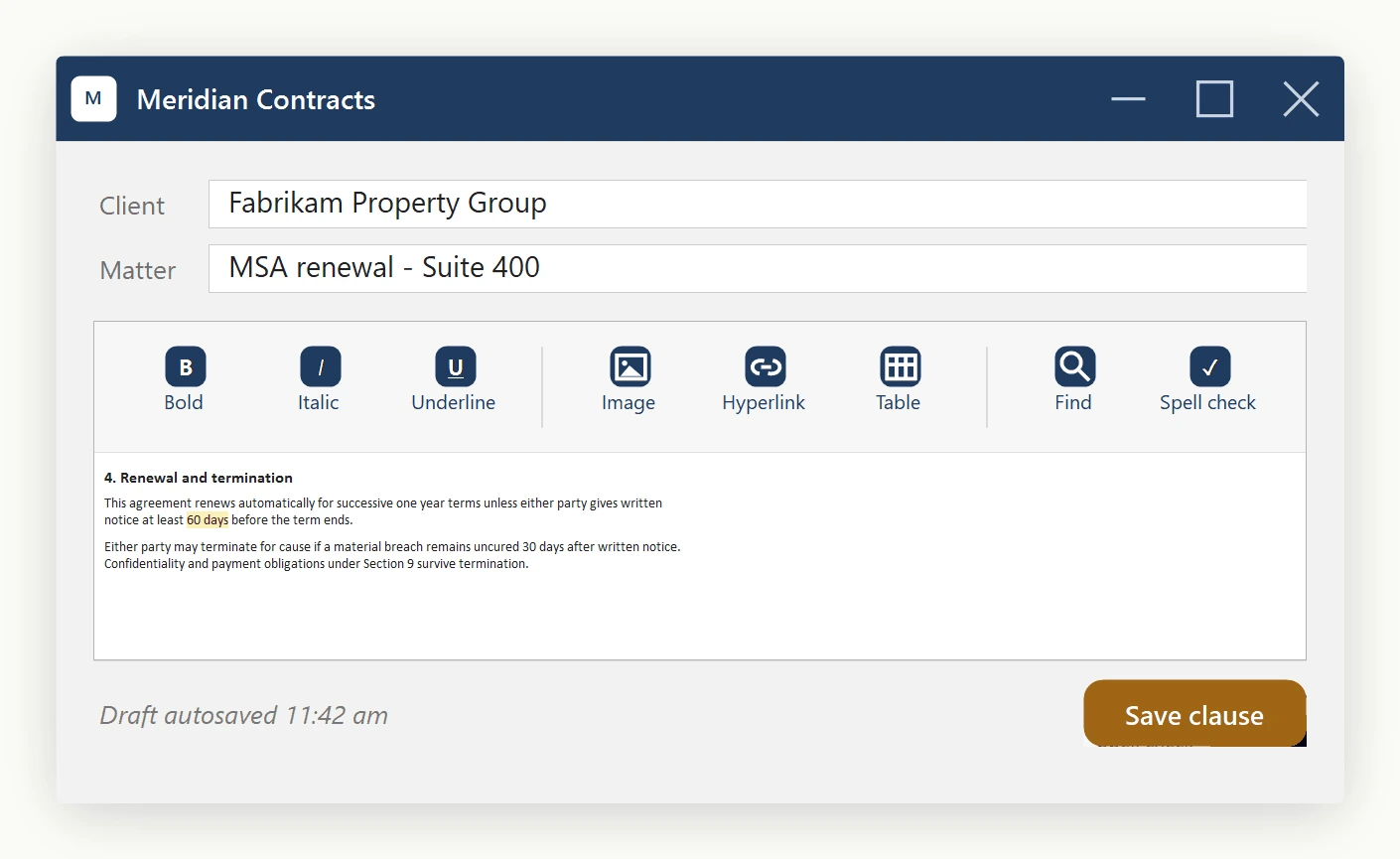
The complete handler list
The ToolbarItemOverrider exposes a handler for every built-in action:
- Formatting:
OnBoldButtonClicked,OnItalicButtonClicked,OnUnderlineButtonClicked,OnStrikeThroughButtonClicked,OnSubscriptButtonClicked,OnSuperScriptButtonClicked,OnFormatResetButtonClicked. - Insert:
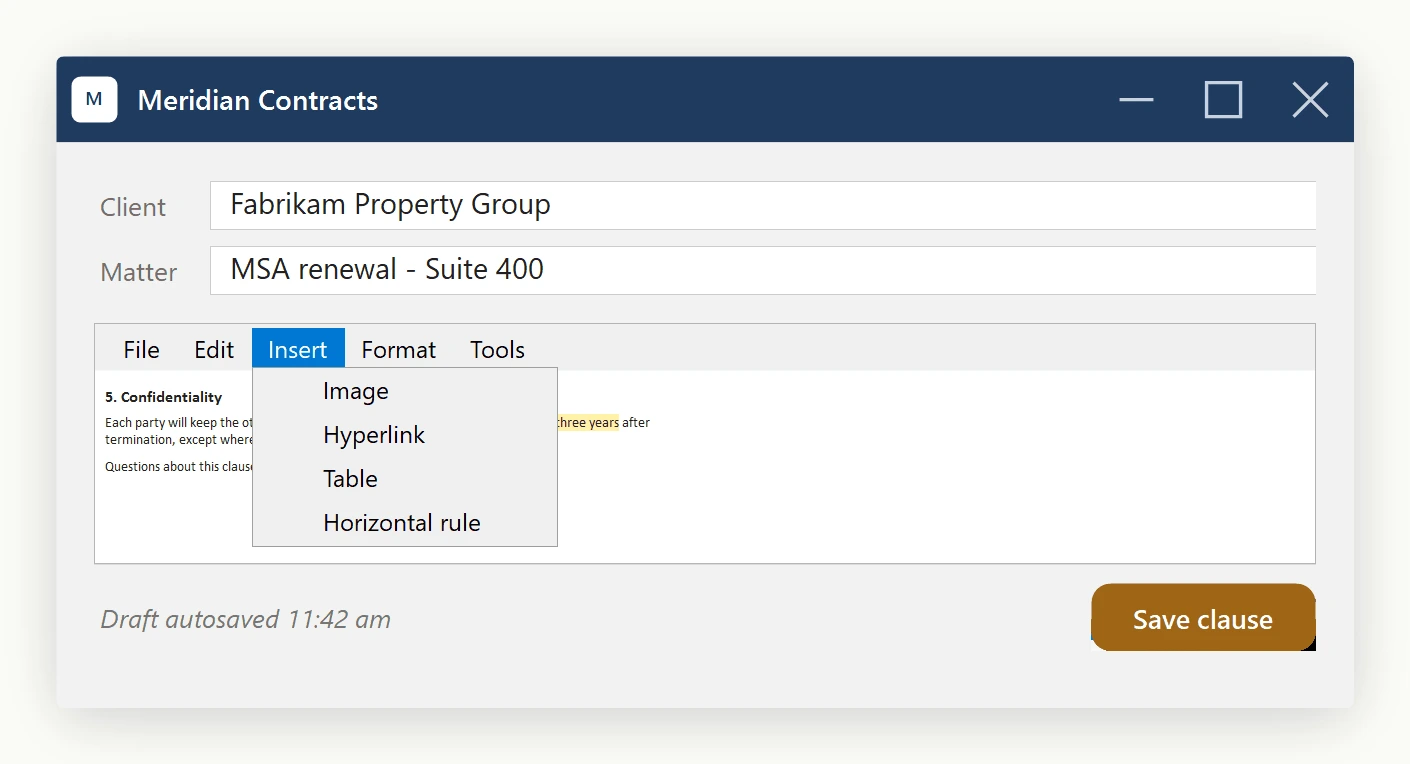
OnImageButtonClicked,OnHyperLinkButtonClicked,OnTableInsertButtonClicked,OnSymbolInsertButtonClicked,OnHorizontalRuleButtonClicked,OnYouTubeVideoInsertButtonClicked. - Layout:
OnAlignLeftButtonClicked,OnAlignCenterButtonClicked,OnAlignRightButtonClicked,OnIndentButtonClicked,OnOutdentButtonClicked,OnOrderedListButtonClicked,OnUnOrderedListButtonClicked. - Color and style:
OnFontForeColorButtonClicked,OnTextHighlightColorButtonClicked,OnBodyStyleButtonClicked. - Document I/O:
OnNewButtonClicked,OnOpenButtonClicked,OnSaveButtonClicked,OnPrintButtonClicked. - Edit operations:
OnCutButtonClicked,OnCopyButtonClicked,OnPasteButtonClicked,OnPasteFromMsWordButtonClicked,OnUndoButtonClicked,OnRedoButtonClicked. - Tools:
OnSearchButtonClicked,OnCheckSpellingButtonClicked.
Which approach to use
Use ToolbarItemOverrider.ToolbarItems when your custom UI is itself a ToolStrip: it rehosts the editor's actual ToolStripButton instances, so icons, tooltips, and pressed state stay automatic because the same button objects are still doing the work. Use the OnXxxButtonClicked handlers instead when your UI is not a ToolStrip, for example a ribbon control whose buttons are a different type with their own icon assets and visual states. The handlers are the bridge: your control stays its own type while still running the editor's exact command behavior.
Either way, the dialogs opened (Find/Replace, Insert Hyperlink, Insert Table, and so on) are the editor's own dialogs, so they behave identically regardless of which approach triggered them.
Ask your AI to do this
Let your assistant do this for you. With the SpiceLogic MCP server connected, paste this into Claude Code, Cursor, or VS Code Copilot in agent mode.
Using the SpiceLogic WinForms HTML Editor already referenced in my project, wire my own ribbon buttons (not a ToolStrip) to the editor's built-in commands through ToolbarItemOverrider, covering Bold, Insert Image, Insert Hyperlink, and Find and Replace, so clicking my custom "Insert Table" ribbon button opens the editor's own Insert Table dialog instead of me rebuilding it from scratch. Hide the two factory toolbars first so only my ribbon drives the editor. Confirm the exact ToolbarItemOverrider member names with the SpiceLogic MCP tools before wiring anything up.