


 NuGet
NuGet
Build a custom toolbar
A custom toolbar lets you choose which editing commands users see and arrange them to match your application. Hide the built-in toolbar rows, then connect your controls through ToolbarItemOverrider to use the editor's existing commands and dialogs.
Hiding the factory toolbars
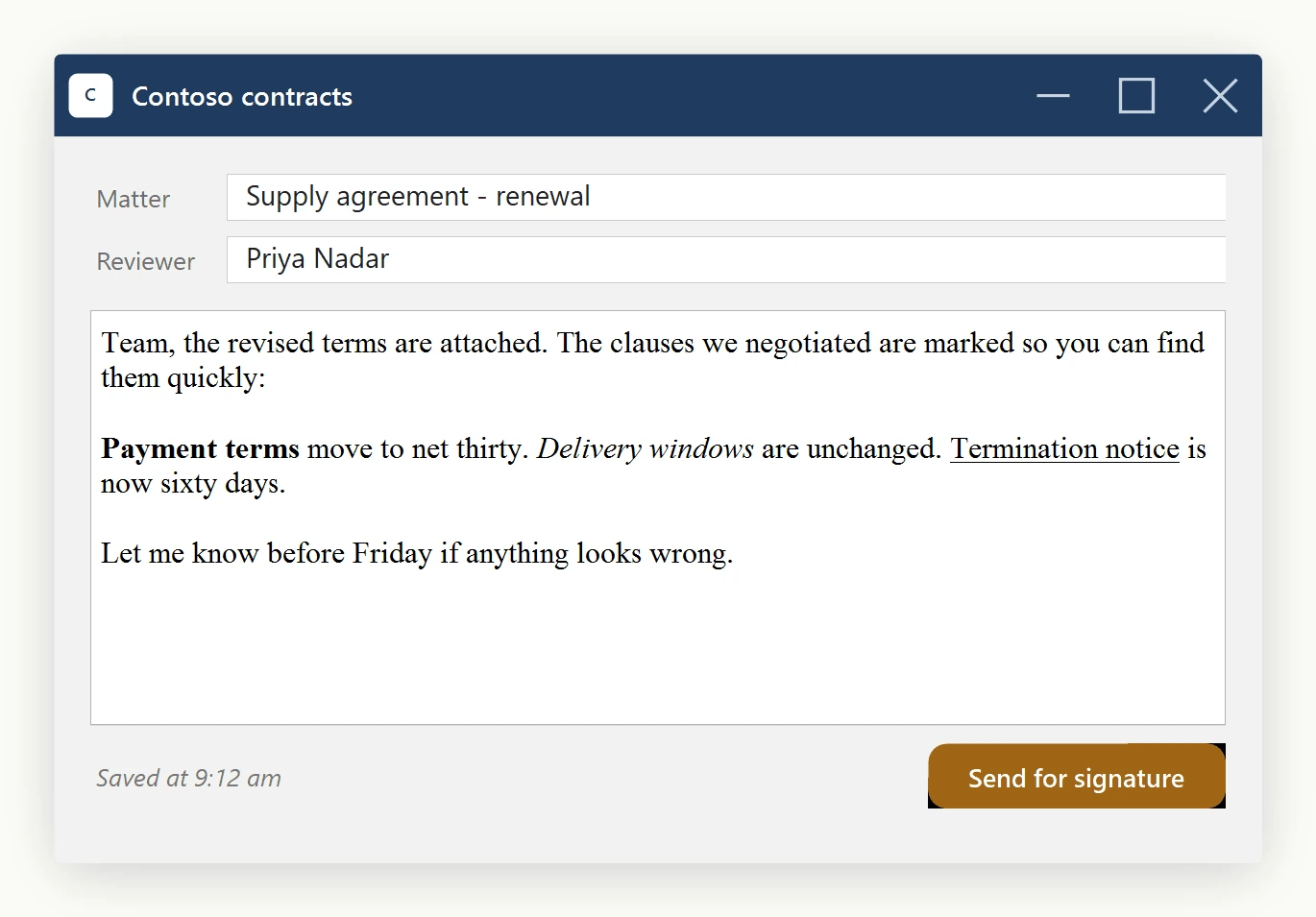
Toolbar1, Toolbar2, and ToolbarFooter are exposed as plain ToolStrip references on the editor. Hide all three, typically in Form_Load:
private void CommentForm_Load(object sender, EventArgs e)
{
    htmlEditor1.Toolbar1.Visible = false;
    htmlEditor1.Toolbar2.Visible = false;
    htmlEditor1.ToolbarFooter.Visible = false; // hides the WYSIWYG / Source / Preview tabs too
}
Private Sub CommentForm_Load(sender As Object, e As EventArgs)
htmlEditor1.Toolbar1.Visible = False
htmlEditor1.Toolbar2.Visible = False
htmlEditor1.ToolbarFooter.Visible = False ' hides the WYSIWYG / Source / Preview tabs too
End SubThe editor is now a bare content area with no toolbar.
Reusing the built-in toolbar buttons
To put only a few buttons, such as Bold, Italic, and Underline, on your own ToolStrip without reimplementing click logic, icon lookup, or undo handling, use ToolbarItemOverrider.ToolbarItems: a strongly-typed accessor that returns the live ToolStripButton instances the editor already configured, with the same icons, the same tooltips (already localized through WinFormHtmlEditor.Language), the same click logic, and the same checked-state toggling.
private void CommentForm_Load(object sender, EventArgs e)
{
    htmlEditor1.Toolbar1.Visible = false;
    htmlEditor1.Toolbar2.Visible = false;
    htmlEditor1.ToolbarFooter.Visible = false;

    var items = htmlEditor1.ToolbarItemOverrider.ToolbarItems;
    customToolStrip.Items.Add(items.Bold);
    customToolStrip.Items.Add(items.Italic);
    customToolStrip.Items.Add(items.Underline);
}
Private Sub CommentForm_Load(sender As Object, e As EventArgs)
htmlEditor1.Toolbar1.Visible = False
htmlEditor1.Toolbar2.Visible = False
htmlEditor1.ToolbarFooter.Visible = False
Dim items = htmlEditor1.ToolbarItemOverrider.ToolbarItems
customToolStrip.Items.Add(items.Bold)
customToolStrip.Items.Add(items.Italic)
customToolStrip.Items.Add(items.Underline)
End Sub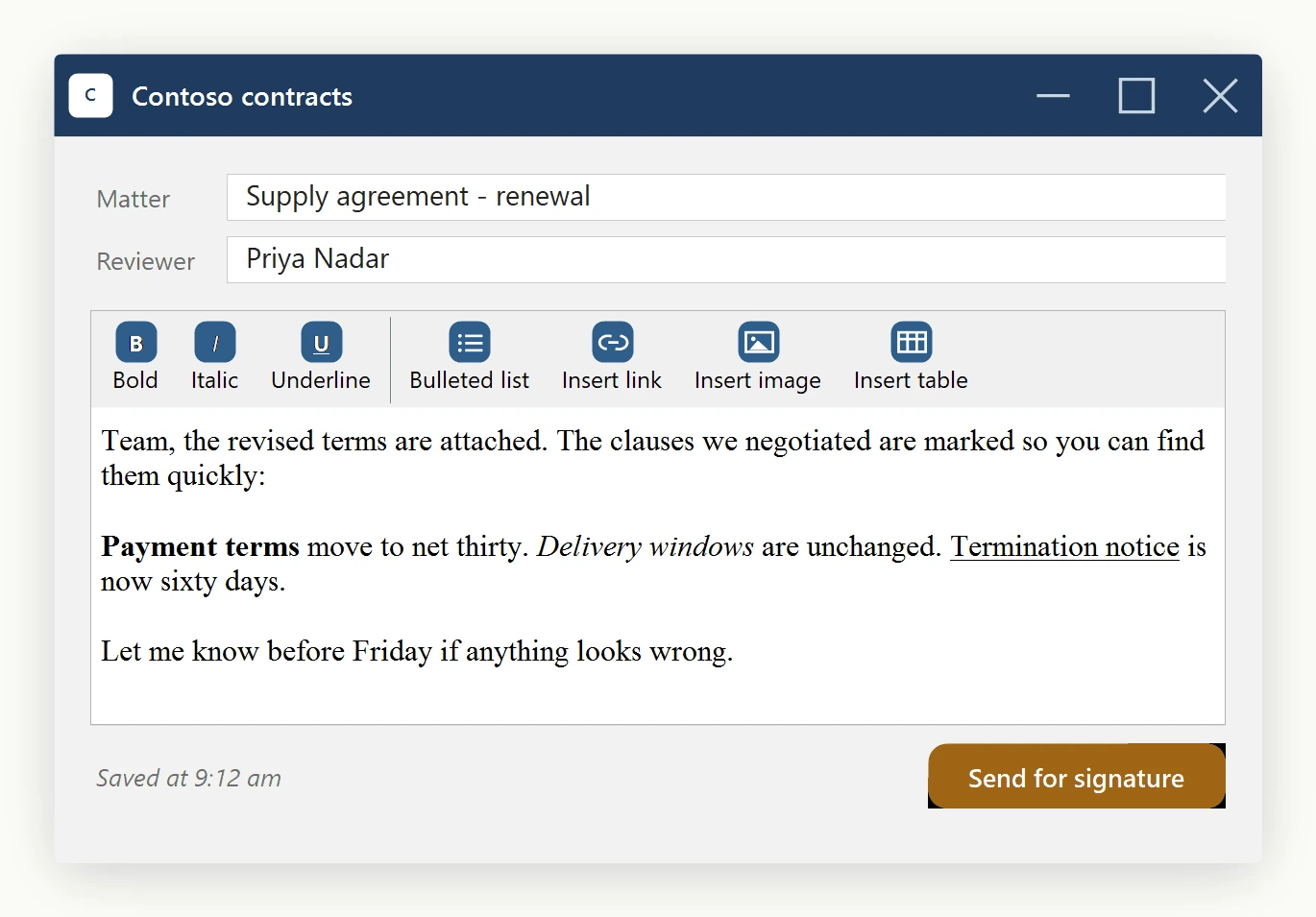
What you get for free
Because you are rehosting the editor's own button instances rather than building new ones from scratch, three behaviors keep working without any extra code:
- The editor's undo/redo stack, dirty tracking, and selection state stay correct - the user is still going through the editor's real commands.
- Tooltip localization driven by
WinFormHtmlEditor.Languagekeeps working. Switch the app's language and the tooltips switch with it. - Pressed/checked state still works. When the caret sits inside bold text, the Bold button shows pressed - the editor toggles
Checkedon the underlyingToolStripButtonregardless of whichToolStriphappens to host it.
Adding more buttons
To expose another built-in command, such as Hyperlink, add one more line: customToolStrip.Items.Add(items.Hyperlink);. The Hyperlink dialog still pops up, the spell-check service still cleans up around the inserted anchor, and the undo stack still records the change.
If a future scenario calls for a UI that is not a ToolStrip at all - a menu, a ribbon, a side-rail of buttons - the matching pattern is in Drive the editor from your own UI.
Ask your AI to do this
Connect the SpiceLogic MCP server, then give your coding assistant this prompt.
I use the SpiceLogic WinForms HTML Editor. Help me replace the built-in toolbar with a compact toolbar that uses the editor commands. Confirm the exact API names, types and defaults with the SpiceLogic MCP documentation, then show the changes for my project.