


 NuGet
NuGet
Selection service
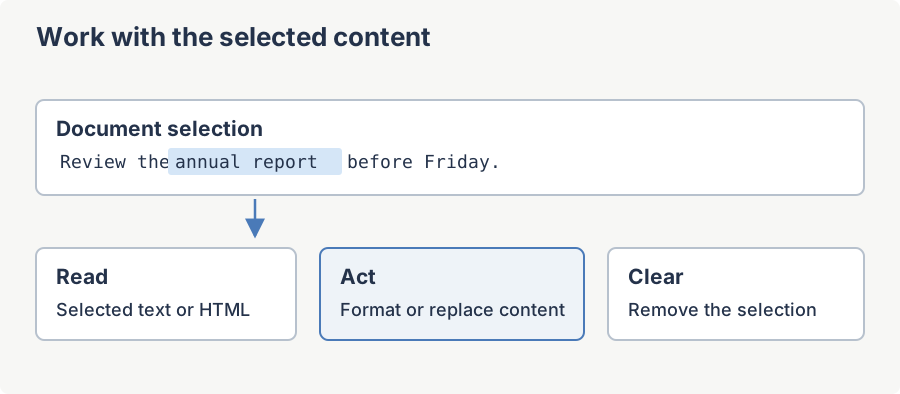
The selection service works with the text or elements currently highlighted in the editor. Use it to select a range, find and select text, read the selected content or clear the selection. Access these operations through the editor control's Selection property.
The interface implements IDisposable because the runtime implementation holds a reference to the underlying MSHTML selection object. The editor disposes the service when the control itself is disposed, so application code never needs to call Dispose directly.
Namespace: SpiceLogic.HtmlEditor.Abstractions.Services
Assembly: SpiceLogic.HtmlEditor.Abstractions
Inheritance: ISelectionService : IDisposable
SelectText(Int32, Int32) Method
Selects a range of characters in the document body, starting at startIndex and continuing for length characters. Use this overload when you already know the exact extents of the range to highlight.
Syntax
void SelectText(int startIndex, int length);Parameters
| Name | Type | Description |
|---|---|---|
| startIndex | Int32 | Zero-based character offset within the body where the selection begins. |
| length | Int32 | Number of characters to include in the selection. |
Returns
None.
Remarks
Indexes count characters in the rendered text stream, not bytes in the raw HTML source. Call htmlEditor1.Selection.GetSelectionLength() afterwards to confirm the highlighted range. In HtmlEdit mode both indexes instead address the raw HTML markup text in the underlying textbox, not the rendered plain text, since the offsets are applied directly to the raw-HTML editor there.
Example
// Highlight the first 12 characters of the document.

htmlEditor1.Focus();

htmlEditor1.Selection.SelectText(0, 12);

Debug.WriteLine($"Selected: {htmlEditor1.Selection.GetSelectedText()}");
SelectText(Int32) Method
Selects from startIndex to the end of the body. Useful for "select to end" affordances such as Shift+End in a paragraph.
Syntax
void SelectText(int startIndex);Parameters
| Name | Type | Description |
|---|---|---|
| startIndex | Int32 | Zero-based character offset within the body where the selection begins. |
Returns
None.
Remarks
In HtmlEdit mode this only positions the caret at startIndex in the raw-HTML textbox; it does not select through to the end of the text there the way it does in WysiwygDesign mode.
Example
// Select everything from the 20th character to the end of the body.
htmlEditor1.Selection.SelectText(20);
int len = htmlEditor1.Selection.GetSelectionLength();
Debug.WriteLine($"Selected {len} characters to end of body.");
' Select everything from the 20th character to the end of the body.
htmlEditor1.Selection.SelectText(20)
Dim len As Integer = htmlEditor1.Selection.GetSelectionLength()
Debug.WriteLine($"Selected {len} characters to end of body.")SelectText(String, Boolean, Boolean, Boolean) Method
Searches the document body for text and, if found, selects the first match. Supports forward and backward search, whole-word matching, and case-sensitive matching - the same options offered by a typical Find dialog.
Syntax
bool SelectText(string text, bool forward, bool matchWholeWord, bool matchCase);Parameters
| Name | Type | Description |
|---|---|---|
| text | String | The text to search for. |
| forward | Boolean | true to search forward from the current caret position; false to search backward. |
| matchWholeWord | Boolean | true to require word-boundary matches; false to allow matches inside larger words. |
| matchCase | Boolean | true for case-sensitive matching; false for case-insensitive. |
Returns
true if a match was found and selected; otherwise false.
Remarks
Always returns false in HtmlEdit mode, without searching.
Example
bool found = htmlEditor1.Selection.SelectText("Contoso", forward: true, matchWholeWord: true, matchCase: false);
if (!found)
{
    MessageBox.Show("Not found");
}
Dim found As Boolean = htmlEditor1.Selection.SelectText("Contoso", forward:=True, matchWholeWord:=True, matchCase:=False)
If Not found Then
MessageBox.Show("Not found")
End IfSelectHtmlElement(IHTMLElement) Method
Selects the entire HTML element passed in, including all of its descendants. The selection visibly highlights the element's rendered area.
Syntax
void SelectHtmlElement(IHTMLElement element);Parameters
| Name | Type | Description |
|---|---|---|
| element | mshtml.IHTMLElement | The MSHTML element to select. Typically obtained from htmlEditor1.StateQuery.GetActiveHtmlElement() or from a DOM walk. |
Returns
None.
Remarks
A no-op in HtmlEdit mode.
Example
// Highlight the element under the caret.
IHTMLElement active = htmlEditor1.StateQuery.GetActiveHtmlElement();
if (active != null)
{
    htmlEditor1.Selection.SelectHtmlElement(active);
}
' Highlight the element under the caret.
Dim active As IHTMLElement = htmlEditor1.StateQuery.GetActiveHtmlElement()
If active IsNot Nothing Then
htmlEditor1.Selection.SelectHtmlElement(active)
End IfGetSelectionInfo Method
Returns a snapshot of the current selection, including its zero-based start index, length, plain text, and inner HTML.
Syntax
SelectionInfo GetSelectionInfo();Returns
A SelectionInfo instance with these public fields:
| Field | Type | Description |
|---|---|---|
| StartIndex | Int32 | Zero-based offset of the selection start within the body. |
| Length | Int32 | Length of the selection in characters. |
| Text | String | The selected text (no markup). |
| Html | String | The selected HTML fragment. |
Remarks
In HtmlEdit mode this always returns a SelectionInfo with its fields at default (empty strings, zero); it does not read the raw-HTML textbox's own selection.
Example
SelectionInfo info = htmlEditor1.Selection.GetSelectionInfo();

Debug.WriteLine($"{info.StartIndex}+{info.Length}: {info.Text}");

Debug.WriteLine($"HTML: {info.Html}");
DeselectAll Method
Clears the current selection so that no HTML elements are selected in the editor. Equivalent in spirit to TextBox.DeselectAll() on a .NET TextBox: the caret remains visible, but nothing is highlighted.
Syntax
void DeselectAll();Returns
None.
Example
// Drop any active selection after applying a programmatic change.

htmlEditor1.Selection.SelectAll();

htmlEditor1.Formatting.ChangeFontSize("12pt");

htmlEditor1.Selection.DeselectAll();
Unselect Method
Removes the current selection. Functionally a synonym for DeselectAll; retained for parity with the underlying MSHTML unselect command.
Syntax
void Unselect();Returns
None.
Example
// Same effect as DeselectAll. Kept for source compatibility.

htmlEditor1.Selection.Unselect();
SelectAll Method
Selects the entire document body. Equivalent to pressing Ctrl+A while the editor has focus.
Syntax
void SelectAll();Returns
None.
Example
// Select everything, then read the plain text.
htmlEditor1.Selection.SelectAll();
string body = htmlEditor1.Selection.GetSelectedText();
Debug.WriteLine($"Body length: {body.Length}");
' Select everything, then read the plain text.
htmlEditor1.Selection.SelectAll()
Dim body As String = htmlEditor1.Selection.GetSelectedText()
Debug.WriteLine($"Body length: {body.Length}")GetSelectedHtml Method
Returns the HTML fragment that represents the current selection, including all inline tags inside the range.
Syntax
string GetSelectedHtml();Returns
The selected HTML as a string. An empty string is returned when nothing is selected.
Example
string html = htmlEditor1.Selection.GetSelectedHtml();
if (!string.IsNullOrEmpty(html))
{
    Clipboard.SetText(html);
}
Dim html As String = htmlEditor1.Selection.GetSelectedHtml()
If Not String.IsNullOrEmpty(html) Then
Clipboard.SetText(html)
End IfGetSelectedText Method
Returns the plain text of the current selection, with all HTML markup stripped.
Syntax
string GetSelectedText();Returns
The selected text as a string. An empty string is returned when nothing is selected.
Example
string text = htmlEditor1.Selection.GetSelectedText();
label1.Text = $"Selected: {text}";
Dim text As String = htmlEditor1.Selection.GetSelectedText()
label1.Text = $"Selected: {text}"TrimSelection(TrimDirections) Method
Trims whitespace from the start, the end, or both ends of the current selection, then returns the trimmed text. Useful when a user double-clicks a word that picked up trailing whitespace and you want a clean token.
Syntax
string TrimSelection(TrimDirections trimDirection = TrimDirections.Both);Parameters
| Name | Type | Description |
|---|---|---|
| trimDirection | TrimDirections | Start trims leading whitespace, End trims trailing whitespace, Both (default) trims both ends. |
Returns
The trimmed selection text as a string.
Remarks
Always returns an empty string in HtmlEdit mode - it operates on the live MSHTML selection and does not affect the raw-HTML textbox.
Example
htmlEditor1.Selection.SelectText("  hello world  ", true, false, true);
string clean = htmlEditor1.Selection.TrimSelection(TrimDirections.Both);
Debug.WriteLine($"Clean token: '{clean}'");htmlEditor1.Selection.SelectText(" hello world ", True, False, True)
Dim clean As String = htmlEditor1.Selection.TrimSelection(TrimDirections.Both)
Debug.WriteLine($"Clean token: '{clean}'")GetSelectionLength Method
Returns the length, in characters, of the current selection.
Syntax
int GetSelectionLength();Returns
The selection's character length, or -1 when there is no text-range selection to measure - in HtmlEdit mode, or when the current selection is not a text range (for example, an image or table selected as a whole).
Example
if (htmlEditor1.Selection.GetSelectionLength() == 0)
{
    MessageBox.Show("Please select some text first.");
    return;
}
If htmlEditor1.Selection.GetSelectionLength() = 0 Then
MessageBox.Show("Please select some text first.")
Return
End IfDispose Method
Inherited from IDisposable. Called by the editor control during teardown so it can release the underlying MSHTML selection object. Host applications normally do not invoke this directly.
Syntax
void Dispose();Returns
None.
Example
// Disposing the editor disposes its services automatically.

htmlEditor1.Dispose();

// Equivalent of explicitly disposing the selection service - not normally needed:

// htmlEditor1.Selection.Dispose();
Ask your AI to do this
Connect the SpiceLogic MCP server, then give your coding assistant this prompt.
I use the SpiceLogic WinForms HTML Editor. Help me read and modify the selected HTML or text through the Selection service. Confirm the exact API names, types and defaults with the SpiceLogic MCP documentation, then show the changes for my project.