NuGet
NuGet
Customize the built-in context menu
You can tailor the built-in right-click menu to show the commands your application needs. ContextMenuItems lets you hide, disable or rename commands; DefaultContextMenu lets you reorder them or add application commands. Existing editor commands keep their built-in behavior.
If you want to replace the entire menu with your own commands, see Replace the whole context menu.
Hide or disable commands
Requires WinForms 10.2.0 or later. Keep the existing commands and hide only the items your application does not need. Configure these properties after InitializeComponent.
editor.ContextMenuItems.ViewSource.Visible = false;
editor.ContextMenuItems.Paste.Enabled = false;
editor.ContextMenuItems.ViewSource.Visible = False
editor.ContextMenuItems.Paste.Enabled = False
Visible and Enabled are application permissions. False persists across selection updates; true permits the editor's automatic state. Image Properties still appears only for an image, and Paste still requires content the editor can paste. Hiding View Source affects this menu entry only; configure source-mode toolbar, keyboard and programmatic entry points separately if needed.
Change captions and icons
Text overrides survive language changes. Image changes the icon; assign null (Nothing in VB.NET) to remove it.
editor.ContextMenuItems.ViewSource.Text = "Inspect markup";
editor.ContextMenuItems.ViewSource.Image = System.Drawing.SystemIcons.Information.ToBitmap();
editor.ContextMenuItems.ViewSource.Text = "Inspect markup"
editor.ContextMenuItems.ViewSource.Image = System.Drawing.SystemIcons.Information.ToBitmap()
Reorder and add commands
Item is the existing native object, so moving it preserves the built-in handler. DefaultContextMenu exposes the original menu for ordering and adding native commands.
var source = editor.ContextMenuItems.ViewSource.Item;
editor.DefaultContextMenu.Items.Remove(source);
editor.DefaultContextMenu.Items.Insert(0, source);
var command = new System.Windows.Forms.ToolStripMenuItem("Copy document HTML");
command.Click += (sender, args) => System.Windows.Forms.Clipboard.SetText(editor.DocumentHtml);
editor.DefaultContextMenu.Items.Add(command);
Dim source = editor.ContextMenuItems.ViewSource.Item
editor.DefaultContextMenu.Items.Remove(source)
editor.DefaultContextMenu.Items.Insert(0, source)
Dim command = New System.Windows.Forms.ToolStripMenuItem("Copy document HTML")
AddHandler command.Click, Sub(sender, args) System.Windows.Forms.Clipboard.SetText(editor.DocumentHtml)
editor.DefaultContextMenu.Items.Add(command)
An added handler runs alongside the built-in handler; use ToolbarItemOverrider to replace supported dialog actions. Host-added items retain their own native state. Empty submenus and redundant separators disappear from the visible layout, and a menu with no visible commands does not open. These APIs operate on the UI thread.
Adjust the next opening
ContextMenuShowing runs after selection-state calculation and before display. Change named permissions, Options.ShowDefaultContextMenu or Options.DisableEditorRightClick in the handler to affect that opening.
editor.ContextMenuShowing += (sender, args) =>
{
    editor.ContextMenuItems.ViewSource.Visible = false;
};
AddHandler editor.ContextMenuShowing,
    Sub(sender, args)
        editor.ContextMenuItems.ViewSource.Visible = False
    End Sub
The event args expose OffsetMousePosition, with no Cancel flag or MenuItems collection. Access the menu through the editor. These APIs apply to the WYSIWYG editing surface; Options.DoNotShowContextMenuInPreviewMode governs the native preview menu.
Ask your AI to do this
With the SpiceLogic MCP server connected, ask your assistant:
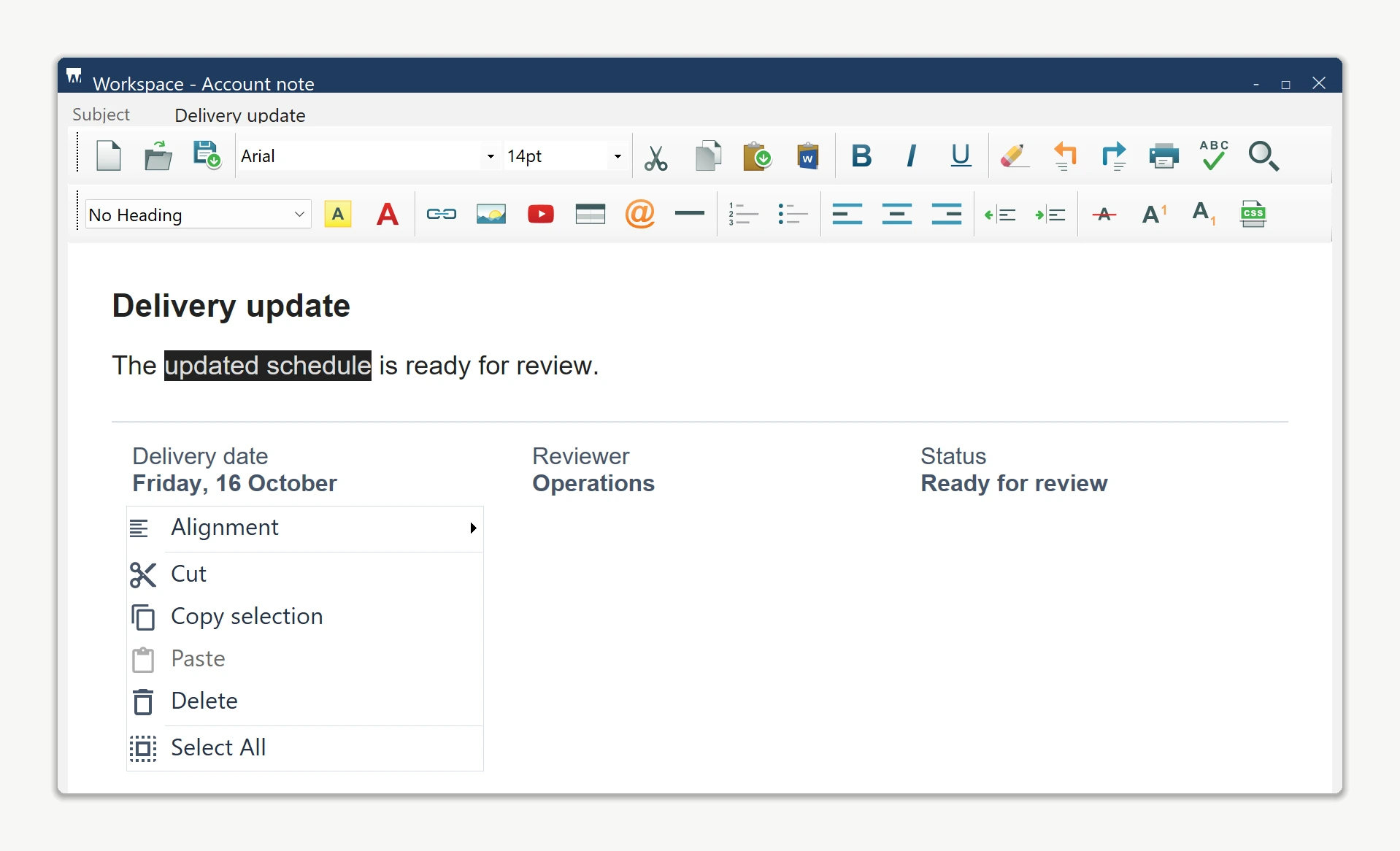
Using the SpiceLogic WinForms HTML Editor already referenced in my project, customize the built-in right-click menu. Hide View Source through ContextMenuItems.ViewSource.Visible and add a native command through DefaultContextMenu. Retain the built-in handlers and selection rules. Configure the menu after InitializeComponent. Look up the real API before writing code.Customized built-in menu
The real editor below keeps its original menu and command handlers. The host applies a neutral menu style and monochrome icons, renames Copy to Copy selection, disables Paste and hides Show Source. Menu styling is supplied by the host application.