


 NuGet
MCP server for AI coding assistants
Coding assistants learned the HTML Editor from whatever was on the web when they were trained, so they guess member names that no longer exist and put the licence key where it silently does nothing. The documentation MCP server removes the guessing. One URL gives Claude Code, GitHub Copilot, Cursor, Codex and every other MCP client the shipped WinForms HTML Editor package's real signatures, its guides and samples, and the exact licence code. No account, no key, nothing to install.
Connect your coding assistant
Paste one sentence into your assistant. It writes its own configuration; the client-by-client reference further down is for anyone who prefers to edit the file by hand.
Add the MCP server at https://mcp.spicelogic.com/html-editor/winformsWhen the client asks, enable the new tools, then check that the first answer really came through a SpiceLogic tool call. Restart only if the client requires it.
Streamable HTTP, read-only, public. Nothing to sign up for.
What changes once it is connected
This is a real session, run against the live endpoint while this page was written. Claude Code, with nothing but this server connected, was given one request:
The prompt
Using the SpiceLogic WinForms documentation tools, show me how to load HTML into the editor, make it read-only, and apply my licence key at startup. Keep the answer short.Before writing a line of code, the assistant made four tool calls:
| Call | What came back |
|---|---|
get_licensing() | The static WinFormHtmlEditor.LicenseKey property, startup code in C# and VB, and the rules that stop a key from silently leaving the app in trial mode |
get_quickstart() | The package id SpiceLogic.HtmlEditor.WinForms, the version currently on NuGet, the install command and a starter form that compiles against it |
search_api("read only") | 134 members that mention read-only, ranked so ChangeReadOnlyMode and IsReadOnlyMode came first, each with its XML documentation |
search_api("ReadOnlyPreview editor mode switch") | Two matches, among them the EditorMode property and its EditorModes values |
Then it answered, quoted here as it was returned:
// Program.cs: set the key once, before any form with the editor is created
[STAThread]
static void Main()
{
    WinFormHtmlEditor.LicenseKey = "YOUR-LICENSE-KEY";   // static, process-wide
    ApplicationConfiguration.Initialize();
    Application.Run(new MainForm());
}

// In the form that hosts the editor
_editor.BodyHtml = "<h1>Hello</h1><p>Loaded content</p>";   // load HTML

_editor.EditorMode = EditorModes.ReadOnlyPreview;           // read-only
// Alternative (marked Beta in the docs): _editor.ChangeReadOnlyMode(true);- License key: a late, missing or malformed key doesn't throw, and the editor silently stays in the 14-day trial. Check at runtime that the trial reminder is gone. The key is in your account at members.spicelogic.com.
- Read-only: I recommend
EditorMode = ReadOnlyPreview, because the docs markChangeReadOnlyModeas experimental. Preview mode sets hyperlink targets to_blankby default.
Every name in that answer exists in the shipped package, the licence key sits in the one place it activates, and the Beta warning on ChangeReadOnlyMode came straight from the XML documentation. The assistant did not know any of this before the request; it looked it up, the way a careful developer would.
For comparison, the same assistant was asked the same question with no tools and told to answer from memory. It guessed a namespace of SpiceLogic.WinHTMLEditor, a licence call of License.Apply("...") and a ReadOnly property, none of which exist, and marked every name "unverified". That is the honest best an assistant can do from training data. The server turns it into the answer above.
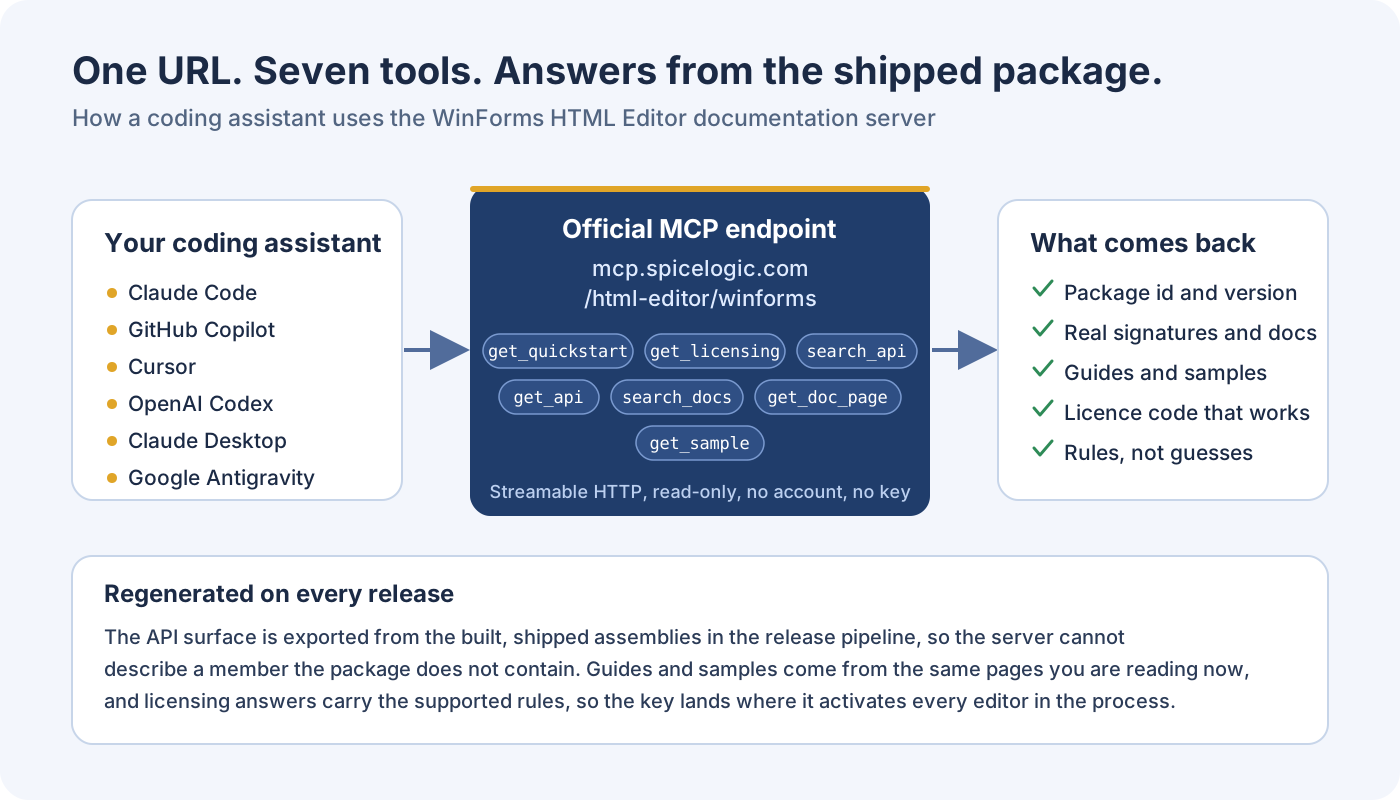
What your assistant gets
Seven tools. The server's own instructions tell the assistant the working order: get_quickstart first in a project that does not reference the package yet, get_licensing before any licence code, and get_api before it writes a member name from memory.
| Tool | Returns | The assistant uses it when |
|---|---|---|
get_quickstart() | Package id, current version, install command and starter code that compiles | The project does not reference the editor yet |
get_licensing() | The static WinFormHtmlEditor.LicenseKey property, startup code in C# and VB, and the rules | Before writing any licence code |
search_api(query, kind) | Members matching a task in plain words, with declaring type, signature and documentation | It knows what the editor should do but not which member does it |
get_api(symbol) | Every member of one public type with signatures and XML documentation | It needs the exact signature before writing code |
search_docs(query) | Matching guide titles, slugs and categories | The question is a how-to rather than an API lookup |
get_doc_page(slug) | The full content of one documentation page | A search hit needs reading in full |
get_sample(task) | The documented working example closest to the task | A working example beats a description |
On this product-specific URL the product argument is optional and ignored: the URL always selects the WinForms edition, so a client connected here can never be answered with another edition's API.
Prompts worth trying
Each block has a copy button. They assume the server is connected and its tools are enabled.
Create a small WinForms app, install the SpiceLogic HTML Editor, add it to the main form, load a heading and a bulleted list, and add a button that inserts today's date. Build and run it.Apply my SpiceLogic licence key the supported way, and show me how to confirm the editor is no longer running in trial mode.Users paste from Word and the resulting HTML is a mess. Which SpiceLogic WinForms HTML Editor setting cleans it up, and how do I turn it on?Add a custom toolbar button to the SpiceLogic WinForms HTML Editor that wraps the current selection in a highlighted span. Use the documentation tools for the exact API.Why the answers stay right
- API and quickstart answers are generated from the shipped NuGet package and its XML documentation on every release. The server cannot describe a member the package does not contain.
- Licensing answers carry the supported rules in one place, so the key is set once at startup, where it activates every editor in the process.
- The documentation tools read the same pages you are looking at now. A guide corrected here is corrected for the assistant in the same moment.
- The server is read-only, public and rate limited to 60 calls a minute per IP address. Assistants that do not make tool calls can read llms.txt, a plain-text index of the documentation.
Client setup
Every MCP client accepts the same URL; what differs is where it keeps the setting. Ask the assistant to add it, or follow the steps for your client, then verify a real call as described at the end of this page.
Visual Studio (GitHub Copilot)
Use Visual Studio 2026, or Visual Studio 2022 version 17.14 or later. The steps below show the current Visual Studio 2026 interface.
- Open Copilot Chat and select Agent mode. For a new editor walkthrough, start with an empty form or window.
- Click Customize AI below the chat box, then choose MCP Servers. This opens AI Customization.
- On MCP Servers, click the Add MCP Server plus button to open Add custom MCP server.
- For Destination, keep Global (Available in all solutions), or select a solution-scoped file if the configuration belongs with that solution.
- Enter a clear Server ID, such as
spicelogic-winforms-html-editor. SelectHTTPfor Type, then pastehttps://mcp.spicelogic.com/html-editor/winformsinto URL. Leave Headers empty: this public documentation endpoint needs no key. Click Save. - Make sure the SpiceLogic server switch is on. Click its tool count in the Tools column to open that server's Tools tab.
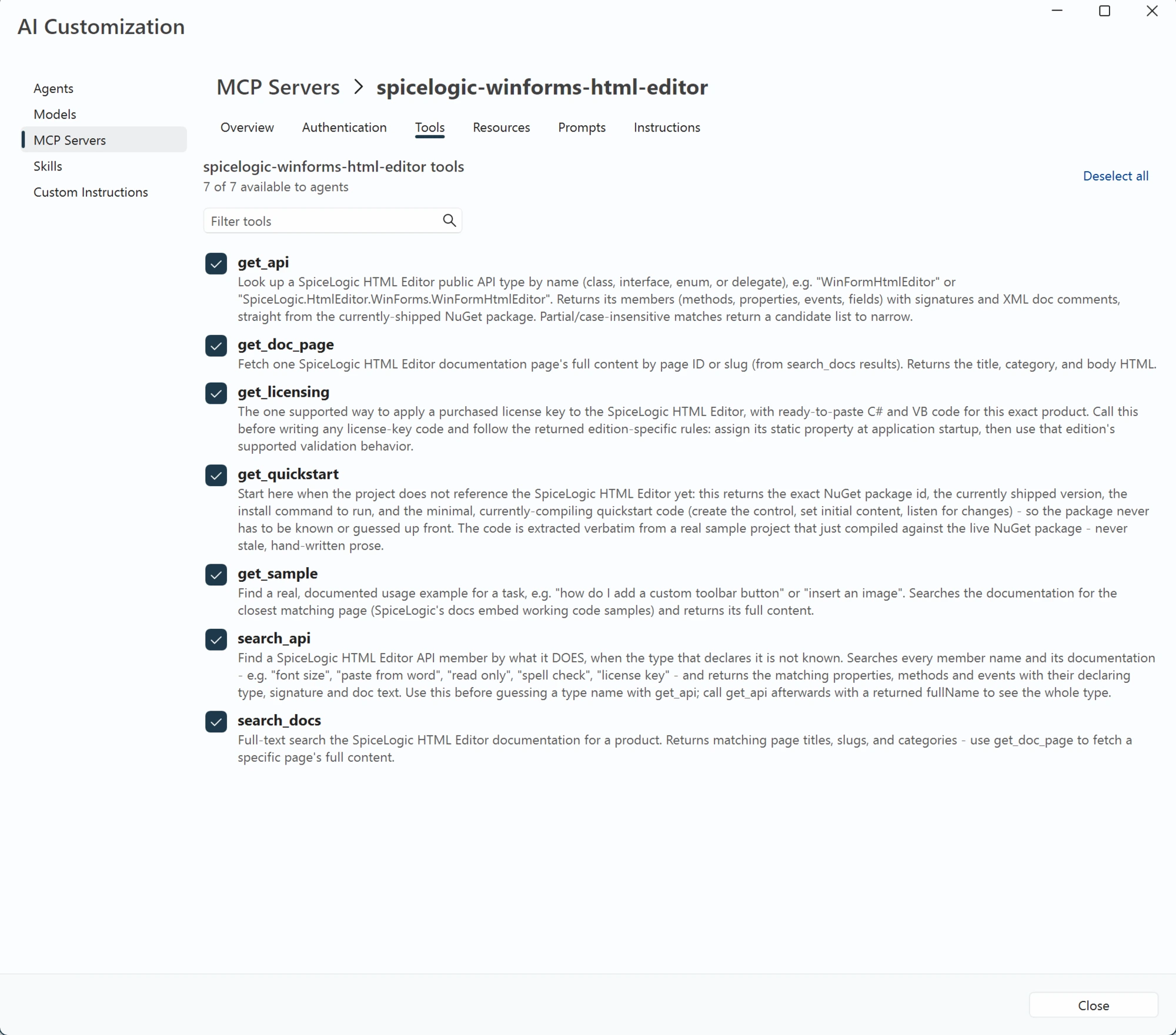
- Click Select all and check that every tool is selected. The server currently exposes seven tools:
get_api,get_doc_page,get_licensing,get_quickstart,get_sample,search_api, andsearch_docs. The tab should show 7 of 7 available to agents, and the server list should show 7/7. If you see Deselect all, all tools are already selected. - Close AI Customization, then ask Copilot an editor question that explicitly uses the SpiceLogic documentation server. Review and allow the documentation calls when prompted, then inspect the answer or proposed change.
Enable every tool for the complete workflow shown here. Registering a server alone is not enough: with the server off or no tools selected, Copilot cannot call its documentation tools. If only some tools are selected, part of the workflow can be unavailable. Recheck the full enabled count if the server's tool list changes.
Choosing HTTP replaces the Command field with URL and Environment Variables with Headers. Older Visual Studio builds may call the chat control Select tools and skills and use the earlier tool picker. Microsoft's Visual Studio MCP guide covers the client's configuration and permissions.
The same registration in JSON, for anyone who would rather write the file. Visual Studio reads <solution>\.mcp.json, %USERPROFILE%\.mcp.json for every solution, and <solution>\.vs\mcp.json for a machine-local setup:
{
  "servers": {
    "spicelogic-winforms-editor": {
      "type": "http",
      "url": "https://mcp.spicelogic.com/html-editor/winforms"
    }
  }
}
That file is also where a server is removed: delete its entry from the .mcp.json it was saved to.
VS Code (GitHub Copilot Chat)
Run MCP: Add Server, choose HTTP, and enter https://mcp.spicelogic.com/html-editor/winforms. Give the server a unique name, choose its configuration scope, and review any trust prompt. The same guided flow is available from Chat: Open Customizations > MCP Servers > Add Server; the VS Code MCP guide explains the scopes.
For the VS Code workspace or profile configuration, the equivalent entry in .vscode/mcp.json uses a top-level servers object:
{
  "servers": {
    "spicelogic-winforms-editor": {
      "type": "http",
      "url": "https://mcp.spicelogic.com/html-editor/winforms"
    }
  }
}
Use an agent session, enable the server tools, and verify a real call as described below. If you choose the portable Copilot configuration instead, let the guided flow write its client-specific format; do not copy a configuration wrapper from another client.
GitHub Copilot CLI
copilot mcp add --transport http spicelogic-winforms-editor https://mcp.spicelogic.com/html-editor/winformsClaude Code
claude mcp add --transport http spicelogic-winforms-editor https://mcp.spicelogic.com/html-editor/winformsIn Claude Code, use /mcp to inspect the server and its tools. Review any project approval or trust request, then verify an actual documentation call. A successful add command confirms saved configuration, not a completed documentation query. Claude Code's MCP guide covers scopes and permissions.
Claude Desktop
Open Settings, choose Connectors, choose Add custom connector, paste https://mcp.spicelogic.com/html-editor/winforms, and add it.
Cursor
Add this to ~/.cursor/mcp.json, or .cursor/mcp.json inside a project (Cursor's MCP guide):
{
  "mcpServers": {
    "spicelogic-winforms-editor": {
      "url": "https://mcp.spicelogic.com/html-editor/winforms"
    }
  }
}
OpenAI Codex CLI
Add it from the terminal:
codex mcp add spicelogic-winforms-editor --url https://mcp.spicelogic.com/html-editor/winformsRun codex mcp list to inspect the saved entry and use /mcp inside the Codex CLI session to inspect active servers. Start or reload the session if the client requires it, then verify a real documentation call. Hosted ChatGPT does not read local Codex configuration.
Or add it to ~/.codex/config.toml:
[mcp_servers.spicelogic-winforms-editor]
url = "https://mcp.spicelogic.com/html-editor/winforms"
Google Antigravity
Open the MCP Servers panel, choose "Manage MCP Servers", then "View raw config". Add this to the global ~/.gemini/config/mcp_config.json file or the workspace .agents/mcp_config.json file. Antigravity uses serverUrl for a remote Streamable HTTP server:
{
  "mcpServers": {
    "spicelogic-winforms-editor": {
      "serverUrl": "https://mcp.spicelogic.com/html-editor/winforms"
    }
  }
}
Check your client's server and tool list to confirm the SpiceLogic documentation tools are available and enabled. The client may require a refresh or a new session after a configuration change.
Verify the first documentation call
A saved connection is only the first step. In an agent session, ask the assistant to use the SpiceLogic WinForms documentation tools for an editor question. Review any tool permission request, then expand the actual call and check its output.
- Confirm that the call uses
https://mcp.spicelogic.com/html-editor/winforms. - Check that the intended documentation tool succeeds and returns the relevant guide or API signature.
- Compare the returned package and member with the package installed in your project, then review and test the proposed code.
If tools are unavailable, check the selected endpoint, enabled tools, client connection status and your organisation's policy. Reload or restart only when your client requires it. Documentation access grounds an answer; the returned code still deserves a read before it ships.