


 NuGet
NuGet
Design-time configuration
Smart tags are available only for .NET Framework
Design-time configuration lets you set up the editor in Visual Studio before running your application. Use the Properties window or code to configure WinFormHtmlEditor. The custom Tasks smart-tag panel is available in supported .NET Framework projects using the classic Windows Forms designer.
| Windows Forms project target | This editor's smart-tag panel |
|---|---|
| Supported .NET Framework 4.x, such as 4.7.2 or 4.8, with the classic designer | Available |
| Modern .NET 5, 6, 7, 8, 9 or 10 | Unavailable; configure the editor through the Properties window or code |
The target of the project containing the control determines this behavior. A solution can contain projects targeting different frameworks. This restriction concerns this control's custom Tasks panel; modern .NET's designer can support smart tags implemented for its out-of-process architecture.
Open the smart-tag panel
In a .NET Framework project's Windows Forms designer, select WinFormHtmlEditor and click the small arrow at its upper-right corner. The screenshot marks this arrow in red.
The Tasks panel groups shortcuts under Appearance, Behavior, Value and Help. It also opens automatically when the control is first dropped onto the form.
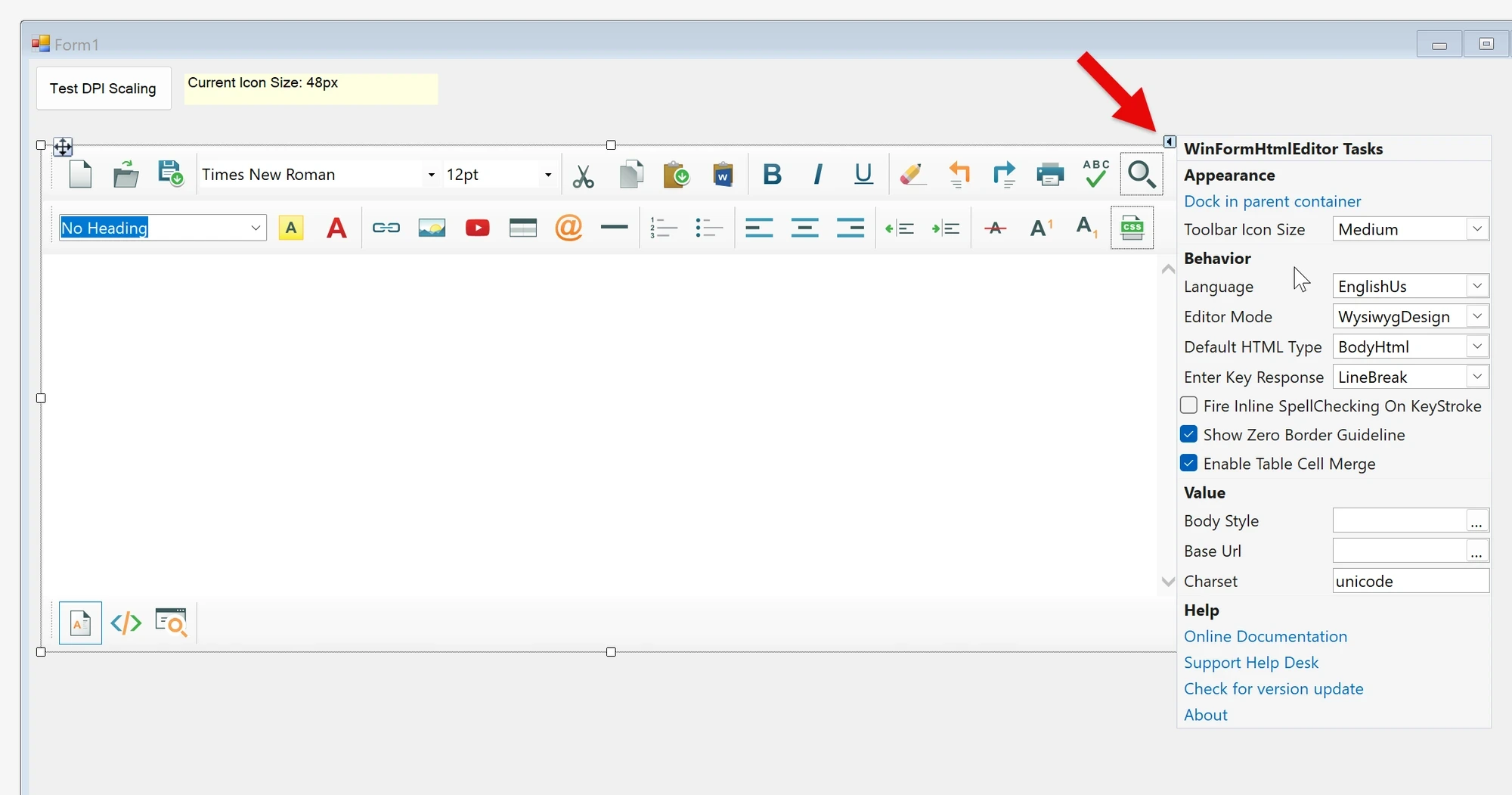
Settings and their corresponding properties
| Smart-tag setting | Public property |
|---|---|
| Dock or undock in the parent container | Dock |
| Toolbar icon size | Options.ToolbarIconSize |
| Language | Language |
| Editor mode | EditorMode |
| Default HTML type | Options.DefaultHtmlType |
| Enter key response | Options.EnterKeyResponse |
| Inline spell checking on keystrokes | SpellCheckOptions.FireInlineSpellCheckingOnKeyStroke |
| Zero-border table guidelines | Options.ShowZeroBorderGuideline |
| Table cell merging | Options.EnableTableCellMerge |
| Body style | BodyStyle |
| Base URL | BaseUrl |
| Character set | Charset |
The Help group opens the online documentation, support page, version-update page and About dialog. These are commands, rather than editable properties.
Configure the editor on modern .NET
Select the editor and use Visual Studio's Properties window for ordinary property values. Expand Options and SpellCheckOptions to find their nested settings. You can also configure the editor through its public API.
The custom Tasks panel and its design-time dialogs are not provided for modern .NET. This does not change the editor's runtime editing features.
For example, add these imports at the top of your form's code file, then place the assignments after InitializeComponent() in its constructor. Use your editor instance's name in place of htmlEditor1.
using SpiceLogic.HtmlEditor.Abstractions;
using SpiceLogic.HtmlEditor.Resources.Localization;

// In the form constructor, after InitializeComponent():
htmlEditor1.Language = EditorLanguage.German;
htmlEditor1.Options.EnterKeyResponse = EnterKeyResponses.LineBreak;
Imports SpiceLogic.HtmlEditor.Abstractions
Imports SpiceLogic.HtmlEditor.Resources.Localization
' In the form constructor, after InitializeComponent():
htmlEditor1.Language = EditorLanguage.German
htmlEditor1.Options.EnterKeyResponse = EnterKeyResponses.LineBreakQuick answers
| Question | Answer |
|---|---|
| Why is the smart-tag panel missing in my .NET 8 project? | This control's custom panel is available only in the classic .NET Framework designer. Use the Properties window or configure the editor in code. |
| Does this affect runtime editing features? | No. The restriction applies to the custom design-time panel. |
| Can I add toolbar buttons in the smart-tag panel? | Add custom buttons in code. See Add a custom button to the built-in toolbar. |
Ask your AI to do this
With the SpiceLogic MCP server connected, give your coding assistant this prompt: