


 NuGet
NuGet
Add toolbar items
What changed: adding a button is a code task now
You can extend the editor toolbar with actions specific to your application, such as inserting a standard clause or choosing a template. Add your controls after the editor is initialized so users can access these actions alongside the built-in formatting commands.
The toolbars are real System.Windows.Forms.ToolStrip objects exposed as public properties, so you add standard ToolStripButton, ToolStripDropDownButton, ToolStripComboBox or ToolStripSeparator children with no special API.
Add a button in code (the supported way)
Create a ToolStripButton, give it an image and tooltip, attach a Click handler, and add it to Toolbar1.Items (or Toolbar2 / ToolbarFooter). Do this after the editor exists -- right after InitializeComponent() or in the form's Load event. Content.InsertHtml inserts at the caret, manages undo, and raises HtmlChanged; its second argument keepSelected controls whether the inserted HTML stays selected afterwards.
var btn = new ToolStripButton("Insert Template")
{
    ToolTipText = "Insert offer letter template"
};
btn.Click += (s, e) => htmlEditor1.Content.InsertHtml("<h2>Offer of Employment</h2>", keepSelected: false);
htmlEditor1.Toolbar1.Items.Add(btn);
Dim btn = New ToolStripButton("Insert Template") With {
.ToolTipText = "Insert offer letter template"
}
AddHandler btn.Click, Sub(s, e) htmlEditor1.Content.InsertHtml("<h2>Offer of Employment</h2>", keepSelected:=False)
htmlEditor1.Toolbar1.Items.Add(btn)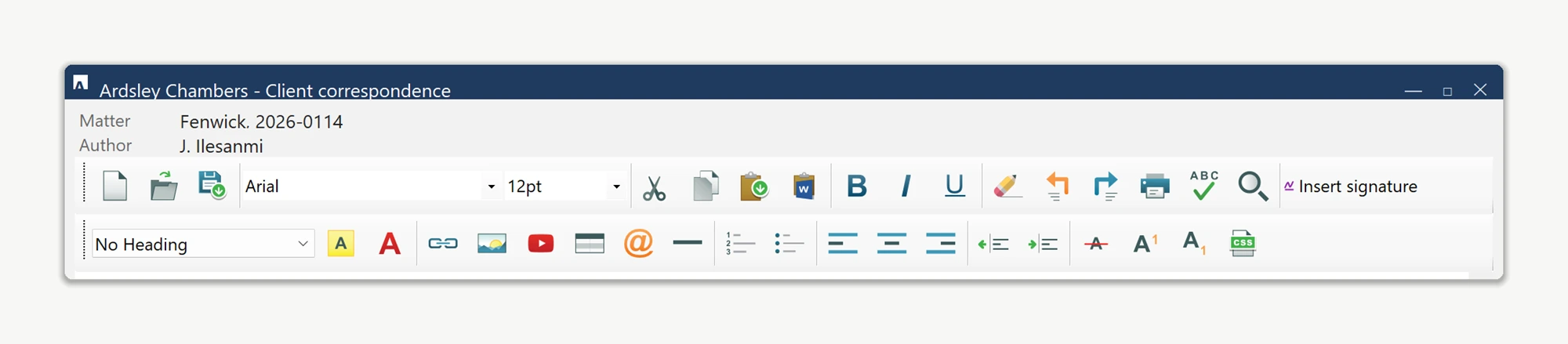
What you can do from the click handler
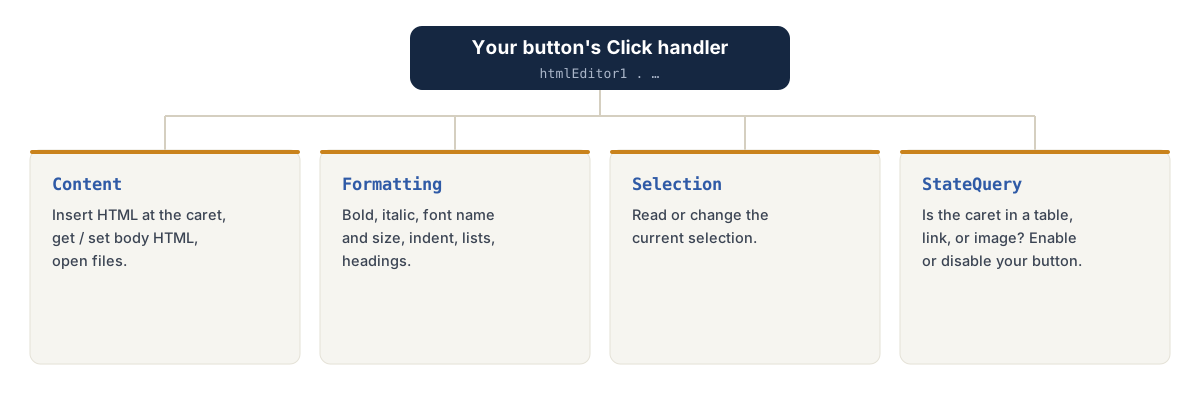
From your handler you have the editor's whole public surface, and you do not manage undo or dirty-tracking yourself:
htmlEditor1.Content-- insert HTML at the caret, get/set the body HTML, open files, read the current document.htmlEditor1.Formatting-- bold, italic, font name/size, indent, lists, headings.htmlEditor1.Selection-- read or change the current selection.htmlEditor1.StateQuery-- ask whether the caret is inside a table, hyperlink, image, etc. (use it to enable/disable your button).
Design-time note
Configuring the editor at design time -- the Smart Tag, the Properties window, and why these differ between .NET Framework and modern .NET -- is covered in its own page so it stays in one place. See Design-time configuration: Smart Tag and the Properties window in the Start Up section. The short version: the Smart Tag does not add toolbar buttons; button creation is always the code shown above.
Quick answers
| Question | Answer |
|---|---|
| Can I add a button by clicking the toolbar on the design surface? | No. Add it in code (sections above). Toolbars are factory-built at load time. |
| Where should the code go? | After InitializeComponent(), or in the form's Load event. |
| Will design-surface toolbar edits persist at runtime? | No. The factory rebuilds the toolbars, so those edits are discarded. |
| What about the Smart Tag / design-time settings? | See Design-time configuration: Smart Tag and the Properties window under Start Up. |
Ask your AI to do this
Connect the SpiceLogic MCP server, then give your coding assistant this prompt.
I use the SpiceLogic WinForms HTML Editor. Help me add a toolbar button that inserts a signature at the caret. Confirm the exact API names, types and defaults with the SpiceLogic MCP documentation, then show the changes for my project.