


 NuGet
NuGet
Theme and style customization
The editor's toolbar, icons and surrounding controls can be styled to fit your application. Use your platform's control styling and application-owned icons for that appearance; configure document fonts and colors separately to control the HTML itself.
What you can customize
- Toolbar surfaces: set the renderer, colors, grip style, and normal
ToolStrippresentation onToolbar1,Toolbar2, andToolbarFooter. - Buttons and lists: replace a button image or tooltip through properties such as
BtnSave, and coordinateCmbFontName,CmbFontSize, andCmbTitleInsert. - Document defaults: use
BodyStyle,DefaultFontFamily,DefaultFontSizeInPt, andDefaultForeColorto establish the editing canvas. - Application chrome: place the control inside your own panels, forms, status areas, and workflow actions.
The result can feel native to a line-of-business application while all editing commands remain the real shipped control.
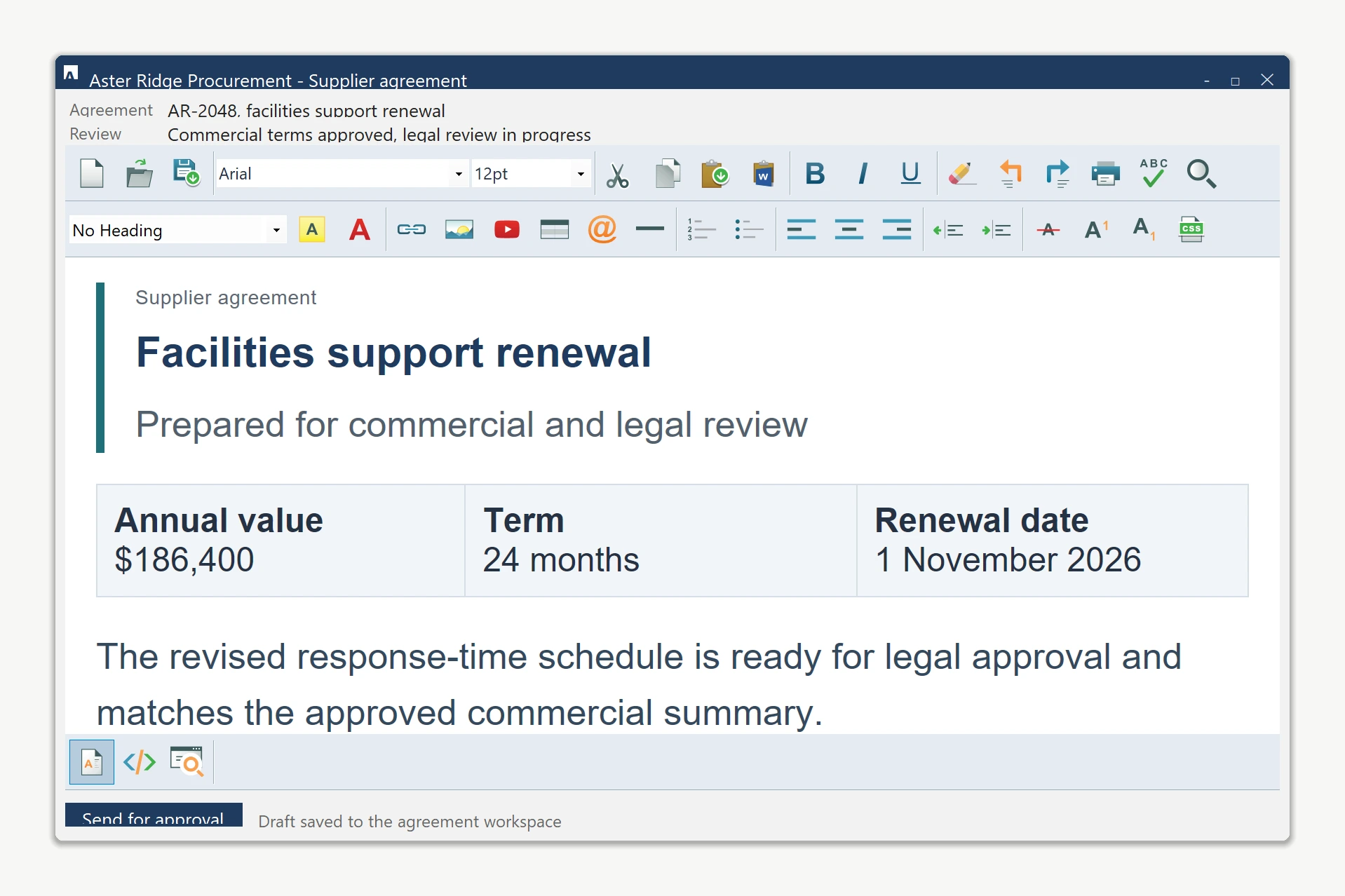
Apply a coordinated toolbar theme
Assign one renderer to all three toolbar rows after InitializeComponent(). Because these are live ToolStrip instances, standard WinForms rendering rules apply.
private void ApplyEditorTheme()
{
    var renderer = new ToolStripProfessionalRenderer(new EditorColorTable())
    {
        RoundedEdges = false
    };

    foreach (ToolStrip strip in new[]
             { htmlEditor1.Toolbar1, htmlEditor1.Toolbar2, htmlEditor1.ToolbarFooter })
    {
        strip.Renderer = renderer;
        strip.BackColor = Color.FromArgb(228, 235, 243);
        strip.ForeColor = Color.FromArgb(37, 49, 67);
        strip.GripStyle = ToolStripGripStyle.Hidden;
    }
}

private sealed class EditorColorTable : ProfessionalColorTable
{
    private static readonly Color Surface = Color.FromArgb(228, 235, 243);
    private static readonly Color Hover = Color.FromArgb(201, 217, 232);

    public override Color ToolStripGradientBegin => Surface;
    public override Color ToolStripGradientMiddle => Surface;
    public override Color ToolStripGradientEnd => Surface;
    public override Color ButtonSelectedGradientBegin => Hover;
    public override Color ButtonSelectedGradientMiddle => Hover;
    public override Color ButtonSelectedGradientEnd => Hover;
}
Private Sub ApplyEditorTheme()
Dim renderer = New ToolStripProfessionalRenderer(New EditorColorTable()) With {
.RoundedEdges = False
}
For Each strip As ToolStrip In {
htmlEditor1.Toolbar1, htmlEditor1.Toolbar2, htmlEditor1.ToolbarFooter
}
strip.Renderer = renderer
strip.BackColor = Color.FromArgb(228, 235, 243)
strip.ForeColor = Color.FromArgb(37, 49, 67)
strip.GripStyle = ToolStripGripStyle.Hidden
Next
End Sub
Private NotInheritable Class EditorColorTable
Inherits ProfessionalColorTable
Private Shared ReadOnly Surface As Color = Color.FromArgb(228, 235, 243)
Private Shared ReadOnly Hover As Color = Color.FromArgb(201, 217, 232)
Public Overrides ReadOnly Property ToolStripGradientBegin As Color
Get
Return Surface
End Get
End Property
Public Overrides ReadOnly Property ToolStripGradientMiddle As Color
Get
Return Surface
End Get
End Property
Public Overrides ReadOnly Property ToolStripGradientEnd As Color
Get
Return Surface
End Get
End Property
Public Overrides ReadOnly Property ButtonSelectedGradientBegin As Color
Get
Return Hover
End Get
End Property
Public Overrides ReadOnly Property ButtonSelectedGradientMiddle As Color
Get
Return Hover
End Get
End Property
Public Overrides ReadOnly Property ButtonSelectedGradientEnd As Color
Get
Return Hover
End Get
End Property
End ClassCoordinate icons and the document canvas
Use your application-owned image assets on individual toolbar buttons. Style the editable HTML body independently so saved document content remains intentional.
htmlEditor1.BtnSave.Image = Properties.Resources.SaveWorkspace16;
htmlEditor1.BtnSave.ToolTipText = "Save agreement to workspace";

htmlEditor1.BodyStyle =
    "background-color:#ffffff; color:#253143; " +
    "font-family:Arial; font-size:12pt; margin:0;";
htmlEditor1.BtnSave.Image = My.Resources.SaveWorkspace16
htmlEditor1.BtnSave.ToolTipText = "Save agreement to workspace"
htmlEditor1.BodyStyle =
"background-color:#ffffff; color:#253143; " &
"font-family:Arial; font-size:12pt; margin:0;"Keep the boundary clear
The host form, editor toolbars, toolbar icons, and document defaults are customizable. Built-in dialogs and the WYSIWYG document surface do not automatically inherit a host dark palette, so theme those areas deliberately instead of assuming a global dark-mode switch.
For complete ownership of the command surface, see replace the built-in toolbars with your own. To supply application-specific dialogs, see replacing the default dialogs.
Ask your AI to do this
Connect the SpiceLogic MCP server, then give your coding assistant this prompt.
I use the SpiceLogic WinForms HTML Editor. Help me style the host and supported editor surfaces to match my application theme. Confirm the exact API names, types and defaults with the SpiceLogic MCP documentation, then show the changes for my project.