


 NuGet
NuGet
Spell checking
Spell checking helps users find and correct misspelled words in the documents they edit. Inline checking flags words as they type, while the spell-check dialog lets them review the document one word at a time. Use SpellCheckOptions to choose the dictionary and checking behavior.
The WinFormHtmlEditor control includes a built-in spell checker for US English. Misspelled words are underlined with a red squiggle as you type; right-click a flagged word to see suggested corrections and choose one to replace it.
The dictionary is embedded in the control, so there is nothing to install, no native DLLs to ship, and no dictionary files to bundle with your application.
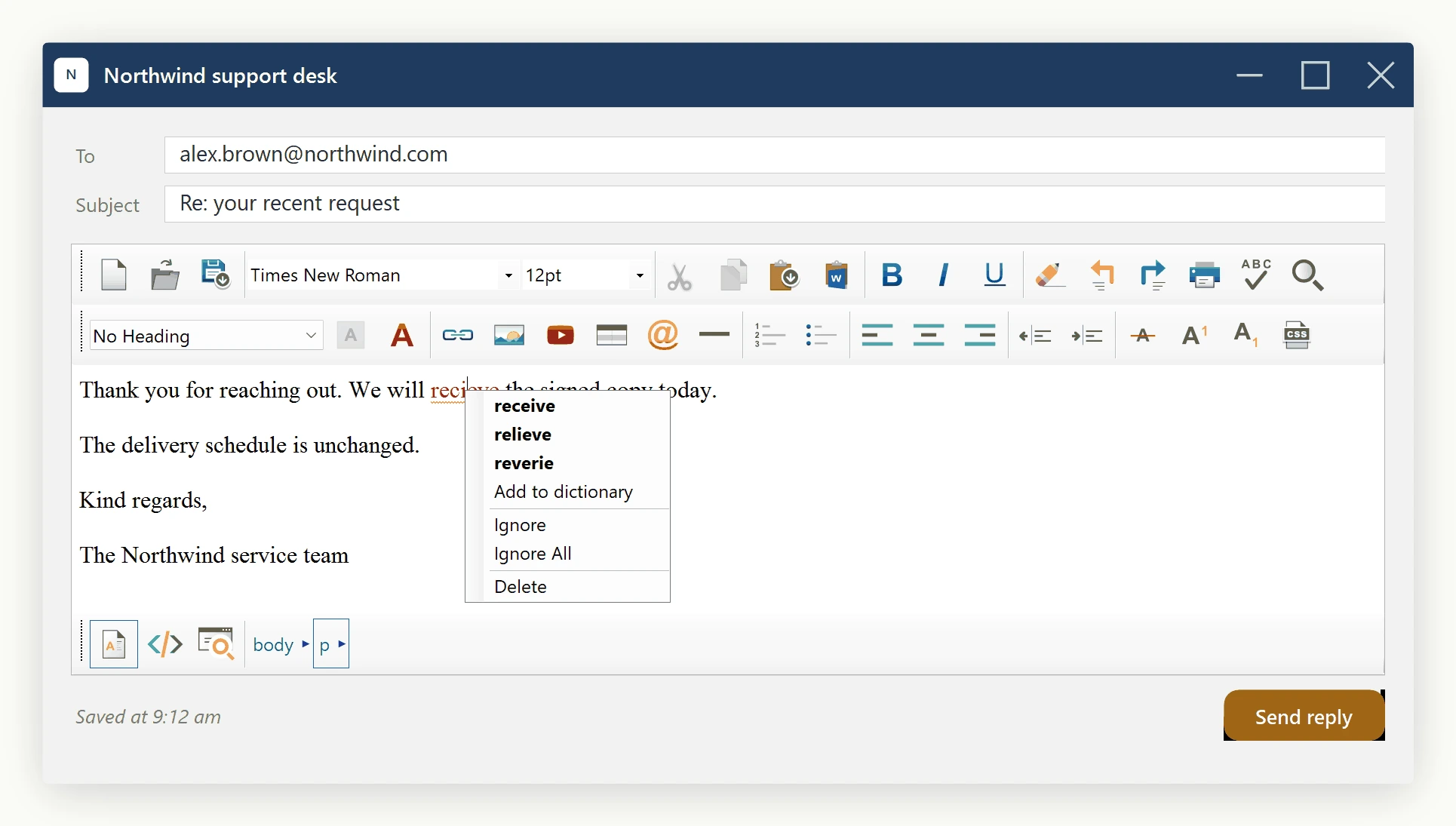
Two ways to check, and you choose per workflow
Choose between live, as-you-type spell checking and an on-demand modal dialog using a single property:
// Live, as-you-type squiggles for the agents
editor.SpellCheckOptions.FireInlineSpellCheckingOnKeyStroke = true;
' Live, as-you-type squiggles for the agents
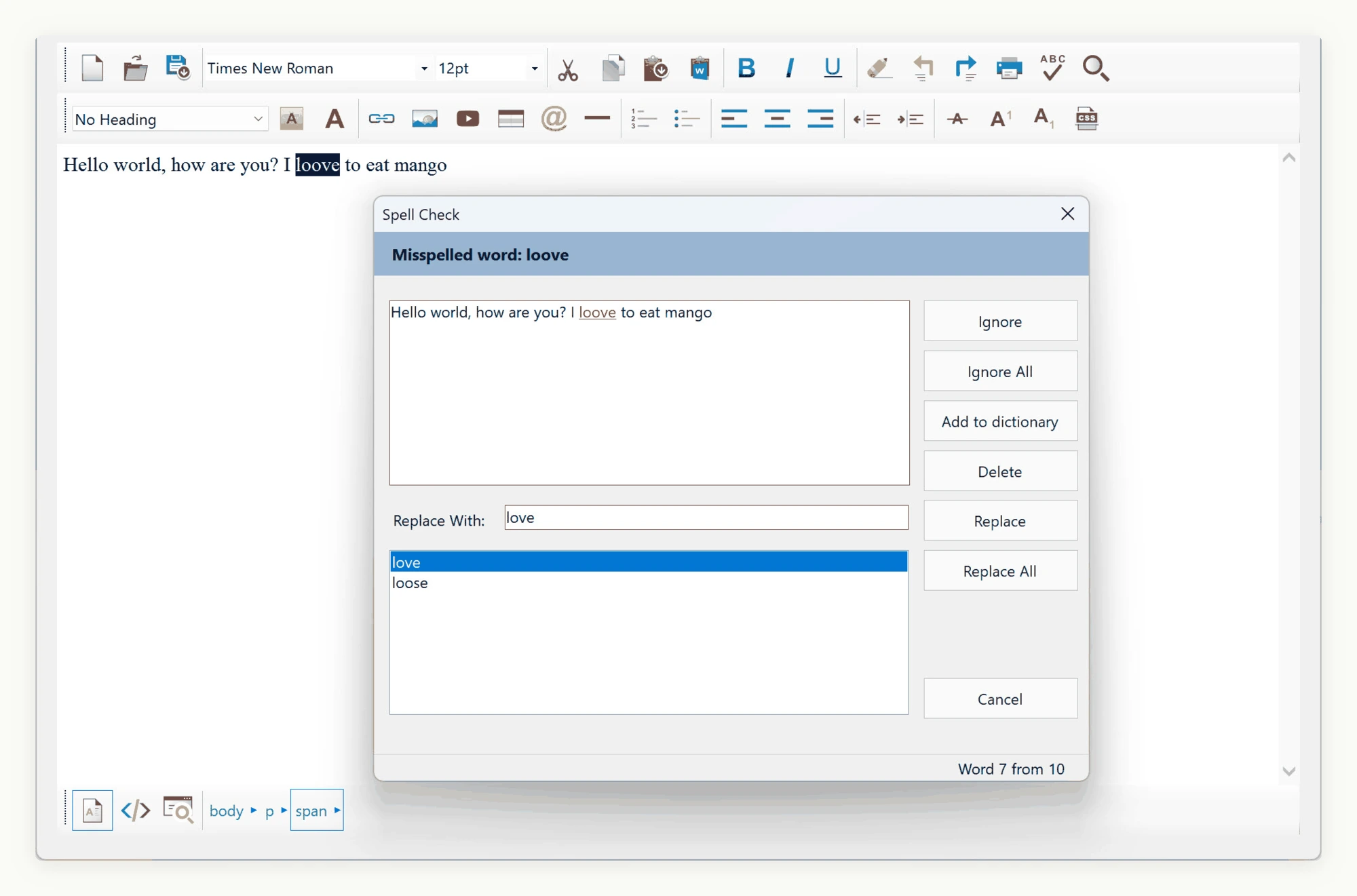
editor.SpellCheckOptions.FireInlineSpellCheckingOnKeyStroke = TrueThe dialog mode is always available regardless of that setting - open it via the toolbar's Spell Check button or your own menu command. It steps through each mistake with Change, Change All, Ignore, Ignore All, and Add buttons.
Switching the Spell-Check Language
Set the SpellCheckLanguage enum on SpellCheckOptions to switch dictionaries, for example by user locale:
using SpiceLogic.HtmlEditor.Abstractions.Entities.SpellCheck;

private void ApplyAgentLanguage(string agentLocale)
{
    editor.SpellCheckOptions.SpellCheckLanguage = agentLocale switch
    {
        "de-DE" => SpellCheckLanguage.German,
        "fr-FR" => SpellCheckLanguage.French,
        "es-ES" => SpellCheckLanguage.Spanish,
        "pt-BR" => SpellCheckLanguage.PortugueseBr,
        _ => SpellCheckLanguage.EnglishUs,
    };
}
Embedded languages: English (US and GB), German, French, Spanish, Italian, Dutch, Danish, Polish, Norwegian, Czech, Swedish, and both Portuguese variants. The default, SameAsEditorLanguage, follows the editor's UI language.
Using a Custom Dictionary File
For terminology outside the embedded set, point the editor at any OpenOffice-format dictionary pair (.dic / .aff):
editor.SpellCheckOptions.DictionaryFile.DictionaryFilePath = @"C:\Dictionaries\vet_pl.dic";
editor.SpellCheckOptions.DictionaryFile.AffixFilePath      = @"C:\Dictionaries\vet_pl.aff";
An on-disk dictionary path always overrides the embedded SpellCheckLanguage value. Clear both paths to revert to the enum-selected language.
Detecting Spell-Check Completion
The spell-check dialog closes automatically when the review finishes, without a separate completion popup. A document with no spelling errors completes without opening a dialog. Handle the SpellCheckCompleted event to react when a dialog pass finishes, for example to update a non-modal status message. SpellCheckCompletedEventArgs carries a Canceled flag, which separates a finished pass from one the user abandoned:
editor.SpellCheckCompleted += (sender, args) =>
{
    if (args.Canceled)
    {
        statusLabel.Text = "Spell check cancelled - the document was not fully reviewed.";
        return;
    }

    statusLabel.Text = "Spell check complete.";
};
The event fires for both interactive and inline checks. Use the Canceled flag to distinguish a completed pass from a canceled review.
Controlling Inline Spell-Check Timing
Inline checking runs as the user types, debounced at 300 ms by default so keystroke bursts do not lag even on large documents. Two methods give explicit control:
editor.ForceInlineSpellCheck()- run the inline pass on demand, e.g. after loading content programmatically.editor.CleanUpInlineSpellCheckMarkers()- clear every inline squiggle marker, e.g. before a PDF export or print preview.
Related Topics
No extra installer steps, native runtime, or dictionary bundles are required. See User Dictionary and Using a Custom Spell-Check Engine.
Ask your AI to do this
Connect the SpiceLogic MCP server, then give your coding assistant this prompt.
I use the SpiceLogic WinForms HTML Editor. Help me configure the supported spell-check options for my application. Confirm the exact API names, types and defaults with the SpiceLogic MCP documentation, then show the changes for my project.