


 NuGet
NuGet
User dictionary
A user dictionary remembers words a user accepts, such as names, abbreviations and specialist terms. Those words stop appearing as spelling errors in later sessions. Enable the feature and choose a writable file for each user to persist their additions.
When the user right-clicks a flagged word and selects Add to Dictionary, that word stops being flagged as misspelled on that machine, persisting across sessions.
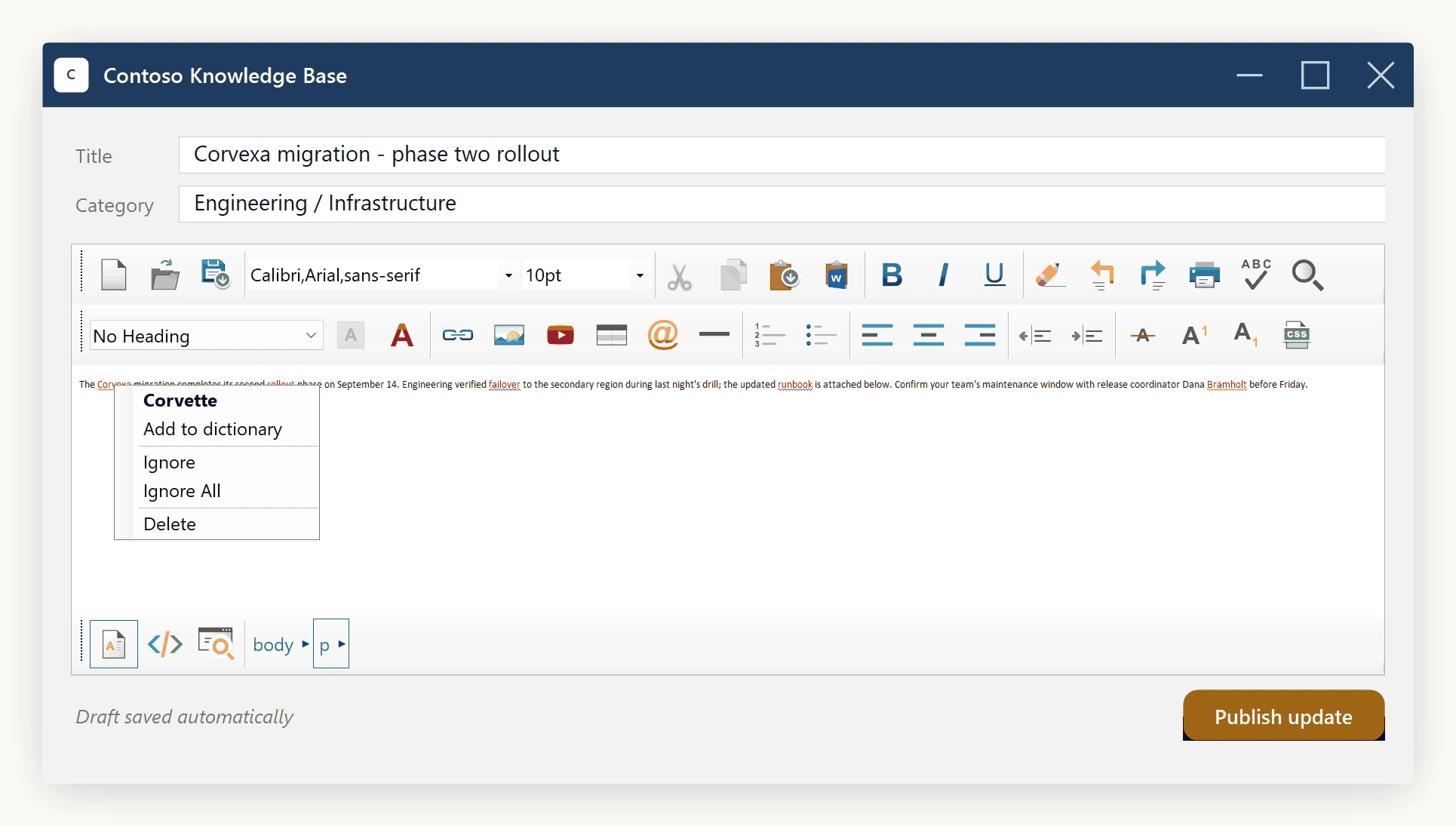
Built into the control
The Add to Dictionary item ships with the editor, controlled by SpellCheckOptions.DictionaryFile:
UserDictionaryFilePath- absolute path to a plain text file, created on first use.EnableUserDictionary- master switch;falsehides the item and disables the file.
Choosing the folder
Avoid the folder next to the .exe: it fails once installed under Program Files, where standard users cannot write. Use Environment.SpecialFolder.LocalApplicationData instead - per-user, no elevation, survives upgrades.
Set it once, in the constructor:
using System;
using System.IO;

public partial class ArticleEditorForm : Form
{
    public ArticleEditorForm()
    {
        InitializeComponent();
        // %LOCALAPPDATA%\Contoso\KnowledgeBase\user-dictionary.txt
        var localAppData = Environment.GetFolderPath(Environment.SpecialFolder.LocalApplicationData);
        var appFolder = Path.Combine(localAppData, "Contoso", "KnowledgeBase");
        Directory.CreateDirectory(appFolder);
        var userDictPath = Path.Combine(appFolder, "user-dictionary.txt");
        editor.SpellCheckOptions.DictionaryFile.UserDictionaryFilePath = userDictPath;
        editor.SpellCheckOptions.DictionaryFile.EnableUserDictionary = true;
    }
}
Imports System
Imports System.IO
Partial Public Class ArticleEditorForm
Inherits Form
Public Sub New()
InitializeComponent()
' %LOCALAPPDATA%\Contoso\KnowledgeBase\user-dictionary.txt
Dim localAppData = Environment.GetFolderPath(Environment.SpecialFolder.LocalApplicationData)
Dim appFolder = Path.Combine(localAppData, "Contoso", "KnowledgeBase")
Directory.CreateDirectory(appFolder)
Dim userDictPath = Path.Combine(appFolder, "user-dictionary.txt")
editor.SpellCheckOptions.DictionaryFile.UserDictionaryFilePath = userDictPath
editor.SpellCheckOptions.DictionaryFile.EnableUserDictionary = True
End Sub
End ClassRight-click a word and choose Add to Dictionary to append it to user-dictionary.txt and clear its underline. The file loads at startup, so the word stays recognized on future runs.
Seeding the dictionary on first run
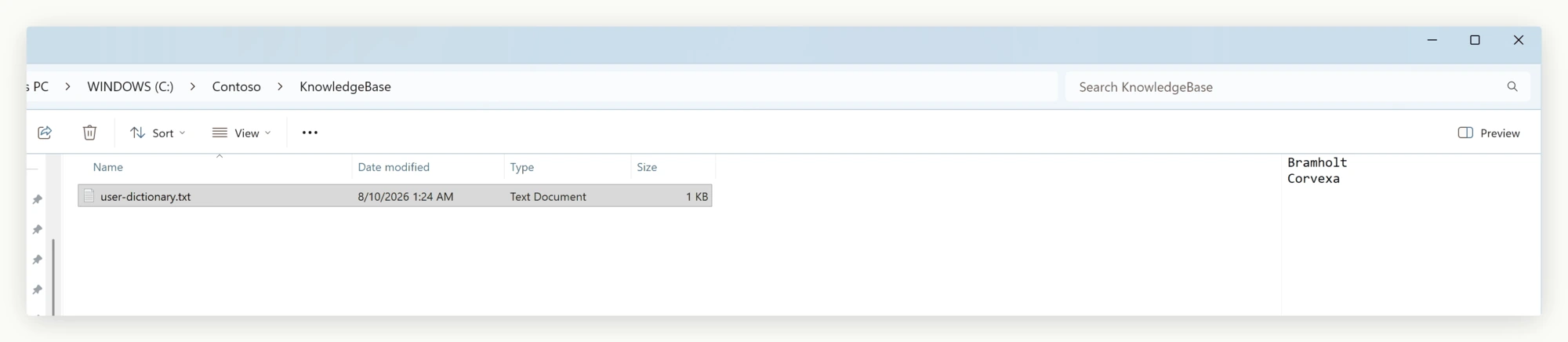
Ship a seed file with your installer and copy it to the user-dictionary path on first launch if none exists. The user dictionary is a plain text file, one word per line, read on load and appended to on every Add to Dictionary click:
// Run once at first launch
if (!File.Exists(userDictPath))
{
    File.Copy(sourceFileName: "seed/company-glossary.txt", destFileName: userDictPath);
}

editor.SpellCheckOptions.DictionaryFile.UserDictionaryFilePath = userDictPath;
editor.SpellCheckOptions.DictionaryFile.EnableUserDictionary = true;
' Run once at first launch
If Not File.Exists(userDictPath) Then
File.Copy(sourceFileName:="seed/company-glossary.txt", destFileName:=userDictPath)
End If
editor.SpellCheckOptions.DictionaryFile.UserDictionaryFilePath = userDictPath
editor.SpellCheckOptions.DictionaryFile.EnableUserDictionary = TrueWith the seed file loaded, terms like Kestrel are not flagged as misspelled from the start.
The scenario where you turn it off
Regulated deployments (for example, auditor-reviewed filings) may require the dictionary to match the company glossary exactly, with no user additions. Disable the feature for that build:
editor.SpellCheckOptions.DictionaryFile.EnableUserDictionary = false;editor.SpellCheckOptions.DictionaryFile.EnableUserDictionary = FalseThe Add to Dictionary item disappears, the on-disk file is ignored, and the control falls back to the glossary alone - one property switches both policies from the same codebase.
If you have replaced the engine
A custom ISpellCheckerEngine implementation (see Custom Spell-Check Engine) still receives the user-dictionary path via Initialize(dictionaryPath, affixPath, userDictionaryPath); every Add to Dictionary click routes to its AddToUserDictionary method, which persists the word however it chooses - a plain file, a corporate vocabulary server, or a per-user database.
What ships
Three properties, a default folder, and an optional seed file cover both an open, growing team dictionary and a locked-down glossary for regulated builds - toggle one property to switch.
Ask your AI to do this
Connect the SpiceLogic MCP server, then give your coding assistant this prompt.
I use the SpiceLogic WinForms HTML Editor. Help me configure and persist the user dictionary, including an explicit strategy if it must follow the user to another computer. Confirm the exact API names, types and defaults with the SpiceLogic MCP documentation, then show the changes for my project.