


 NuGet
NuGet
Relative URLs and BaseUrl
A relative path such as images/logo.png needs a starting location before the editor can find the file. BaseUrl supplies that location for images and stylesheets. The URL options control how those paths are written when you save the HTML.
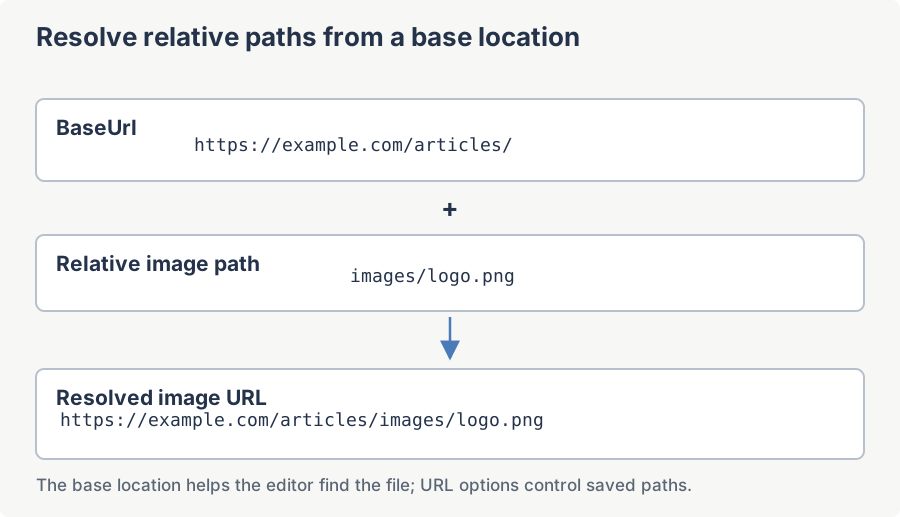
BaseUrl: tell the editor where the document lives
Without BaseUrl, the editor has no anchor for "relative". Set it to the document's working folder, typically at form load:
private void Form1_Load(object sender, EventArgs e)
{
    // Each article has its own working folder; screenshots live alongside the .htm file.
    htmlEditor1.BaseUrl = Path.Combine(currentArticle.WorkingDir, "images");
}
Private Sub Form1_Load(sender As Object, e As EventArgs)
' Each article has its own working folder; screenshots live alongside the .htm file.
htmlEditor1.BaseUrl = Path.Combine(currentArticle.WorkingDir, "images")
End SubBaseUrl only sets the anchor: images render correctly in the editor, but saved HTML stays absolute until URL rewriting (below) is enabled too.
C:\Articles\my-article\
+-- article.htm
+-- images\
    +-- step-1.png
    +-- step-2.png
    +-- step-3.png

BaseUrl = C:\Articles\my-article\images
ConvertAbsoluteUrlsToRelativeUrls: emit relative paths
Enable relative-path rewriting:
htmlEditor1.Options.ConvertAbsoluteUrlsToRelativeUrls = true;htmlEditor1.Options.ConvertAbsoluteUrlsToRelativeUrls = TrueThe cleaner processes img src, a href and link href attributes. With the illustrated image folder as BaseUrl, C:\Articles\my-article\images\step-1.png becomes step-1.png. Use the document folder instead if you want images/step-1.png in the output. Both HTML properties use this cleanup.
ConvertFileUrlsToLocalPaths: strip file:// scheme
Pasted images sometimes arrive as file:///C:/Articles/.../foo.png because the editor's browser engine can return that form even for a plain Windows path. Use ConvertFileUrlsToLocalPaths to turn file URIs into Windows paths, independently of relative-path rewriting:
htmlEditor1.Options.ConvertFileUrlsToLocalPaths = true;htmlEditor1.Options.ConvertFileUrlsToLocalPaths = TrueThe two options are independent: ConvertFileUrlsToLocalPaths removes the file-URI form, while ConvertAbsoluteUrlsToRelativeUrls rewrites paths against BaseUrl. Enable both if your export needs both conversions.
Before: file:///C:/Articles/screenshots/step-1.png
After:  C:\Articles\screenshots\step-1.png
UrlEncodeHyperlinkHRefs: portable hyperlinks
Keep encoded hyperlink targets by leaving UrlEncodeHyperlinkHRefs enabled:
htmlEditor1.Options.UrlEncodeHyperlinkHRefs = true;htmlEditor1.Options.UrlEncodeHyperlinkHRefs = TrueWhen UrlEncodeHyperlinkHRefs is true, the cleaner preserves encoded href values. When it is false, it URL-decodes anchor targets. This is not a general URL-encoding API and does not alter the visible link text.
The full setup
Combine all four settings once, typically at form load:
htmlEditor1.BaseUrl = Path.Combine(currentArticle.WorkingDir, "images");
htmlEditor1.Options.ConvertAbsoluteUrlsToRelativeUrls = true;
htmlEditor1.Options.ConvertFileUrlsToLocalPaths = true;
htmlEditor1.Options.UrlEncodeHyperlinkHRefs = true;
htmlEditor1.BaseUrl = Path.Combine(currentArticle.WorkingDir, "images")
htmlEditor1.Options.ConvertAbsoluteUrlsToRelativeUrls = True
htmlEditor1.Options.ConvertFileUrlsToLocalPaths = True
htmlEditor1.Options.UrlEncodeHyperlinkHRefs = TruePublish the HTML and its images with the same folder relationship used by the saved URLs. A bare filename such as step-1.png needs the image beside the exported file; images/step-1.png needs an images subfolder.
| Option | Before | After |
|---|---|---|
BaseUrl | (unset -- no anchor) | Anchors relative resolution; does not rewrite URLs by itself |
ConvertAbsoluteUrlsToRelativeUrls | src="C:\Articles\my-article\images\step-1.png" | src="step-1.png" |
ConvertFileUrlsToLocalPaths | src="file:///C:/Articles/.../step-1.png" | A local Windows path; relative rewriting is controlled separately |
UrlEncodeHyperlinkHRefs | href="My%20Page.html" | Preserved when enabled; My Page.html when disabled |
Troubleshooting: images or CSS not showing when you open an HTML file
Opening an existing HTML file (through the toolbar's open command, Content.OpenFile, or Content.LoadDocumentHtmlFromFile) loads the file's markup only - the editor does not record which folder the file came from. Every image referenced by a relative path shows as a broken or blank placeholder, and a stylesheet referenced by a relative <link> tag is not applied, so the document renders unstyled. Nothing is wrong with the file; the editor simply has no base location to resolve relative paths against.
Set BaseUrl to the folder that contains the opened file, and the images and CSS display:
editor.BaseUrl = @"C:\Newsletters\Spring\";   // the folder that contains index.html
editor.Content.OpenFile(@"C:\Newsletters\Spring\index.html");
editor.BaseUrl = "C:\Newsletters\Spring\" ' the folder that contains index.html
editor.Content.OpenFile("C:\Newsletters\Spring\index.html")Set BaseUrl when you initialize the editor (for example in the form's Load event); setting it after a document is already loaded updates the live document too. The same fix applies when the HTML arrives as a string through BodyHtml rather than from a file and references images relative to a folder on disk.
Ask your AI to do this
Connect the SpiceLogic MCP server, then give your coding assistant this prompt.
I use the SpiceLogic WinForms HTML Editor. Help me set BaseUrl to the export document folder and choose the relative-path and file-URI conversion options. Explain that UrlEncodeHyperlinkHRefs preserves encoded targets when enabled and decodes them when disabled. Confirm the exact API names, types and defaults with the SpiceLogic MCP documentation, then show the changes for my project.