


 NuGet
License activation
Activate the WinForms HTML Editor Control with the license key we email you after purchase. The evaluation and licensed control use the same NuGet package. Assign WinFormHtmlEditor.LicenseKey at application startup, before creating an editor.
1. Find the key in your purchase email
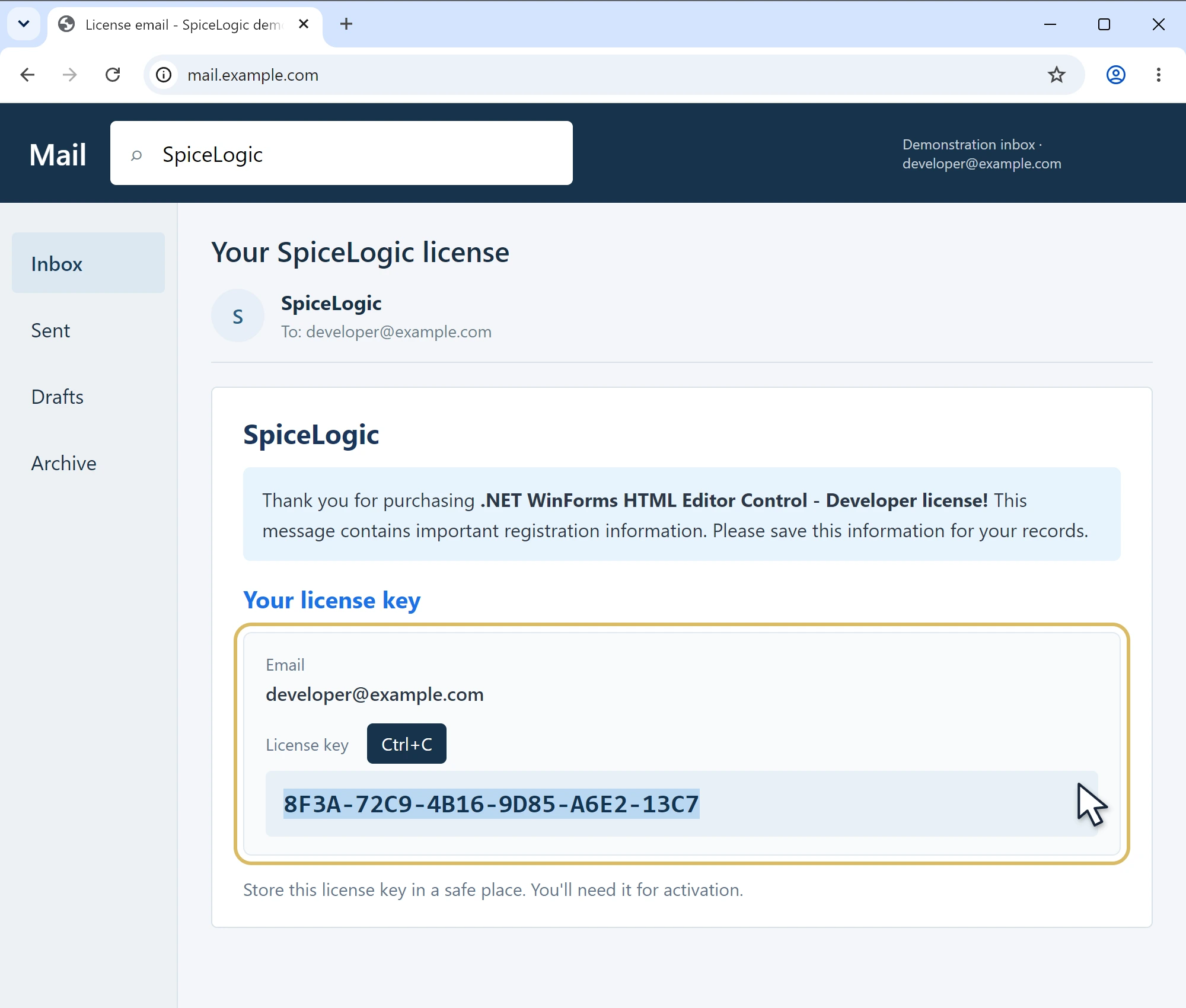
- Open the inbox for the email address used for your purchase and search for SpiceLogic.
- Open the license-delivery email and find the license key. If you cannot find the message, check your junk or spam folder.
- Select the entire key and copy it with Ctrl+C (or your email app's Copy command). Keep the key unchanged, with no added spaces or line breaks.
You do not need to sign in to our website to use the emailed key. Apply it in code using the example below.
The screenshots use an illustrative account and a nonfunctional sample key. Use the key issued for your purchase; your email app may look different.
2. Use My Account if needed
If you cannot find the purchase email, retrieve the key from your account:
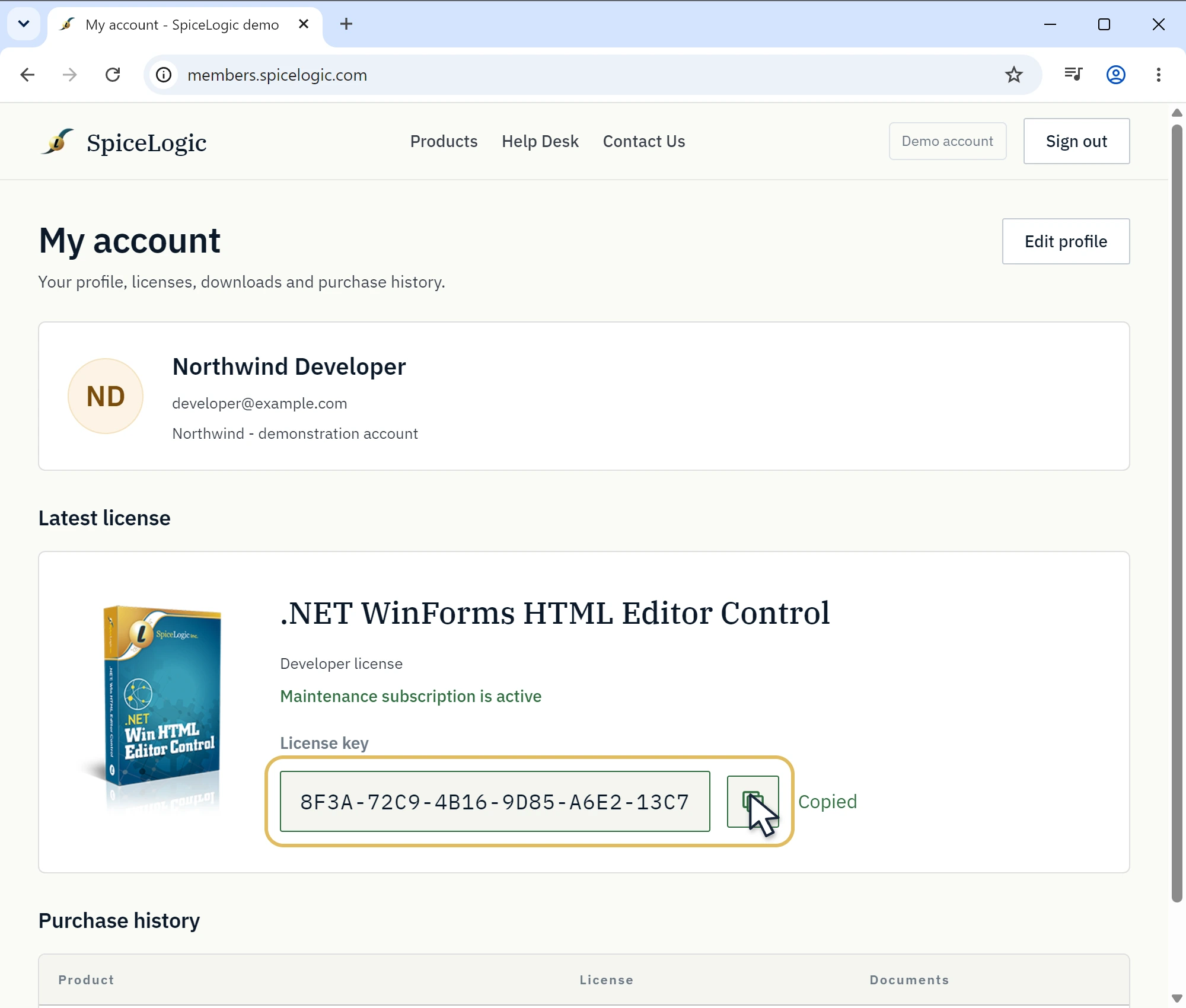
- Open My Account on the SpiceLogic website and sign in.
- Find the WinForms HTML Editor Control under Latest license, or locate the matching purchase in Purchase history.
- Find the license key and click its Copy button. Use the key for this product; a key for another editor edition will not activate it.
- Paste your key into your application's protected configuration, then assign the startup property shown below. Keep real keys out of public repositories.
If neither route works, contact our support team using the email address associated with your purchase.
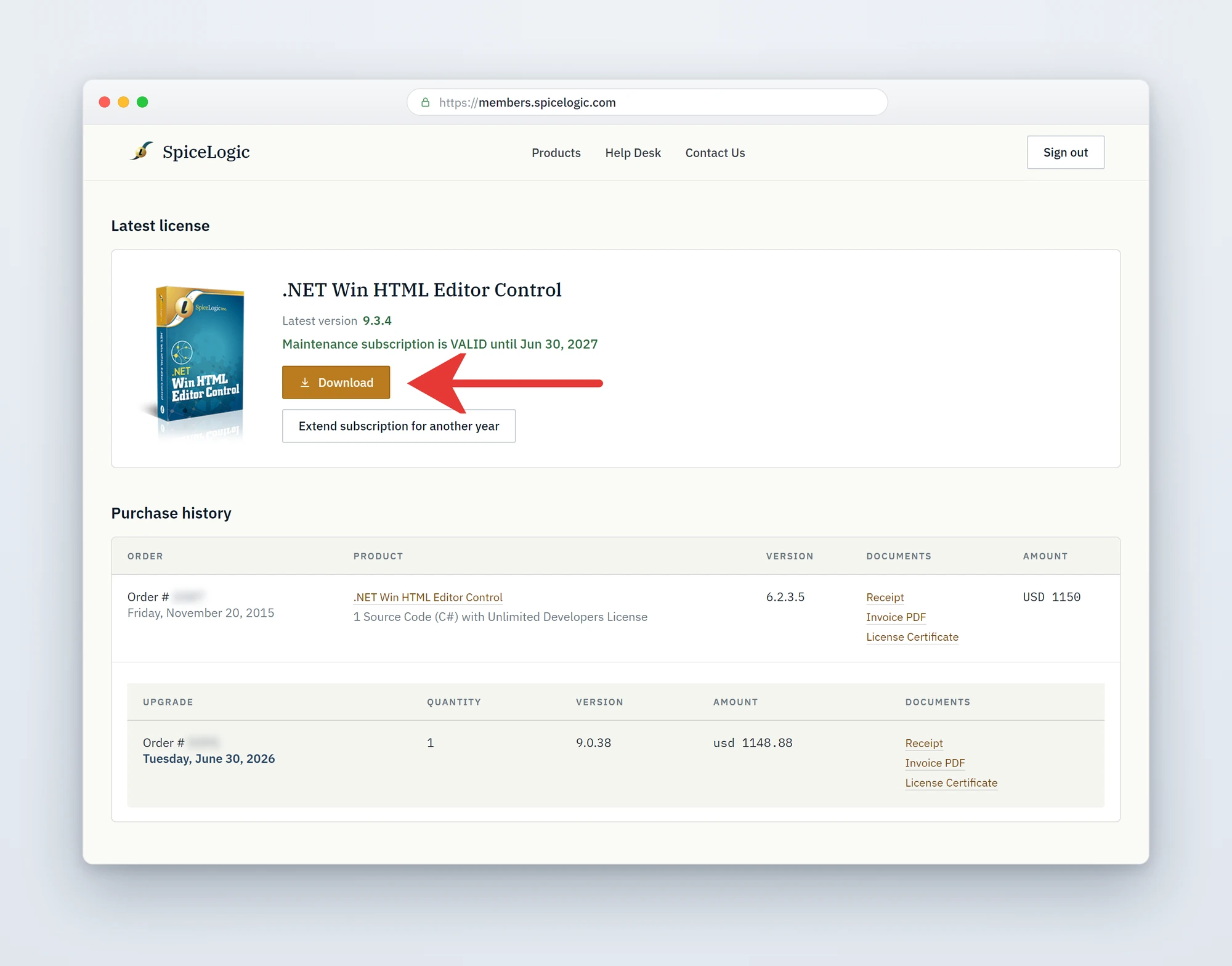
If you purchased a Source Code license, you may see a Download button instead. That downloads the source-code package; it is not the license-key Copy button. See the Source Code license instructions below.
Apply your license key in code
Set the static WinFormHtmlEditor.LicenseKey property once at application startup, before any editor instance is created. In a typical Windows Forms project, the right place is Program.cs (or Program.vb for VB.NET, or whichever file holds your application's main entry point):
using SpiceLogic.HtmlEditor.WinForms;

internal static class Program
{
    [STAThread]
    private static void Main()
    {
        // Apply the license key once, before any WinFormHtmlEditor instance is constructed.
        WinFormHtmlEditor.LicenseKey = "PASTE-YOUR-LICENSE-KEY-HERE";
        ApplicationConfiguration.Initialize();
        Application.Run(new MainForm());
    }
}
Imports SpiceLogic.HtmlEditor.WinForms
Friend NotInheritable Class Program
<STAThread>
Private Shared Sub Main()
' Apply the license key once, before any WinFormHtmlEditor instance is constructed.
WinFormHtmlEditor.LicenseKey = "PASTE-YOUR-LICENSE-KEY-HERE"
ApplicationConfiguration.Initialize()
Application.Run(New MainForm())
End Sub
End ClassImportant: WinFormHtmlEditor.LicenseKey is a static property. It applies to every editor instance in the process. Set it exactly once, as early as possible in your startup path, and never per-form.
Trial mode vs licensed mode
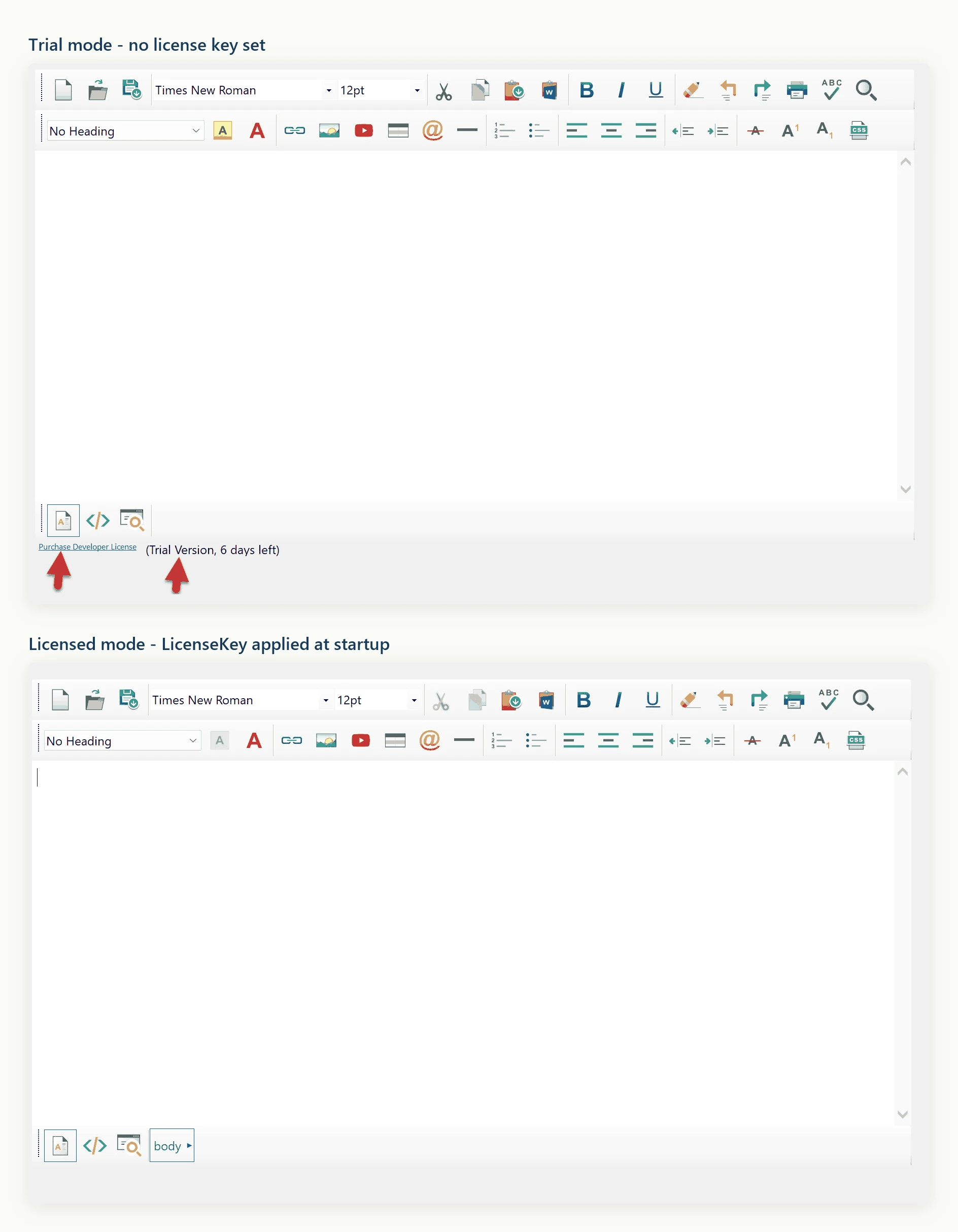
If you have not yet purchased, you can still install the NuGet package and use the editor in trial mode without setting a license key. The editor is fully functional in trial mode for evaluation, and shows a trial indicator with the days remaining next to a purchase link. Once you set a valid LicenseKey value, the editor switches to licensed mode for the remainder of the process and the trial indicator disappears.
Verifying activation
Run your application after setting the key. If the key is recognized, no trial reminders appear. Without a key, the editor runs in trial mode. If a key is set but is not valid for this product, a message box titled Invalid license key appears at startup and the editor continues as a trial - check that the key was copied without surrounding whitespace and that the assignment runs before any editor instance is created. The key string is held only in memory for the lifetime of the process and is never written to disk.
Source Code license customers
If you purchased the Source Code license, your source code is delivered as a download from your account - the same place, and the same kind of Download button, that used to deliver the unlocked DLLs in older versions. To get it:
- Sign in to your My Account page.
- Find the WinForms HTML Editor Control in your Latest license card (or the matching row in Purchase history).
- Click the Download button. The source-code download screenshot below points to this button. Your browser downloads a ZIP,
HtmlEditor-WinForms-SourceCode.zip, containing the complete C# source of the editor.
The downloaded source has the license-key logic stripped out. If you reference those projects directly from your own solution and build the editor from your copy of the source, it runs in licensed mode automatically - no WinFormHtmlEditor.LicenseKey assignment is needed.
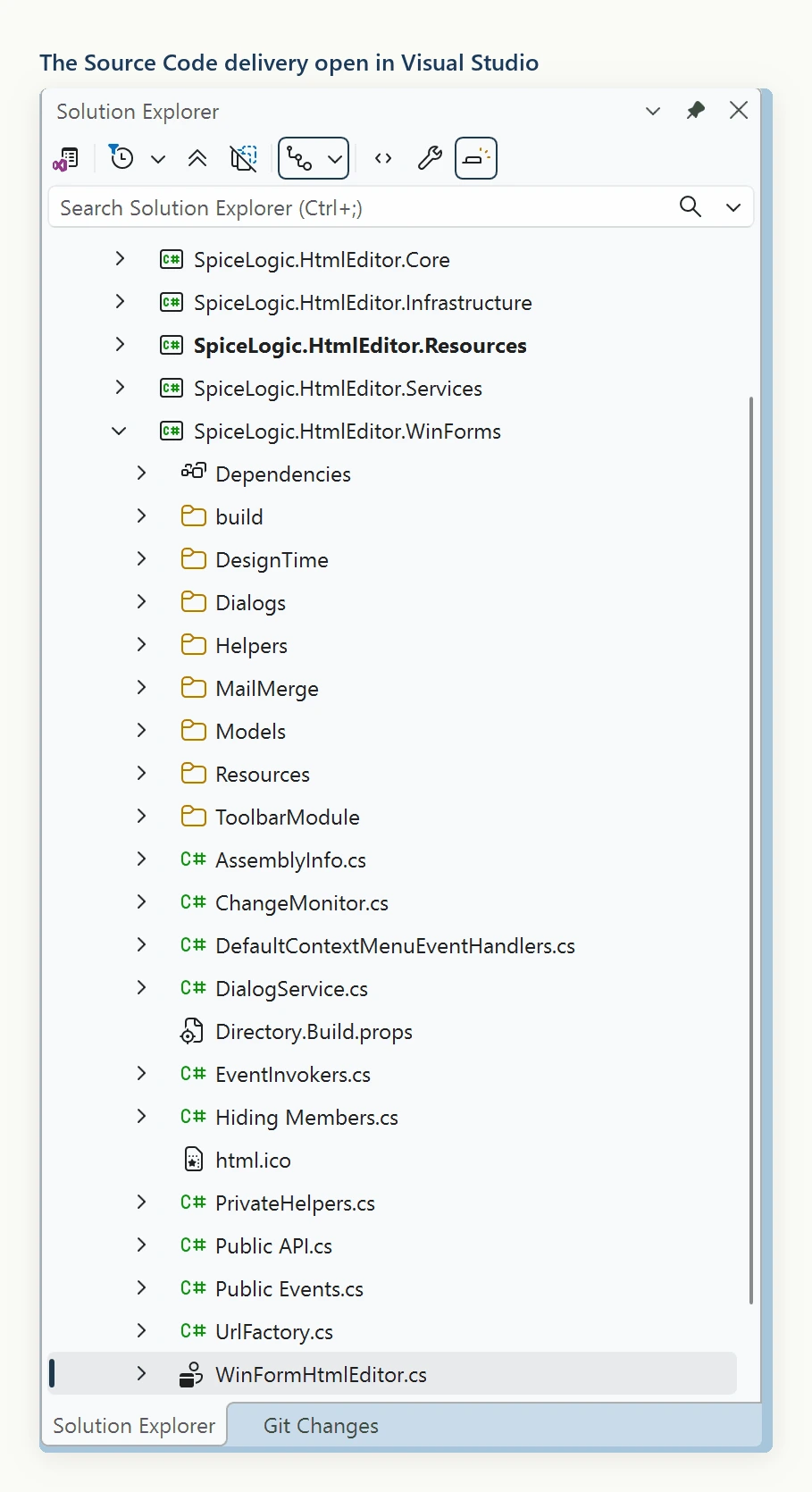
You are not required to build from source. You can keep using the SpiceLogic.HtmlEditor.WinForms NuGet package and set WinFormHtmlEditor.LicenseKey at startup, exactly like a Developer License customer would. The Source Code license simply gives you the option to switch from the NuGet package to the included source when you need to customize the editor's internals, debug into the source, or satisfy a procurement requirement that every third-party component ships with source.
Upgrading from earlier versions
If you are migrating from a pre-9.x build that used the legacy "download the Unlocked DLL" model, you no longer need to swap DLLs, clear the Visual Studio Toolbox, or close and reopen Visual Studio. Install the SpiceLogic.HtmlEditor.WinForms NuGet package and set WinFormHtmlEditor.LicenseKey at startup. That is the entire migration.
Upgrading to a newer version
Update the SpiceLogic.HtmlEditor.WinForms NuGet package and keep the same WinFormHtmlEditor.LicenseKey line; nothing else changes. Your key covers every version released while your updates and support plan is active. If a version released after your plan ended starts with the message "This license key is valid for an older version but not for the latest. Continuing as trial.", renew your updates and support plan, or keep the package at the last version released during your plan.
Ask your AI to do this
Connect the SpiceLogic MCP server, then give your coding assistant this prompt.
I use the SpiceLogic WinForms HTML Editor. Help me activate the editor using the supported license property. Use a placeholder for my license key. Confirm the exact API names, types and defaults with the SpiceLogic MCP documentation, then show the changes for my project.