


 NuGet
NuGet
Get and set HTML
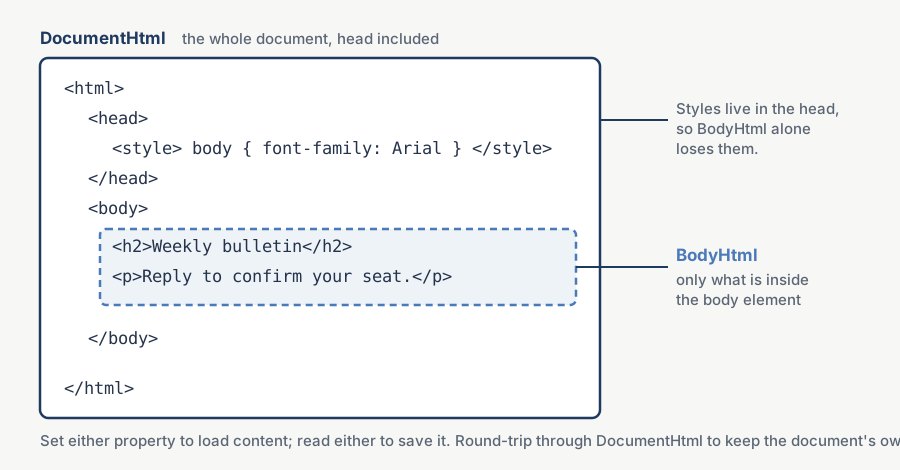
The editor lets you work with either a piece of HTML or a complete HTML document. BodyHtml contains only the markup inside the body element; DocumentHtml includes the body tags, head and document structure. Choose the form that fits how your application stores or exports its content.
The diagram below shows the difference. BodyHtml excludes the opening and closing body tags, body attributes and the head. Use DocumentHtml when you need to keep those parts, including styles in the head.
Read or replace the body content
Start with this complete HTML document:
<html>
<head><title>Hello page</title></head>
<body style="font-family:arial">
<b> Hello World </b>
</body>
</html>
BodyHtml returns this fragment:
<b> Hello World </b>Assign a fragment to BodyHtml to replace the body content. If you assign a complete document instead, the editor extracts its inner body markup. Use DocumentHtml when you need to retain the head and body attributes.
Read or replace the complete document
DocumentHtml returns the complete document:
<html>
 <head><title>Hello page</title></head>
 <body style="font-family:arial">
   <b> Hello World </b>
 </body>
</html>
Assign a complete document to DocumentHtml to replace the current document. When loading HTML, choose one property: assigning the other afterward replaces the content set by the first.
Choose the source-view and save format
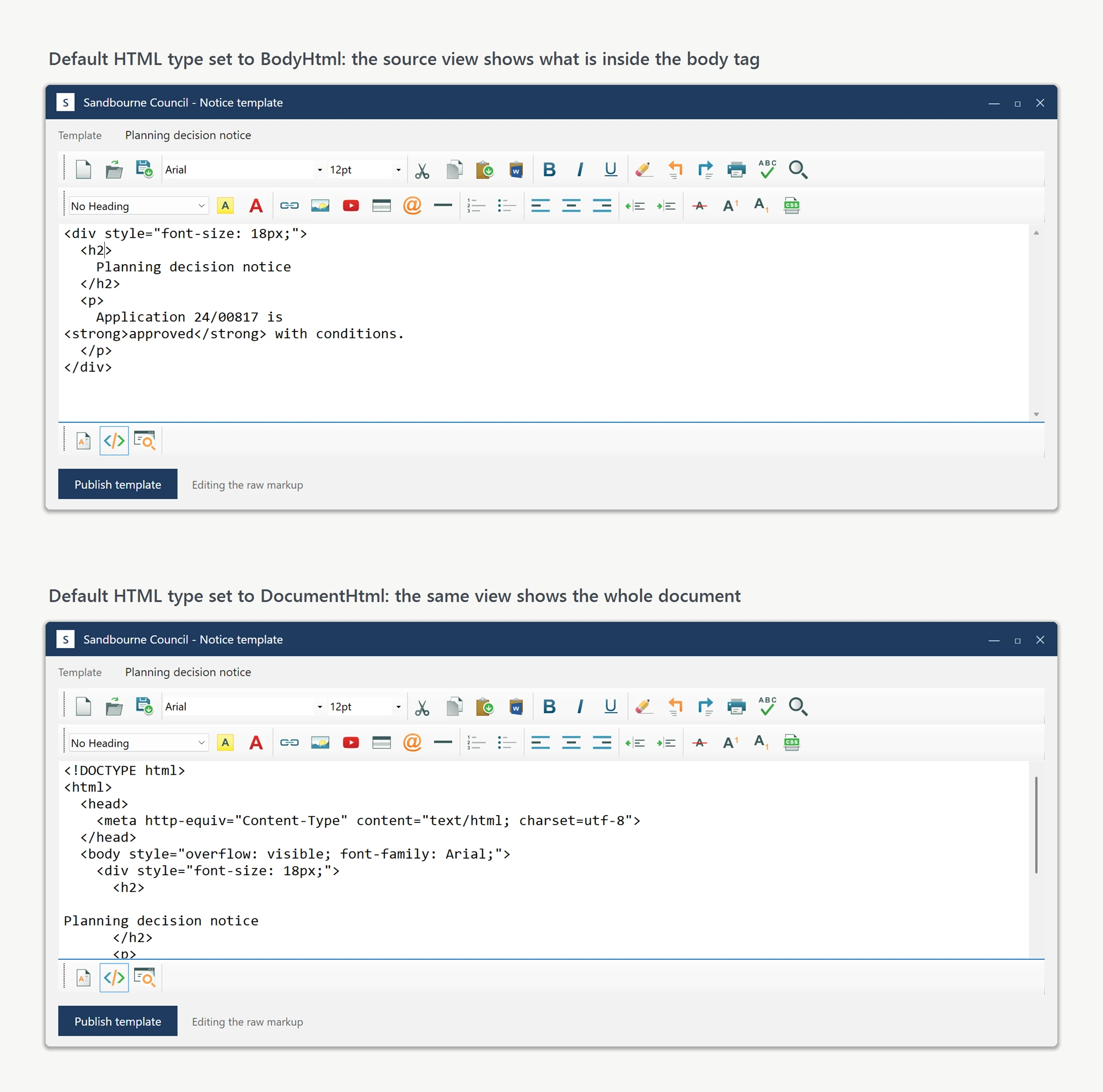
Options.DefaultHtmlType selects the shape shown in HTML source view and used by built-in save commands. Both HTML properties remain available regardless of this option.
Ask your AI to do this
Connect the SpiceLogic MCP server, then give your coding assistant this prompt.
I use the SpiceLogic WinForms HTML Editor. Help me load and save HTML. Choose BodyHtml or DocumentHtml based on whether I need the document head, then configure the source-view format. Confirm the exact API names, types and defaults with the SpiceLogic MCP documentation, then show the changes for my project.