


 NuGet
NuGet
Customize hyperlink behavior
Hyperlinks connect document text to a web page, email address or file. Your application can control which targets users choose and what happens when they click a link. Configure the hyperlink options and dialog, then use element-click events for application-specific handling.
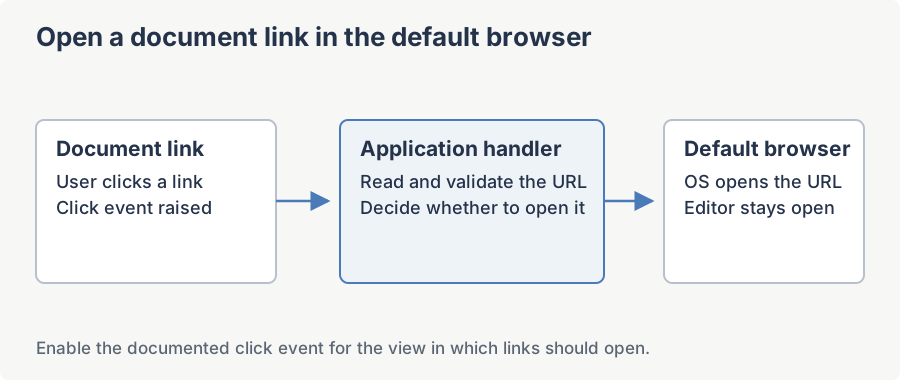
Opening a hyperlink in the default browser (not the editor's embedded browser host)
This is the built-in behaviour. You do not need to write any code to get it. The relevant snippet from the editor's internal Ctrl+Click handler looks like this:
// inside the editor, on Ctrl+Click of an <a> element:
string href = anchor.GetAttribute("href");
Process.Start(new ProcessStartInfo(href, string.Empty)
{
    UseShellExecute = true     // route through the Windows shell
});
The UseShellExecute = true flag is the load-bearing piece. Without it, Process.Start would expect href to be the full path to an executable; with it, Windows treats href as a document/URL and opens it with the registered handler.
Preview mode
When the editor is in EditorModes.ReadOnlyPreview the document is rendered by the embedded WebBrowser as a normal web page. In that mode, ordinary (un-modified) clicks navigate inside the embedded browser. To force preview-mode clicks to open in the default browser instead, host the editor's preview content in SpicePreviewWebBrowser, which intercepts navigations and shells them out via the same Process.Start + UseShellExecute pattern.
Opening links from your own code
If you want to open a URL programmatically - for example, from a custom toolbar button or a hyperlink click handler on your own form - use exactly the same pattern. Subscribing to HtmlElementClicked and filtering for HtmlElementTypes.Hyperlink gives you the recipe:
htmlEditor1.HtmlElementClicked += (sender, e) =>
{
    if (e.ElementType != HtmlElementTypes.Hyperlink)
        return;

    string href = e.ClickedElement.GetAttribute("href");
    if (string.IsNullOrWhiteSpace(href))
        return;

    try
    {
        Process.Start(new ProcessStartInfo { FileName = href, UseShellExecute = true });

        // Cancel the editor's built-in navigation so the embedded browser host does not also try to handle it.
        e.EventData.ReturnValue = false;
    }
    catch (Exception ex)
    {
        MessageBox.Show("Cannot open link: " + ex.Message);
    }
};
AddHandler htmlEditor1.HtmlElementClicked,
Sub(sender, e)
If e.ElementType <> HtmlElementTypes.Hyperlink Then Return
Dim href As String = e.ClickedElement.GetAttribute("href")
If String.IsNullOrWhiteSpace(href) Then Return
Try
Process.Start(New ProcessStartInfo With {
.FileName = href,
.UseShellExecute = True
})
' Cancel the editor's built-in navigation so the embedded browser host does not also try to handle it.
e.EventData.ReturnValue = False
Catch ex As Exception
MessageBox.Show("Cannot open link: " & ex.Message)
End Try
End SubCaveats
- Validate the URL before calling
Process.Start.UseShellExecute = truewill happily try to launchfile:URLs,mailto:URIs, or even local.exepaths if a malicious document contains them. If you are loading documents from untrusted sources, scheme-filter tohttpandhttpsbefore shelling out. - Wrap the call in
try/catch. A user with no default browser configured, or a URL with a scheme no application has registered, will throwWin32Exception. - The default behaviour only applies to Ctrl+Click in WYSIWYG mode. A plain click in WYSIWYG positions the caret in the link text so the user can edit it - that is the design intent for an editor surface.
Ask your AI to do this
Connect the SpiceLogic MCP server, then give your coding assistant this prompt.
I use the SpiceLogic WinForms HTML Editor. Help me customize hyperlink insertion and click handling. Confirm the exact API names, types and defaults with the SpiceLogic MCP documentation, then show the changes for my project.