


 NuGet
NuGet
Keyboard messages and shortcuts
Keyboard shortcuts let users run editing commands without reaching for the toolbar. Your application can also intercept Windows messages when it needs to control keyboard routing.
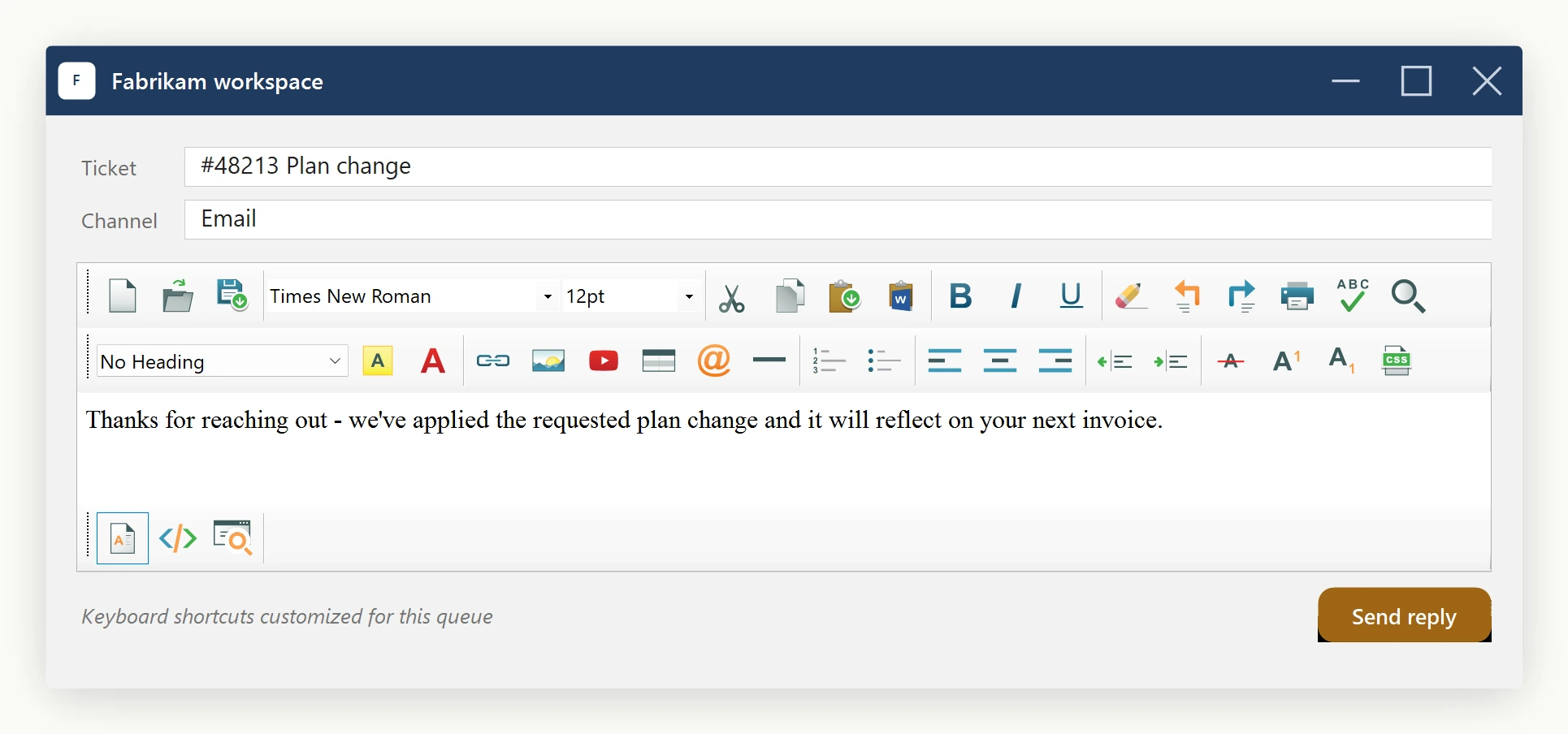
Use KeyBindings for editor shortcuts. Handle PreProcessMessageEvent only when your application needs to intercept a Windows message before normal routing.
The manager exposes these public methods:
| Bind(action, combo) | Maps a KeyBindingCombo to an EditorActionId. Throws if the combo is already bound to a different action. |
| Unbind(action) | Removes the current combo for an action (no-op if unbound). |
| GetBinding(action) | Returns the currently bound combo, or null. |
| AllBindings | Read-only snapshot of every action → combo pair currently registered. |
| Override(action, handler) | Replaces the editor's default behaviour for an action with your own Action delegate. Pass null to clear. |
| Disable(action) | Suppresses both default routing and any override; the keystroke is consumed silently. |
| Enable(action) | Reverses a previous Disable. |
| IsDisabled(action) | Returns true if the action has been disabled. |
A KeyBindingCombo is constructed from four arguments: ctrl, alt, shift (each a bool) and virtualKeyCode (an int Win32 VK code). WinForms callers can cast System.Windows.Forms.Keys directly to int.
Sample - rebind, disable, and add a combo
using SpiceLogic.HtmlEditor.Abstractions.KeyBindings;
using System.Windows.Forms;

// 1) Rebind Ctrl+B from Bold to "Save". First detach the action that
//    currently owns Ctrl+B (if any), then bind Save to the freed combo.
editor.KeyBindings.Unbind(EditorActionId.Bold);
editor.KeyBindings.Bind(EditorActionId.Save, new KeyBindingCombo(ctrl: true, alt: false, shift: false, virtualKeyCode: (int)Keys.B));
// 2) Disable Ctrl+O (Open). The keystroke will be swallowed silently
//    instead of opening the default Open File dialog.
editor.KeyBindings.Bind(EditorActionId.Open, new KeyBindingCombo(ctrl: true, alt: false, shift: false, virtualKeyCode: (int)Keys.O));
editor.KeyBindings.Disable(EditorActionId.Open);
// 3) Add a brand-new combo: Ctrl+Shift+H -> insert a hyperlink, but
//    route through your own handler instead of the default dialog.
editor.KeyBindings.Bind(EditorActionId.HyperLinkInsert, new KeyBindingCombo(ctrl: true, alt: false, shift: true, virtualKeyCode: (int)Keys.H));
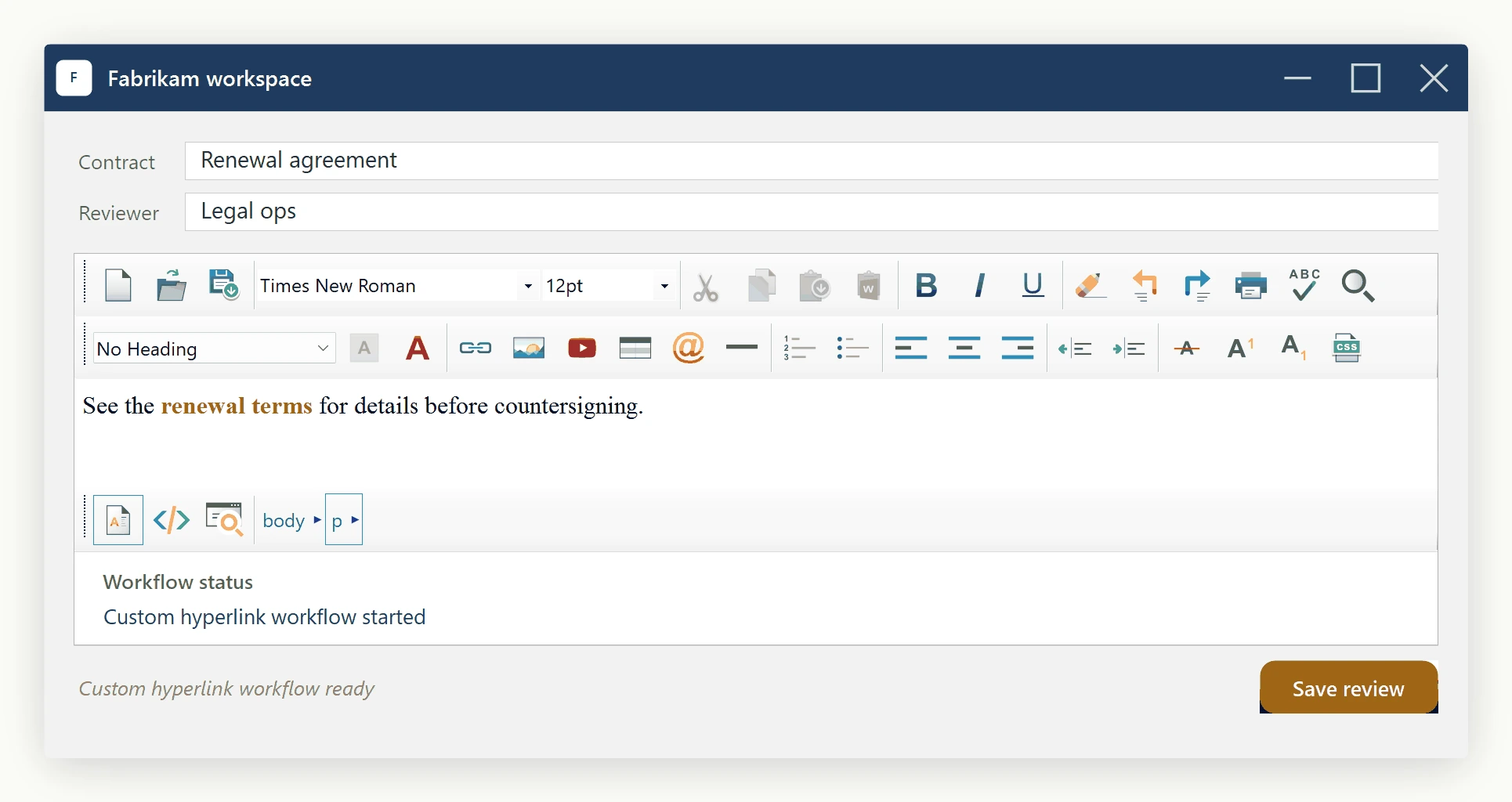
editor.KeyBindings.Override(EditorActionId.HyperLinkInsert, () =>
{
    MessageBox.Show("Custom hyperlink workflow goes here.");
});
Imports SpiceLogic.HtmlEditor.Abstractions.KeyBindings
Imports System.Windows.Forms
' 1) Rebind Ctrl+B from Bold to "Save". First detach the action that
' currently owns Ctrl+B (if any), then bind Save to the freed combo.
editor.KeyBindings.Unbind(EditorActionId.Bold)
editor.KeyBindings.Bind(EditorActionId.Save, New KeyBindingCombo(ctrl:=True, alt:=False, shift:=False, virtualKeyCode:=CInt(Keys.B)))
' 2) Disable Ctrl+O (Open). The keystroke will be swallowed silently
' instead of opening the default Open File dialog.
editor.KeyBindings.Bind(EditorActionId.Open, New KeyBindingCombo(ctrl:=True, alt:=False, shift:=False, virtualKeyCode:=CInt(Keys.O)))
editor.KeyBindings.Disable(EditorActionId.Open)
' 3) Add a brand-new combo: Ctrl+Shift+H -> insert a hyperlink, but
' route through your own handler instead of the default dialog.
editor.KeyBindings.Bind(EditorActionId.HyperLinkInsert, New KeyBindingCombo(ctrl:=True, alt:=False, shift:=True, virtualKeyCode:=CInt(Keys.H)))
editor.KeyBindings.Override(EditorActionId.HyperLinkInsert, Sub() MessageBox.Show("Custom hyperlink workflow goes here."))Every action you can bind. Names mirror the toolbar items they correspond to.
| New, Open, Save | Document lifecycle. |
| Cut, Copy, Paste, PasteFromMsWord, Print | Clipboard and printing. |
| Undo, Redo | Undo stack. |
| Bold, Italic, Underline, Subscript, Superscript, StrikeThrough | Inline character formatting. |
| Search, SpellCheck, FormatReset, BodyStyle | Find/replace, spell-check, clear-formatting, body style dialog. |
| HorizontalRule, OrderedList, UnOrderedList | Block-level inserts and lists. |
| AlignLeft, AlignCenter, AlignRight | Paragraph alignment. |
| Outdent, Indent | Paragraph indent. |
| TableInsert, ImageInsert, HyperLinkInsert, SymbolInsert, YouTubeVideoInsert | Element insert dialogs. |
| TextHighlightColor, FontForeColor | Colour pickers. |
Two combos are pre-bound on construction: Search → Ctrl+F (replaces IE's built-in Find dialog) and Paste → Ctrl+V (replaces IE's paste, which doubles style spans). Everything else is bind-able but unbound by default - browser/MSHTML shortcuts like Ctrl+B/I/U/Z/Y/A/C/X/P execute natively for performance.
Legacy - the PreProcessMessageEvent escape hatch
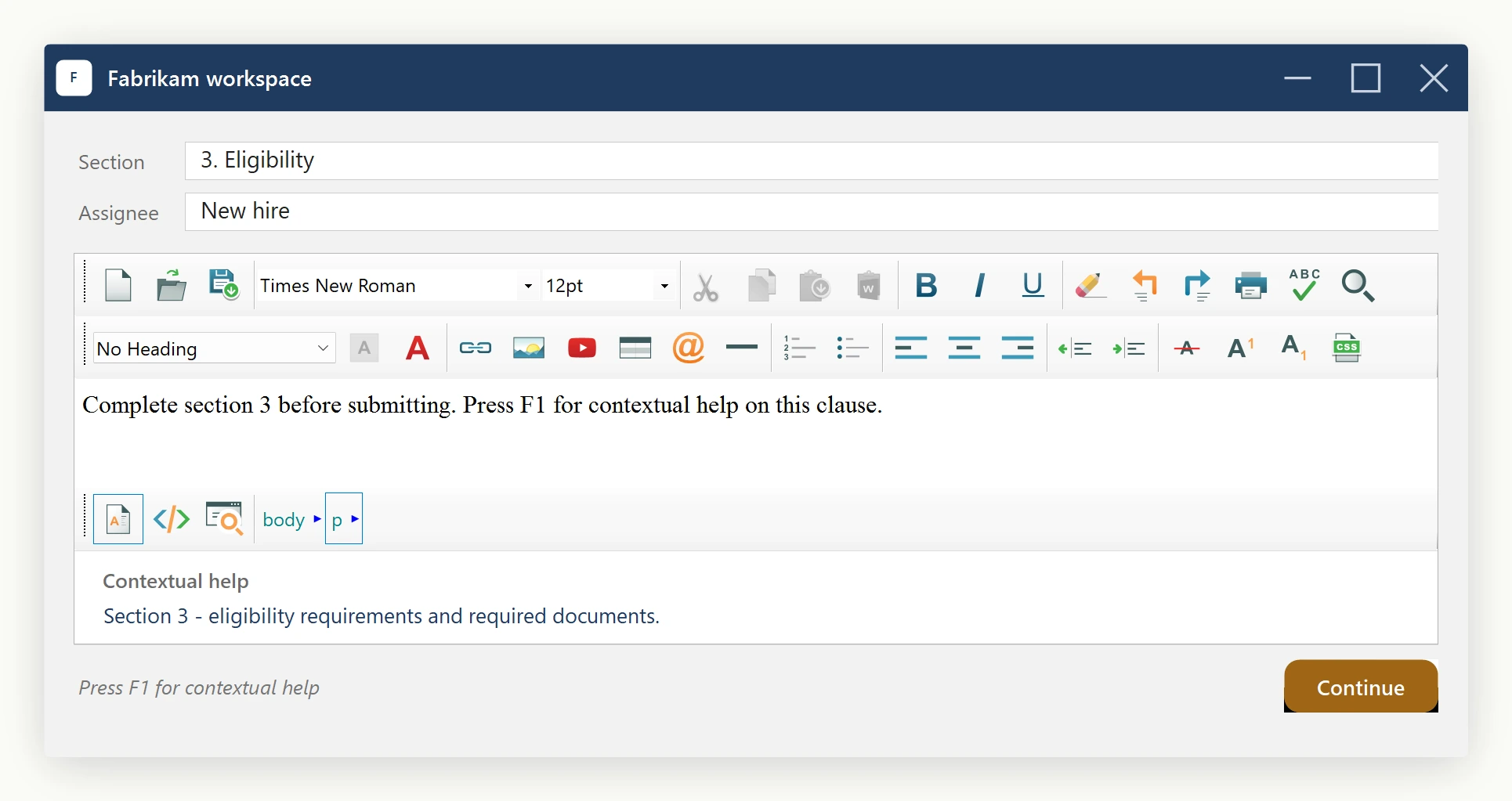
For low-level Win32 WM_KEYDOWN interception that KeyBindings does not cover (for example, intercepting non-character keys or peeking at raw message lParam bits), the editor still raises the PreProcessMessageEvent. This is an advanced hook - prefer KeyBindings whenever it suffices.
private const int WM_KEYDOWN = 0x100;
private const int VK_F1 = 0x70;
private void Editor_PreProcessMessageEvent(object sender, EditorPreProcessMessageEventArgs e)
{
    // Intercept F1 inside the editor surface and show custom help.
    if (e.Message.Msg == WM_KEYDOWN && e.Message.WParam.ToInt32() == VK_F1)
    {
        ShowMyHelpDialog();
        e.Cancel = true; // swallow the keystroke
    }
}
Private Const WM_KEYDOWN As Integer = &H100
Private Const VK_F1 As Integer = &H70
Private Sub Editor_PreProcessMessageEvent(sender As Object, e As EditorPreProcessMessageEventArgs)
' Intercept F1 inside the editor surface and show custom help.
If e.Message.Msg = WM_KEYDOWN AndAlso e.Message.WParam.ToInt32() = VK_F1 Then
ShowMyHelpDialog()
e.Cancel = True ' swallow the keystroke
End If
End SubWire it up the usual way (editor.PreProcessMessageEvent += Editor_PreProcessMessageEvent;). Set e.Cancel = true to suppress the default routing; leave it false to let the editor - and then KeyBindings - continue handling the message.
Ask your AI to do this
Connect the SpiceLogic MCP server, then give your coding assistant this prompt.
I use the SpiceLogic WinForms HTML Editor. Help me handle keyboard input without swallowing the editor shortcuts or IME composition. Confirm the exact API names, types and defaults with the SpiceLogic MCP documentation, then show the changes for my project.