


 NuGet
NuGet
Find and replace
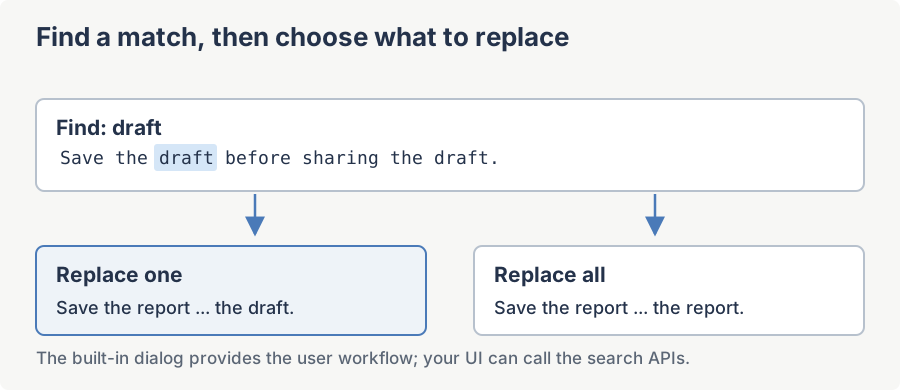
Find and replace helps users locate text in a document and update individual matches or repeated wording. Use the built-in dialog for the standard workflow, or call Editor.Search and the selection APIs from your own search interface.
What the built-in Find dialog does
The Find dialog is a small modal window with a "Find what" text box, "Match whole word only" and "Match case" check boxes, an "Up / Down" direction radio group, and four buttons: Find Next, Replace, Replace All, and Cancel. It is wired to the toolbar magnifying-glass icon (the "Search" button) and to the global shortcut Ctrl+F. When the user clicks Find Next, the editor searches forward (or backward) from the current caret position and selects the first match; when the dialog is dismissed the editor keeps the caret on the last match so the user can continue editing in place.
Invoking the Find dialog from code
If you want a custom button or menu item in your application that opens the same dialog the toolbar uses, call the OnSearchButtonClicked method on the editor's ToolbarItemOverrider. That is the same entry point the toolbar uses internally, so the dialog will appear and behave identically:
private void mnuFind_Click(object sender, EventArgs e)
{
    htmlEditor1.ToolbarItemOverrider.OnSearchButtonClicked(this, EventArgs.Empty);
}
Private Sub mnuFind_Click(sender As Object, e As EventArgs)
htmlEditor1.ToolbarItemOverrider.OnSearchButtonClicked(Me, EventArgs.Empty)
End SubTo pre-populate the "Find what" text box (for example with the currently selected text), open the dialog through the Dialog.SearchDialog service and set PreloadedSearchText before calling ShowDialog:
var dialog = htmlEditor1.Dialog.SearchDialog;
dialog.PreloadedSearchText = htmlEditor1.Selection.GetSelectedText();
dialog.ShowDialog();
Dim dialog = htmlEditor1.Dialog.SearchDialog
dialog.PreloadedSearchText = htmlEditor1.Selection.GetSelectedText()
dialog.ShowDialog()Listening for Find Next / Replace events
The dialog is an instance of ISearchDialog (namespace SpiceLogic.HtmlEditor.WinForms.Models.Dialogs) and raises four events: FindNextClicked, ReplaceClicked, ReplaceAllClicked, and DialogClosed. The editor itself subscribes to these events to perform the search; you can subscribe alongside to log searches or update a status bar. Note that ReplaceEventArg carries no cancellation flag, so a handler on ReplaceClicked cannot veto the replace the built-in dialog is about to make - if you need that control, drive Replace through your own UI with Editor.Replace instead of the built-in dialog's events. The payload (SearchEventArg) carries SearchText, MatchCase, MatchWholeWordOnly, and a Direction property of type SearchEventArg.SearchDirection (Up or Down):
htmlEditor1.Dialog.SearchDialog.FindNextClicked += (s, e) =>
{
    Debug.WriteLine($"User searched for: {e.SearchText} " +
                    $"(direction={e.Direction}, " +
                    $"case={e.MatchCase}, " +
                    $"whole-word={e.MatchWholeWordOnly})");

};
If you want to completely override the default Find-button behavior (route the toolbar click to your own UI instead of the built-in dialog), subscribe to SearchButtonClicked on the override helper. Setting a handler on that event suppresses the built-in dialog altogether:
htmlEditor1.ToolbarItemOverrider.SearchButtonClicked += (s, e) =>
{
    using var myFindBar = new MyApplicationFindBar(htmlEditor1);
    myFindBar.ShowDialog(this);
};
AddHandler htmlEditor1.ToolbarItemOverrider.SearchButtonClicked, Sub(s, e)
Dim myFindBar = New MyApplicationFindBar(htmlEditor1)
myFindBar.ShowDialog(Me)
End Sub
Selecting matched text programmatically
You do not have to use the built-in dialog at all. The editor exposes the same search engine through two paths:
htmlEditor1.Editor.Search(text, forward, matchWholeWord, matchCase, useCaretPosition)-- the high-level call used by the dialog itself. Works in WYSIWYG and HTML source modes.htmlEditor1.Selection.SelectText(text, forward, matchWholeWord, matchCase)-- the lower-level WYSIWYG-only path.
Either returns true when a match is found and selected, or false when the document has been searched to its end. A self-contained "find and highlight" helper that bypasses the dialog entirely:
private void FindAndHighlight(string query)
{
    htmlEditor1.Focus();
    bool found = htmlEditor1.Editor.Search(text: query, forward: true, matchWholeWord: false, matchCase: false, useCaretPosition: true);
    if (!found)
    {
        // Wrap back to the top and try once more.
        htmlEditor1.Selection.SelectText(0, 0);
        found = htmlEditor1.Editor.Search(query, true, false, false, true);
    }

    statusLabel.Text = found ? $"Found: {query}" : $"Not found: {query}";
}
Private Sub FindAndHighlight(query As String)
htmlEditor1.Focus()
Dim found As Boolean = htmlEditor1.Editor.Search(text:=query, forward:=True, matchWholeWord:=False, matchCase:=False, useCaretPosition:=True)
If Not found Then
' Wrap back to the top and try once more.
htmlEditor1.Selection.SelectText(0, 0)
found = htmlEditor1.Editor.Search(query, True, False, False, True)
End If
statusLabel.Text = If(found, $"Found: {query}", $"Not found: {query}")
End SubHiding the Find button on the toolbar
If your application already has its own application-wide Find experience, hide the editor's toolbar button so users do not see two Find affordances. The button is exposed on the public API as BtnSearch:
// Remove the Find button from the toolbar at startup.
htmlEditor1.BtnSearch.Visible = false;
' Remove the Find button from the toolbar at startup.
htmlEditor1.BtnSearch.Visible = FalseHiding the button does not disable the Ctrl+F shortcut by itself -- the shortcut is mapped through the editor's KeyBindings service. To take the shortcut off the keyboard as well, unbind EditorActionId.Search:
using SpiceLogic.HtmlEditor.Abstractions.KeyBindings;

// Unbind Ctrl+F so the built-in dialog no longer opens on shortcut.
htmlEditor1.KeyBindings.Unbind(EditorActionId.Search);
Imports SpiceLogic.HtmlEditor.Abstractions.KeyBindings
' Unbind Ctrl+F so the built-in dialog no longer opens on shortcut.
htmlEditor1.KeyBindings.Unbind(EditorActionId.Search)Replacing the built-in Find with your own
Customers who ship the editor inside a larger document-editing application typically have a single Find toolbar at the top of the host window and want Ctrl+F inside the editor to route to that toolbar instead of the editor's dialog. The pattern has three pieces: (1) intercept Ctrl+F through the editor's PreProcessMessageEvent so your TextBox receives focus - not Form.ProcessCmdKey, which never sees the keystroke because the editor's internal WebBrowser surface consumes Ctrl+F at the Windows message level before it can reach the form, (2) unbind the editor's own Search action so it does not also open the built-in dialog, and (3) call Editor.Search from your toolbar's Find Next button.
using SpiceLogic.HtmlEditor.Abstractions.KeyBindings;
using SpiceLogic.HtmlEditor.WinForms.Models.BOs.EditorEventArgs;

public partial class MainForm : Form
{
    public MainForm()
    {
        InitializeComponent();
        // (2) Take Ctrl+F off the editor.
        htmlEditor1.KeyBindings.Unbind(EditorActionId.Search);
        htmlEditor1.BtnSearch.Visible = false;
        // (1) The editor's WebBrowser surface consumes Ctrl+F before
        // Form.ProcessCmdKey ever sees it, so intercept it here instead.
        htmlEditor1.PreProcessMessageEvent += OnEditorPreProcessMessage;
    }

    private void OnEditorPreProcessMessage(object sender, EditorPreProcessMessageEventArgs e)
    {
        const int WM_KEYDOWN = 0x100;
        if (e.Message.Msg == WM_KEYDOWN && e.Message.WParam.ToInt32() == (int)Keys.F && ModifierKeys == Keys.Control)
        {
            txtMyFindBar.Focus();
            txtMyFindBar.SelectAll();
            e.Cancel = true;
        }
    }

    // (3) Find Next button on the host's own toolbar.
    private void btnFindNext_Click(object sender, EventArgs e)
    {
        htmlEditor1.Focus();
        bool found = htmlEditor1.Editor.Search(txtMyFindBar.Text, forward: true, matchWholeWord: chkWholeWord.Checked, matchCase: chkMatchCase.Checked, useCaretPosition: true);
        if (!found)
            MessageBox.Show("No more matches.");
    }
}
Imports SpiceLogic.HtmlEditor.Abstractions.KeyBindings
Imports SpiceLogic.HtmlEditor.WinForms.Models.BOs.EditorEventArgs
Partial Public Class MainForm
Inherits Form
Public Sub New()
InitializeComponent()
' (2) Take Ctrl+F off the editor.
htmlEditor1.KeyBindings.Unbind(EditorActionId.Search)
htmlEditor1.BtnSearch.Visible = False
' (1) The editor's WebBrowser surface consumes Ctrl+F before
' Form.ProcessCmdKey ever sees it, so intercept it here instead.
AddHandler htmlEditor1.PreProcessMessageEvent, AddressOf OnEditorPreProcessMessage
End Sub
Private Sub OnEditorPreProcessMessage(sender As Object, e As EditorPreProcessMessageEventArgs)
Const WM_KEYDOWN As Integer = &H100
If e.Message.Msg = WM_KEYDOWN AndAlso e.Message.WParam.ToInt32() = CInt(Keys.F) AndAlso ModifierKeys = Keys.Control Then
txtMyFindBar.Focus()
txtMyFindBar.SelectAll()
e.Cancel = True
End If
End Sub
' (3) Find Next button on the host's own toolbar.
Private Sub btnFindNext_Click(sender As Object, e As EventArgs)
htmlEditor1.Focus()
Dim found As Boolean = htmlEditor1.Editor.Search(txtMyFindBar.Text, forward:=True, matchWholeWord:=chkWholeWord.Checked, matchCase:=chkMatchCase.Checked, useCaretPosition:=True)
If Not found Then
MessageBox.Show("No more matches.")
End If
End Sub
End Class"Find Up only finds the most recent match" gotcha
A frequently reported behaviour: the user types a word that appears five times in the document, switches the direction to Up, clicks Find Next, and the dialog jumps straight to the last occurrence and then reports "Finished searching the document" on the next click. This is not a bug -- it is the search-from-caret semantics working as designed. The Find engine always searches from the current caret position; Up means "look backward from where I am now". If the caret is at the end of the document (which it is when the dialog first opens on a freshly-loaded document), the only direction that has matches in it is Up, and the first backward hit is the last occurrence -- followed immediately by "no more matches" because the engine has already walked past every earlier occurrence.
If you want a true "search from the top in document order, reverse" -- the way some legacy applications behave -- collect every match yourself by repeatedly calling Editor.Search with forward: true and useCaretPosition: true until it returns false, then walk the list in reverse:
private void FindAllInReverse(string query)
{
    var matchStarts = new List<int>();
    htmlEditor1.Selection.SelectText(0, 0); // caret to the top
    while (htmlEditor1.Editor.Search(query, true, false, false, true))
    {
        var info = htmlEditor1.Selection.GetSelectionInfo();
        matchStarts.Add(info.StartIndex);
    }

    // Now walk backwards through the gathered starts.
    foreach (int start in matchStarts.AsEnumerable().Reverse())
    {
        htmlEditor1.Selection.SelectText(start, query.Length);
    // ... do something with each match ...
    }
}
Private Sub FindAllInReverse(query As String)
Dim matchStarts = New List(Of Integer)()
htmlEditor1.Selection.SelectText(0, 0) ' caret to the top
While htmlEditor1.Editor.Search(query, True, False, False, True)
Dim info = htmlEditor1.Selection.GetSelectionInfo()
matchStarts.Add(info.StartIndex)
End While
' Now walk backwards through the gathered starts.
For Each start As Integer In matchStarts.AsEnumerable().Reverse()
htmlEditor1.Selection.SelectText(start, query.Length)
' ... do something with each match ...
Next
End SubThe built-in dialog deliberately uses the search-from-caret model because it matches the de-facto Windows convention (the same Find dialog you see in Notepad, Word, and Visual Studio). If your domain expects "always start from the top", build a thin custom Find bar on top of Editor.Search and move the caret yourself before each call.
Ask your AI to do this
Connect the SpiceLogic MCP server, then give your coding assistant this prompt.
I use the SpiceLogic WinForms HTML Editor. Help me open the built-in Find and Replace dialog from my application menu. Confirm the exact API names, types and defaults with the SpiceLogic MCP documentation, then show the changes for my project.