


 NuGet
NuGet
Replace the whole context menu
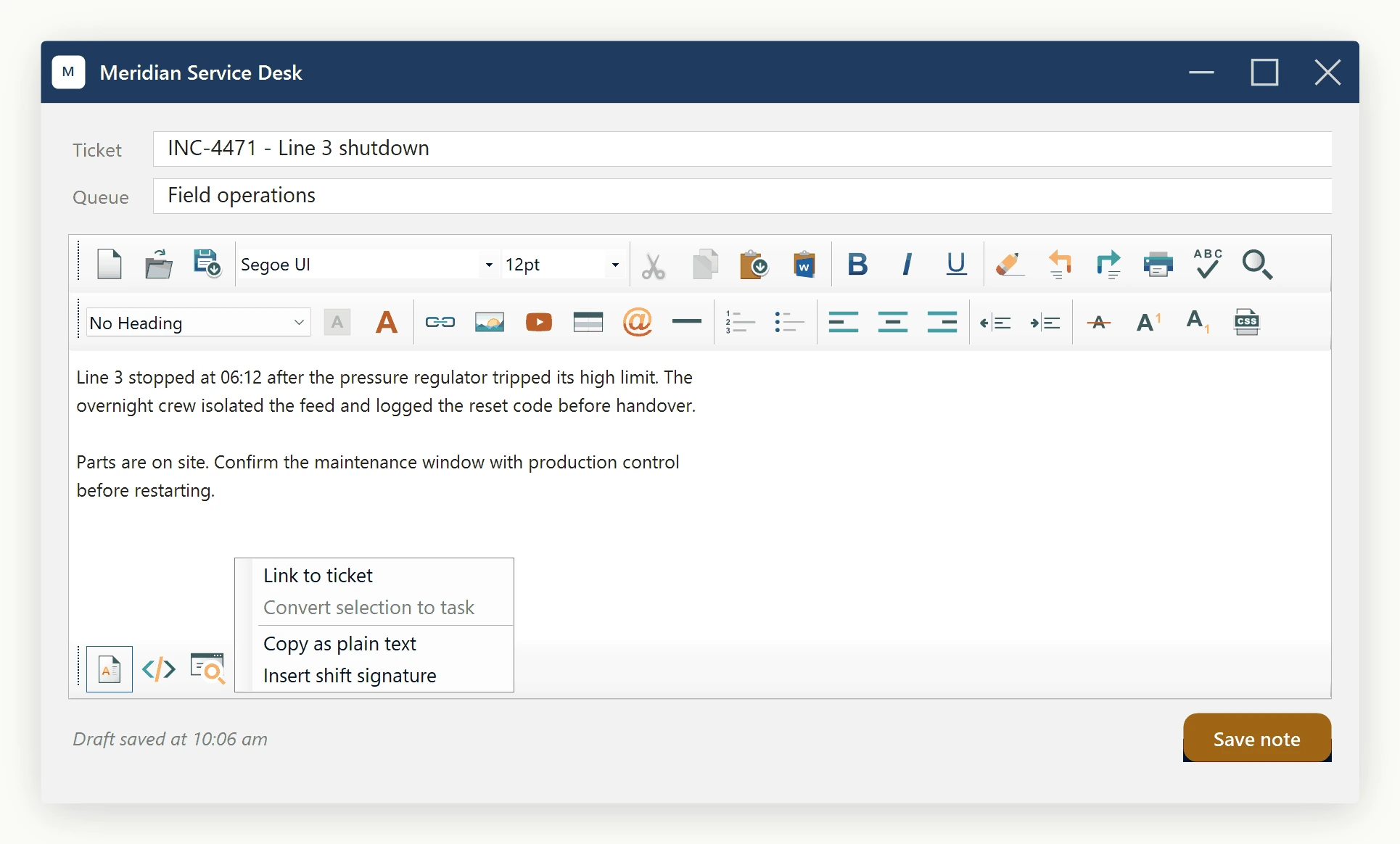
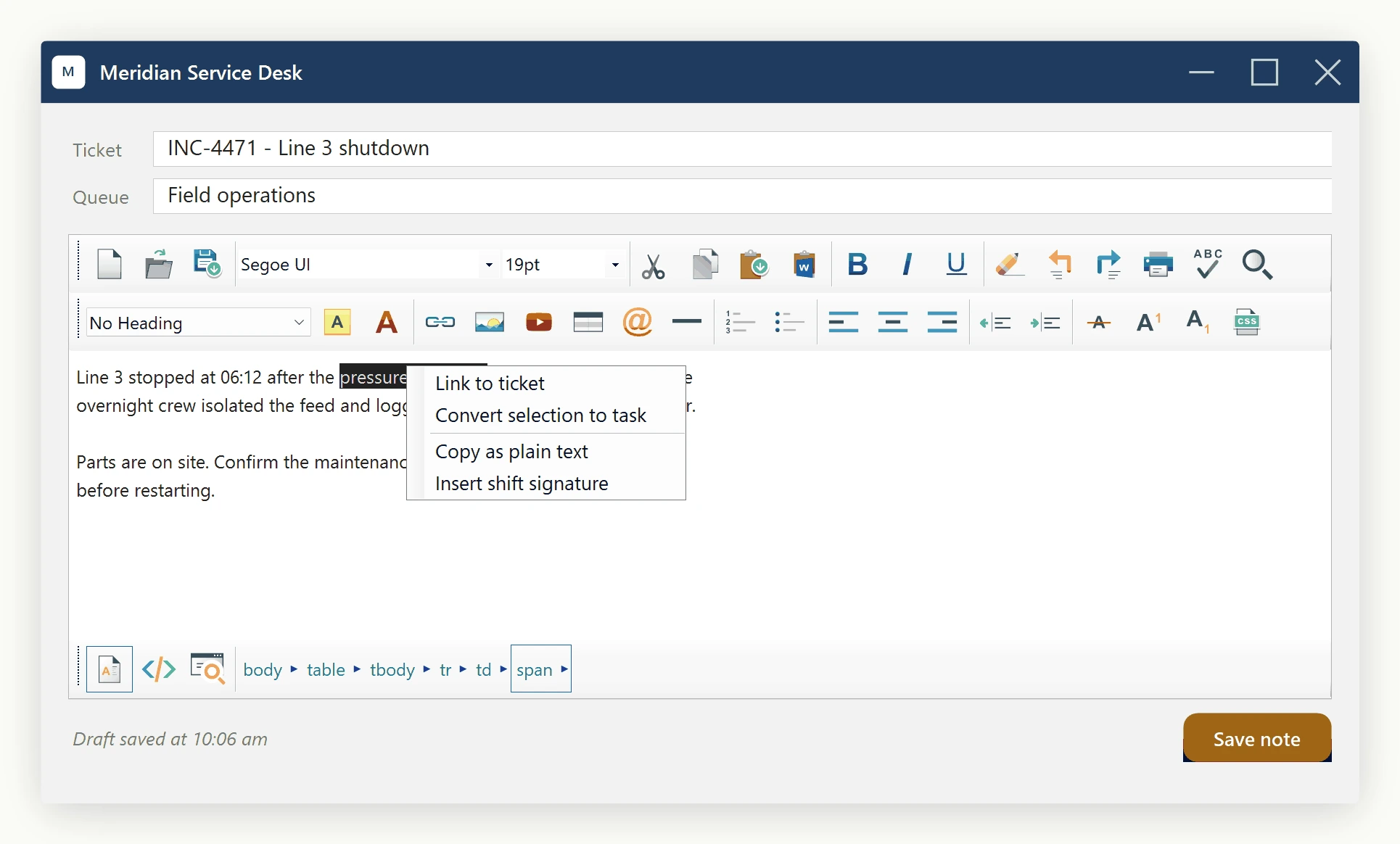
Replace the entire built-in right-click menu with your own native menu. Your replacement supplies its own commands and handlers; start from the editable factory-menu sample below when you want to retain familiar editing commands.
If you only need to hide, disable, rename or reorder existing commands without rebuilding their handlers, see Customize the built-in context menu.
Start from the factory-menu sample on GitHub
You do not need to recreate the factory menu from scratch. Our C# sample and VB.NET sample include a complete, editable factory-style context menu: its layout, icons, command handlers and selection-state checks. Copy the sample into your application, change the commands or appearance, then assign the resulting menu to EditorContextMenuStrip. The sample shows the wiring to the editor's own editing, formatting, table and dialog services.
Replace the menu via EditorContextMenuStrip
For a complete replacement, assign a System.Windows.Forms.ContextMenuStrip to EditorContextMenuStrip. The editor uses it whenever the user right-clicks inside the document surface. Assign null (Nothing in VB.NET) to return to the built-in menu.
private void NoteEditorForm_Load(object sender, EventArgs e) {
    var menu = new ContextMenuStrip();
    var linkToTicket = new ToolStripMenuItem("Link to Ticket...");
    linkToTicket.Click += (s, args) =>
    {
        var ticketId = TicketPicker.Show(this);
        if (ticketId != null)
        {
            string anchor = $"<a href=\"crm://ticket/{ticketId}\">#{ticketId}</a>";
            htmlEditor1.Content.InsertHtml(anchor, keepSelected: false);
        }
    };
    var convertToTask = new ToolStripMenuItem("Convert Selection to Task");
    convertToTask.Click += (s, args) =>
    {
        string selected = htmlEditor1.Selection.GetSelectedHtml();
        if (!string.IsNullOrWhiteSpace(selected))
            TaskService.CreateFromHtml(currentAccount.Id, selected);
    };
    menu.Items.Add(linkToTicket);
    menu.Items.Add(new ToolStripSeparator());
    menu.Items.Add(convertToTask);
    // Hand the strip to the editor. From now on, right-clicking inside the
    // note shows this menu instead of the built-in one.
    htmlEditor1.EditorContextMenuStrip = menu;
}
Private Sub NoteEditorForm_Load(sender As Object, e As EventArgs)
Dim menu = New ContextMenuStrip()
Dim linkToTicket = New ToolStripMenuItem("Link to Ticket...")
AddHandler linkToTicket.Click, Sub(s, args)
Dim ticketId = TicketPicker.Show(Me)
If ticketId IsNot Nothing Then
Dim anchor As String = $"<a href=""crm://ticket/{ticketId}"">#{ticketId}</a>"
htmlEditor1.Content.InsertHtml(anchor, False)
End If
End Sub
Dim convertToTask = New ToolStripMenuItem("Convert Selection to Task")
AddHandler convertToTask.Click, Sub(s, args)
Dim selected As String = htmlEditor1.Selection.GetSelectedHtml()
If Not String.IsNullOrWhiteSpace(selected) Then TaskService.CreateFromHtml(currentAccount.Id, selected)
End Sub
menu.Items.Add(linkToTicket)
menu.Items.Add(New ToolStripSeparator())
menu.Items.Add(convertToTask)
' Hand the strip to the editor. From now on, right-clicking inside the
' note shows this menu instead of the built-in one.
htmlEditor1.EditorContextMenuStrip = menu
End SubDisable items based on current state
To disable an item conditionally, for example greying out a command when there is no selection, handle the Opening event on the EditorContextMenuStrip (a normal Windows Forms ContextMenuStrip):
menu.Opening += (s, args) => {
    string selected = htmlEditor1.Selection.GetSelectedHtml();
    convertToTask.Enabled = !string.IsNullOrWhiteSpace(selected); };
AddHandler menu.Opening, Sub(s, args)
Dim selected As String = htmlEditor1.Selection.GetSelectedHtml()
convertToTask.Enabled = Not String.IsNullOrWhiteSpace(selected)
End SubThe ContextMenuShowing event: a notification hook
Handle ContextMenuShowing to prepare your replacement before it opens or to record right-click usage. Its event args give you the cursor position relative to the editor:
htmlEditor1.ContextMenuShowing += (sender, e) => {
    // e.OffsetMousePosition is the cursor location relative to the editor surface.
    AnalyticsClient.Track(
        "NoteEditorRightClick",
        new { x = e.OffsetMousePosition.X, y = e.OffsetMousePosition.Y }); };
AddHandler htmlEditor1.ContextMenuShowing, Sub(sender, e)
' e.OffsetMousePosition is the cursor location relative to the editor surface.
AnalyticsClient.Track("NoteEditorRightClick", New With {Key .x = e.OffsetMousePosition.X, Key .y = e.OffsetMousePosition.Y})
End SubContextMenuShowingEventArgs carries OffsetMousePosition. Adjust your custom menu directly in the handler, or set Options.DisableEditorRightClick to suppress that opening. The event runs before the menu is displayed.
Because the strip is built once in code, you can extend it later, for example adding another ToolStripMenuItem for a new command, without changing how it is wired to the editor.
Ask your AI to do this
With the SpiceLogic MCP server connected, ask your assistant:
Using the SpiceLogic WinForms HTML Editor already referenced in my project, replace the entire right-click menu through EditorContextMenuStrip. Start from the linked C# or VB.NET factory-menu sample, adapt its layout and commands, and retain the sample handlers and state checks for each editor command we keep. Wire handlers for our new commands. Look up the real API before writing code.