


 NuGet
NuGet
Using the HTML editor in WPF application
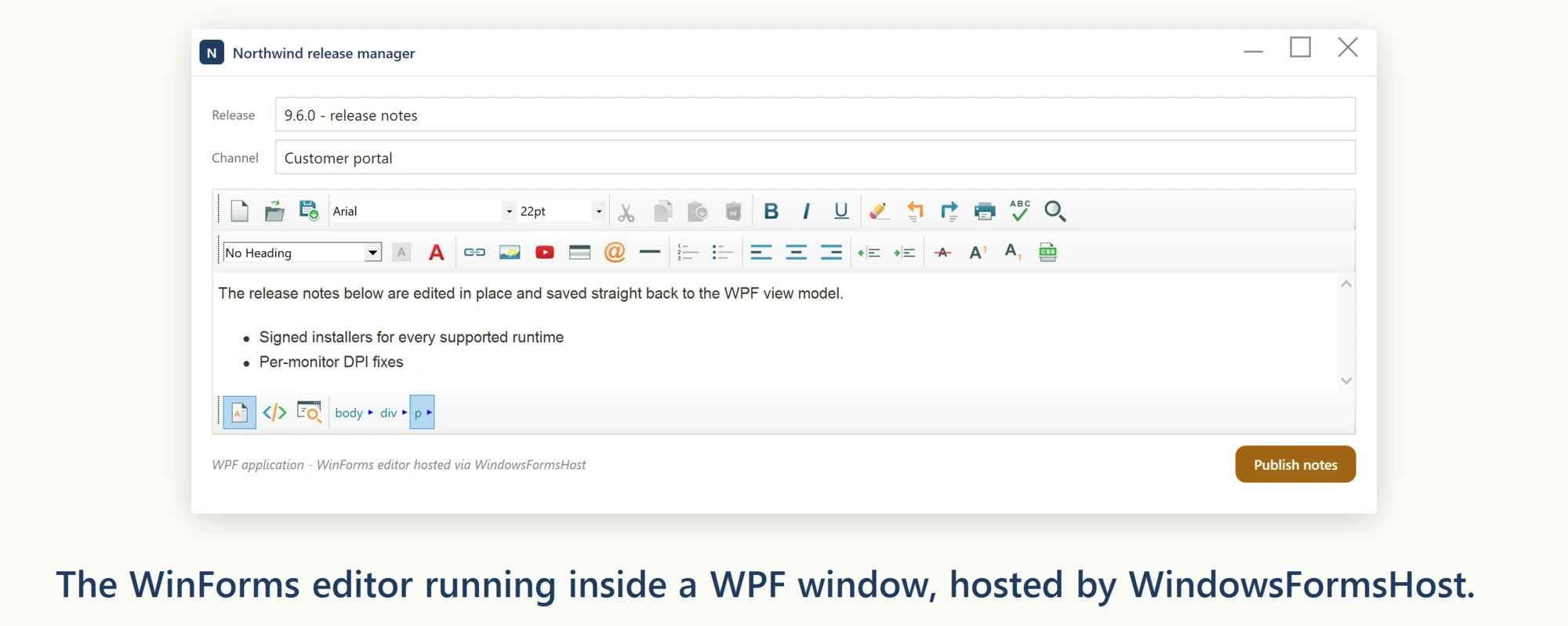
This control is not only good for Windows Forms Applications, but also usable in WPF Applications.
First, we recommend you check our dedicated WPF HTML Editor Control - a separate product that is built natively for WPF and does not require WindowsFormsHost. If you are starting a new WPF project, that product is the recommended option.
However, if you already own this WinForms HTML Editor Control and want to reuse it inside a WPF application, you can do that by hosting the WinForms control via the WindowsFormsHost element. WindowsFormsHost is the standard WPF embedding technique for any WinForms control.
The XAML below shows the modern namespace and assembly name. The control type lives in the SpiceLogic.HtmlEditor.WinForms namespace, the UserOption and SpellCheckerOption types live in SpiceLogic.HtmlEditor.WinForms.Models.BOs.UserOptions, and all three ship in the SpiceLogic.HtmlEditor.WinForms assembly:
<Window
    xmlns="http://schemas.microsoft.com/winfx/2006/xaml/presentation"
    xmlns:x="http://schemas.microsoft.com/winfx/2006/xaml"
    xmlns:winForm="clr-namespace:SpiceLogic.HtmlEditor.WinForms;assembly=SpiceLogic.HtmlEditor.WinForms"
    xmlns:userOptions="clr-namespace:SpiceLogic.HtmlEditor.WinForms.Models.BOs.UserOptions;assembly=SpiceLogic.HtmlEditor.WinForms"
    x:Class="SpiceLogic.HtmlEditor.WPFSample.MainWindow"
    Title="MainWindow" Height="600" Width="715" Loaded="Window_Loaded">
    <Window.Resources>
        <winForm:WinFormHtmlEditor x:Key="formHTMLEditor" BodyHtml="Hello World" HtmlChanged="WinFormHtmlEditor_HtmlChanged">
            <winForm:WinFormHtmlEditor.SpellCheckOptions>
                <userOptions:SpellCheckerOption FireInlineSpellCheckingOnKeyStroke="True"/>
            </winForm:WinFormHtmlEditor.SpellCheckOptions>
            <winForm:WinFormHtmlEditor.Options>
                <userOptions:UserOption EnterKeyResponse="LineBreak" />
            </winForm:WinFormHtmlEditor.Options>
        </winForm:WinFormHtmlEditor>
    </Window.Resources>
    <StackPanel Orientation="Vertical">
        <Label Margin="20 0" Content="WinForms HTML Editor inside a WPF DockPanel" HorizontalAlignment="Left" VerticalAlignment="Top"/>
        <DockPanel Margin="20" Background="#9FBAAE" Visibility="Visible" HorizontalAlignment="Stretch">
            <WindowsFormsHost Height="400" Child="{StaticResource formHTMLEditor}" />
        </DockPanel>
        <Label Margin="10" x:Name="lblStatus" Content="Status" HorizontalAlignment="Left" VerticalAlignment="Top"/>
        <Button Margin="10" Padding="4" Content="Set BodyHtml" HorizontalAlignment="Left" VerticalAlignment="Top" Width="85" Click="btnBodyHtmlSetter_Click"/>
    </StackPanel>
</Window>
In the Window Loaded event, call Focus() on the toolbar combo boxes so they do not retain the design-time pre-selection:
private void Window_Loaded(object sender, System.Windows.RoutedEventArgs e)
{
    // formHTMLEditor lives in Window.Resources (x:Key), which does not generate a code-behind field -- resolve it from the resource dictionary once.
    var formHTMLEditor = (SpiceLogic.HtmlEditor.WinForms.WinFormHtmlEditor)this.Resources["formHTMLEditor"];
    formHTMLEditor.ToolbarItemOverrider.ToolbarItems.FontName.Focus();
    formHTMLEditor.ToolbarItemOverrider.ToolbarItems.FontSize.Focus();
    formHTMLEditor.ToolbarItemOverrider.ToolbarItems.TitleInsert.Focus();
    formHTMLEditor.Focus();
}
Private Sub Window_Loaded(sender As Object, e As System.Windows.RoutedEventArgs)
' formHTMLEditor lives in Window.Resources (x:Key), which does not generate a code-behind field -- resolve it from the resource dictionary once.
Dim formHTMLEditor = CType(Me.Resources("formHTMLEditor"), SpiceLogic.HtmlEditor.WinForms.WinFormHtmlEditor)
formHTMLEditor.ToolbarItemOverrider.ToolbarItems.FontName.Focus()
formHTMLEditor.ToolbarItemOverrider.ToolbarItems.FontSize.Focus()
formHTMLEditor.ToolbarItemOverrider.ToolbarItems.TitleInsert.Focus()
formHTMLEditor.Focus()
End SubOnce you use the provided XAML, the designer will show the editor as follows:
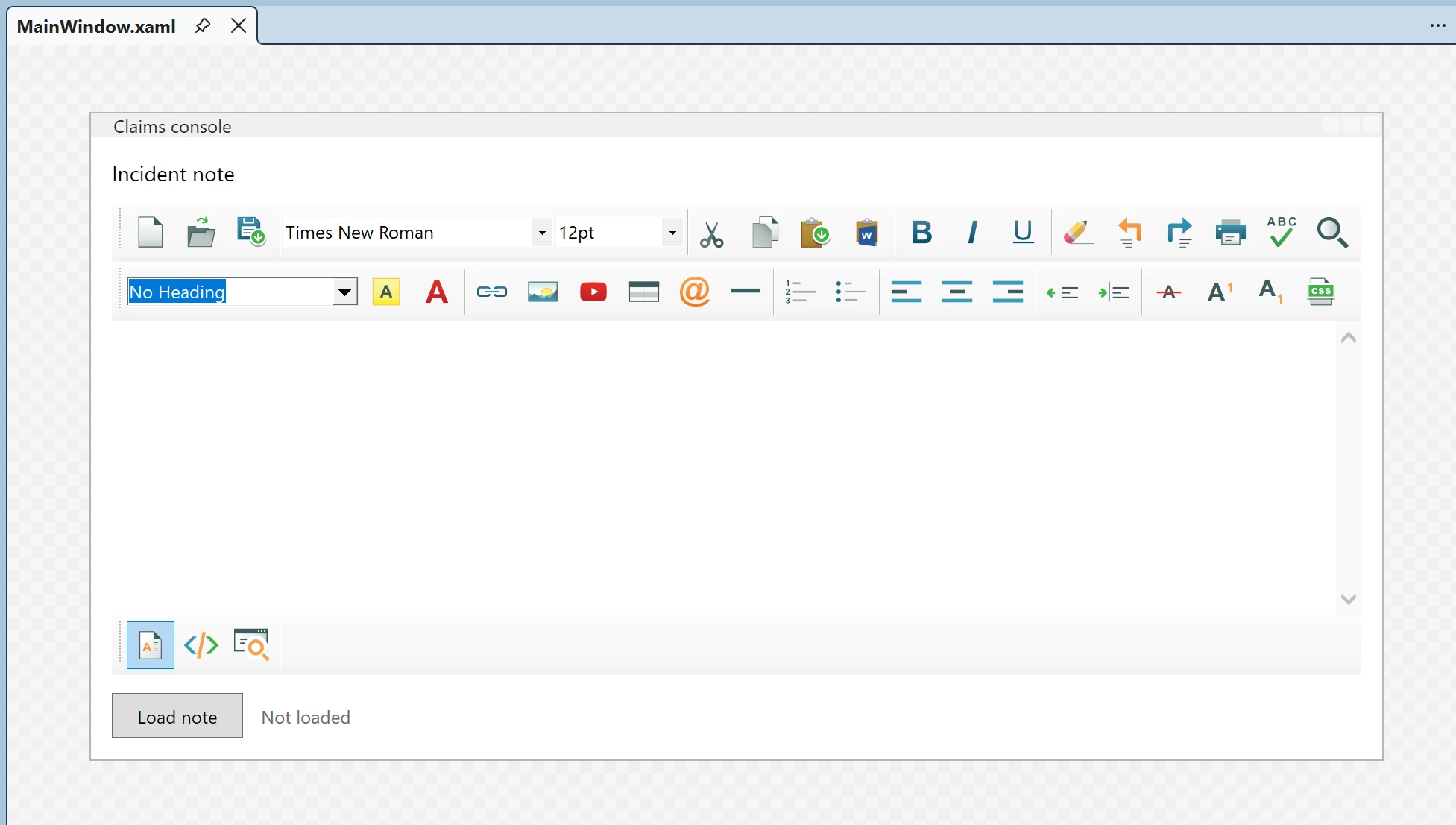
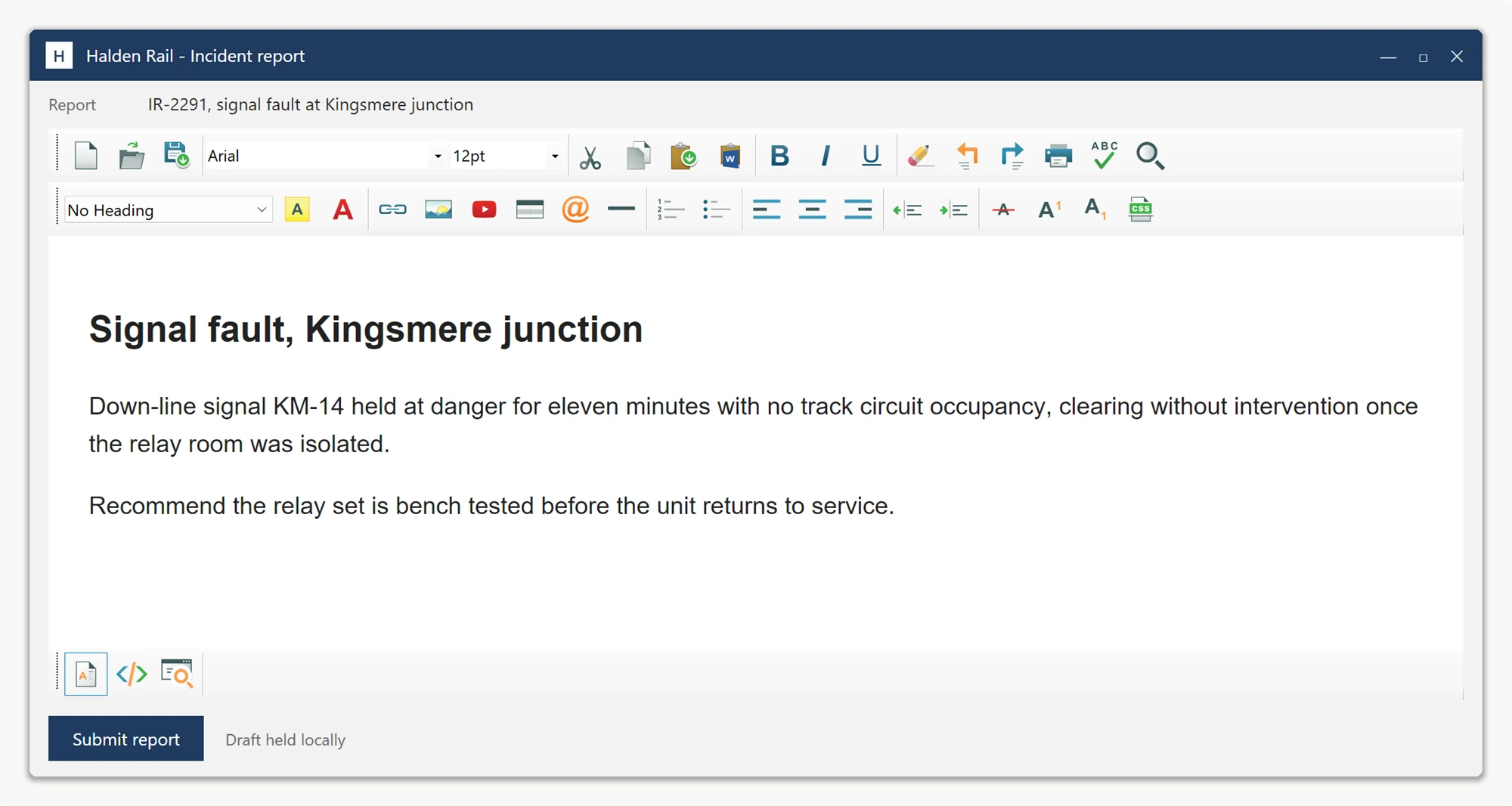
and when you run the application, it will look like this:
Ask your AI to do this
Let your assistant do this for you. With the SpiceLogic MCP server connected, paste this into Claude Code, Cursor, or VS Code Copilot in agent mode.
Using the SpiceLogic WinForms HTML Editor already referenced in my project, host the WinFormHtmlEditor control inside a WPF window named MainWindow using WindowsFormsHost, referencing the SpiceLogic.HtmlEditor.WinForms namespace for the control itself and SpiceLogic.HtmlEditor.WinForms.Models.BOs.UserOptions for the UserOption and SpellCheckerOption types. On the window's Loaded event, give focus first to the toolbar's FontName and FontSize items through ToolbarItemOverrider.ToolbarItems, then to the TitleInsert item, before finally focusing the editor itself, matching how the WPF sample project wires it up. Look up the exact WindowsFormsHost wiring and namespace names with the SpiceLogic MCP tools before writing any code.