


 NuGet
NuGet
Getting Started
A drop-in HTML editor for WinForms apps - one NuGet install, clean XHTML, Word paste that survives, source code if you need it. In production since 2007, ready for .NET 10. About .NET WinForms HTML Editor Control →
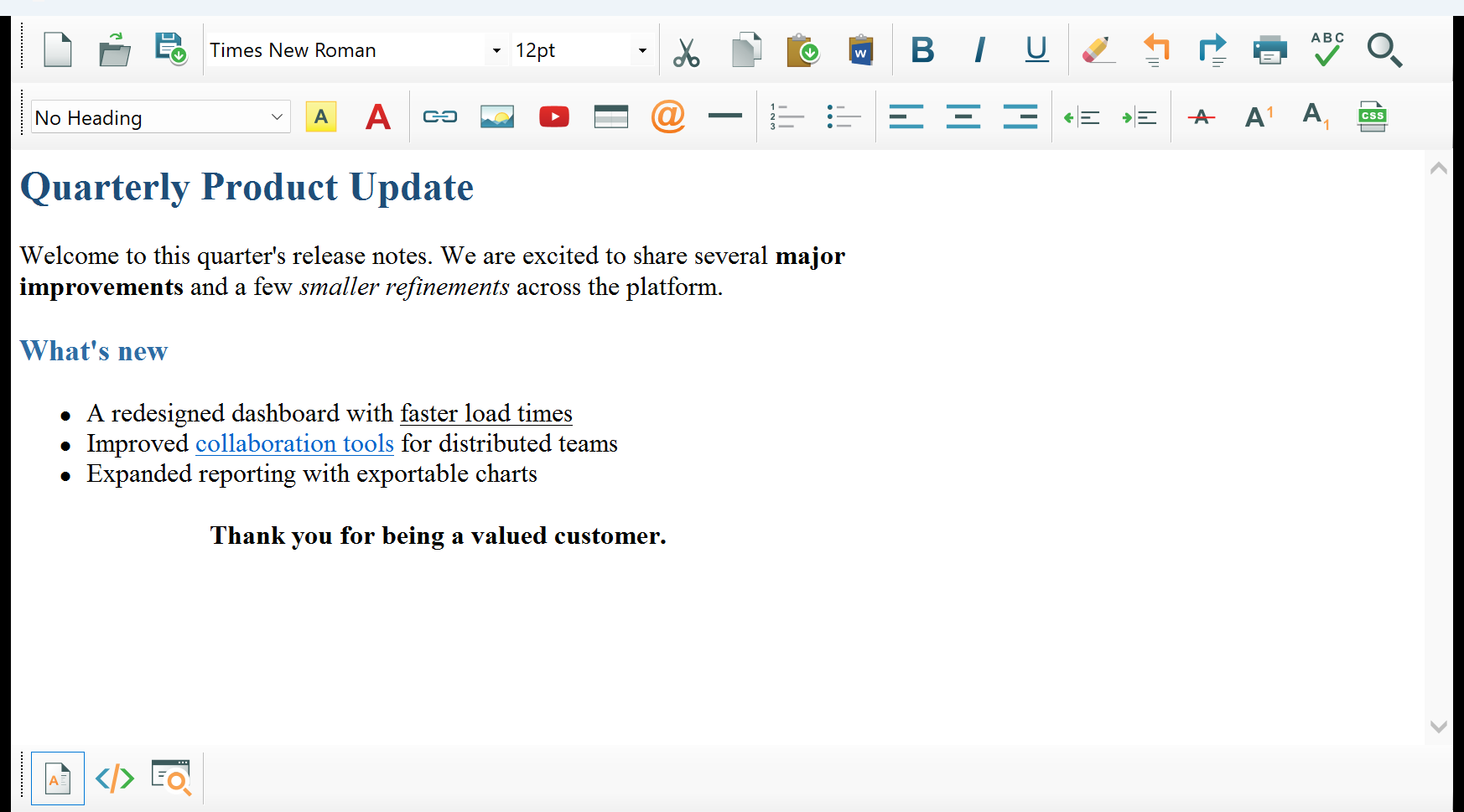
The SpiceLogic WinForms HTML Editor Control is a drop-in WYSIWYG HTML editor for Windows Forms applications. It gives end users a familiar word-processor-style surface for authoring rich HTML - with a customizable toolbar, an in-place spell checker, a Microsoft-Word-compatible paste pipeline, image and table editing, and synchronized switching between visual, HTML-source, and preview modes - while exposing a strongly-typed .NET API for everything you would want to do programmatically.
Supported target frameworks
The package multi-targets the following frameworks, so a single PackageReference works whether you are on classic .NET Framework or modern .NET:
net10.0-windows, net9.0-windows, net8.0-windows, net7.0-windows, net6.0-windows, net5.0-windows, net48, net472, net45.
Your host project must be a Windows Forms application (an SDK-style project with UseWindowsForms set to true, or a classic .NET Framework WinForms project). NuGet will automatically resolve the right asset folder for the target framework you build against, so there is no per-framework DLL to copy or reference by hand.

Install via NuGet
From a terminal in your project directory, run:
dotnet add package SpiceLogic.HtmlEditor.WinFormsOr, if you prefer to edit the project file directly, add this PackageReference inside an ItemGroup in your .csproj:
<ItemGroup>

  <PackageReference Include="SpiceLogic.HtmlEditor.WinForms" Version="*" />

</ItemGroup>
Pin Version to a specific number (for example 9.0.14) for reproducible builds, or leave it floating with * while you are evaluating the trial. The package pulls in every dependency the control needs at design time and at runtime; you do not need to add any other references.
After the package has restored, reopen any Windows Form in the designer. The WinFormHtmlEditor control appears in the Visual Studio toolbox automatically - you do not need to use Tools > Choose Toolbox Items, and you do not need to point the toolbox at a per-framework subfolder. Drag it onto the form, then resize, dock, or anchor it the way you would any other WinForms control.

Minimal usage
Here is a self-contained example. It creates a form, drops a WinFormHtmlEditor on it, sets initial content via the BodyHtml property, and subscribes to the HtmlChanged event so you can react each time the user edits the document:
using System;
using System.Windows.Forms;
using SpiceLogic.HtmlEditor.WinForms;

public class MainForm : Form
{
    private readonly WinFormHtmlEditor _editor = new WinFormHtmlEditor();
    public MainForm()
    {
        Text = "HTML Editor Demo";
        Width = 900;
        Height = 600;
        _editor.Dock = DockStyle.Fill;
        _editor.BodyHtml = "<p>Hello from <b>SpiceLogic</b>!</p>";
        _editor.HtmlChanged += OnHtmlChanged;
        Controls.Add(_editor);
    }

    private void OnHtmlChanged(object sender, EventArgs e)
    {
        // _editor.BodyHtml returns the current body HTML on demand.
        Console.WriteLine(_editor.BodyHtml);
    }

    [STAThread]
    public static void Main()
    {
        Application.EnableVisualStyles();
        Application.Run(new MainForm());
    }
}
Imports System
Imports System.Windows.Forms
Imports SpiceLogic.HtmlEditor.WinForms
Public Class MainForm
Inherits Form
Private ReadOnly _editor As WinFormHtmlEditor = New WinFormHtmlEditor()
Public Sub New()
Text = "HTML Editor Demo"
Width = 900
Height = 600
_editor.Dock = DockStyle.Fill
_editor.BodyHtml = "<p>Hello from <b>SpiceLogic</b>!</p>"
_editor.HtmlChanged += AddressOf OnHtmlChanged
Controls.Add(_editor)
End Sub
Private Sub OnHtmlChanged(sender As Object, e As EventArgs)
' _editor.BodyHtml returns the current body HTML on demand.
Console.WriteLine(_editor.BodyHtml)
End Sub
<STAThread>
Public Shared Sub Main()
Application.EnableVisualStyles()
Application.Run(New MainForm())
End Sub
End Class
That is the entire surface you need to get a working editor on screen. Out of the box the package runs in trial mode, which is fine for evaluation; see the How to License the WinForms HTML Editor page when you are ready to ship.
Next steps

- Getting and Setting HTML Value - how to load, read, and round-trip document content through BodyHtml, DocumentHtml, header styles, and the change-notification events.
- Toolbar Customization - how to show, hide, reorder, or override the click behavior of built-in toolbar buttons, and how to add your own.
- Spell Checker - how to configure the in-place spell checker, switch dictionary engines, and supply your own .dic / .aff files.
Each of those is a separate page in this documentation set.
Ask your AI to do this
Let your assistant do this for you. With the SpiceLogic MCP server connected, paste this into Claude Code, Cursor, or VS Code Copilot in agent mode.
I'm starting a new WinForms project and want to add the SpiceLogic WinForms HTML Editor for the first time. Install the SpiceLogic.HtmlEditor.WinForms NuGet package, drop a WinFormHtmlEditor control onto a form named NotesForm docked to fill the form, set its initial BodyHtml to a short welcome paragraph, and wire up the HtmlChanged event so it logs the current word count to the console whenever the user edits. Before you write any code, confirm the exact API names against the SpiceLogic MCP tools.