


 NuGet
NuGet
Mail Merge Placeholders
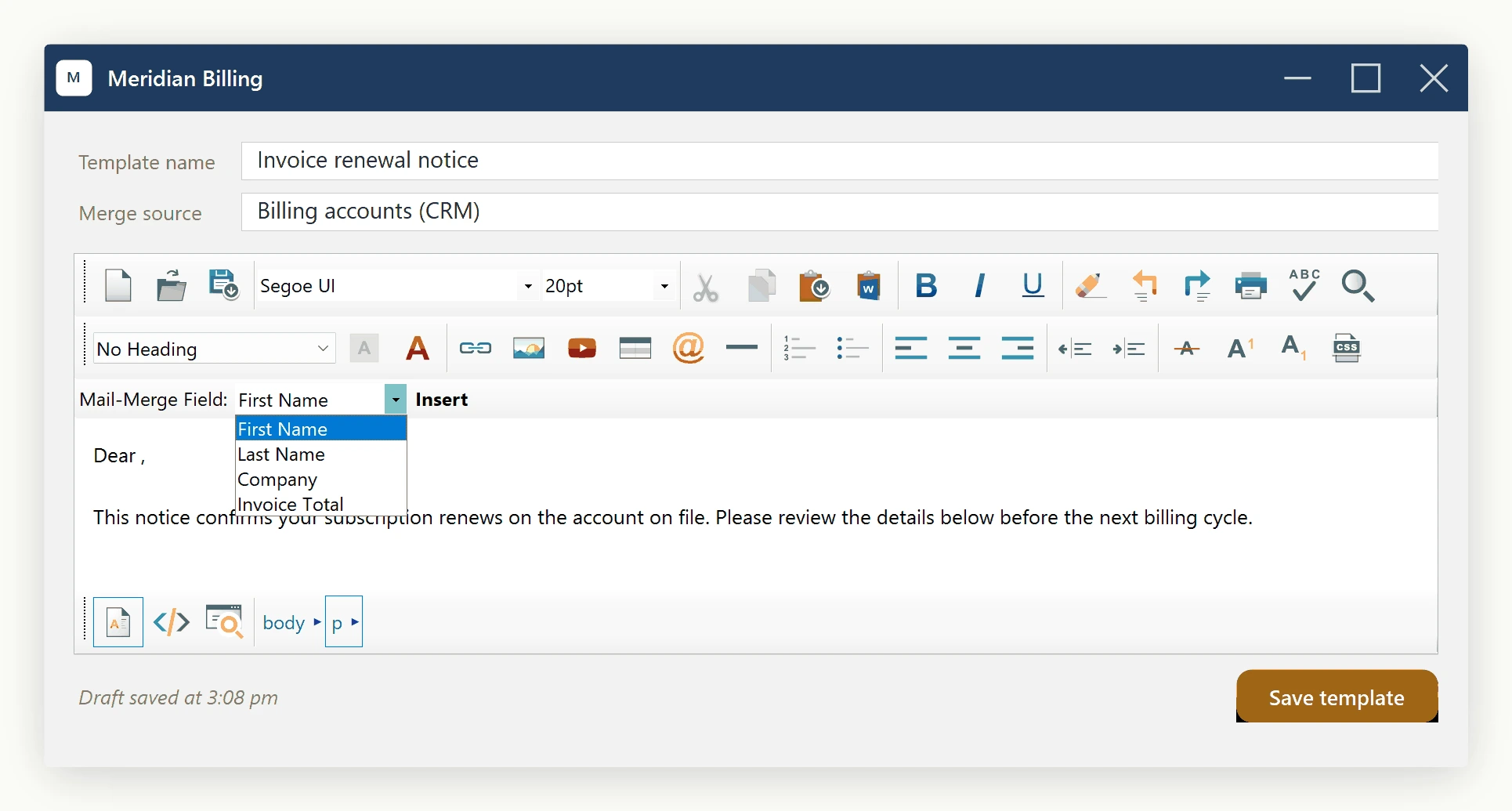
Mail merge in the WinForms HTML Editor is driven by a small, host-app-owned list of PlaceholderField objects. Each field describes a single merge token (for example, First Name with the underlying token {{FirstName}}). The editor exposes the list, an insertion API, and a notification event through the IMailMergeService available on editor.Content.MailMerge. There is also an opt-in toolbar (ShowPlaceholderToolbar) for trial users who want to see the feature working without wiring their own picker.
The host application is the source of truth for which fields are available. The control never inspects your data model; it simply emits the token you provide at the caret position and raises an event so you can log or audit each insertion.
Providing the fields

Assign the list of placeholders to PlaceholderFields on the mail-merge service. Each PlaceholderField is constructed with a displayName (the human-readable label shown in pickers) and a token (the raw text that gets dropped into the document). Both arguments are required; the constructor throws ArgumentException if either is null or whitespace.
using System.Collections.Generic;
using SpiceLogic.HtmlEditor.Abstractions.Entities.MailMerge;
htmlEditor1.Content.MailMerge.PlaceholderFields = new List<PlaceholderField>
{
    new PlaceholderField("First Name",    "{{FirstName}}"),
    new PlaceholderField("Last Name",     "{{LastName}}"),
    new PlaceholderField("Company",       "{{Company}}"),
    new PlaceholderField("Invoice Total", "{{InvoiceTotal}}")
};
Imports System.Collections.Generic
Imports SpiceLogic.HtmlEditor.Abstractions.Entities.MailMerge
htmlEditor1.Content.MailMerge.PlaceholderFields = New List(Of PlaceholderField) From {
New PlaceholderField("First Name", "{{FirstName}}"),
New PlaceholderField("Last Name", "{{LastName}}"),
New PlaceholderField("Company", "{{Company}}"),
New PlaceholderField("Invoice Total", "{{InvoiceTotal}}")
}Two read-only properties expose what you stored: DisplayName and Token. The class is sealed and immutable, so once a PlaceholderField is constructed its contents cannot change - replace the entry in the list instead. The list itself can be mutated or reassigned at any time; the built-in toolbar picks up changes on its next rebuild (call RebindFields() on the toolbar if you want an immediate refresh).
Inserting programmatically

If you prefer your own field picker (a context menu, a sidebar list, a slash-command palette), call InsertPlaceholder directly. The editor wraps the token in a styled, non-editable inline span at the current caret position so end-users cannot accidentally split or partially delete the token text. InsertPlaceholder only acts while the editor is in EditorModes.WysiwygDesign; called while the user is in the HTML-source or read-only preview mode, it is a silent no-op - no exception, no inserted span, and PlaceholderInserted does not fire. Guard your picker's command (or switch the editor back to design mode first) so a click while viewing raw HTML doesn't silently do nothing:
private void InsertFirstName_Click(object sender, EventArgs e)
{
    PlaceholderField firstName = htmlEditor1.Content.MailMerge
        .PlaceholderFields.First(f => f.DisplayName == "First Name");
    htmlEditor1.Content.MailMerge.InsertPlaceholder(firstName);
}
Private Sub InsertFirstName_Click(sender As Object, e As EventArgs)
Dim firstName As PlaceholderField = htmlEditor1.Content.MailMerge.PlaceholderFields.First(Function(f) f.DisplayName = "First Name")
htmlEditor1.Content.MailMerge.InsertPlaceholder(firstName)
End SubReacting to insertion

Each successful insertion raises PlaceholderInserted. The PlaceholderInsertedEventArgs carries two read-only properties: Field (the PlaceholderField that was inserted) and InsertedHtml (the exact HTML fragment the editor emitted into the document). Use this to drive analytics, log merge-field usage, update a "fields currently used in this draft" sidebar, or surface a confirmation toast:
htmlEditor1.Content.MailMerge.PlaceholderInserted += (sender, args) =>
{
    Debug.WriteLine($"Inserted {args.Field.DisplayName} -> {args.Field.Token}");
    Debug.WriteLine($"HTML emitted: {args.InsertedHtml}");
};
AddHandler htmlEditor1.Content.MailMerge.PlaceholderInserted,
Sub(sender, args)
Debug.WriteLine($"Inserted {args.Field.DisplayName} -> {args.Field.Token}")
Debug.WriteLine($"HTML emitted: {args.InsertedHtml}")
End SubCaveats
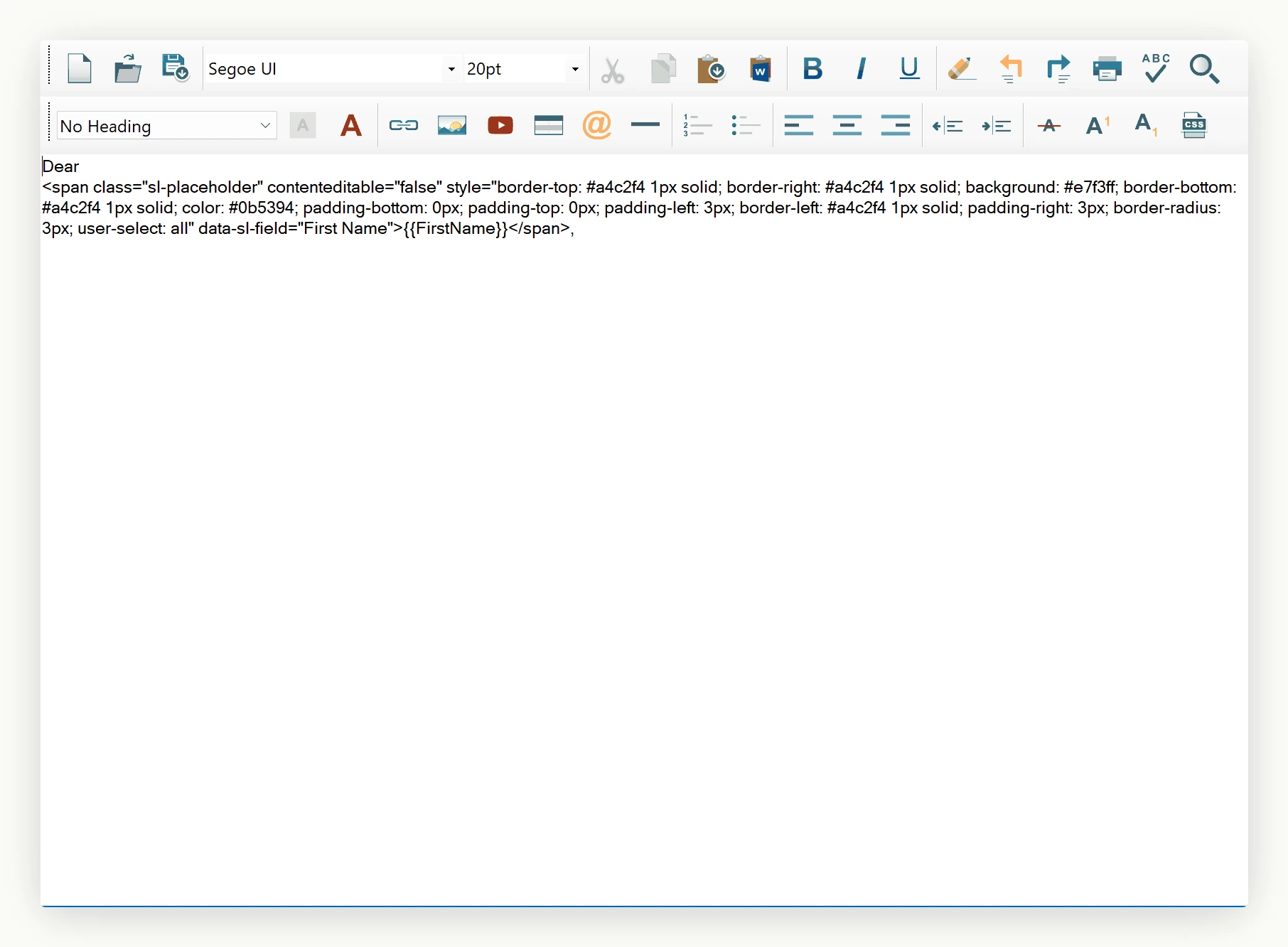
WYSIWYG mode only. InsertPlaceholder is silently ignored when the editor is in HTML source mode. The editor must be in WysiwygDesign mode for an insertion to occur. Switch the mode programmatically (or restrict your picker UI to the design view) before calling the method if your host UI might be in source view.
Validation. PlaceholderField requires non-empty DisplayName and Token values - the constructor throws ArgumentException on null or whitespace input, so feed it sanitised data from your model.
Token resolution is your responsibility. The editor only inserts the token verbatim. Replacing {{FirstName}} with the actual customer name happens at send time in your own merge pipeline.
Ask your AI to do this
Let your assistant do this for you. With the SpiceLogic MCP server connected, paste this into Claude Code, Cursor, or VS Code Copilot in agent mode.
Using the SpiceLogic WinForms HTML Editor already referenced in my project, wire up a mail merge picker through the IMailMergeService on editor.Content.MailMerge: populate PlaceholderFields with entries like a "Customer Name" field whose token is {{CustomerName}}, and call InsertPlaceholder from my own toolbar button instead of the built-in placeholder toolbar. Subscribe to the PlaceholderInserted event so I can log which field was dropped into the document and the exact HTML it inserted. Look up the real IMailMergeService, PlaceholderField, and PlaceholderInserted members with the SpiceLogic MCP tools before writing any code.