


 NuGet
NuGet
Add a custom button to the built-in toolbar
What changed: adding a button is a code task now
Older legacy versions of the control let you click a toolbar on the Visual Studio design surface and drop a new ToolStripButton straight onto it. That is no longer how it works. In the current control the three toolbars -- Toolbar1, Toolbar2 and ToolbarFooter -- are populated by an internal factory when the editor loads, so any button placed on the design surface is not preserved. The supported, reliable way to add your own button is runtime code. If you have read an older version of this page that walked through the designer plus-icon menu, disregard it -- the steps below replace it.
The toolbars are real System.Windows.Forms.ToolStrip objects exposed as public properties, so you add standard ToolStripButton, ToolStripDropDownButton, ToolStripComboBox or ToolStripSeparator children with no special API.
Add a button in code (the supported way)
Create a ToolStripButton, give it an image and tooltip, attach a Click handler, and add it to Toolbar1.Items (or Toolbar2 / ToolbarFooter). Do this after the editor exists -- right after InitializeComponent() or in the form's Load event. Content.InsertHtml inserts at the caret, manages undo, and raises HtmlChanged; its second argument keepSelected controls whether the inserted HTML stays selected afterwards.
var btn = new ToolStripButton("Insert Template")
{
    ToolTipText = "Insert offer letter template"
};
btn.Click += (s, e) => htmlEditor1.Content.InsertHtml("<h2>Offer of Employment</h2>", keepSelected: false);
htmlEditor1.Toolbar1.Items.Add(btn);
Dim btn = New ToolStripButton("Insert Template") With {
.ToolTipText = "Insert offer letter template"
}
AddHandler btn.Click, Sub(s, e) htmlEditor1.Content.InsertHtml("<h2>Offer of Employment</h2>", keepSelected:=False)
htmlEditor1.Toolbar1.Items.Add(btn)
What you can do from the click handler
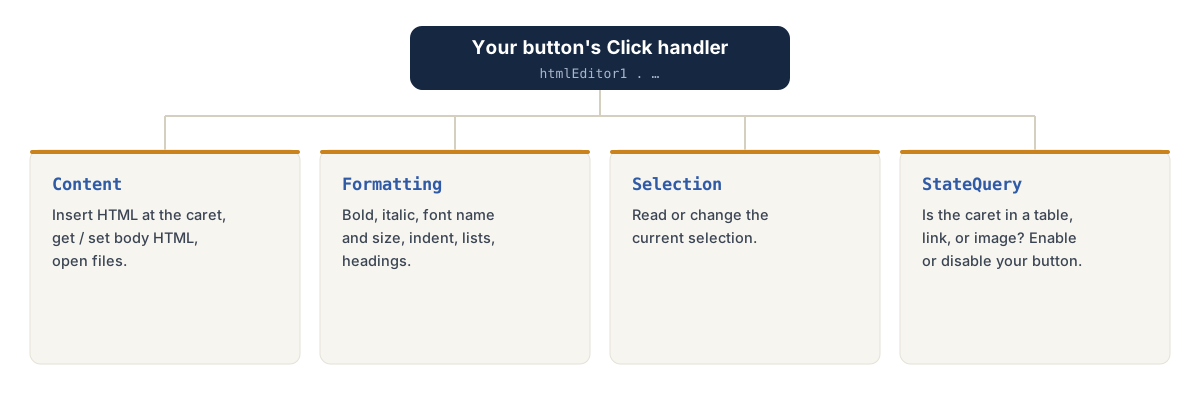
From your handler you have the editor's whole public surface, and you do not manage undo or dirty-tracking yourself:
htmlEditor1.Content-- insert HTML at the caret, get/set the body HTML, open files, read the current document.htmlEditor1.Formatting-- bold, italic, font name/size, indent, lists, headings.htmlEditor1.Selection-- read or change the current selection.htmlEditor1.StateQuery-- ask whether the caret is inside a table, hyperlink, image, etc. (use it to enable/disable your button).
Design-time note
Configuring the editor at design time -- the Smart Tag, the Properties window, and why these differ between .NET Framework and modern .NET -- is covered in its own page so it stays in one place. See Design-time configuration: Smart Tag and the Properties window in the Start Up section. The short version: the Smart Tag does not add toolbar buttons; button creation is always the code shown above.
Quick answers
| Question | Answer |
|---|---|
| Can I add a button by clicking the toolbar on the design surface? | No. Add it in code (sections above). Toolbars are factory-built at load time. |
| Where should the code go? | After InitializeComponent(), or in the form's Load event. |
| Will design-surface toolbar edits persist at runtime? | No. The factory rebuilds the toolbars, so those edits are discarded. |
| What about the Smart Tag / design-time settings? | See Design-time configuration: Smart Tag and the Properties window under Start Up. |
Ask your AI to do this
Let your assistant do this for you. With the SpiceLogic MCP server connected, paste this into Claude Code, Cursor, or VS Code Copilot in agent mode.
Using the SpiceLogic WinForms HTML Editor already referenced in my project, add a custom toolbar button to the built-in toolbar: label it "Insert signature", give it my own 16x16 icon, place it at the end of the toolbar, and make it insert a fixed HTML signature block at the current caret position. Look up the real API with the SpiceLogic MCP tools before writing any code, and keep the rest of the default toolbar untouched.