


 NuGet
NuGet
Various Styling Options
The WinForms HTML Editor lets users format whatever text they select through the toolbar, but that only affects the content they touch - a brand-new, empty document still opens with the browser default: Times New Roman, black on white. When your app needs every new document to start out already branded, for example a proposal template or an internal memo pad that should never look like a bare browser page, per-element formatting cannot do that job. Setting styling at the document level instead of per element makes a custom theme the default for every new document. This page covers the two scopes the editor exposes for that: body styling and head styling.
Two scopes, two API groups
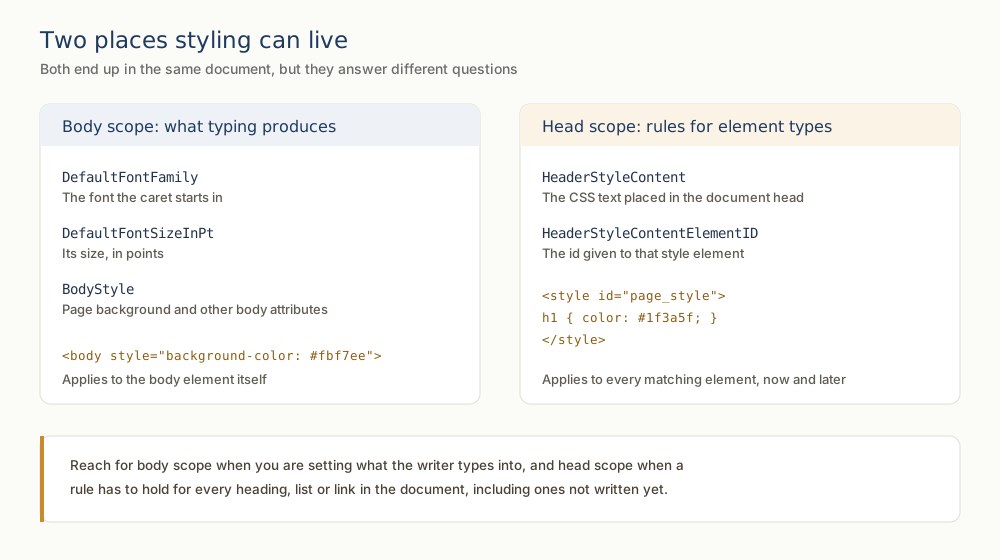
The editor splits document-level styling into two scopes: body styling and head styling. The body group writes inline style directly onto the <body> element - default font, background, and text color. The head group injects either a linked stylesheet (<link rel="stylesheet">) or an inline style block (<style>) into the document's <head>, so headings and other selectors pick up custom styling automatically.
The body group
Five typed properties on WinFormHtmlEditor push values directly into body.style.*:
DefaultFontFamily- writesbody.style.fontFamily. Set this once at startup so every new paragraph the user types inherits it.DefaultFontSizeInPt- writesbody.style.fontSize. Always include the unit: pass"11pt"for 11 point. A bare"11"is treated as pixels and converted to its pt equivalent for display.DefaultForeColor- writesbody.style.coloras aSystem.Drawing.Color.BodyColor- writesdocument.bgColorfor the body background. Also aSystem.Drawing.Color.BackgroundImagePath- writesbody.style.backgroundImageas a singleurl(...). Pass an empty string to clear it.
Two more body-level properties take raw strings rather than typed values, for cases the typed properties cannot express:
BodyStyle- the literal value of the body'sstyleattribute. Use it to set several CSS rules together:htmlEditor1.BodyStyle = "background:#FBF7F2; font-family:Inter; font-size:11pt; color:#0A2540;";BodyCSSClassName- the value of the body'sclassattribute. Pair it with a CSS rule in the head (e.g.,body.kb-article { ... }) to scope CSS by class.
The head group
Two properties manage what lives in the document head:
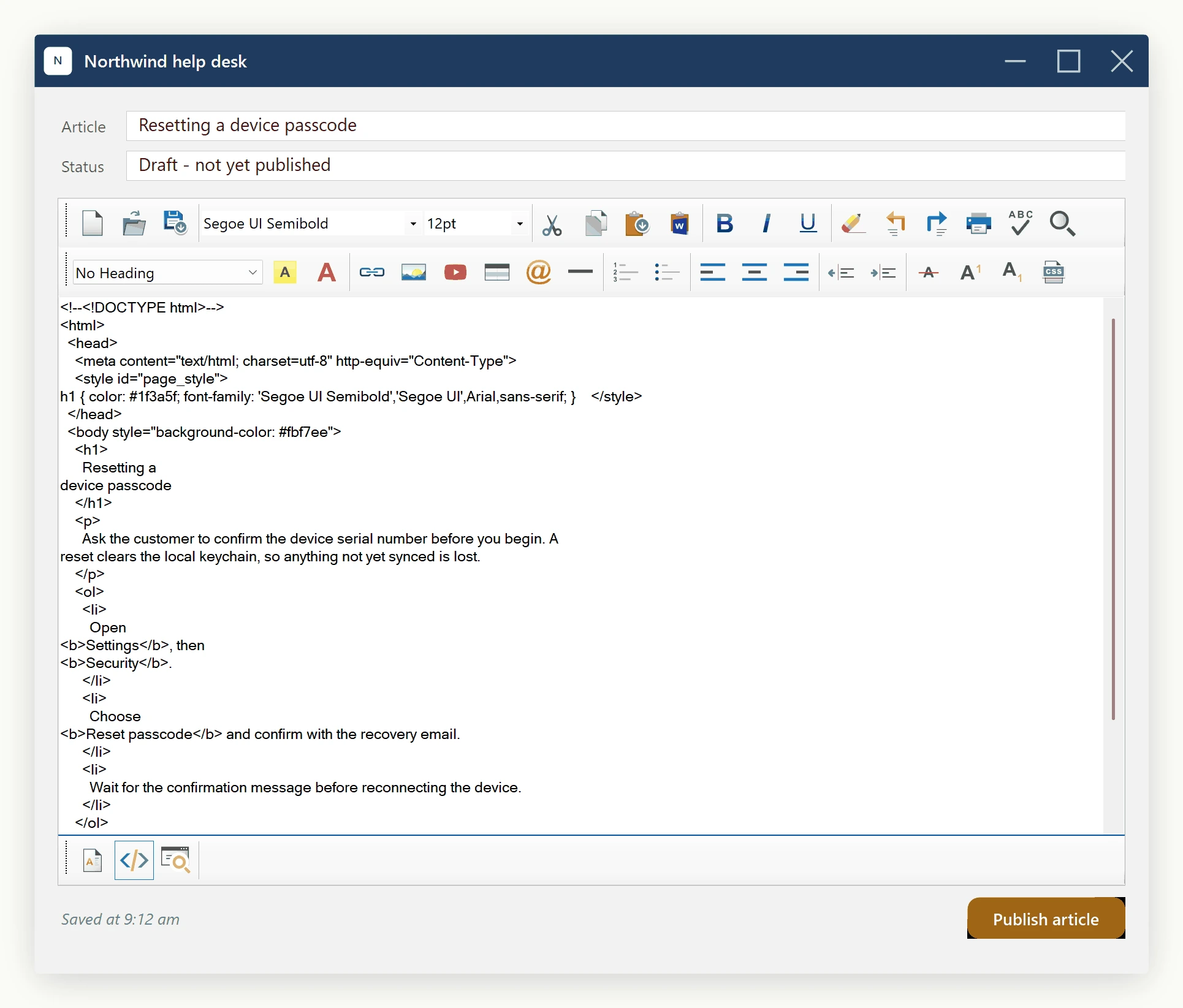
DocumentCSSFilePath- thehrefof a<link rel="stylesheet">element. Assign a path or URL and the editor inserts the link the first time, then updates it on every later assignment. Assign an empty string to remove the link. Use this when your application already maintains a stylesheet elsewhere and you want the editor to render against the same rules.HeaderStyleContent+HeaderStyleContentElementID- inject (or replace) an inline<style id="...">...</style>block in the head. Set the ID first; settingHeaderStyleContentwithout an ID is a no-op. Renaming the ID at runtime removes the old<style>block first, so the document never accumulates stale style elements.
Walk-through: setting a custom document theme
This example sets Inter as the typing font, 11pt as the typing size, a cream body background, and a navy default text color. Headings use the brand navy and callout boxes use a soft yellow background - those go into an inline style block in the head, since the rules are specific to this document and should travel with the saved HTML rather than depend on an external file.
private void Form1_Load(object sender, EventArgs e)
{
    // Body defaults -- the typing experience.
    htmlEditor1.DefaultFontFamily = "Inter";
    htmlEditor1.DefaultFontSizeInPt = "11pt";
    htmlEditor1.DefaultForeColor = ColorTranslator.FromHtml("#0A2540");
    htmlEditor1.BodyColor = ColorTranslator.FromHtml("#FBF7F2");

    // Head-scoped rules -- the document's own little stylesheet.
    htmlEditor1.HeaderStyleContentElementID = "kb-article-style";
    htmlEditor1.HeaderStyleContent = "h1, h2, h3 { color: #0A2540; }" +
        ".callout {" +
        "  background:#FFF3CD;" +
        "  padding:12px;" +
        "  border-left:4px solid #FFC107;" +
        "  margin:8px 0;" +
        "}";
}
Private Sub Form1_Load(sender As Object, e As EventArgs)
' Body defaults -- the typing experience.
htmlEditor1.DefaultFontFamily = "Inter"
htmlEditor1.DefaultFontSizeInPt = "11pt"
htmlEditor1.DefaultForeColor = ColorTranslator.FromHtml("#0A2540")
htmlEditor1.BodyColor = ColorTranslator.FromHtml("#FBF7F2")
' Head-scoped rules -- the document's own little stylesheet.
htmlEditor1.HeaderStyleContentElementID = "kb-article-style"
htmlEditor1.HeaderStyleContent = "h1, h2, h3 { color: #0A2540; }" &
".callout {".ToString() &
" background:#FFF3CD;".ToString() &
" padding:12px;".ToString() &
" border-left:4px solid #FFC107;".ToString() &
" margin:8px 0;".ToString() &
"}"
End SubTo switch from the inline block to a linked stylesheet, set DocumentCSSFilePath:
htmlEditor1.DocumentCSSFilePath = "https://helpdesk.example.com/static/brand.css";The inline rules in HeaderStyleContent can stay - the two head-scoped approaches coexist as independent elements, so the inline block can hold document-specific styling while the linked stylesheet contributes shared brand rules.
Edge cases
Setting BodyStyle after individually setting DefaultFontFamily, DefaultFontSizeInPt, and DefaultForeColor overwrites all three - it replaces the entire body style attribute. Use one approach per startup pass, not both.
The font-size setter accepts a string for a reason: CSS allows "11pt", "15px", "1.1em", "larger". The toolbar combo box and the editor's internal logic all assume pt. If a non-pt unit is set, the toolbar cannot display it in its size combo until the user types text and triggers a re-read; stick to pt unless there is a reason not to.
BackgroundImagePath writes a CSS url(...) expression. The path can be local (C:\images\paper.png) for an authoring tool, or a URL for a web preview. The same caveats apply as for any local image reference - if the saved HTML will be opened on another machine, switch to a hosted URL or embed via EmbedLocalImagesAsBase64() (see Embedding Local Images using Data URIs).
Result
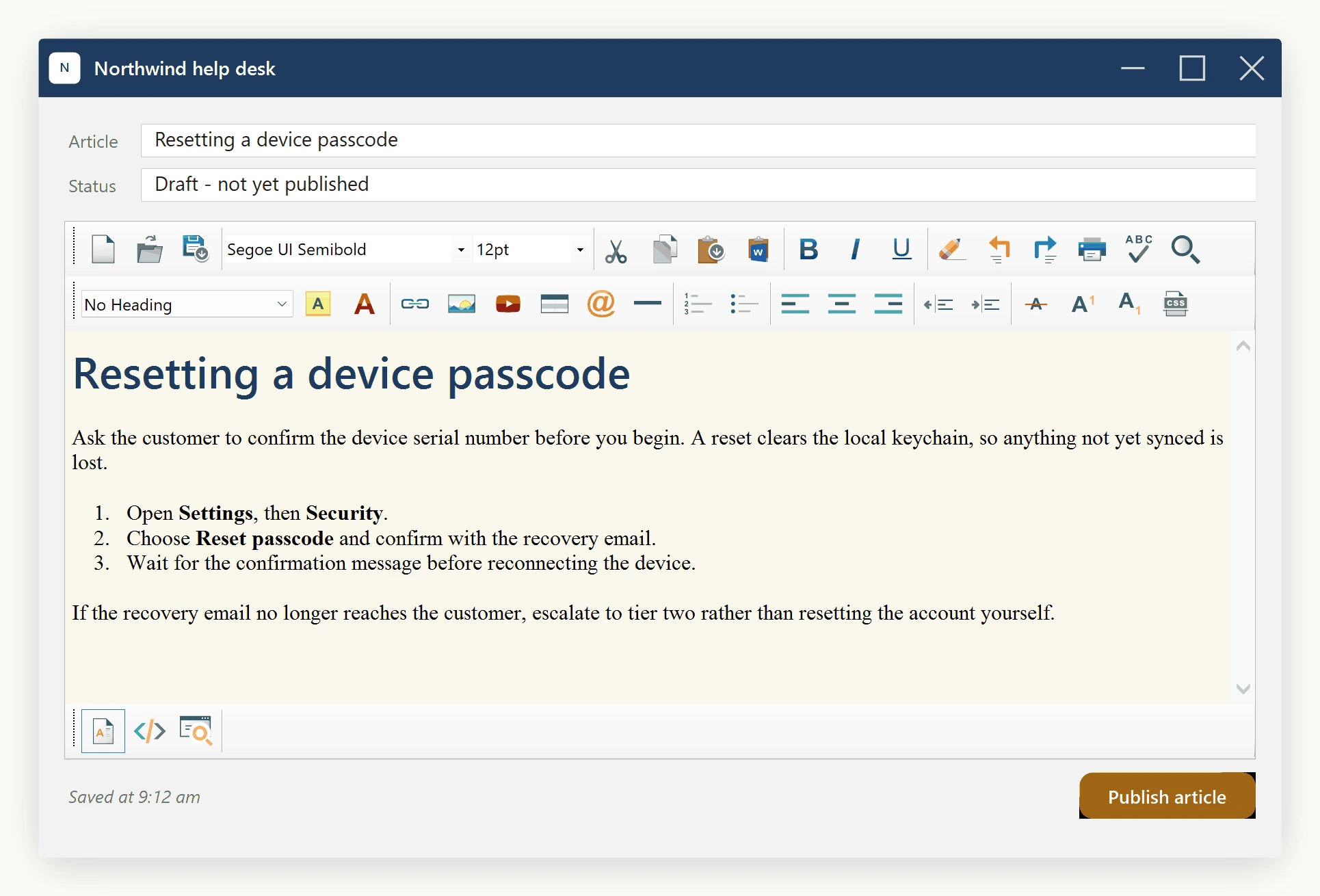
With these defaults in place, the editor opens on the configured background with the typing font and size already active, and a new heading picks up the head-injected color as soon as it is typed - no per-element formatting required.
Ask your AI to do this
Let your assistant do this for you. With the SpiceLogic MCP server connected, paste this into Claude Code, Cursor, or VS Code Copilot in agent mode.
Using the SpiceLogic WinForms HTML Editor already referenced in my project, make every new document open already branded for our proposal template: set DefaultFontFamily to "Inter", DefaultFontSizeInPt to 11pt, DefaultForeColor to navy, and BodyColor to a cream background, then inject a HeaderStyleContent style block so headings render in that same navy automatically. Use HeaderStyleContentElementID to give the injected style block a stable id, so re-running the setup never leaves duplicate style tags in the document head. Check the real property names and types with the SpiceLogic MCP tools before you write the code.