


 NuGet
NuGet
Inline vs Dialog Spell Checking: UX Patterns, Language Switching, and Performance
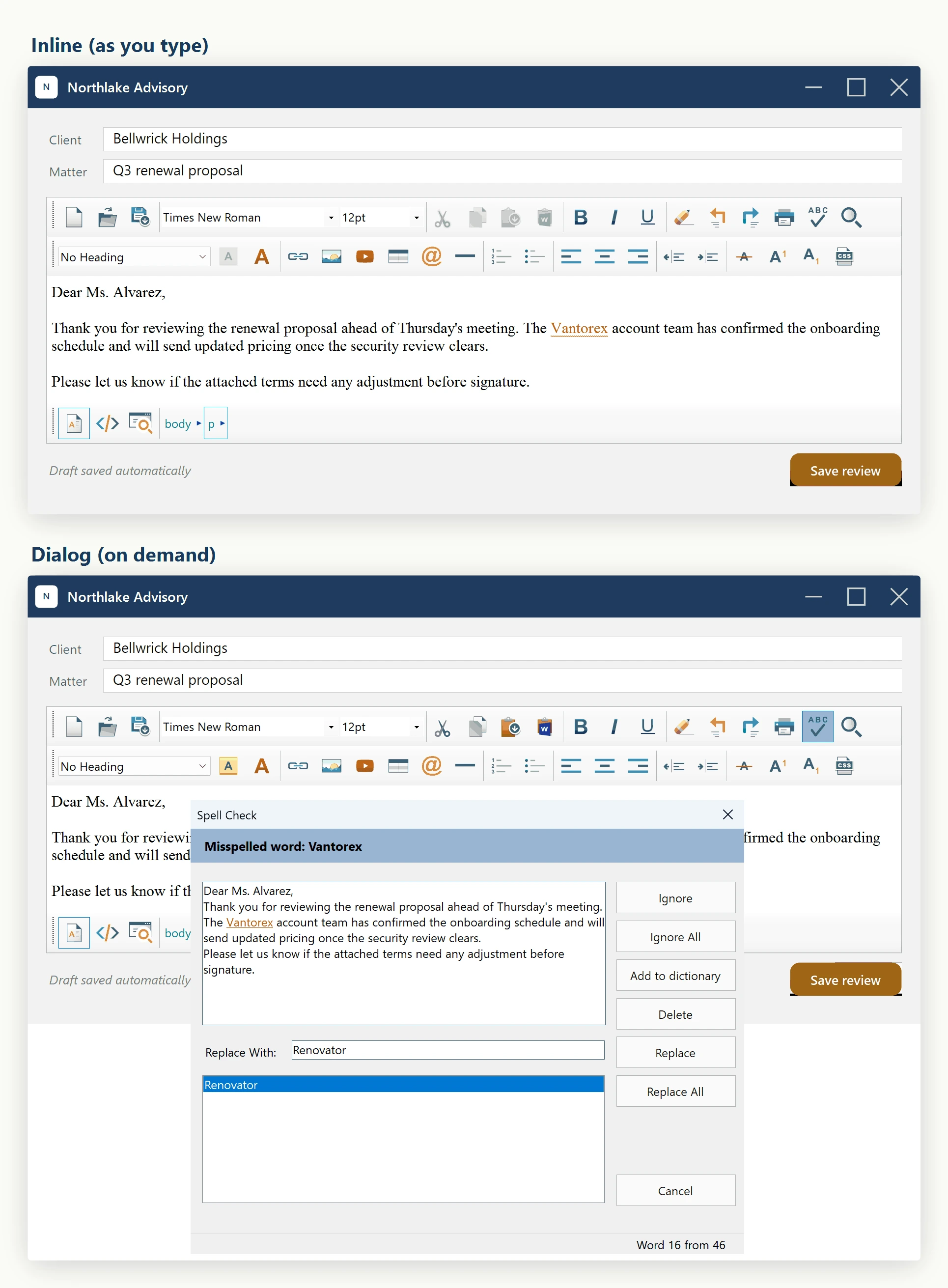
The WinForms HTML Editor ships two spell-checking surfaces against the same underlying engine: an inline mode that underlines misspellings while the user types, and a dialog mode that walks the whole document in a modal review window. Both are driven from the editor itself - editor.ForceInlineSpellCheck() and the spell-check toolbar command - and both respect every setting on editor.SpellCheckOptions; the question is which one fits your users.
Choosing inline vs dialog

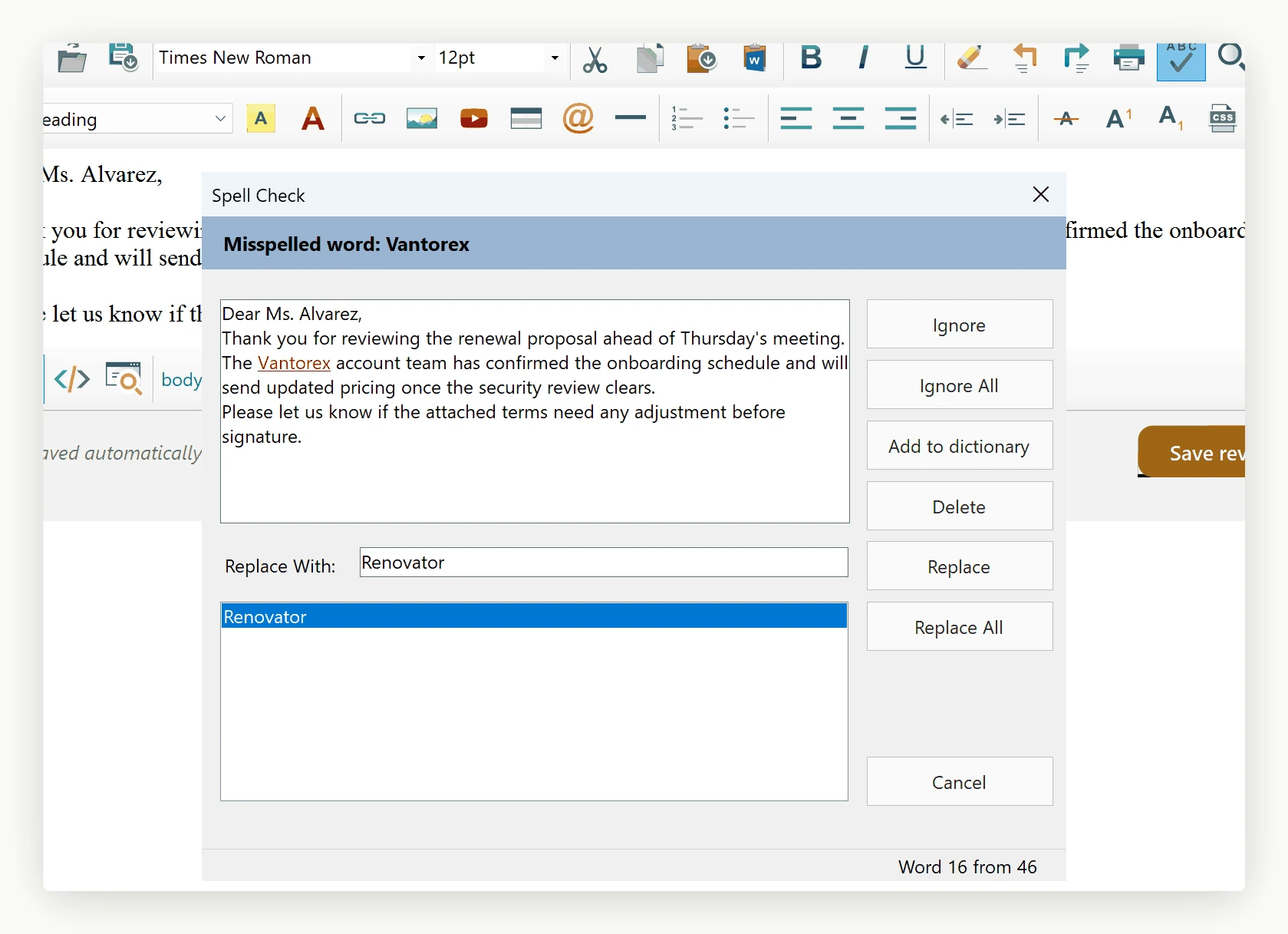
Inline mode is what most modern editors do. The user keeps typing, misspellings appear with a red wavy underline (controlled by SpellCheckOptions.InlineSpellCheckMisspelledWordCss), and right-clicking a flagged word shows suggestions in the context menu. It is the lowest-friction option for prose-heavy content (emails, blog posts, comment boxes) where the user expects feedback as they type. The trade-off is that the editor walks the DOM continuously while typing, which costs CPU on long documents.
Dialog mode is invoked explicitly (toolbar button or your own command) and shows a modal that visits each misspelling in turn with Replace / Replace All / Ignore / Ignore All / Add to Dictionary. Choose dialog mode for legal / academic / formal-document workflows where the user wants a single dedicated pass at the end, and where flagging misspellings while typing would distract from composition.
The two modes are not mutually exclusive - you can leave inline checking on for live feedback and still expose the dialog for a thorough review pass.
Enabling inline spell checking
Inline checking is opt-in. Set the flag at startup and the editor wires the keystroke hooks for you:
// Turn on the live underline pass.
editor.SpellCheckOptions.FireInlineSpellCheckingOnKeyStroke = true;

// (Optional) only run the pass after the user types one of these
// trigger characters. Default fires on most printable keys; narrow
// to space/period/comma to reduce work on long documents.
editor.SpellCheckOptions.InlineSpellCheckerFiringKeyCodes = "32,46,44";

// Pick the dictionary up front. SameAsEditorLanguage means "follow
// editor.Options.EditorLanguage".
editor.SpellCheckOptions.SpellCheckLanguage = SpellCheckLanguage.EnglishUs;
Once enabled, every keystroke that matches InlineSpellCheckerFiringKeyCodes triggers a pass through the inline-spell-check debouncer (see below).
Performance for large documents
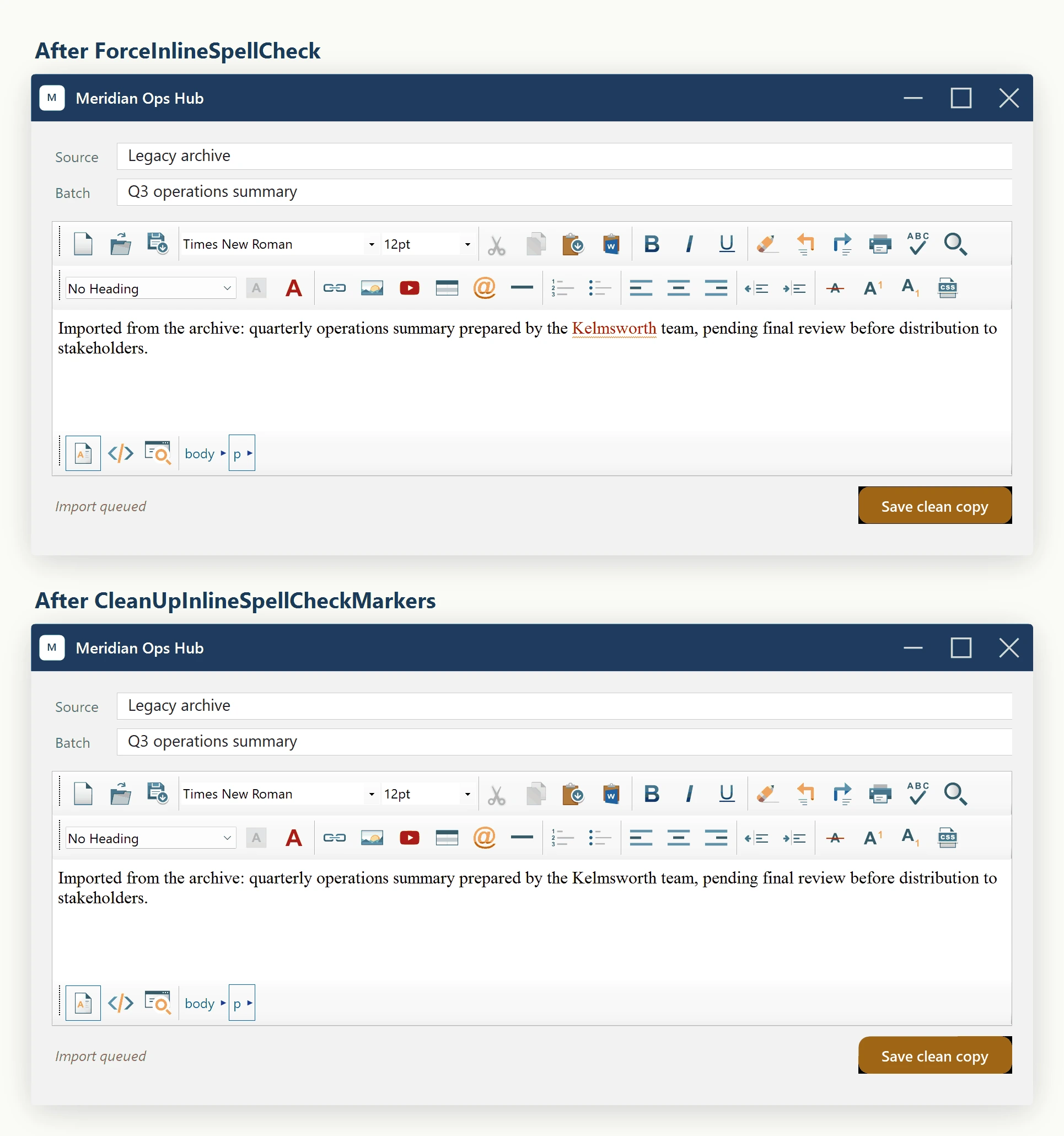
The two performance levers you need to know about are InlineSpellCheckDebounceMilliseconds and the manual ForceInlineSpellCheck / CleanUpInlineSpellCheckMarkers pair.
int InlineSpellCheckDebounceMilliseconds coalesces a burst of keystrokes into one spell-check pass. The default of 300 ms is right for most editors; raise to 500-800 ms for documents larger than a few thousand words, or drop to 0 to revert to the legacy fire-on-every-keystroke behaviour:
// Long documents: wait until the user has paused typing for 600 ms
// before scanning. Use 0 to disable debounce (every keystroke pays).
editor.SpellCheckOptions.InlineSpellCheckDebounceMilliseconds = 600;
For programmatic control, the public API exposes two methods on the editor:
public void ForceInlineSpellCheck() runs a synchronous inline pass right now. Useful after a programmatic Content.SetBodyHtml so the imported text gets flagged before the user types anything.
public void CleanUpInlineSpellCheckMarkers() strips every inline-spell-check span out of the document. Always call this before you save or hand the HTML to another system - otherwise the consumer sees stray <span name="_inline_spell_check_…"> wrappers around words.
// Load HTML and flag it once, immediately.
editor.Content.SetBodyHtml(importedHtml);
editor.ForceInlineSpellCheck();

// Save a clean copy.
editor.CleanUpInlineSpellCheckMarkers();
string clean = editor.Content.GetBodyHtml(false);
File.WriteAllText(path, clean);
Multi-language workflows
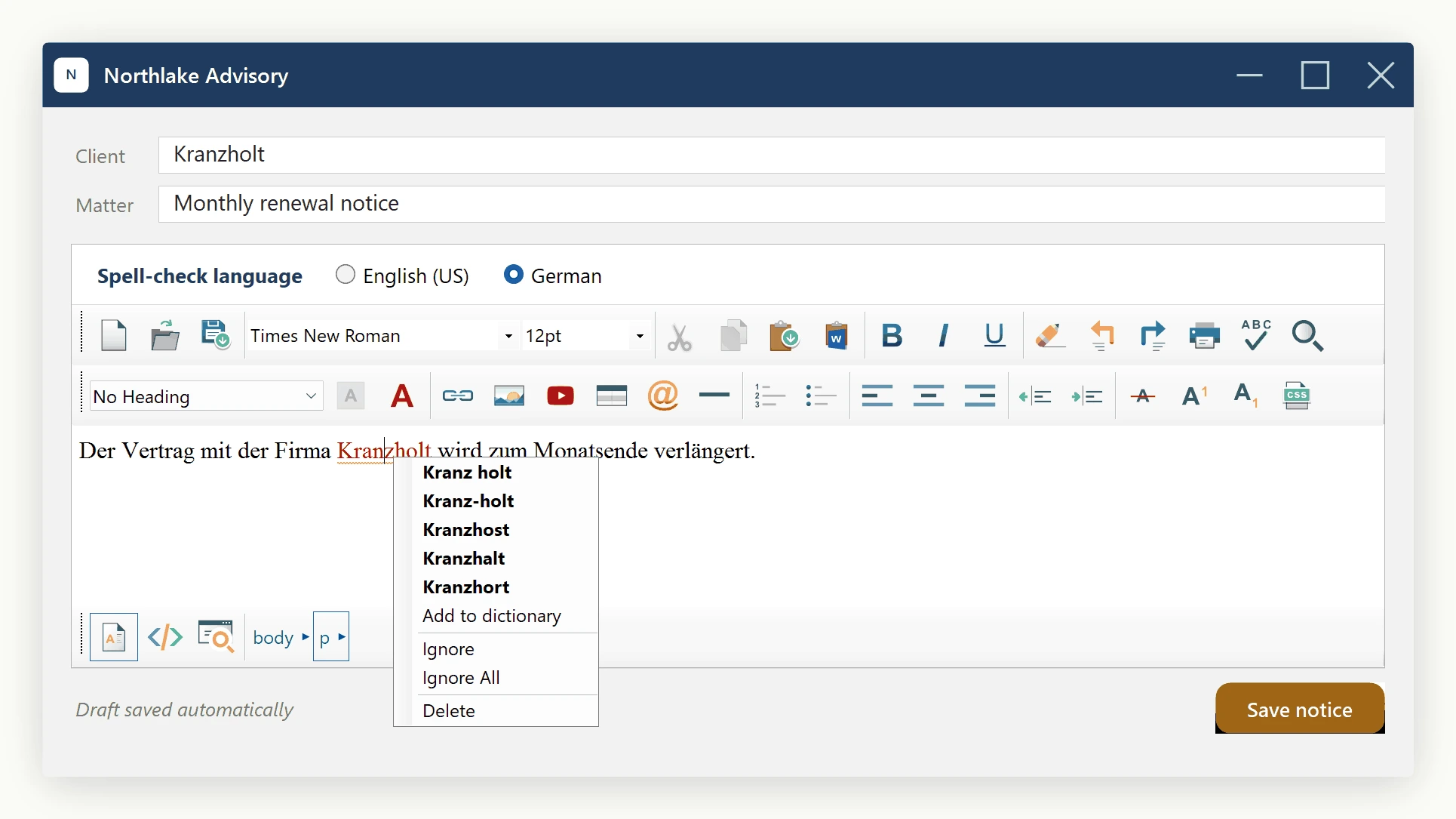
The spell checker can switch dictionaries at runtime - you do not need to reload the editor when the user changes language. Two properties to know:
editor.Language sets the UI language for menus, tooltips, and dialogs.
editor.SpellCheckOptions.SpellCheckLanguage sets the dictionary used by both inline and dialog modes. By default it is SameAsEditorLanguage, meaning it follows the editor UI; set it to a concrete language to decouple the two (a German UI checking English content, for example).
// User picks a language from a host combo box. Persist it however
// you want - here we just switch immediately and clear any markers
// left over from the previous dictionary.
void OnLanguagePicked(SpellCheckLanguage picked)
{
    editor.CleanUpInlineSpellCheckMarkers();
    editor.SpellCheckOptions.SpellCheckLanguage = picked;
    editor.ForceInlineSpellCheck();
}
For applications where each document carries its own language, store the picked SpellCheckLanguage alongside the document and restore it after Content.SetBodyHtml. Mixed-language paragraphs are not supported - the engine is a single dictionary at a time - so pick the dominant language of the document and accept that minority-language words will need to be added to the user dictionary.
False positives from HTML entities and markup
The inline pass walks text nodes only and skips elements whose tagName is non-textual, so most markup never reaches the dictionary. Two pitfalls do show up in practice:
HTML entities. A document with —, , or numeric entities will see the resolved characters in the text, not the entity text - so "mdash" should never get flagged. If you are seeing the literal entity name flagged, the document is malformed (the entity was not escaped with &) and the fix is to clean the source HTML, not to suppress the checker.
Inline-style tokens. CSS class names, IDs, and inline-style values are not visited because they live on attributes, not in text nodes. If a customer reports that a class name is flagged, check whether they accidentally typed it as content (for example pasting a snippet from documentation into the body) rather than into the actual attribute.
URLs and emails. Toggle SpellCheckOptions.IgnoreUrls and IgnoreEmails on (they default to true) so contact details inside paragraphs do not get flagged.
All-caps and number-bearing words. IgnoreAllCapsWords and IgnoreWordsWithNumbers suppress acronyms (NASA) and codes (RFC5322) so the user is not asked to ignore them one by one.
If a domain-specific word survives all of these filters - for example a product name - teach the user to use the Add to Dictionary entry on the context menu. The user dictionary is documented separately on the "User Dictionary" page in this category.
Ask your AI to do this
Let your assistant do this for you. With the SpiceLogic MCP server connected, paste this into Claude Code, Cursor, or VS Code Copilot in agent mode.
Using the SpiceLogic WinForms HTML Editor already referenced in my project, turn on inline spell checking so misspellings get a red wavy underline while the user types, and also wire up the dialog spell checker for a separate formal review pass, both driven through the editor's own spell-check methods and editor.SpellCheckOptions. Set InlineSpellCheckDebounceMilliseconds to something like 600 for a large document so checking waits for a pause in typing, call ForceInlineSpellCheck() right after a programmatic Content.SetBodyHtml so imported text gets flagged immediately, and call CleanUpInlineSpellCheckMarkers() before saving so no stray inline-spell-check markers leak into the saved document. Add a language switcher that sets SpellCheckOptions.SpellCheckLanguage independently of editor.Language, so a German user interface can still spell check English content. Look up the real SpellCheckOptions and WinFormHtmlEditor members with the SpiceLogic MCP tools before writing any code.