


 NuGet
NuGet
Customizing Keyboard Shortcuts
The WinForms HTML Editor exposes a dedicated keyboard-shortcut customization API through its KeyBindings property. This property returns a KeyBindingsManager instance and is the supported way to rebind, override, or disable any of the editor's default keyboard shortcuts at runtime. It is the keystroke-side counterpart of ToolbarItemOverrider: where the toolbar overrider intercepts a click on a built-in toolbar item, KeyBindings intercepts a press of the keyboard combination assigned to a built-in editor action.
You typically configure shortcuts once, right after the editor is constructed - for example in your form's Load handler or designer initialisation code. Bindings are held per editor instance, so each WinFormHtmlEditor on the form may carry its own keyboard map if needed.
Default shortcut map
The editor ships with a minimal set of pre-bound shortcuts. Browser- and MSHTML-native combinations such as Ctrl+B, Ctrl+I, Ctrl+U, Ctrl+Z, Ctrl+Y, Ctrl+A, Ctrl+C, Ctrl+X, and Ctrl+P are intentionally not pre-bound - letting MSHTML execute them natively is faster and avoids round-tripping through the dispatcher. The two pre-bound entries are:
| Shortcut | Action | Why pre-bound |
Ctrl+F | EditorActionId.Search | Replaces the browser host's built-in Find dialog with the editor's own search panel. |
Ctrl+V | EditorActionId.Paste | Replaces the browser host's native paste, which would otherwise duplicate style spans. |
Every other action listed in the next section is bind-able but unbound by default. If you want, say, Ctrl+B to run your own logic instead of the browser's native Bold command, just Bind the combo to EditorActionId.Bold and supply an Override handler.
The EditorActionId enum
The full set of actions you can attach a shortcut to is enumerated by EditorActionId (namespace SpiceLogic.HtmlEditor.Abstractions.KeyBindings). The values mirror the actions already exposed by ToolbarItemOverrider, so a keystroke routes through the same default pipeline as a toolbar click. Grouped logically:
| File | |
New | Clear the document. |
Open | Open an external HTML file. |
Save | Save the current document. |
Print | Invoke the print dialog. |
| Clipboard & History | |
Cut | Cut the current selection. |
Copy | Copy the current selection. |
Paste | Paste from the clipboard (custom paste pipeline). |
PasteFromMsWord | Paste with Word-specific cleanup. |
Undo | Undo last change. |
Redo | Redo last undone change. |
| Formatting | |
Bold | Toggle bold. |
Italic | Toggle italic. |
Underline | Toggle underline. |
Subscript | Toggle subscript. |
Superscript | Toggle superscript. |
StrikeThrough | Toggle strike-through. |
FormatReset | Clear inline formatting. |
BodyStyle | Open the body style dialog. |
TextHighlightColor | Open highlight color picker. |
FontForeColor | Open font color picker. |
| Search | |
Search | Open the editor's search panel. |
SpellCheck | Run the spell checker. |
| Lists, Alignment & Indent | |
OrderedList | Toggle ordered list. |
UnOrderedList | Toggle bulleted list. |
AlignLeft | Left-align the current block. |
AlignCenter | Center-align the current block. |
AlignRight | Right-align the current block. |
Outdent | Decrease block indent. |
Indent | Increase block indent. |
| Insert | |
HorizontalRule | Insert a horizontal rule. |
TableInsert | Open the insert-table dialog. |
ImageInsert | Open the insert-image dialog. |
HyperLinkInsert | Open the insert-hyperlink dialog. |
SymbolInsert | Open the insert-symbol dialog. |
YouTubeVideoInsert | Open the YouTube video insert dialog. |
That is 35 actions in total - enough to cover the entire built-in toolbar surface.
Constructing a KeyBindingCombo
A keyboard combination is represented as an immutable value object: KeyBindingCombo. It is deliberately framework-neutral - it stores Win32 virtual-key codes rather than System.Windows.Forms.Keys - so the same type works for both the WinForms and WPF editor controls. The constructor signature is:
public KeyBindingCombo(bool ctrl, bool alt, bool shift, int virtualKeyCode)WinForms callers can cast a Keys value directly to int - the numeric values are already Win32 VK codes. Example: bind Ctrl+Shift+S.
var ctrlShiftS = new KeyBindingCombo(
    ctrl: true,
    alt: false,
    shift: true,
    virtualKeyCode: (int)Keys.S);
Dim ctrlShiftS = New KeyBindingCombo(ctrl:=True, alt:=False, shift:=True, virtualKeyCode:=CInt(Keys.S))KeyBindingCombo implements value equality (Equals / GetHashCode), so two combos with the same modifier flags and key code are interchangeable for binding lookups.
Common operations
Bind
Bind maps a key combination to an editor action. If the same combo is already bound to a different action, the call throws InvalidOperationException - the manager refuses to silently overwrite a conflicting binding. Call Unbind on the conflicting action first.
htmlEditor1.KeyBindings.Bind(
    EditorActionId.Save,
new KeyBindingCombo(ctrl: true, alt: false, shift: false, virtualKeyCode: (int)Keys.S));htmlEditor1.KeyBindings.Bind(EditorActionId.Save, New KeyBindingCombo(ctrl:=True, alt:=False, shift:=False, virtualKeyCode:=CInt(Keys.S)))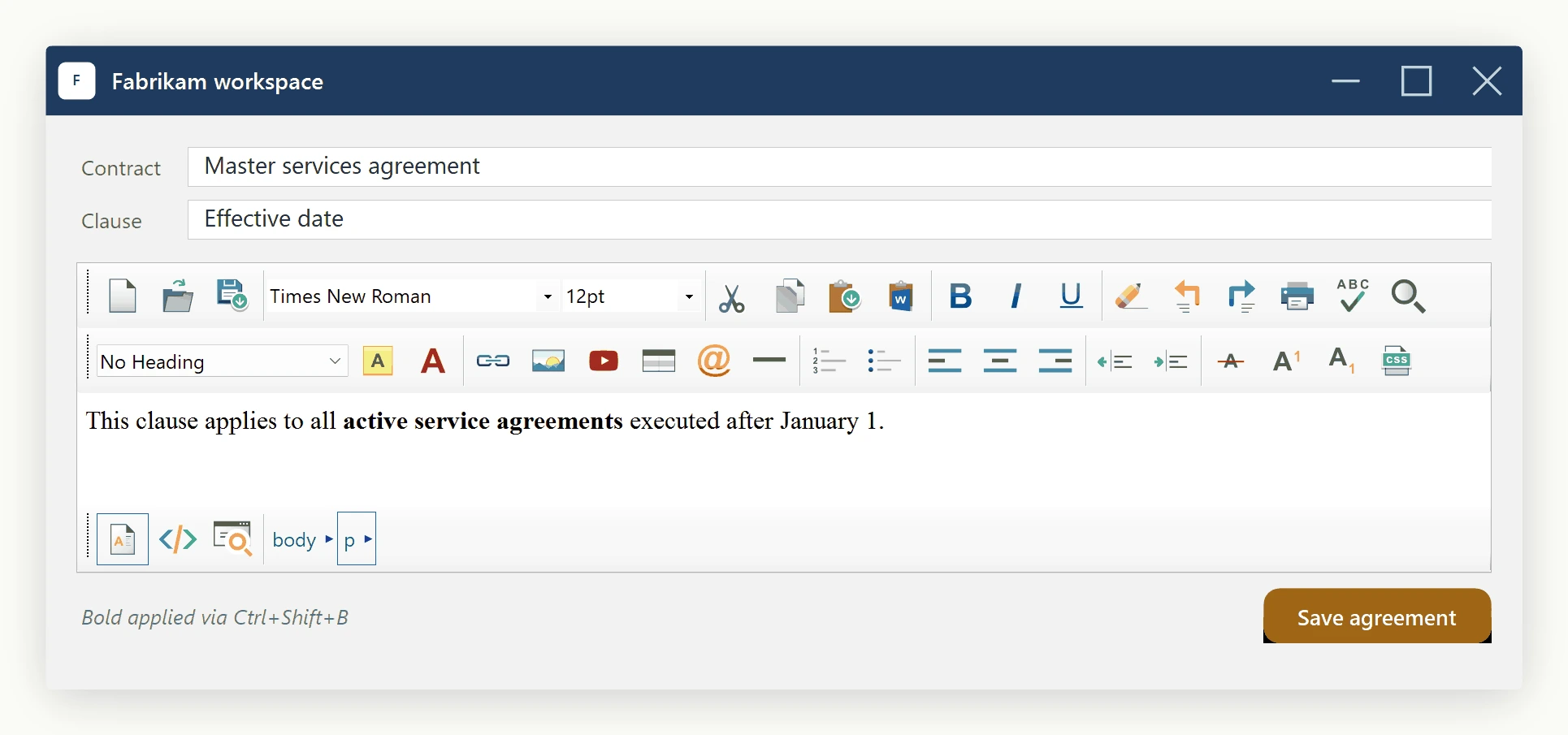
Unbind
Unbind removes the combo currently assigned to the action. It is a no-op if the action has no binding, so it is safe to call defensively.
htmlEditor1.KeyBindings.Unbind(EditorActionId.Paste);GetBinding and AllBindings
Two read-only helpers let you inspect the current map. GetBinding returns the combo for one action (or null if unbound); AllBindings returns the entire snapshot as IReadOnlyDictionary<EditorActionId, KeyBindingCombo>.
KeyBindingCombo current = htmlEditor1.KeyBindings.GetBinding(EditorActionId.Search);
foreach (var kv in htmlEditor1.KeyBindings.AllBindings)
    Console.WriteLine($"{kv.Key} -> {kv.Value}");
Dim current As KeyBindingCombo = htmlEditor1.KeyBindings.GetBinding(EditorActionId.Search)
For Each kv In htmlEditor1.KeyBindings.AllBindings
Console.WriteLine($"{kv.Key} -> {kv.Value}")
NextOverride
Override replaces the editor's default behaviour for an action with your own delegate. The action must already be bound to a combo for the override to fire - pressing the keystroke invokes your handler instead of the built-in routing. Passing null clears a previously registered override.
htmlEditor1.KeyBindings.Override(

    EditorActionId.Save,

    () => MyApplication.SaveCurrentDocument());
Disable, Enable, IsDisabled
Disable suppresses both the default routing and any registered override for the action. The keystroke is still consumed (so the browser's native shortcut, if any, also does not fire). Enable reverses a Disable call; IsDisabled reports the current state.
htmlEditor1.KeyBindings.Disable(EditorActionId.Print);
if (htmlEditor1.KeyBindings.IsDisabled(EditorActionId.Print))
    Debug.WriteLine("Print shortcut is currently suppressed.");
htmlEditor1.KeyBindings.Enable(EditorActionId.Print);htmlEditor1.KeyBindings.Disable(EditorActionId.Print)
If htmlEditor1.KeyBindings.IsDisabled(EditorActionId.Print) Then Debug.WriteLine("Print shortcut is currently suppressed.")
htmlEditor1.KeyBindings.Enable(EditorActionId.Print)TryDispatch (advanced)
For most callers TryDispatch is internal plumbing - the editor's own PreviewKeyDown handler calls it. It is part of the public surface, however, in case you host the manager outside the editor's key pipeline (for example, when forwarding keystrokes from a parent form). Resolution order: unbound combo returns false; a disabled action returns true and does nothing; an overridden action invokes the override and returns true; otherwise the supplied default-routing delegate runs and the method returns true.
Worked example
Suppose your host application already owns the Ctrl+O shortcut for a global "Open Project" command, and you also want to register a custom Ctrl+Shift+I shortcut that inserts a company-standard image. Two calls suffice:
private void Form1_Load(object sender, EventArgs e)
{
    // 1) Make sure the editor never reacts to Ctrl+O --
    //    the host app already handles it globally.
    htmlEditor1.KeyBindings.Bind(
        EditorActionId.Open,
        new KeyBindingCombo(ctrl: true, alt: false, shift: false, virtualKeyCode: (int)Keys.O));
    htmlEditor1.KeyBindings.Disable(EditorActionId.Open);
    // 2) Bind Ctrl+Shift+I to ImageInsert and override its
    //    default behaviour with a company-standard image.
    htmlEditor1.KeyBindings.Bind(
        EditorActionId.ImageInsert,
        new KeyBindingCombo(ctrl: true, alt: false, shift: true, virtualKeyCode: (int)Keys.I));
    htmlEditor1.KeyBindings.Override(
        EditorActionId.ImageInsert,
        () => htmlEditor1.Content.InsertHtml("<img src='logo.png' />", keepSelected: false));
}
Private Sub Form1_Load(sender As Object, e As EventArgs)
' 1) Make sure the editor never reacts to Ctrl+O --
' the host app already handles it globally.
htmlEditor1.KeyBindings.Bind(EditorActionId.Open, New KeyBindingCombo(ctrl:=True, alt:=False, shift:=False, virtualKeyCode:=CInt(Keys.O)))
htmlEditor1.KeyBindings.Disable(EditorActionId.Open)
' 2) Bind Ctrl+Shift+I to ImageInsert and override its
' default behaviour with a company-standard image.
htmlEditor1.KeyBindings.Bind(EditorActionId.ImageInsert, New KeyBindingCombo(ctrl:=True, alt:=False, shift:=True, virtualKeyCode:=CInt(Keys.I)))
htmlEditor1.KeyBindings.Override(EditorActionId.ImageInsert, Sub() htmlEditor1.Content.InsertHtml("<img src='logo.png' />", False))
End Sub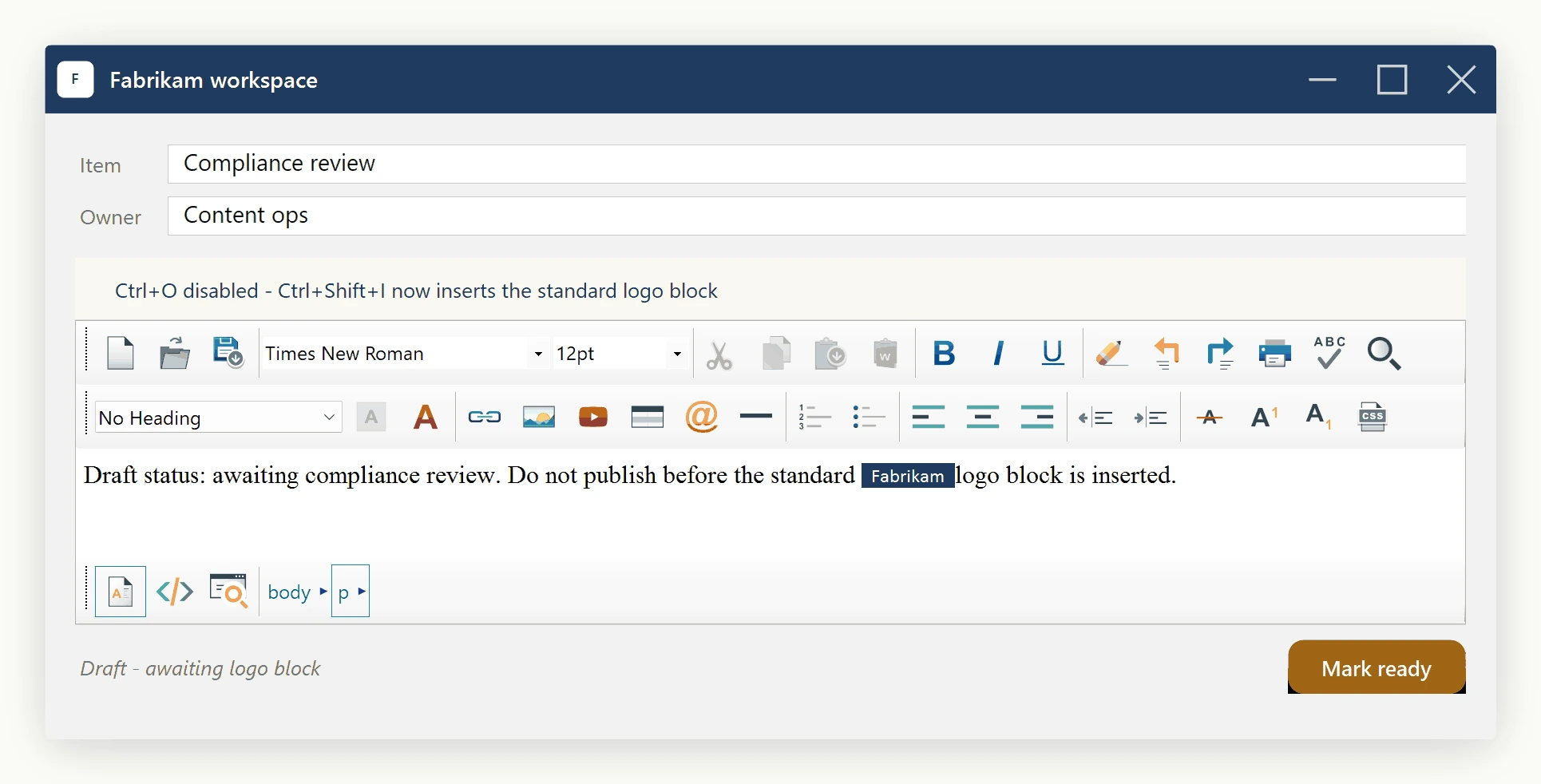
Re-running the form shows: Ctrl+O now does nothing inside the editor (the host app's global handler is free to act), and Ctrl+Shift+I inserts the company logo without opening the standard image-picker dialog.
See also
For low-level message interception - inspecting key presses before they reach the WebBrowser control, regardless of any binding - see the Pre Process Message Event page. That is the right hook when you need to intervene at the Windows-message level (for example, swallowing arrow keys in a specific UI mode) rather than rebinding a known action.
Ask your AI to do this
Let your assistant do this for you. With the SpiceLogic MCP server connected, paste this into Claude Code, Cursor, or VS Code Copilot in agent mode.
Using the SpiceLogic WinForms HTML Editor already referenced in my project, use the KeyBindings property to bind Ctrl+Shift+S to my own save routine instead of leaving it unbound, constructing the combination with KeyBindingCombo and attaching an Override handler so my code runs instead of any built-in action. Also rebind Ctrl+B to call my own formatting logic rather than letting MSHTML handle Bold natively, and leave every other default shortcut untouched. Look up the real KeyBindingsManager, KeyBindingCombo, and EditorActionId members with the SpiceLogic MCP tools before writing any code.