


 NuGet
NuGet
Design-time guidelines for zero-border tables
Zero-border tables (border="0") are common in layouts such as invoice templates, where the printed or exported output must show no grid lines at all. At design time, though, that same invisible border hides cell boundaries from you as the author inside the WinForms HTML Editor: it becomes hard to place the caret, select a column, or see how many cells a row actually contains. This page shows how to give those cells a visible design-time guideline while you edit, without it ever leaking into the saved output.
Options.ZeroBorderTableGuidelineCss
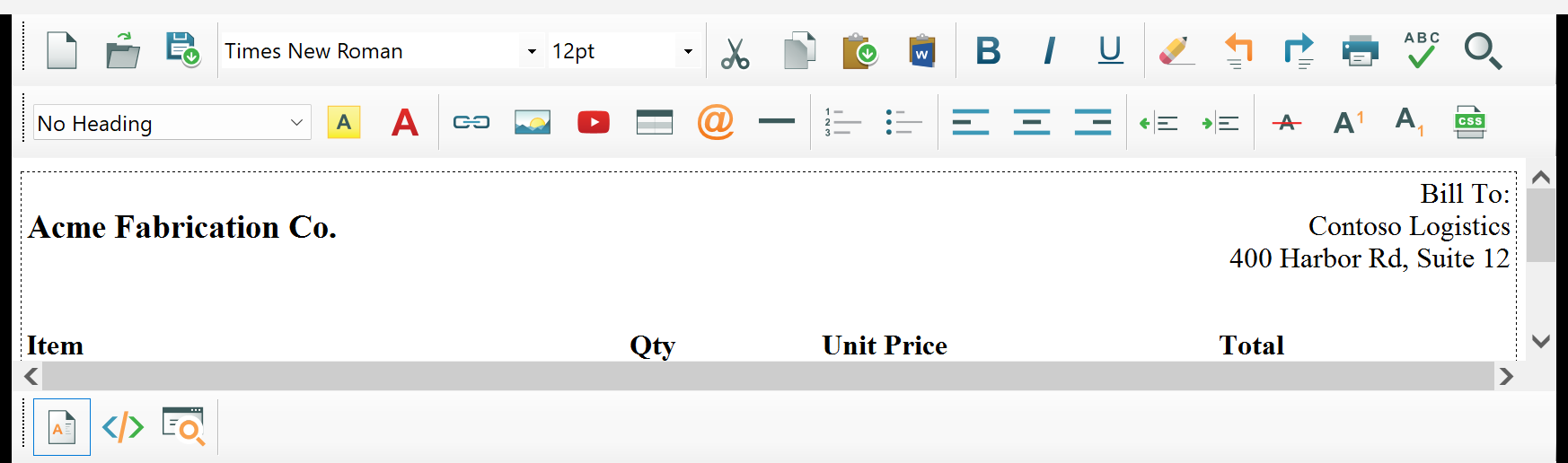
Set Options.ZeroBorderTableGuidelineCss to give cells inside zero-border tables a visible outline at design time. The property holds a CSS rule body that the editor applies only while editing, scoped to those cells; it never appears in DocumentHtml or BodyHtml, so it never reaches the saved output.
// Set once during designer initialization.
htmlEditor1.Options.ZeroBorderTableGuidelineCss = "border: 1px dashed #c0c0c0;";
Once set, every cell in every zero-border table shows a dashed outline, so the table structure stays visible while editing.
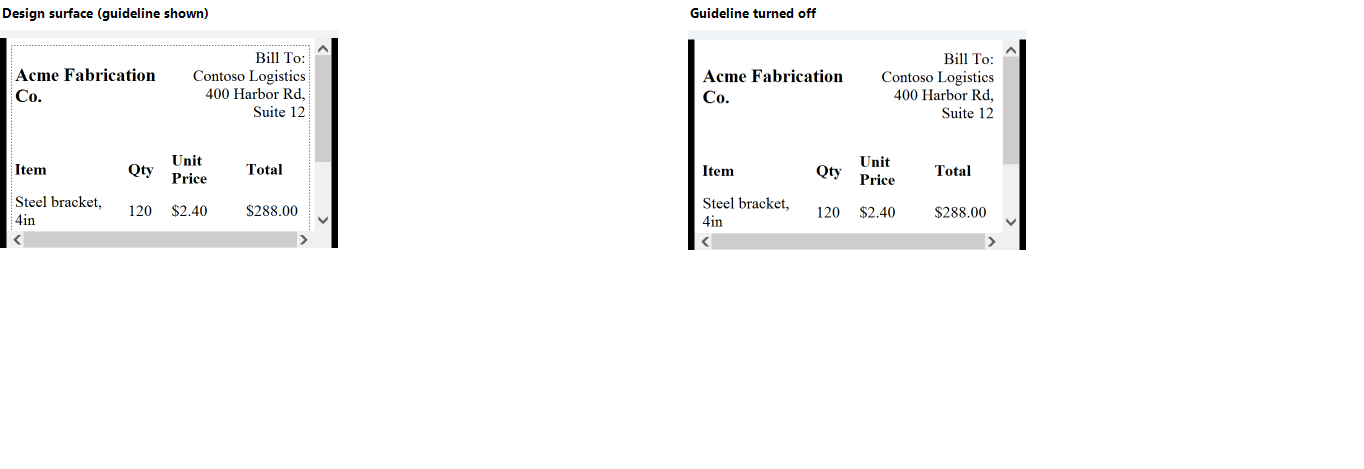
Customizing the guideline look
The CSS value can be any rule body valid on a <td>. A few examples:
// Default-ish: dashed gray.
"border: 1px dashed #c0c0c0;"

// Wireframe look: dotted blue, no fill.
"border: 1px dotted #6699cc;"

// Solid gray with a soft background tint so
// designers can spot empty spacer cells at a glance.
"border: 1px solid #e8e8e8; background-color: #fafafa;"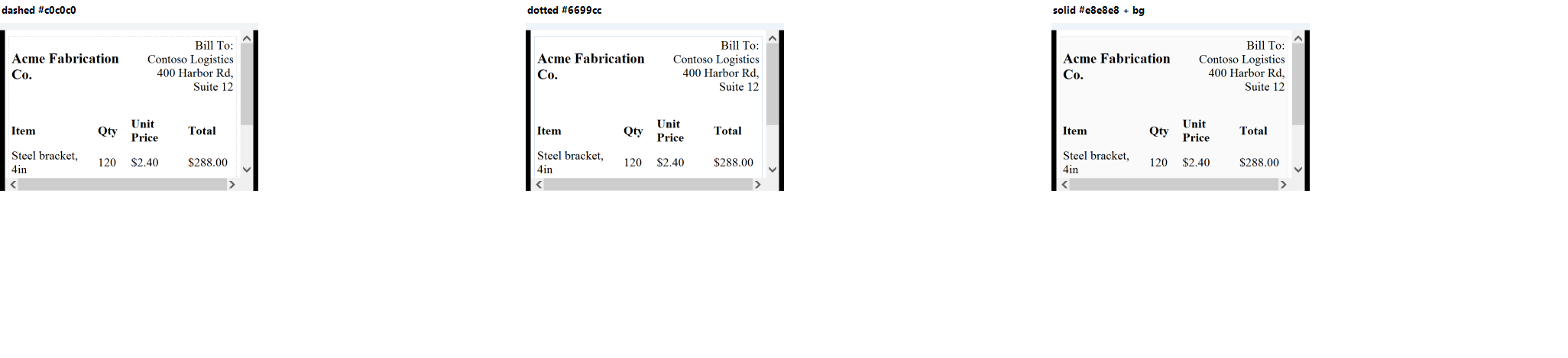
Why the saved HTML stays clean
The guideline CSS lives in a design-time-only style block that the editor manages as part of its own chrome; it is not part of the document tree. DocumentHtml output contains only the original table with border="0" and nothing else: no inline borders, no leftover style rules from the design surface.
Turning it off for preview mode
For a read-only preview instance that should render the document exactly as the end user will see it, with no design-time decoration, clear the property:
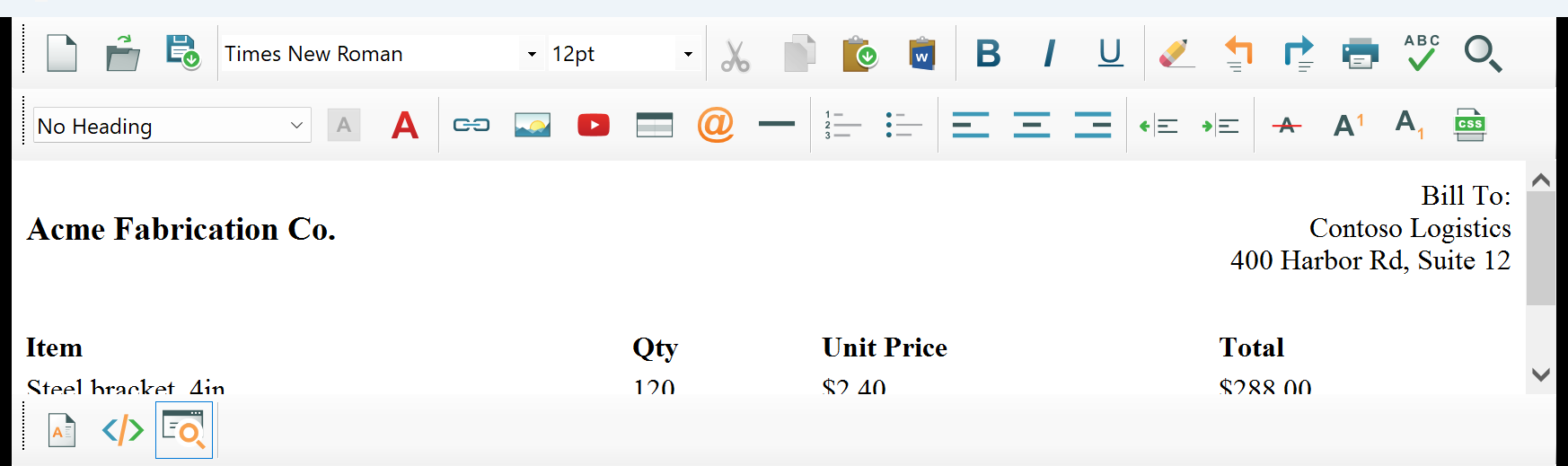
previewEditor.Options.ZeroBorderTableGuidelineCss = string.Empty;previewEditor.Options.ZeroBorderTableGuidelineCss = String.EmptyAn empty string turns the guidelines off entirely, so the preview renders with no visible borders, matching the final output.
Ask your AI to do this
Let your assistant do this for you. With the SpiceLogic MCP server connected, paste this into Claude Code, Cursor, or VS Code Copilot in agent mode.
Using the SpiceLogic WinForms HTML Editor already referenced in my project, make the zero-border tables in our invoice template easier to edit at design time by setting Options.ZeroBorderTableGuidelineCss to a light dashed outline, so I can see and select cell boundaries while typing without that outline ever appearing in the saved DocumentHtml or BodyHtml output. Confirm the property lives under Options and pull its exact type and default with the SpiceLogic MCP tools before writing the code.