Block Non-encrypted Website Payment

So, you decided to use Encrypted Payment Button and block Non-encrypted Website Payments. Thats a good decision indeed. So, lets start doing it.

  1. Log in to your PayPal profile, Click the Profile Menu. When taken to the Profile page, locate the link 'Website Payment Preferences'.
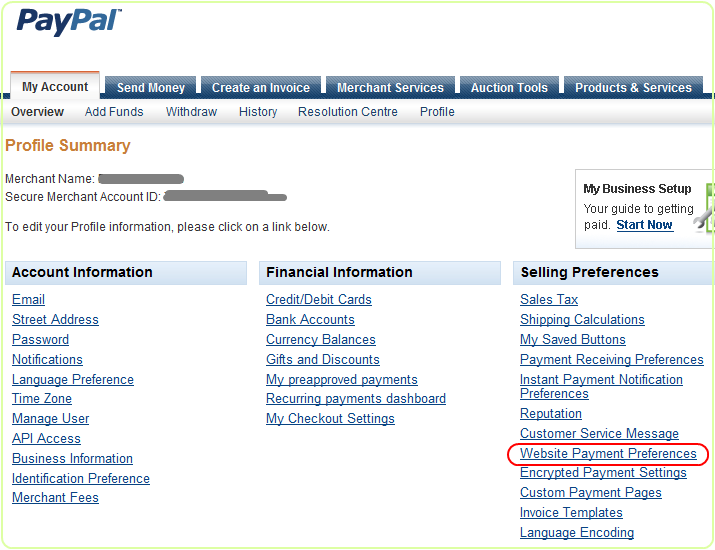
PayPal account Profile menu expanded to the Selling Preferences area with the 'Website Payment Preferences' link highlighted, used to toggle on Encrypted Website Payments.
Click the link 'Website Payment Preferences'.
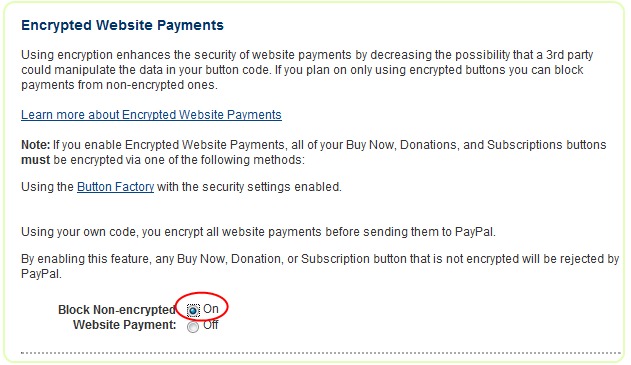
  • In the Website Payment Preferences page, scroll down to the section 'Encrypted Website Payments' as shown here:
  • PayPal Website Payment Preferences page scrolled to the Encrypted Website Payments section with the 'On' radio button selected so PayPal rejects any non-encrypted button submissions.
    Check the radio button for option 'On' as shown above.
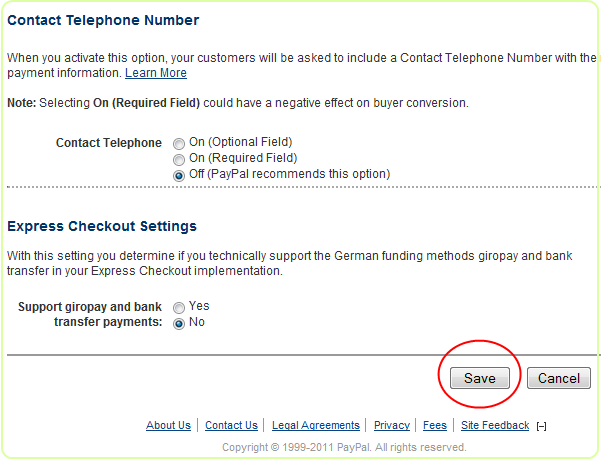
  • Scroll down to the end of the page and click the Save button.
  • Bottom of the PayPal Website Payment Preferences page with the Save button highlighted to commit the Encrypted Website Payments 'On' selection.
  • You are done. From now on, only Encrypted Payment Buttons will be accepted by your PayPal account.
  • Last updated on Jan 7, 2026