


Changing input
After you build a Markov Chain model with the wizard, nothing is locked in. You can change the model whenever you like. Maybe you want to rename a state, add a state you forgot, drop one you no longer need, or fix a transition probability that came out wrong. All of that is easy to do after the fact.
This page walks you through each change, one at a time.
Changing Transition Probabilities
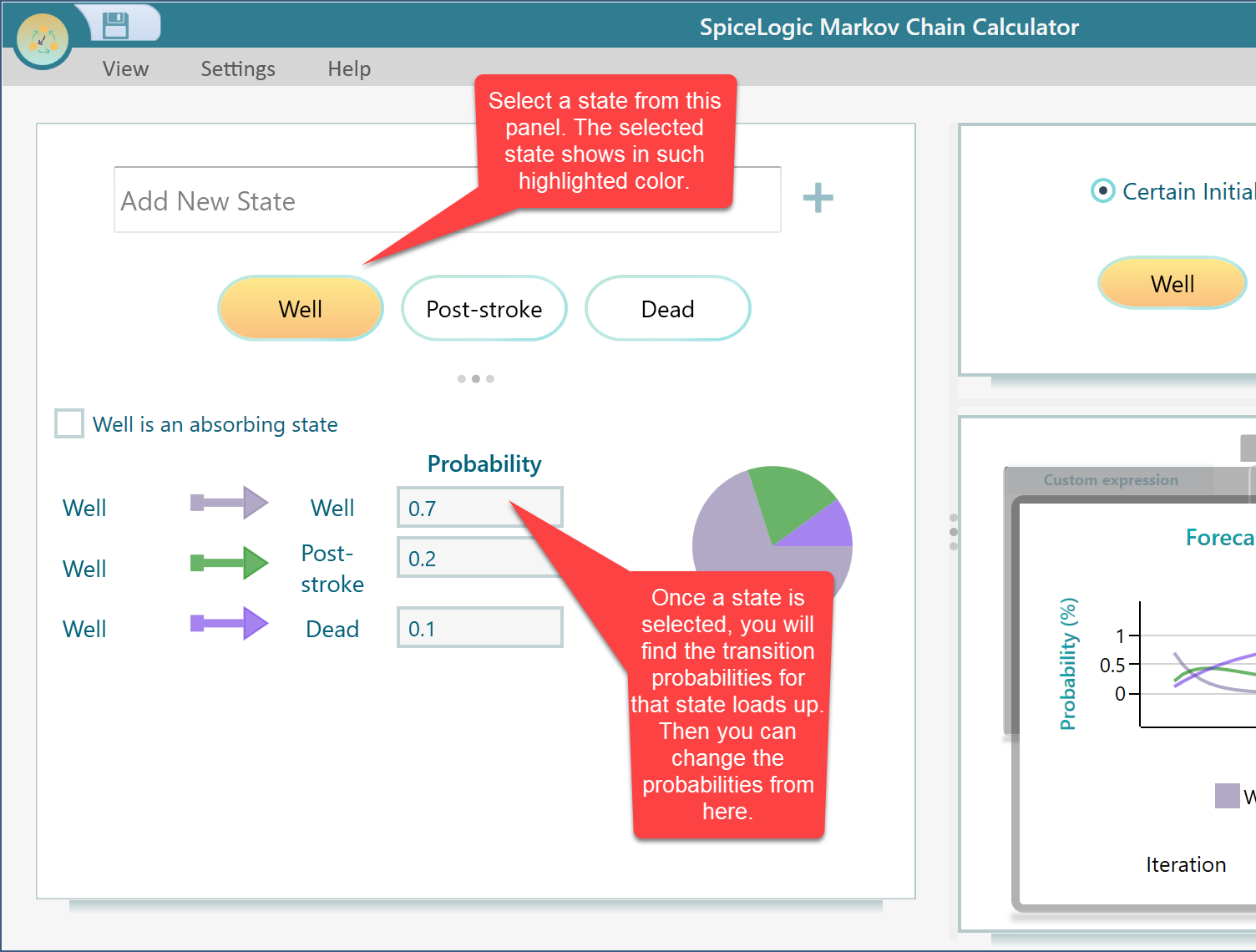
The transition probabilities are the numbers that say how likely the system is to move from one state to another on the next step. To change them, click the state you want to edit. When you select a state, the calculator loads that state's transition probabilities, so you can edit them right there.
Here is an example. Say you select a state called Well. Its probabilities show up as 0.7, 0.2, and 0.1. That means from the Well state there is a 70 percent chance of going to the first target state, a 20 percent chance for the second, and a 10 percent chance for the third. To change a value, just type over the number you want and enter the new one.
One thing to keep in mind: the probabilities leaving a single state should add up to 1, which is 100 percent. The system has to go somewhere on the next step, so the chances have to cover every option. If you raise one number, lower another to keep the total at 1. For example, if you change the 0.7 to 0.8, you need to take 0.1 away from one of the others so the three still sum to 1.
Add, Edit, or Delete a State
States are the situations your model can be in. In a simple health model they might be Well, Sick, and Recovered. In a weather model they might be Sunny, Cloudy, and Rainy. You are not stuck with the states you started with. You can add new ones, rename them, or take them out at any time.
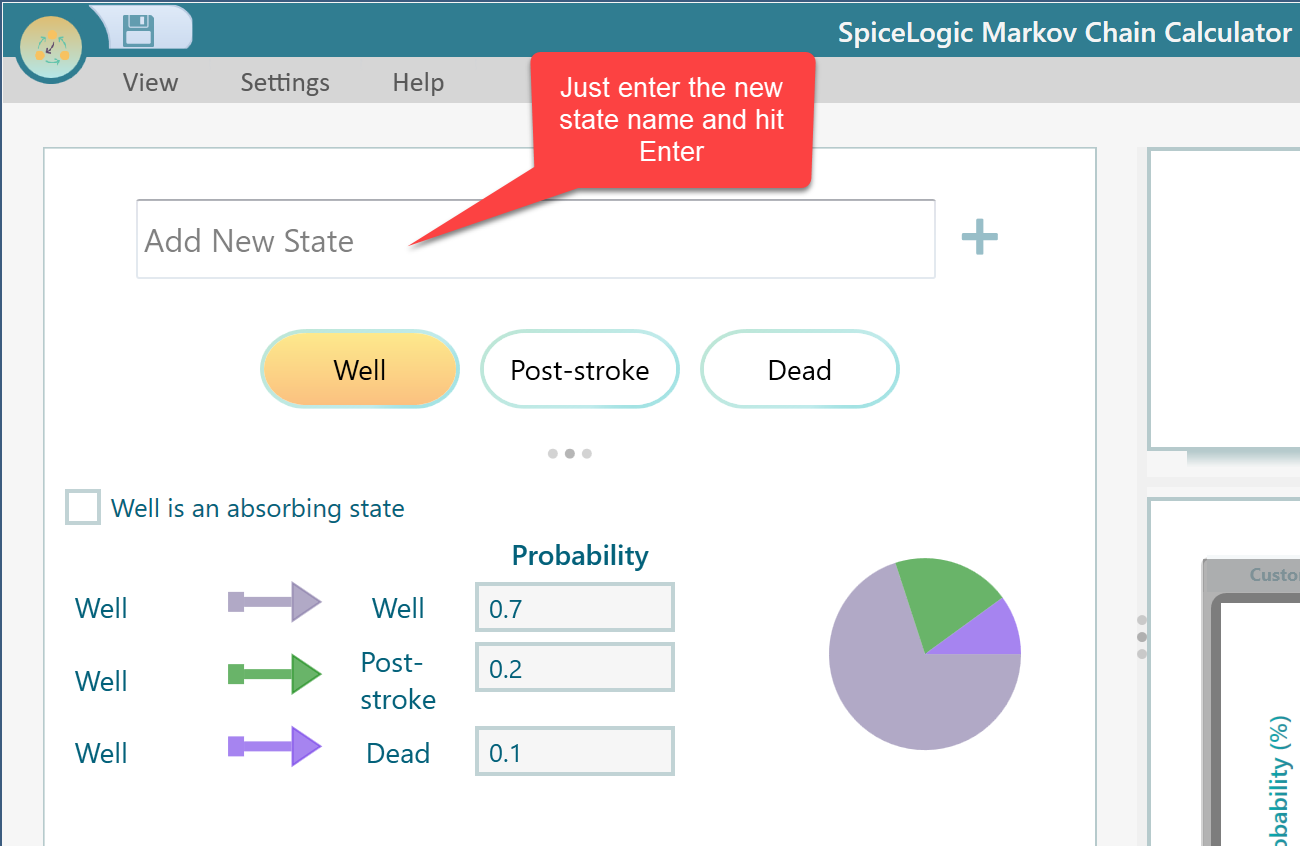
To add a new state, type the new state name into the input box and press the Enter key. That is all it takes. The new state joins the chain right away. For example, if you started with Well and Sick and later realize you need a Recovered state too, just type Recovered, press Enter, and it shows up alongside the others. From there you can set its transition probabilities the same way as the rest.
Edit or Delete a State
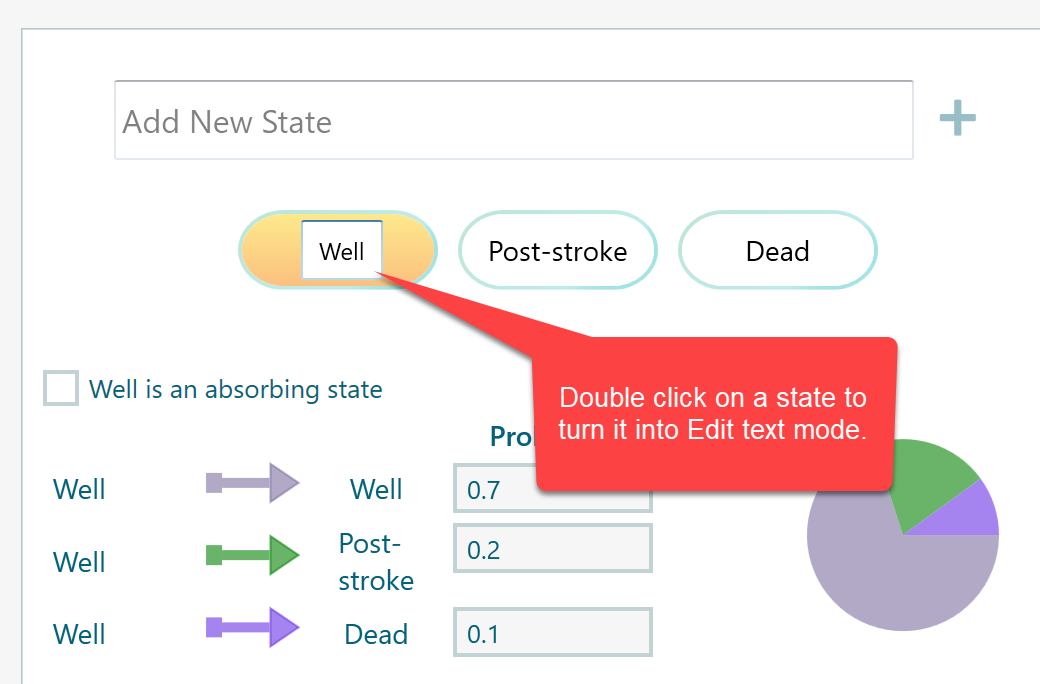
If you spot a typo in a state name, or you just want to call it something clearer, you do not have to rebuild the model. Edit the name right where it sits in the state list, and the change takes effect for that state.
This comes in handy more often than you would think. Say you were in a hurry and named a state S1 just to get moving. Later you can edit it to Sick so the model reads plainly when you come back to it. The transition probabilities you already set stay with the state, so renaming does not cost you any work.
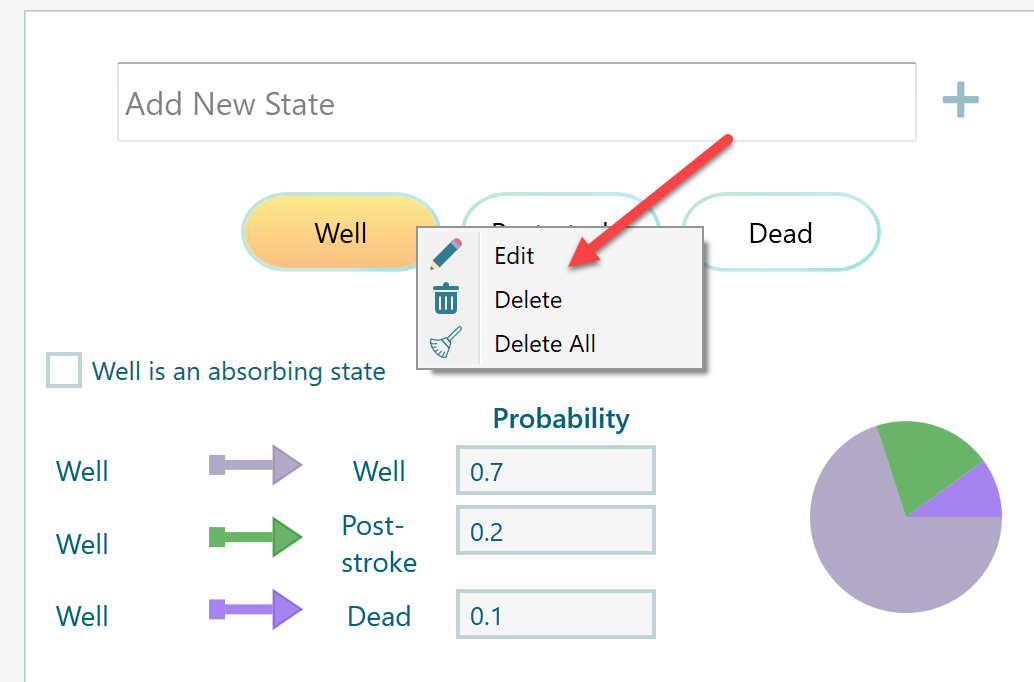
There is also a quicker way to make changes. Right-click on a state and a small menu appears with the commands you need. From there you can Edit the state to rename it, Delete a single state to remove just that one, or Delete All to clear every state at once and start over.
Use Delete All with care. It wipes out the whole list of states in one go, so reach for it only when you really do want a clean slate, for example when you are setting up a brand new model. If you just want to drop one state and keep the rest, the single Delete is the safer choice.
That covers the everyday edits: changing transition probabilities, adding a state, renaming a state, and removing states. Make your changes, and the calculator works with the updated model right away, so you can see how the results shift. A good way to learn the model is to tweak one number, look at what changes, then tweak the next. Small edits like that make it easy to spot how each state and each probability affects the outcome.