Managing Criteria and Sub-criteria


There are two ways you can navigate to the Criteria/sub-criteria page. 

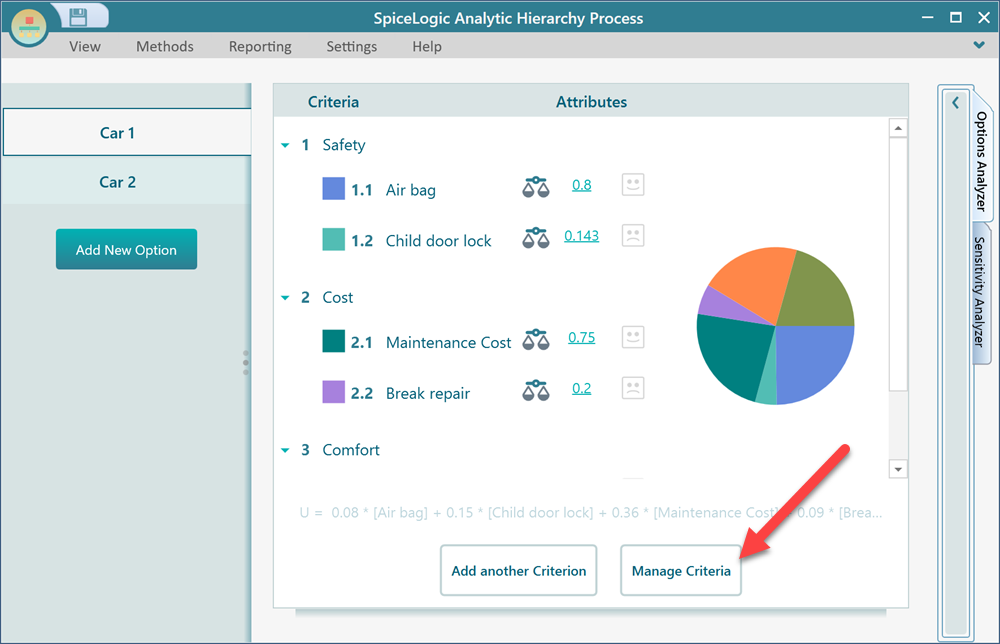
Option 1: You will see a button on the options page "Manage Criteria". Clicking that button will take you to the Criteria/sub-criteria page.

AHP Software Options page with the 'Manage Criteria' button highlighted; clicking it navigates to the Criteria and sub-criteria diagram page.

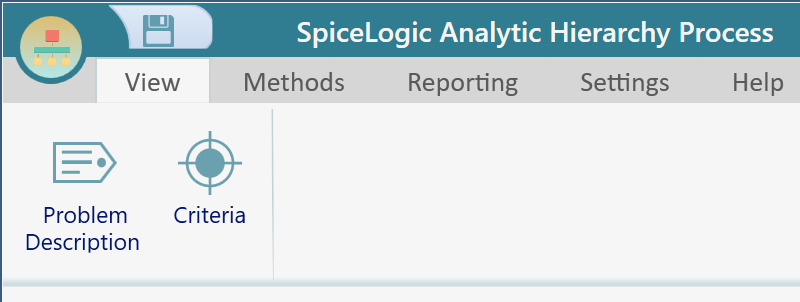
Option 2: You can find the "Criteria" button on the "View" menu. 


AHP Software View menu expanded with the 'Criteria' command highlighted, an alternate way to open the Criteria and sub-criteria diagram page.

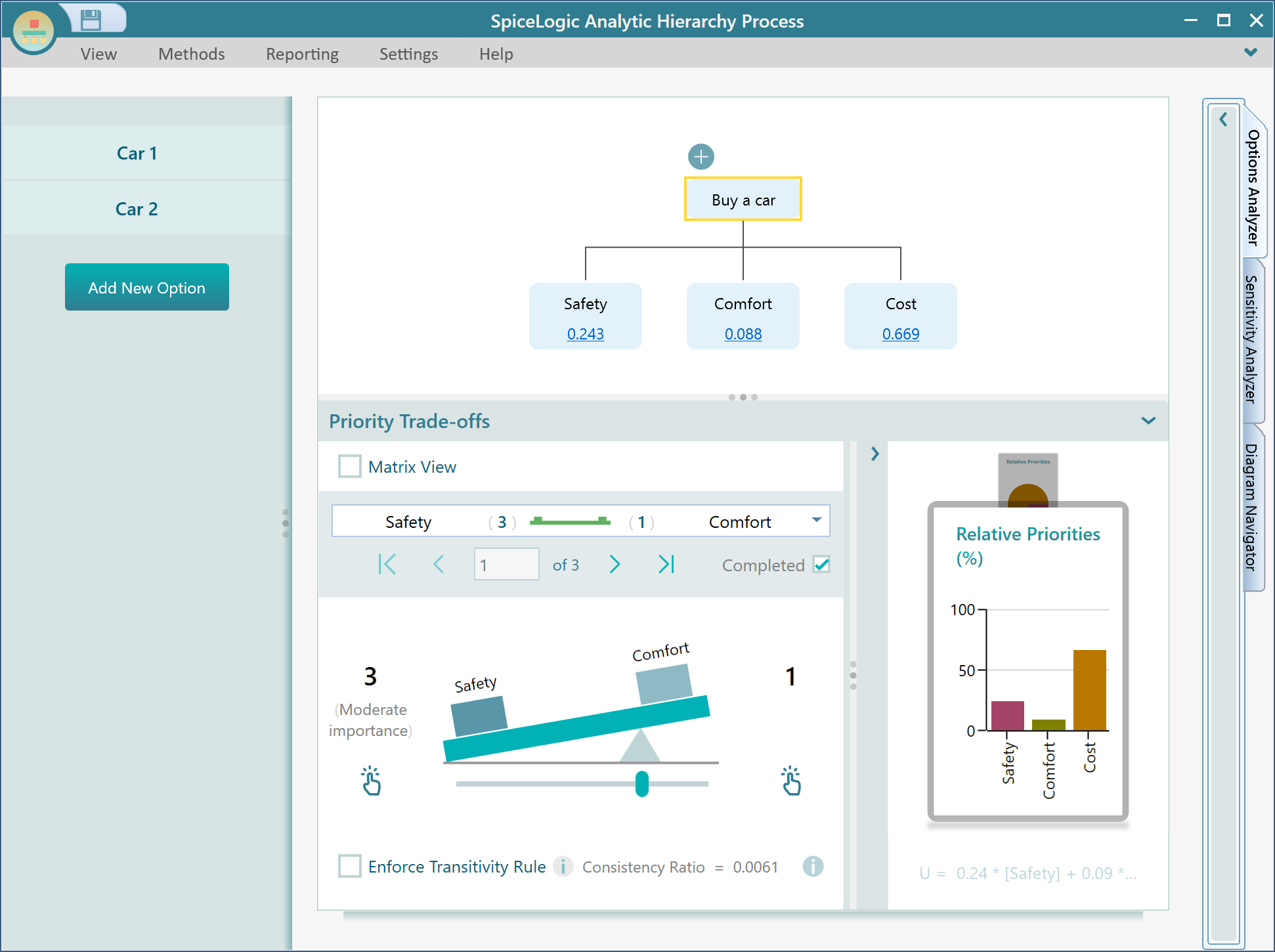
Once you click that button, you will land on the Criteria page as shown below.

AHP Software Criteria and sub-criteria diagram page showing the hierarchical model tree with the Goal node at the top branching into criteria such as Safety, Cost, and Comfort.


Adding a new Criteria or Sub Criteria.

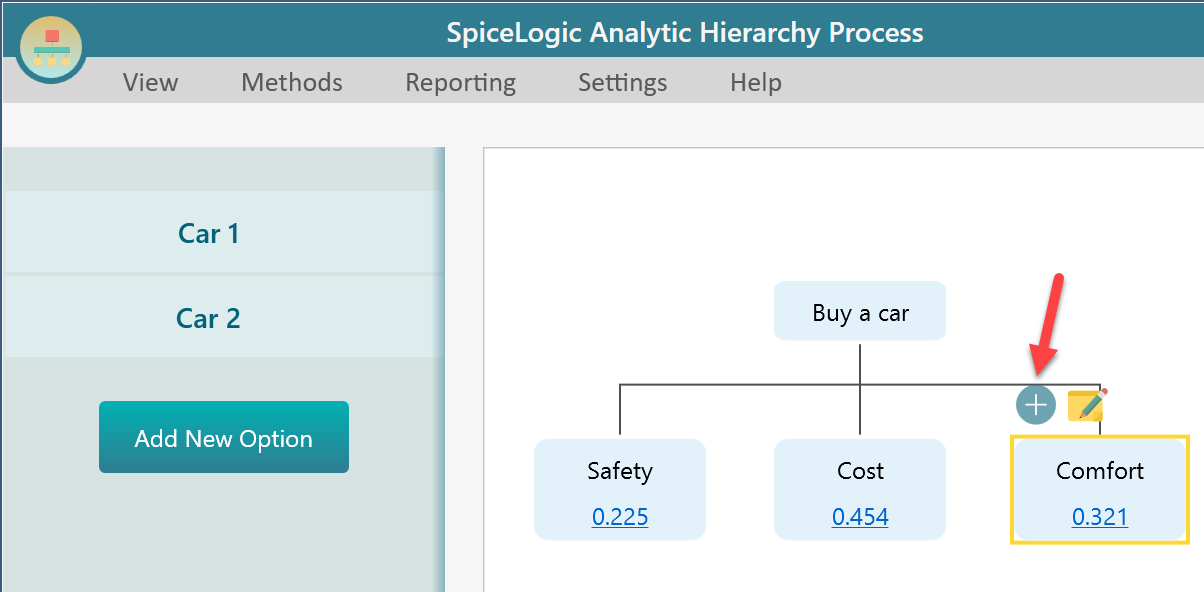
Notice that, a diagram is shown that represents your Analytic Hierarchy Process model. The root node is your Goal and all other nodes are your criteria and sub-criteria. Select any node and you will see a fly-over menu with a + symbol. Click that fly-over menu item to add new criteria or sub-criteria. For example, if I want to add a sub-criteria for the criteria "Comfort", I would select the "Comfort" node and click the "+" button from the fly-over menu of that node.

AHP Software criteria diagram with the Comfort node selected and a fly-over menu next to it exposing the plus (Add) button used to attach a new sub-criterion.

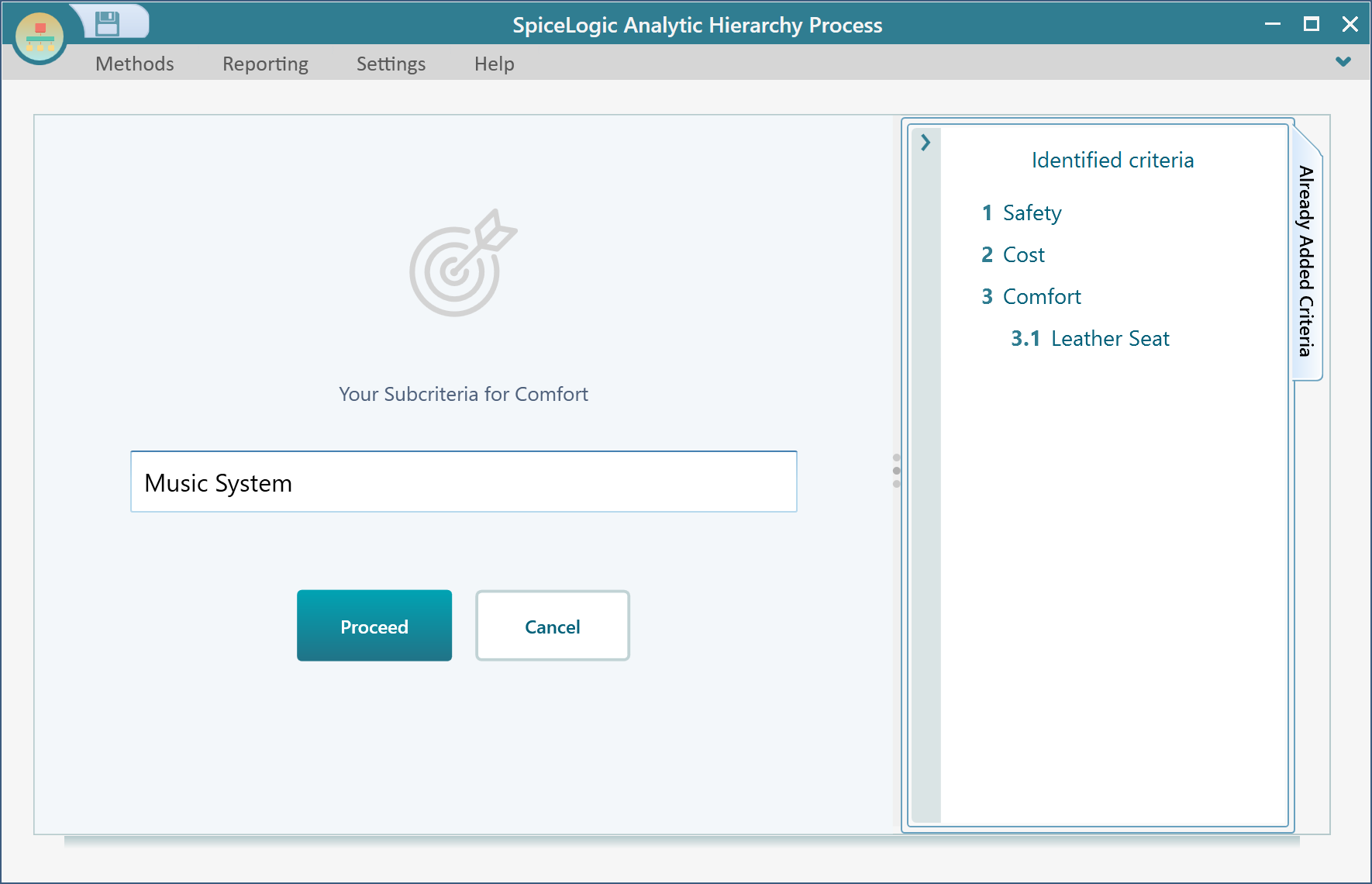
Once you click the Add button, the wizard will start to capture your new sub-criteria.

AHP Software Add Criterion wizard launched from the diagram's fly-over plus button, ready to capture the name of a new criterion or sub-criterion.

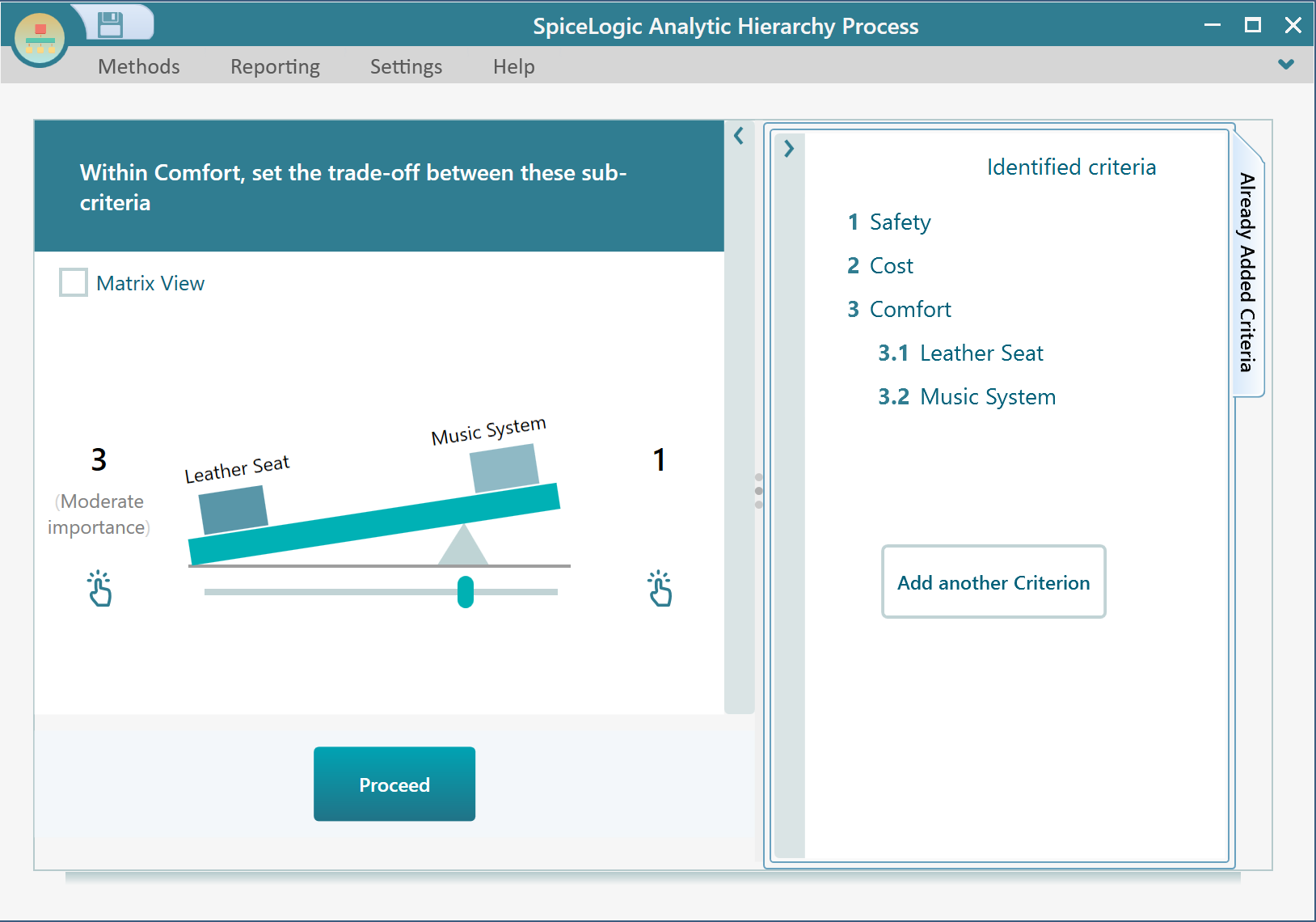
This is the same wizard that you are familiar with from the time you created your model for the first time. You can keep adding a set of sub-criteria and click the Proceed button. Once you are done adding your sub-criteria and proceed, you will see the Pairwise comparison set will appear because, once you add a new item in your AHP model, your pairwise comparisons with respect to this new item needs to be captured.

AHP Software Add Criterion wizard pairwise comparison step shown after a new sub-criterion is added, prompting the user to capture comparisons against the existing siblings.

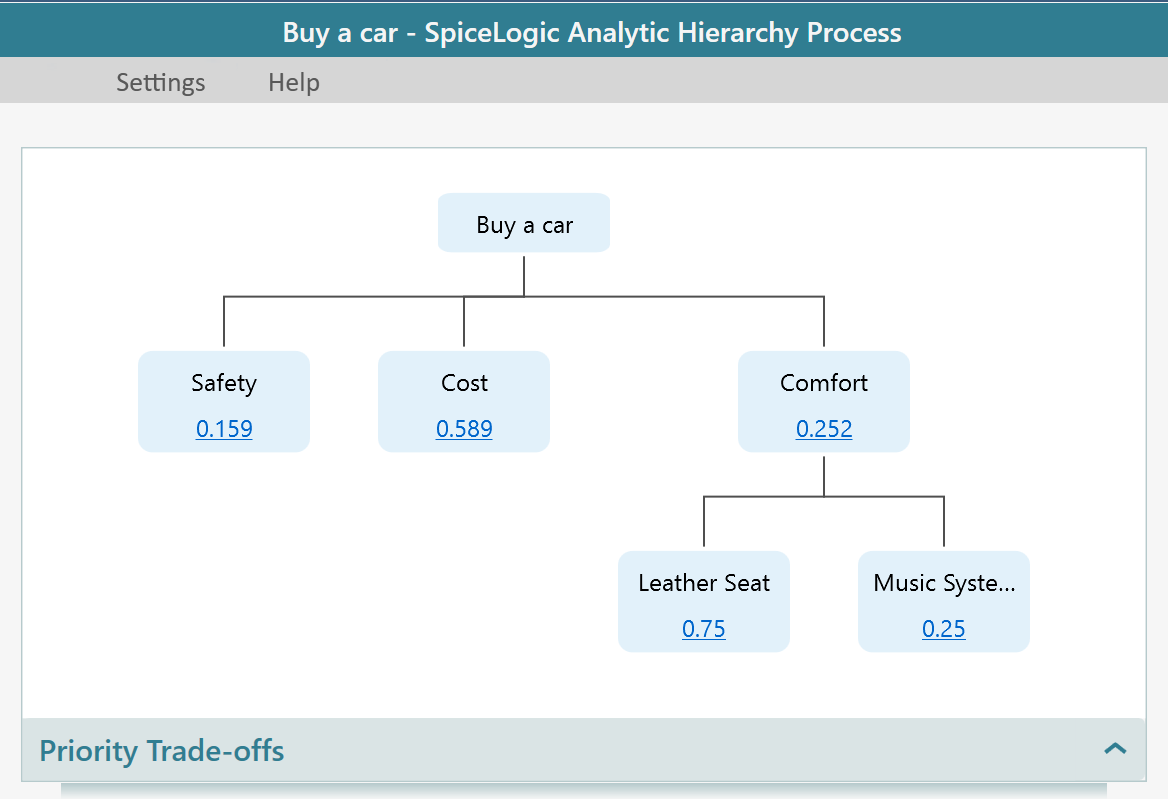
Notice that, there is a "Add another criterion" button in this panel. You can click that button to crate another criterion as well. After finishing all pairwise comparisons, you will get back to the Criteria/sub-criteria diagram page. You will see your newly added two sub-criteria. 

AHP Software criteria diagram updated to show two newly added sub-criteria branching beneath the Comfort node after the Add Criterion wizard finishes.

If you want to add top-level criteria, just select the root node (Your Goal node). And then click the "Add +" button. For example, in the above case, select the topmost node "Buy a car" and then click the "+" button from the fly-over menu.

Editing / Renaming a Criteria or a Sub-Criteria

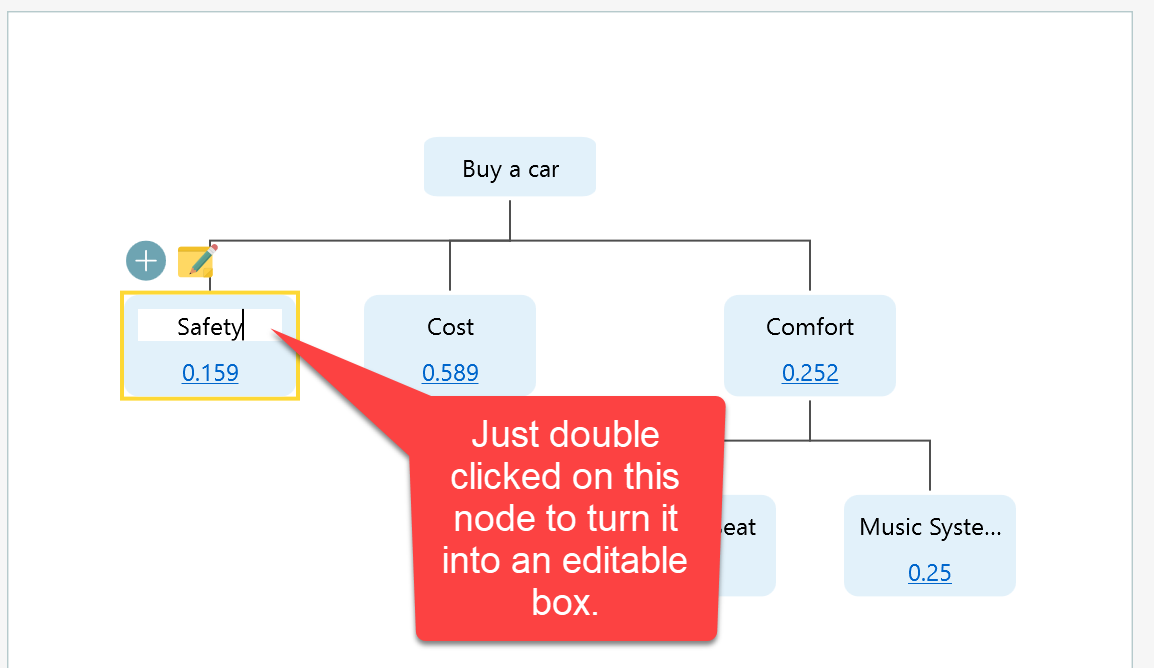
Editing a criterion or a sub-criterion is super simple. Just double click on a node and you will see the Node turns into an editable box. Then change the text and hit the Enter key, your node will be updated with the new name. Once in Edit mode, hit the ESC button to cancel the change.

AHP Software criteria diagram with a node double-clicked into an inline editable textbox so the criterion can be renamed without leaving the diagram.


Deleting a Criterion or a Sub-criterion

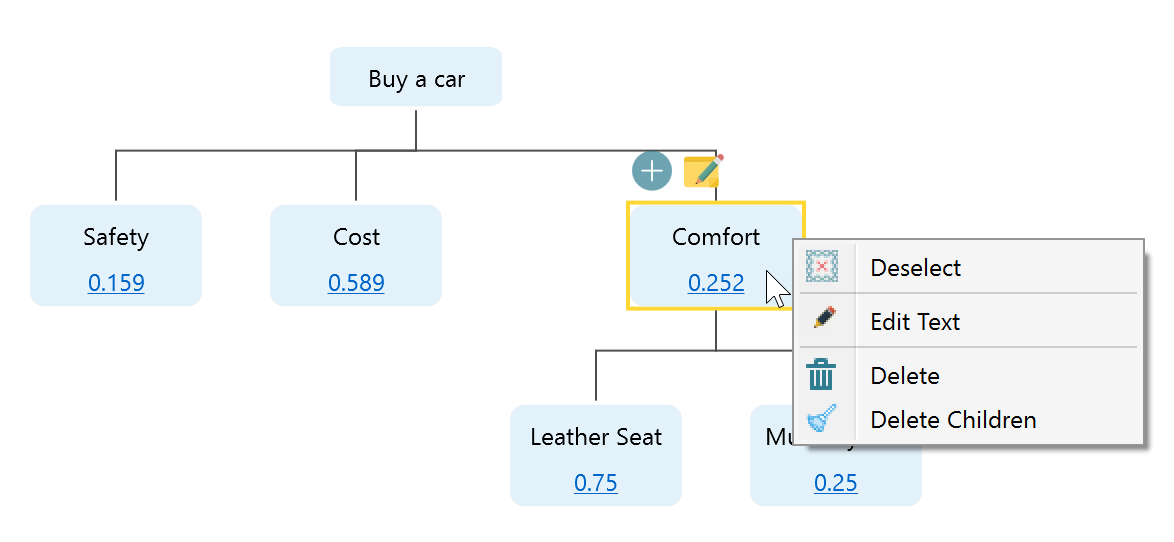
You can select a node in the diagram and hit the DELETE key to delete. You can right mouse click on a node to bring the context menu of the node, then you will see the Delete option there as well. In the following screenshot, we can see that the Delete option is shown for the context menu of "Comfort". Also notice that there is another context menu item "Delete Children". This menu item is useful if you want to delete the whole sub-tree of the selected node.

AHP Software criteria diagram right-click context menu on the Comfort node, exposing Deselect, Edit Text, Delete, and Delete Children commands for renaming the node or removing it (with or without its sub-tree).

Changing the Diagram Layout or Zoom

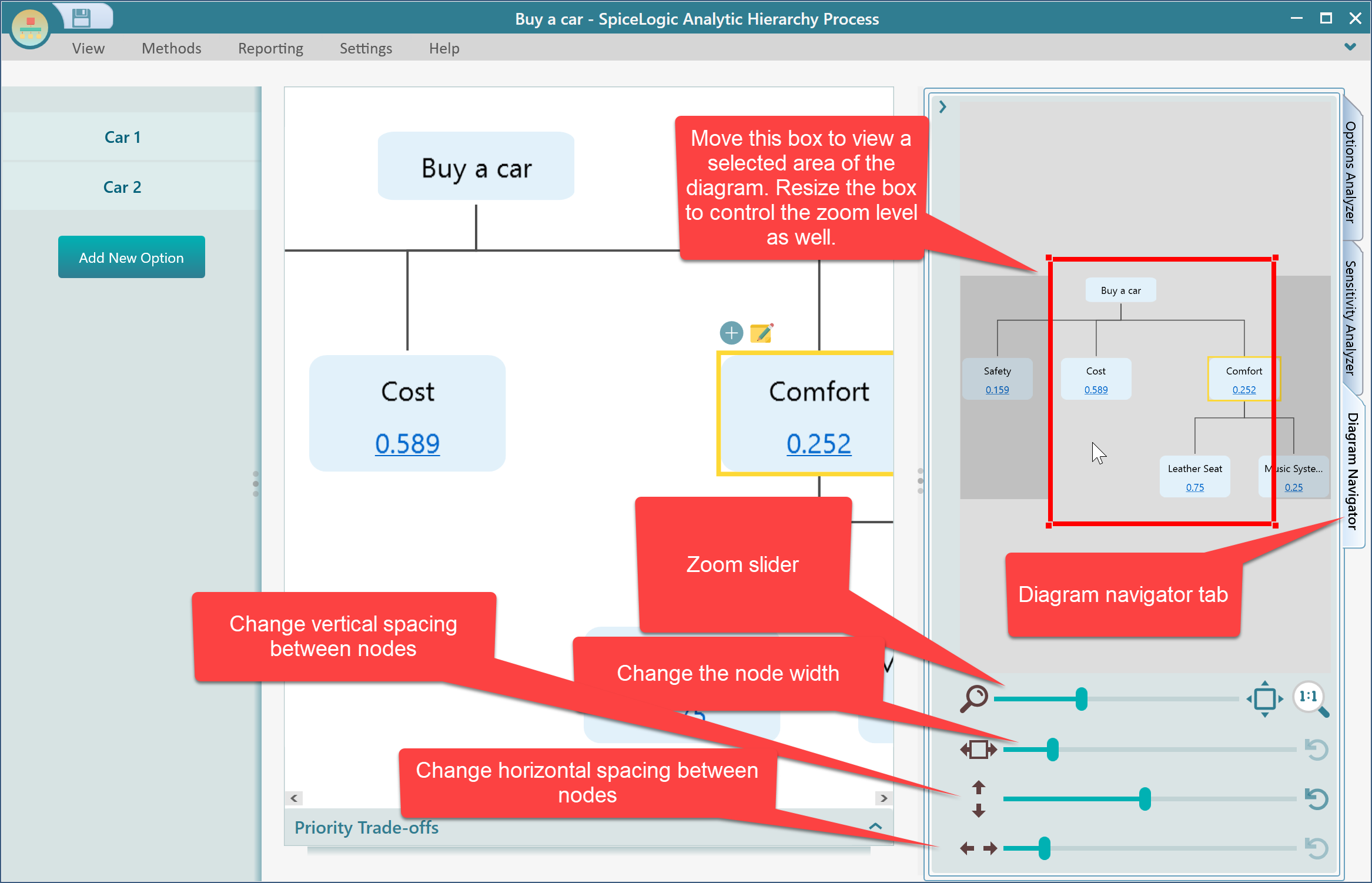
When the Criteria / sub-criteria page is shown, you will find a Diagram navigator tab available. From that panel, you will be able to change the zoom level, pan, and zoom, increase the width of the nodes, change the horizontal or vertical spacing, etc.

AHP Software Diagram Navigator panel with controls for zoom level, panning, node width, and horizontal and vertical spacing of the criteria diagram.

Copy or Save the Diagram Image

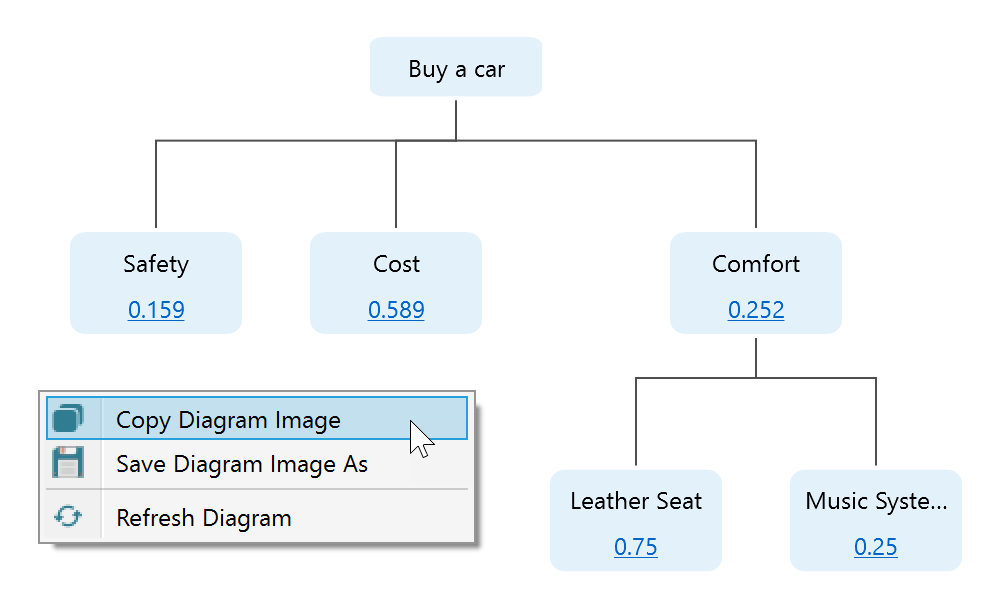
Just right-click on the diagram to bring a context menu. You will find the option to copy or save the diagram.

AHP Software criteria diagram right-click context menu offering Copy Diagram Image, Save Diagram Image As, and Refresh Diagram commands for exporting or rebuilding the criteria hierarchy view.

Changing the pairwise comparison of Criteria and Sub-criteria

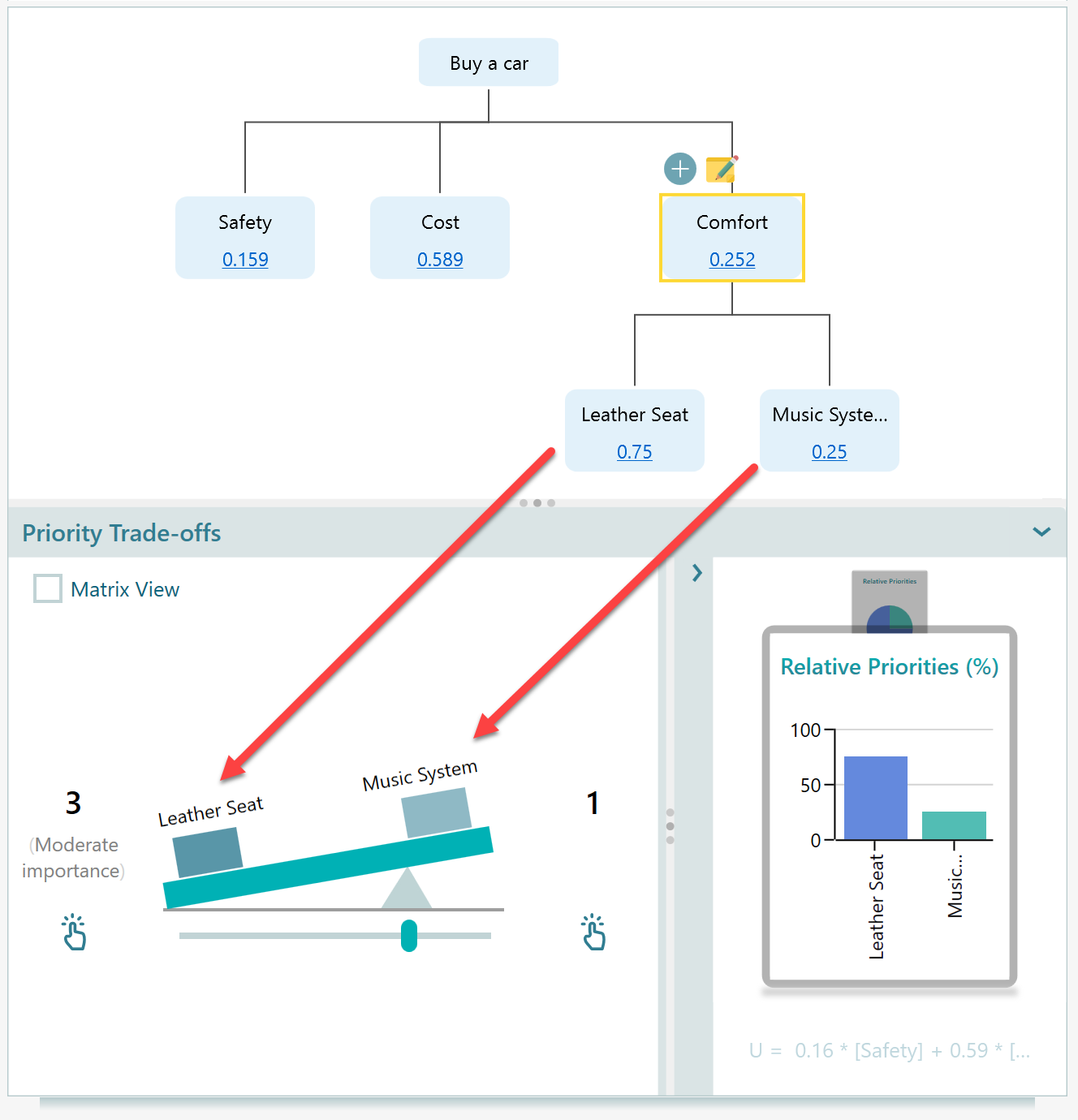
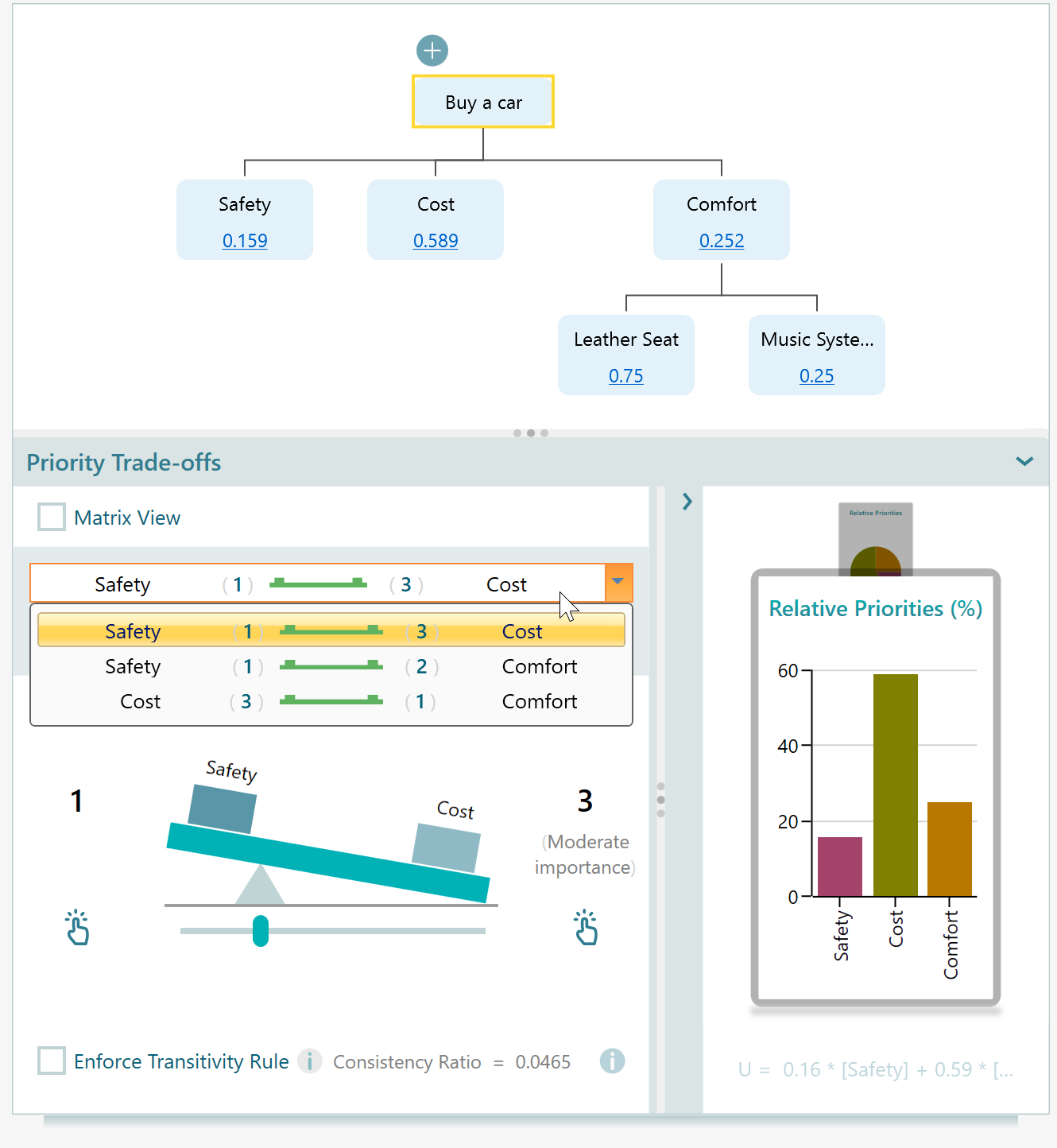
If you want to change the pairwise comparison of any criteria set or its sub-criteria set, notice the bottom panel "Priority Trade-offs". You will see the sub-criteria set is loaded as pairwise comparison items. For example, in the following diagram, the "Comfort" node is selected. So, you will see the pairwise comparison panel shows the sub-criteria comparison of the 'Comfort' node.

AHP Software Priority Trade-offs bottom panel loaded with the pairwise comparisons of the sub-criteria under the currently selected Comfort node.

If you now select the root node "Buy a car", then you will see the pairwise comparison for the first level of criteria "Safety", "Cost" and "Comfort".

AHP Software Priority Trade-offs panel showing the first-level criteria comparisons (Safety, Cost, Comfort) that load when the root goal node 'Buy a car' is selected.

Check the Matrix view checkbox to see the pairwise comparison matrix.
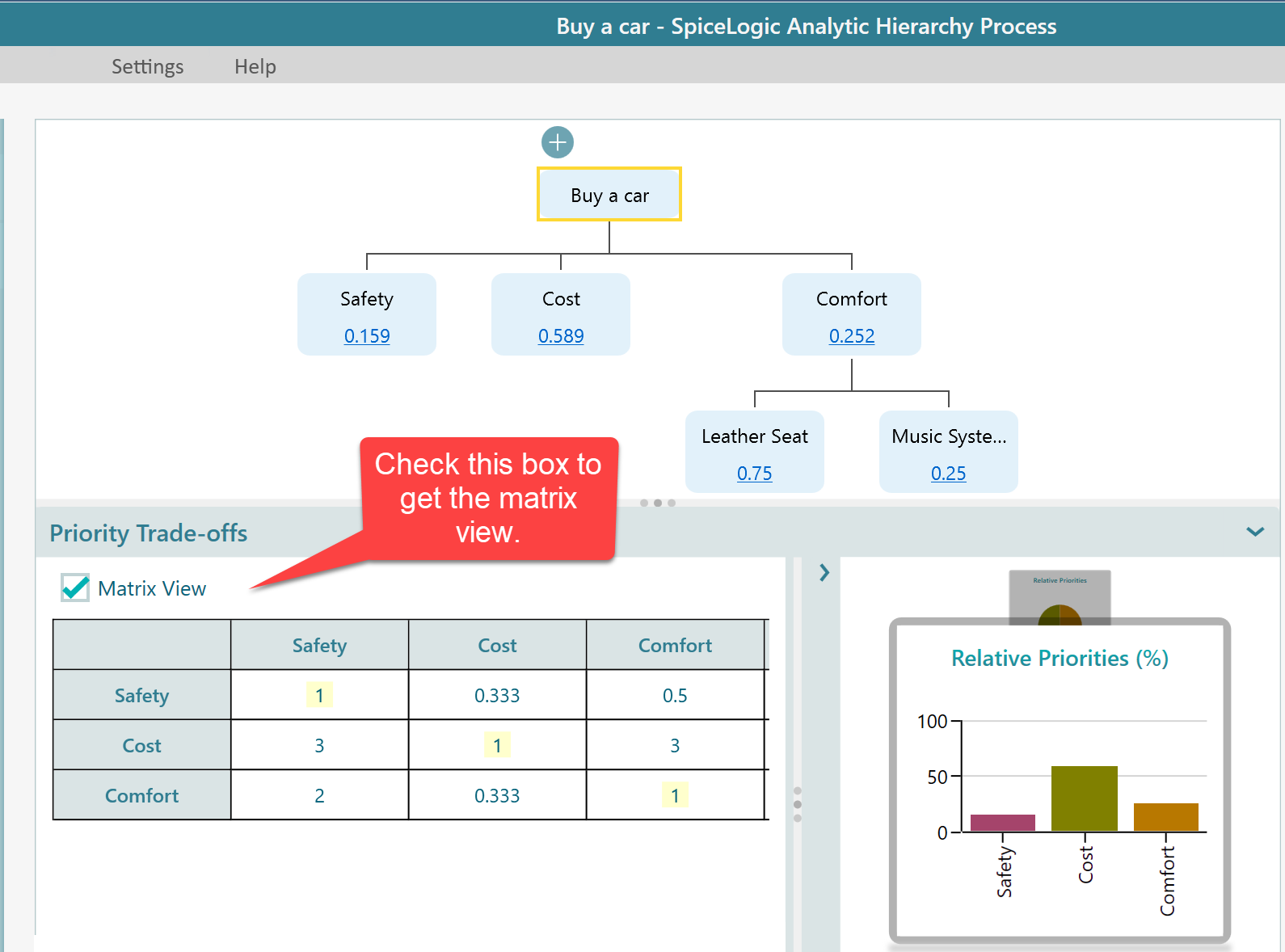
AHP Software Priority Trade-offs panel with the 'Matrix view' checkbox ticked, which switches the panel from one-pair-at-a-time slider mode to a full reciprocal matrix view.

Clicking on a cell on this matrix will invoke the corresponding pairwise comparison window.
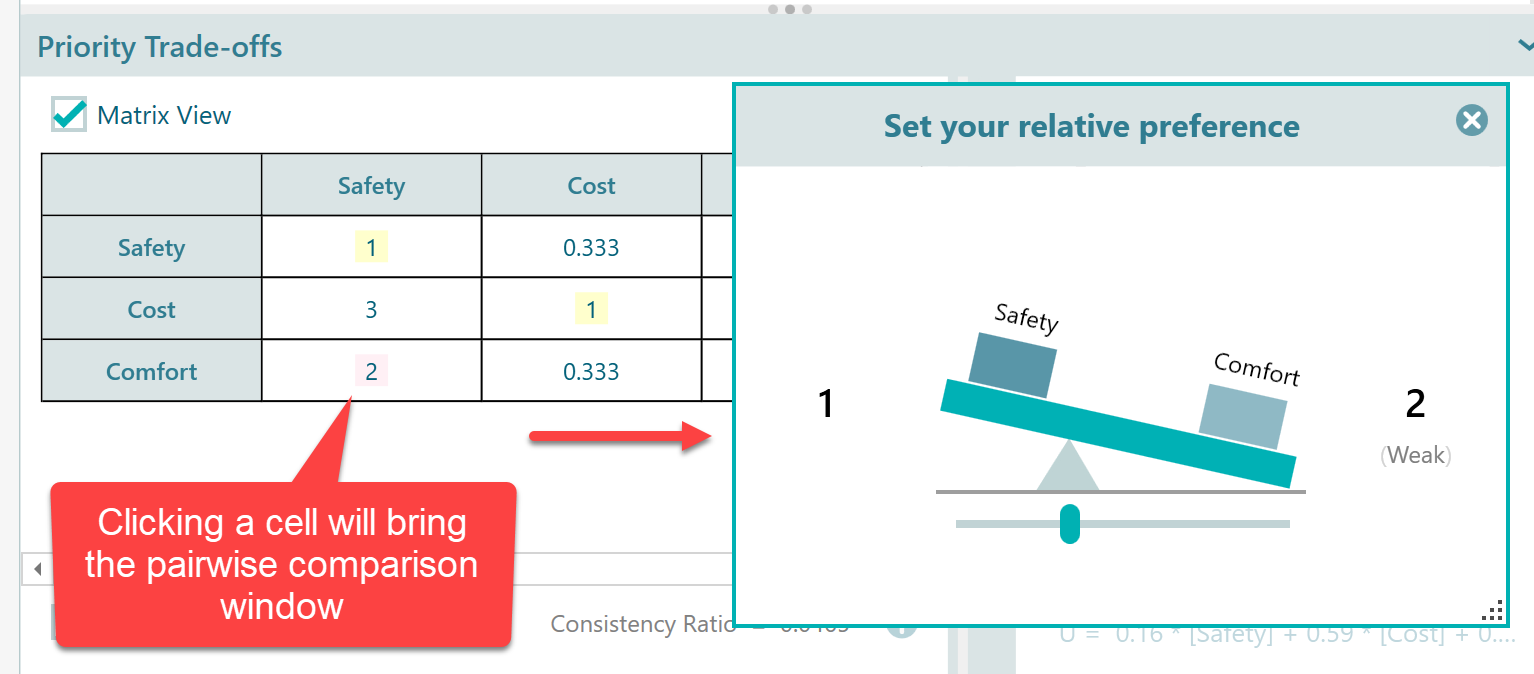
AHP Software pairwise comparison matrix view where clicking a cell opens the corresponding single-pair comparison dialog for editing that judgment.
Last updated on Feb 10, 2022